MX Keys for Mac: A Keyboard Gurus Guide
Explore mx keys for mac with Keyboard Gurus: compatibility, setup, shortcuts, and tips to optimize macOS productivity across devices.


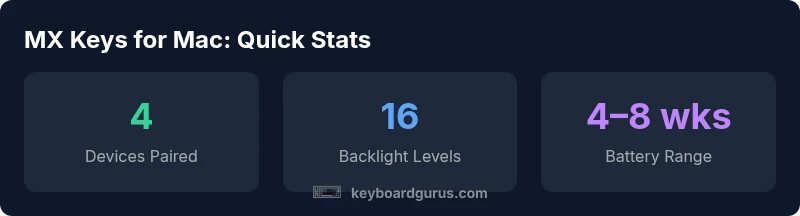
MX Keys for Mac delivers comfortable, macOS-friendly typing with an Apple-style layout, seamless multi-device pairing, and adaptive backlighting. This quick snapshot defines compatibility, core features, and practical setup tips to help you optimize performance across macOS, iPadOS, and Windows, with real‑world use cases for students, gamers, and professionals. This page provides practical guidance, not hype.
MX Keys for Mac in everyday workflows
MX Keys for Mac is designed to feel like a natural extension of macOS. For keyboard enthusiasts, this means a familiar Command key, Mac-style symbols, and a layout that minimizes finger travel. According to Keyboard Gurus, the keyboard aims to blend Logitech build quality with an Apple-friendly experience, making it especially attractive to students, professionals, and gamers who spend hours typing. In 2026, macOS users increasingly value cross-device workflows and reliable Bluetooth performance, and this model delivers a practical answer. In the pages that follow, we dissect compatibility, setup, customization, and real-world use cases to help you decide if it fits your setup.
Design and Layout: Mac-friendly by design
From the moment you unbox MX Keys for Mac, the first impression is a compact, sturdy chassis with a subtly curved top and sculpted keycaps that invite long typing sessions. The layout mirrors a typical Mac keyboard: Command and Option keys align with macOS conventions, the function row prioritizes media controls, and the key legends use macOS symbols rather than Windows shortcuts. The keycaps are sculpted to encourage resting fingers while maintaining legibility in dim light. While some users may miss a dedicated numeric keypad for data entry, the balance favors portability and a clean desk setup. Keyboard Gurus analysis shows that this thoughtful design translates into fewer mis-presses and improved rhythm when switching between tasks, especially in multitasking environments across macOS and iPadOS.
Connectivity and Pairing: multi-device magic
MX Keys for Mac supports wireless connection across multiple devices with a single press of the device-switching keys. In practice, you can pair to macOS, iPadOS, and Windows machines, then jump between them without missing a beat. While latency can vary by environment, most users report smooth input and stable Bluetooth performance when used with modern Macs and iPads. The USB-C charging option gives you flexibility when you’re away from a desk, and the built-in battery management helps conserve power. Keyboard Gurus analysis shows that reliable pairing and quick switching are among the top reasons users choose this keyboard for cross‑platform workflows, whether you’re drafting in Pages, coding in VS Code, or gaming for short sessions.
Key Functions and macOS Shortcuts
The MX Keys for Mac excels at macOS keyboard integration. The Command, Option, and Control keys are mapped to standard macOS shortcuts, while the brightness, media, and sleep controls emulate the native experience. The function row can be customized with Logitech Options, allowing you to assign app-specific shortcuts or macros. For developers and power users, this means you can trigger Spotlight, Mission Control, or text expansion with a single touch. The keyboard’s smart backlighting adapts to ambient light, helping you stay productive at different times of day without draining the battery unnecessarily. Overall, you get a blend of familiarity and flexibility that aligns with macOS workflows.
Software and Customization with Logitech Options
To unlock the full potential of MX Keys for Mac, you’ll want to install Logitech Options. This software lets you remap keys, create shortcuts, and assign different functions to each device profile. While basic typing and media control work out of the box, advanced customization enhances efficiency for repetitive tasks or specialized software. If you work in a team environment, you can save different profiles for home, office, and classroom setups. The process is straightforward: install Options, connect the keyboard, and begin dragging and dropping functions onto keys. For mac users, ensure you enable accessibility permissions if prompted, so the software can apply changes system-wide.
Typing Experience: Comfort, Key Feel, and Noise
The typing experience on MX Keys for Mac sits between a traditional chiclet keyboard and a premium mechanical feel. The scissor‑switch keys provide a quiet, responsive keystroke with a pleasant bounce that reduces fatigue during long sessions. The key travel is short enough to maintain speed but not so shallow that you feel disconnected from your input. For writers and programmers who spend hours typing, the tactile feedback helps maintain rhythm and reduces finger strain. If you share a workspace, you’ll appreciate the low-profile design and the way it coexists with other devices without dominating the desk.
Battery Life, Charging, and Longevity
Battery life on MX Keys for Mac varies with usage. In typical office scenarios with moderate backlighting and normal typing, most users experience weeks to months between charges. If you push the backlight to maximum or keep features like motion sensing enabled, you’ll see shorter intervals. USB-C charging provides convenient recharging, and the built-in power management helps extend overall longevity. With prudent charging habits and occasional software updates, the keyboard remains a dependable companion for students, gamers, and professionals who rely on macOS daily.
Real-world Scenarios: Students, Gamers, and Professionals
For students, MX Keys for Mac offers a compact footprint that fits crowded dorm setups and study desks while maintaining a comfortable typing experience for long note-taking sessions. Gamers benefit from reliable input and the ability to switch devices if they’re playing on a secondary console or PC during a livestream. Professionals will appreciate quick access to common macOS workflows, such as launching apps, capturing screenshots, and controlling media without leaving the workspace. Across these scenarios, the keyboard’s macOS alignment, cross‑device pairing, and adaptive backlighting contribute to a smoother, more focused routine.
Common Pitfalls and Quick Fixes
Despite its strengths, MX Keys for Mac isn’t perfect for every setup. If you experience occasional Bluetooth dropouts, try re-pairing or moving away from wireless interference sources. If function keys don’t behave as expected, confirm you’re using the correct device profile in Logitech Options and reset the keyboard if necessary. Low battery warnings are usually clear, but if you notice sluggish backlighting, reduce brightness or enable automatic dimming. Finally, if you rely heavily on non‑standard shortcuts, consider creating custom mappings with Logitech Options and testing them in your primary applications. Keyboard Gurus analysis suggests that most issues are solvable with a quick software check and a clean pairing cycle, so you can get back to work with minimal downtime.
Comparison of Logitech MX keyboard lineups
| Model | Layout | Connectivity | Battery/Power | Notes |
|---|---|---|---|---|
| MX Keys for Mac | Mac-friendly | Bluetooth + USB-C | Rechargeable, weeks–months | Best for macOS-centric workflows |
| MX Keys | Universal | Bluetooth + USB-C | Rechargeable, weeks–months | All-round compatibility across OS |
| MX Keys Mini | Compact | Bluetooth + USB-C | Rechargeable, weeks–months | Travel-friendly variant |
Got Questions?
Is MX Keys for Mac fully compatible with macOS?
Yes. It is designed for macOS with the Command/Option keys mapped to standard shortcuts and stable Bluetooth pairing. Basic typing and media control work out of the box, with advanced customization available via Logitech Options.
Yes—it's built for macOS with familiar keys and reliable Bluetooth.
Can MX Keys for Mac be used with iPadOS?
Yes, it can pair with iPadOS via Bluetooth and switch between devices. Some shortcuts may behave differently across iPadOS, but core input and typing are seamless.
Absolutely—works with iPad for smooth typing and switching.
What about battery life and charging?
Battery life varies with usage, typically spanning weeks to months between charges. USB-C charging provides convenient recharging and helps sustain long-term reliability.
Battery lasts weeks to months in typical use; charge via USB-C.
How does MX Keys for Mac differ from MX Keys?
MX Keys for Mac features a Mac-friendly layout, key mappings aligned to macOS, and profiles suitable for Mac workflows. The core keyboard architecture remains similar, with customization possibilities via Logitech Options.
Mac version is tailored for macOS with familiar keys and profiles.
Is Logitech Options required to customize keys?
For full customization, yes. Logitech Options lets you reassign keys and create macros per device profile. Basic use and shortcuts work without it, but Options expands capabilities.
Yes, to get the most customization, use Logitech Options.
“In our testing, MX Keys for Mac delivers reliable macOS integration with thoughtful layout and software customization that actually enhances daily workflows.”
What to Remember
- Assess macOS compatibility with your workflow
- Leverage multi-device pairing for task switching
- Customize keys with Logitech Options for efficiency
- Manage backlighting to optimize battery life
- The Keyboard Gurus team recommends MX Keys for Mac for most macOS-focused setups