Celeste Keyboard vs Controller: A Thorough Comparison
Explore the Celeste keyboard vs controller debate with an analytical comparison covering precision, ergonomics, mapping, and setup tips to help players choose the best approach.


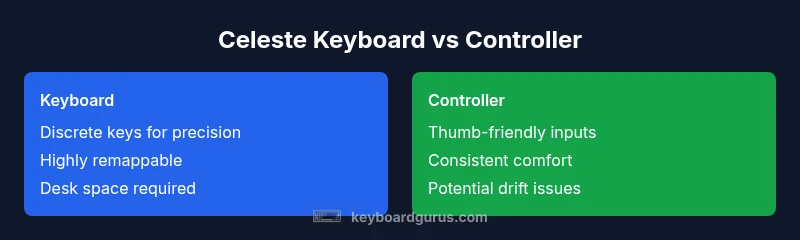
In the celeste keyboard vs controller debate, precision and persistence often decide the winner for speedrunners, while comfort and consistency win over casual players. According to Keyboard Gurus, keyboards tend to offer finer control for micro-movements and sequences, but controllers excel in thumb-driven navigation and fatigue resistance over long sessions. This quick answer frames the key trade-offs and sets up a deeper, data-informed comparison for players across platforms and playstyles.
Why Celeste Players Consider Input Methods
In the world of Celeste, the choice between a keyboard and a controller shapes your approach to the game’s demanding jump sequences, dash windows, and wall-grab mechanics. The Celeste keyboard vs controller discussion is less about a single universally preferred device and more about how your reflexes, goals, and setup map onto inputs. The Keyboard Gurus team notes that keyboard users often enjoy rapid access to multiple actions and tighter spacing for micro-adjustments, while controller users praise the thumb-centric control scheme that feels natural for the game’s core combos. For speedrun aspirants, the decision often hinges on button placement, finger dexterity, and how remapping could affect late-game runs. For casual players, comfort and consistency might trump peak precision. As you read, consider your typical play style, whether you run for PBs or play for fun, and how your environment (desk space, platform, and peripherals) influences your choice.
Core Differences Between Keyboard and Controller for Celeste
The layout of a keyboard versus a typical game controller creates fundamentally different interaction models. With a keyboard, players map Jump, Dash, and Grab to distinct keys, plus movement with WASD or arrow keys, enabling rapid, independent inputs. This separation can yield precise timing for complex sequences, wall jumps, and dash-cancel patterns. Conversely, a controller centers movement on the left thumbstick and action buttons on the right, which produces a natural flow for continuous momentum but may limit simultaneous multi-key combos. Platform differences (PC vs console) also affect latency and perceptual feedback, yet the core trade-off remains: raw precision and speed versus ergonomic comfort and intuitive control.
Precision, Timing, and Movement Mechanics
Celeste demands split-second timing and consistent muscle memory. A keyboard’s discrete keys allow micro-adjustments and quick, independent actions that can shave milliseconds off jumps or dashes. However, the learning curve can be steeper because you must coordinate more individual inputs without the natural resting position of a controller. Controllers, with their analog input and thumb-sticking, offer smooth directional control and reduced finger travel, which is advantageous during long runs or fatigue-heavy sessions. The key is to practice tailored timing drills on your chosen device, then gradually introduce advanced routes to assess where your strengths lie.
Mapping Flexibility and Customization Options
Keyboard setups shine in customization. You can remap every action, assign macros for complex sequences, and create layered profiles for different routes or speedrun categories. Software like keyboard firmware and macro utilities can help optimize inputs for specific Celeste sections. Controllers provide simplicity and consistency by default, often with fewer setup steps. Some players add paddles or back buttons to controllers to replicate extra inputs, but this adds hardware complexity. The overarching takeaway is that long-term improvement usually correlates with the depth of your input customization, not just the base device.
Ergonomics, Comfort, and Long Sessions
Ergonomics play a major role in comfort across long Celeste sessions. A keyboard can promote rigid wrist positions if your desk setup isn’t ideal, potentially leading to fatigue or strain without proper rests and posture. A controller, especially a compact or ergonomically shaped model, tends to place the hands in a more natural pose for hours of play and can reduce fatigue on the thumbs. Your choice should consider hand size, grip preference, and whether you’re prone to repetitive strain. Regular breaks and a proper chair height are essential with either device.
Learning Curve, Muscle Memory, and Practice Routines
Building muscle memory for Celeste on a keyboard requires developing spatial awareness across multiple keys and coordinating jumps, dashes, and climbs in a fluid rhythm. A controller can shorten the initial learning curve because of the unified grip and consistent button placement, but mastering the timing of wall jumps and rope ascents remains demanding. Structured practice that targets specific routes—beginner, mid-game, and expert—helps both setups, while recording runs and reviewing frames can accelerate progress.
Setup Scenarios: PC vs Console and Peripheral Choices
On PC, a keyboard offers direct access to numerous actions and rapid remapping, while a controller provides comfort and familiarity for players who prefer thumb-based navigation. Console players will typically rely on a standard gamepad, which makes controller-based play the default path. If you mix platforms, consider hardware adapters or cross-compatible controllers to maintain consistency. When selecting peripherals, prioritize a reliable input device with comfortable key travel or analog feel, a stable grip, and a setup that reduces wrist strain during marathon sessions.
Competitive Play and Consistency: What Pros Prefer
In competitive Celeste play, precision often guides device choice. Keyboard users may be favored for routes that demand ultra-precise micro-movements, while controller players benefit from stable long-run consistency and comfortable cooldowns between segments. The best approach is to identify a setup that minimizes input variance and maximizes reliability over time. Experiment with key spacing, grip, and fatigue management to sustain performance across lengthy practice blocks and races.
Accessibility and Comfort for Different Playstyles
Accessibility considerations matter for players with different hand sizes or mobility limitations. A keyboard can be excellent for those who need rapid access to many keys, yet it can be challenging for players with wrist or finger fatigue. Controllers typically offer a more accessible grip and reduced finger strain, which can be crucial for longer sessions. The optimal device depends on your body, comfort thresholds, and personal preferences. Rotating through a few setups during training can reveal the best fit.
Practical Setup Guide: Getting Started with a Keyboard
If you choose a keyboard, start with a compact, responsive layout to minimize finger travel. Opt for mechanical switches with light to moderate actuation force for quick response without excessive noise. Map Jump to a comfortable key (often near the spacebar), Dash to an easily reachable secondary key, and Grab to a third key that won’t cause accidental activation. Practice basic sequences in a controlled drill, then progressively add wall jumps and platform transitions. Add a wrist rest and ensure your chair and desk height encourage neutral wrists.
Practical Setup Guide: Controller Ergonomics and Preferences
When using a controller, select a model with a comfortable grip that fits your hands and provides reliable analog inputs. Map Jump, Dash, and Grab to buttons that feel natural under your thumbs, and consider using back paddles if you want extra inputs without moving fingers away from the sticks. Adjust dead zones and sensitivity to ensure responsive yet predictable movement. Regularly check for controller drift and balance grip with posture to sustain accuracy in long runs.
Trade-offs and How to Decide: A Practical Framework
To decide between a Celeste keyboard or controller, start with your goals: precision and customization versus comfort and endurance. Evaluate your typical play sessions (short practice blocks versus extended runs), platform constraints, and whether you value rapid remapping or consistent thumb control. Try both devices in a controlled practice session and track your performance on a few routes. Use a simple scoring rubric: precision, speed, comfort, and setup effort, then choose the device that best balances these factors for your preferred routes and playstyle. Keyboard Gurus’s perspective emphasizes aligning input choice with personal comfort and performance goals, ensuring you don’t sacrifice consistency for the sake of feature-rich remapping.
Comparison
| Feature | Celeste Keyboard | Celeste Controller |
|---|---|---|
| Input latency | Low and predictable with wired setups | Low with good wireless controllers but can vary with interference |
| Precision and micro-movements | High due to discrete keys and fast rebound | Moderate; tight but coarser with thumb controls |
| Mapping flexibility | Extensive remapping and macros | Limited remapping; simpler default mappings |
| Ergonomics for long sessions | Can cause wrist strain without proper setup | Generally comfortable with rest-friendly grips |
| Best for | PB-focused routes and rapid sequences | Casual play and endurance runs |
| Price range | Low to mid-range depending on keyboard | Low to mid-range depending on controller model |
Advantages
- High precision and fast input for micro-mixes
- Extensive customization and remapping options
- Deep community knowledge and tutorials
- Potential for lower wrist fatigue with proper setup
Drawbacks
- Ergonomic strain risk without proper setup
- Learning curve for new players
- Requires more setup and software configuration
- Noise and space requirements on desks
Keyboard generally wins for precision and customization; controller wins for comfort and consistency
Choose keyboard if you prioritize micro-tine jumps and extensive remapping. Choose controller if you value comfort, natural motion, and steadier input during long practice sessions.
Got Questions?
Is Celeste easier with a keyboard or a controller?
The ease depends on your goals and comfort. A keyboard offers precise, rapid inputs that help with timing-critical routes, while a controller provides steady thumb-driven control and less finger strain for long sessions. Try both and measure your accuracy and speed on a few routes.
It depends on what you value—speed and precision with a keyboard, or comfort and steady control with a controller. Test both on a few routes to see what feels most reliable.
Do speedrunners prefer keyboard or controller for Celeste?
Many speedrunners favor keyboards for micro-timing and fast key combos, but a controller can be preferred for longer runs and muscular comfort. The best choice is the setup that minimizes input variance across routes you practice most.
Speedrunners often lean toward keyboards for precise timing, though controllers are popular for endurance.
Can I mix devices on PC or console?
Yes, on PC you can switch between keyboard and controller. On consoles, you’re typically tied to a single input device per session, though adapters exist. Consistency across play sessions is key to stable practice.
You can switch devices on PC, but try to stay consistent per session for best practice.
What about remapping or using macros for Celeste?
Remapping and macros can help with bespoke routes, but they must be used responsibly to avoid unintended inputs during timing-critical sections. Practice thoroughly with any remapped setup before using it in runs.
Remapping helps tailor routes—use it carefully and practice to avoid accidental inputs.
Does controller drift affect Celeste accuracy?
Controller drift can impact accuracy, especially with sensitive inputs. Regular calibration or choosing a controller with solid build quality helps maintain consistent input across play sessions.
Drift can throw off accuracy; keep your controller calibrated and replace if needed.
What’s a good starting setup for beginners?
Begin with a comfortable, standard controller if you value ease of use, or a compact keyboard with a gentle switch for quick actions. Practice basic routes first, then gradually introduce wall jumps and dash sequences to build confidence.
Start with a comfortable setup, learn the basics, then add complex routes as you improve.
What to Remember
- Prioritize precision with a keyboard for PB-focused routes
- Leverage controller comfort for long sessions
- Experiment with remapping to optimize routes
- Invest in ergonomics to sustain performance
- Benchmark both setups with standardized drills