How to Program a Razer Keyboard
Learn how to program a Razer keyboard with Synapse—create macros, remap keys, and customize lighting. This step-by-step guide from Keyboard Gurus helps gamers and pros master profiles.


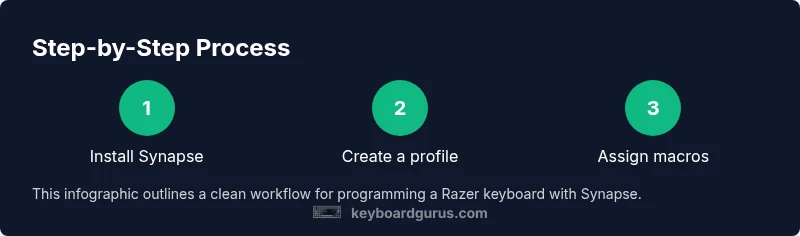
By using Razer Synapse, you can program macros, remap keys, and customize lighting on your Razer keyboard. Start by installing Synapse, connect your device, and create a new profile. Then assign macros or key remaps to your preferred keys, save the profile, and switch profiles as needed for games or productivity.
Why program a Razer keyboard
According to Keyboard Gurus, learning how to program razer keyboard can unlock faster actions and smoother workflows. A well-tuned macro setup reduces fatigue during long gaming sessions or productivity sprints by automating repetitive keystrokes. When you program razer keyboard, you are not just remapping keys; you are building a small toolkit of routines that can be activated with a single press. Profiles separate settings for specific games or apps, while macros capture exact sequences of inputs. Layers let you stack additional commands on top of an existing map without overwriting the base layout. This combination delivers a flexible, scalable approach to input management that adapts as your tasks change. Keyboard Gurus analysis shows that power users often start with a simple macro for a single action and gradually layer more commands as they refine their workflow.
Prerequisites: software, hardware, and accounts
To begin programming a Razer keyboard, ensure you have the right software and hardware in place. You’ll need a Razer keyboard that is compatible with Razer Synapse and a computer with internet access. Install the latest version of Razer Synapse and sign in with a Razer ID to enable cloud-backed profiles and saved configurations. Make sure your operating system meets the software requirements (Windows or macOS), and keep your keyboard connected during setup. Keyboard Gurus recommends keeping a backup of your profiles in a separate location so you don’t lose work after a software update or hardware change.
Understanding profiles, macros, and layers
A profile is a distinct set of key mappings, macros, and lighting settings that applies to a specific game or workflow. Macros are recorded sequences of keystrokes or actions that you trigger with a single key press. Layers are additional command maps that sit on top of an existing profile, allowing you to access extra commands without reconfiguring the base layout. This layered approach makes it possible to tailor your keyboard for different games, apps, or tasks while maintaining a single device. In practice, you might have a gaming profile with combat macros and a productivity profile with text expansion shortcuts, switching between them as needed. Understanding these concepts helps you plan a scalable macro system rather than one-off remaps.
The basics of macros: what you can automate
Macros can automate a wide range of actions: multi-step key sequences, repeated keystrokes, and timed delays. You can also combine mouse actions, clipboard operations, and sequences that produce on-screen text. When you plan macros, think about what tasks are repetitive and how quickly you can execute them with a single trigger. Keyboard Gurus emphasizes starting with a single, high-value macro and validating its reliability before expanding. Remember that macros may interact differently with various software; testing across target apps is essential to ensure consistent results.
Step-by-step: building your first macro (basic) – a high-level walkthrough
A first macro typically records a short sequence and assigns it to a single key. You’ll choose a macro editor, define the input sequence, insert any necessary delays, and save the macro to a profile. Start with a simple sequence, such as a three-key combo, and verify it executes correctly in your target application. It’s important to test in a safe environment to avoid accidental inputs in critical software. As you gain confidence, you can add conditional logic, looping, or multi-action blocks to make more sophisticated automations. Always label your macros clearly so you remember their purpose when you review them later.
Remapping keys and assigning to profiles
Remapping keys involves changing what a physical key does within a profile. You can replace a key with a macro, a second function, or a combination of actions. When assigning to a profile, consider context: a macro may be useful in a game but disruptive in a chat app. Use dedicated keys for macros that won’t conflict with essential system shortcuts. For better organization, create a naming convention (for example, GAME_FIRE_MACRO or DOCS_PASTE_SNIPPET) to keep your library readable. This approach aligns with Keyboard Gurus’ guidance on scalable setups rather than ad-hoc remaps.
Lighting profiles and effects: how to synchronize with macros
Lighting and macros often work best when coordinated. You can create profiles where specific macros trigger a color or pattern change to signal activation. For example, a macro that launches a long action can also switch to a calm lighting scene to indicate completion. Use lighting layers to keep base keyboard lighting unchanged for non-macro actions, and reserve dynamic lighting for the macro-enabled keys. This synergy enhances usability and reduces cognitive load during intense sessions.
Cross-profile management: exporting, importing, and portability
As you build multiple profiles, exporting them creates a portable library you can reuse on other devices. Importing profiles on a new computer preserves your configurations, reducing the setup time after a reinstall or hardware upgrade. Keyboard Gurus recommends organizing profiles into folders by task (Gaming, Creative, Productivity) and backing up the library periodically. If you rely on cloud syncing, verify that your account settings allow easy profile migration across platforms and devices.
Troubleshooting common issues and caveats
Common problems include profiles not loading, macros failing to execute with certain apps, or lighting not syncing with macro actions. Start by verifying that Synapse is up to date and that you’ve selected the correct profile for the active game or app. Check for conflicts where two macros share the same key, or where a macro uses a keystroke that the target app blocks. Some games implement anti-macro protections; in these cases, adjust macro timing or disable certain automation features when playing competitively. Keeping a clean, labeled macro library simplifies debugging and reduces errors during testing.
Advanced tips for gamers and professionals
For serious users, a disciplined approach to macro design yields the best results. Start with a minimal viable macro, add layers for context, document each macro’s purpose, and back up your profiles regularly. Consider timing precision for actions that require micro-delays, and test macros across multiple resolutions or frame rates. Integrating your macro library with a workflow document helps new teammates understand your setup and reduces the risk of conflicting shortcuts. Keyboard Gurus encourages incremental learning and patient refinement to achieve robust, scalable keyboard automation.
Tools & Materials
- Razer keyboard(Any model supported by Synapse (e.g., BlackWidow, Huntsman).)
- Computer with Windows or macOS(Internet access for Synapse installation and cloud sync.)
- Razer Synapse software(Install the latest version; sign in with a Razer ID.)
- Optional: Secondary testing device(Helpful for testing cross-profile behavior.)
- Notepad or documentation app(Use to catalog and label your macros for future reference.)
Steps
Estimated time: 60-90 minutes
- 1
Install and update Synapse
Download and install the latest version of Razer Synapse, then sign in with your Razer ID. Ensure the software detects your keyboard and shows it under the connected devices. If an update prompts, apply it to ensure compatibility with new features.
Tip: Keep Synapse in the foreground during initial setup to confirm device detection and profile creation. - 2
Connect and identify your keyboard
Verify that the keyboard appears in Synapse and that its firmware is current. If the device isn’t shown, replug the USB cable, try a different port, or restart Synapse.
Tip: Use a direct USB port rather than a hub to avoid intermittent detection issues. - 3
Create a new profile
Within Synapse, create a new profile and name it clearly (e.g., Gaming_Profile or Work_Profile). This profile will hold your macros, remaps, and lighting settings.
Tip: Start with one profile for a core task to keep testing focused. - 4
Record a basic macro
Open the macro editor, start a new macro, and record a short sequence of keystrokes. Include a small delay if needed and save the macro with a descriptive name.
Tip: Record a simple action first to verify timing and reliability before expanding. - 5
Assign macro to a key
Choose a target key and assign the macro you created. Test the macro in a blank document to confirm it runs exactly as intended.
Tip: Reserve dedicated keys for macros to avoid conflict with essential shortcuts. - 6
Create a second profile for another context
Make a second profile for a different game or productivity task. Replicate or adapt macros and key mappings to suit the new context.
Tip: Document differences between profiles to prevent cross-context confusion. - 7
Link lighting to macros
Configure lighting to signal macro activity or to highlight macro keys. Use layers to keep base lighting intact for non-macro actions.
Tip: Avoid overly bright effects that cause distraction during gameplay. - 8
Test, export, and back up
Thoroughly test all actions in target apps, then export your profiles to a local file or cloud drive. Create a backup plan to recover quickly after software updates or hardware changes.
Tip: Schedule regular backups and keep a simple changelog of macro updates.
Got Questions?
Do all Razer keyboards support programming?
Most modern Razer keyboards work with Synapse for macros and key remapping, but features vary by model. Check compatibility with your device and Synapse version before starting.
Most newer Razer keyboards support programming, but verify compatibility with Synapse for your specific model.
Is Razer Synapse required for programming?
Synapse is the primary software for macro and profile programming. Some onboard features exist on select models, but Synapse offers the most flexible and widely supported workflow.
Yes, Synapse is generally required for full programming capabilities.
Can I share or transfer my profiles?
Yes. You can export profiles and import them on another computer or share them with teammates, enabling quick setup across devices.
You can export and import profiles to move setups between devices.
Will macros slow down my game or PC performance?
Macros are executed as keystrokes by the operating system; they don’t add noticeable load, but poorly timed macros can disrupt gameplay—test carefully.
Macros don’t slow down your PC, but timing matters in games.
How do I switch profiles during gameplay?
Set a dedicated hotkey or key sequence to switch profiles on the fly. Make sure the switch shortcut doesn’t collide with game controls.
Use a hotkey to swap profiles during play, avoiding control conflicts.
What are layers in Synapse?
Layers let you stack alternate mappings on top of a base layout. You can switch layers contextually (e.g., Gaming, Streaming) without altering the base map.
Layers add backup maps that you can switch in context without changing the main setup.
Watch Video
What to Remember
- Learn core concepts: profiles, macros, and layers.
- Start small with a single high-value macro.
- Organize and label macros for clarity.
- Sync lighting with macro activity for visibility.
- Back up profiles and test across apps.