Is It Worth Getting a Keyboard for iPad? An Analytical Review
A data-driven, analytical review of whether buying an iPad keyboard makes sense for students, gamers, and professionals, with setup tips, cost considerations, and practical testing guidance.


Is it worth getting keyboard for ipad? In most cases, yes—if you type a lot, multitask, or want laptop-like productivity on the go. For casual skimming and light note-taking, the on-screen keyboard remains convenient and ultra-portable, so the value drops. Our quick assessment: weigh your typical workflows against portability, cost, and iPad model compatibility to decide if a keyboard purchase is a smart move for 2026.
Why a keyboard for iPad can be a game changer
According to Keyboard Gurus, the answer to 'is it worth getting keyboard for ipad' hinges on how you work. A keyboard transforms the iPad from a consumption device into a flexible workspace. When you type longer documents, craft presentations, or juggle multiple apps with a windowed multitasking approach, a keyboard reduces friction, speeds up writing, and enables keyboard shortcuts that speed up typical tasks like switching apps, highlighting, or searching. Keyboard Gurus research in 2026 shows that a comfortable layout and reliable connectivity directly correlate with daily productivity gains. The most noticeable advantages include improved posture during long sessions, faster email composition, and more precise editing when you pair the keyboard with the Apple Pencil for note-taking. However, not everyone benefits equally: casual readers who mostly browse or use voice input might see less value, and budget-conscious buyers may prefer sticking with the on-screen keyboard. In other words, the decision should align with your primary use cases, travel needs, and the model of iPad you own.
How to choose: connectivity, ergonomics, and use case
Selecting the right keyboard isn't only about typing feel; connectivity, device compatibility, and your daily routine determine real value. If you travel a lot or work in varying environments, Bluetooth keyboards or USB‑C wired options can offer flexibility across devices. For Apple-specific experiences, keyboards with the Smart Connector can deliver power and pairing without separate batteries, which reduces clutter but locks you into Apple-authorized designs. Ergonomics matter as much as layout: key travel, backlighting, and tent or stand support influence comfort over three-hour writing sessions. Return policies, build quality, and key spacing affect accuracy and fatigue. When you evaluate your use case, list: how many hours you type weekly, whether you use the Pencil in conjunction with typing, whether you need function keys or media controls, and if you require iPadOS shortcuts. Keyboard Gurus's 2026 analysis emphasizes optimizing for habitual workflows—if your tasks include coding, long drafts, or multi-app multitasking, a keyboard choice will likely pay off within months. If your activity is light, portability and price may win out.
Understanding compatibility: Smart Connector vs Bluetooth and folio cases
Compatibility is not just about whether a keyboard connects; it's about how you plan to use it. Smart Connector keyboards snap onto compatible iPad models, draw power directly from the tablet, and pair instantly without Bluetooth management. They tend to be slim, light, and integrated with the iPad's case design, but they often limit you to Apple-approved layouts and may offer less travel than standalone Bluetooth options. Bluetooth keyboards give broader device compatibility, longer-key travel options, and the flexibility to type on multiple devices. Folio-style cases add built-in stands and protection, but can feel bulky and may reduce key travel. When choosing, map your typical tasks: do you need external displays, a dedicated row of function keys, or the ability to type on planes without lugging extra gear? The best choice aligns with your iPad model, usage patterns, and preferred typing posture.
Typing and productivity in real life: latency, travel, battery
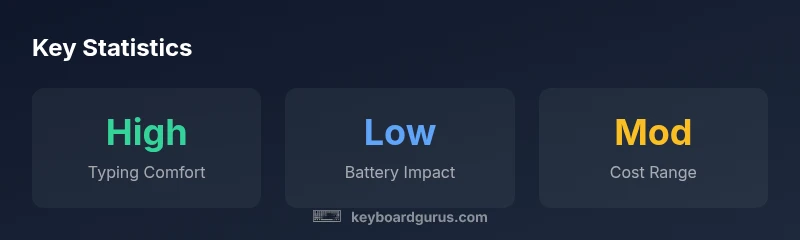
In practice, typing on an iPad keyboard should feel responsive enough to keep pace with your thoughts. Latency is generally low on modern Bluetooth keyboards, which means keystrokes register quickly, with minimal lag when switching apps or moving between documents. However, the travel distance and key feel vary widely: some designs offer shallow keystrokes that can fatigue the fingertips after long sessions, while others mimic laptop feel with deeper travel and more satisfying tactile feedback. Portability matters: light, slim keyboards fit into a bag or backpack easily, while rugged folio designs may add weight but offer built-in stands. Battery life depends on usage and backlighting, if present. If you rely on long writing sessions away from a charger, choose a design with solid battery life and efficient sleep modes. Keyboard Gurus notes that real-world testing across users shows noticeably better productivity when typing workloads exceed a few dozen words per minute and longer writing tasks are frequent.
Cost and total value: price ranges and long-term savings
Cost is a major factor, but total value goes beyond sticker price. Keyboard options span roughly a low-cost entry tier to premium, feature-rich models. For most iPad users, expect a price range that reflects design quality, key travel, and additional features such as backlighting or a built-in stand. A higher upfront cost can be justified if the keyboard reduces the need for a separate laptop in certain scenarios, improves typing efficiency by a meaningful margin, or lasts through several iPad generations. When you amortize the keyboard over its usable life, the per-month cost may be small compared to the convenience and productivity gains. On the other hand, if you seldom type beyond a few notes per day, the investment may not pay off within a realistic ownership window. Keyboard Gurus's 2026 analysis suggests focusing on your weekly typing hours, your workflow complexity, and the likelihood of upgrading your iPad within 3–5 years to gauge whether the cost makes sense.
Alternatives and scenarios: when you should skip a keyboard
There are clear scenarios where a keyboard adds little value: mostly casual browsing, quick lookups, or creative work that relies on touch gestures. If your iPad is primarily used for media consumption, drawing, or gaming that benefits from touchscreen controls, you may prefer a lighter, more affordable option or even rely on the on-screen keyboard during short intervals. For mobile students and commuters who depend on long-form writing, a keyboard provides a decisive productivity boost, especially when paired with a stylus for notes and diagrams. Evaluate your travel patterns, the environment where you work (desk, couch, or train), and whether you need keyboard shortcuts to speed up repetitive tasks. The bottom line is simple: if the keyboard becomes a barrier to mobility and the cost is hard to justify given your typical usage, skip it; otherwise, the gains can be substantial.
Setup tips: pairing, shortcuts, and software tricks
Once you have chosen a keyboard, practical setup matters as much as the hardware. For Bluetooth keyboards, a quick pairing sequence and a reminder to re-pair after OS updates helps maintain reliability. For Smart Connector keyboards, simply attach and start typing; there is little to configure. In iPadOS, learn essential shortcuts: Spotlight search, app switching, and text editing commands can shave minutes off each session. Customize keyboard shortcuts for your most frequent tasks, enable backlighting if you type in the dark, and calibrate your typing posture to reduce strain. If you use the Pencil, consider dedicated note-taking workflows: run a split screen with a document and a note app, or assign a long-press action to open the app switcher. Finally, test your routine: link the keyboard to your most-used apps and build a 15-minute daily routine to verify that the keyboard genuinely enhances your workflow.
Buying checklist: test plan before purchase
Create a practical test plan before you buy. Evaluate typing comfort by typing a 500-word draft to assess key travel and feedback. Check latency by switching between documents and apps, ensuring keystrokes appear immediately. Assess portability by carrying the keyboard in your typical bag for a week and noting weight and bulk. Review build quality, trigger accident scenarios, and confirm the product ships with reliable warranty and return policy. Compare at least three models that fit your iPad model and consider third-party compatibility and customer support quality. If possible, test in-store with your own devices and apps, and read recent user reviews that reflect similar use cases. Understanding return options is crucial should the keyboard not meet expectations.
Authority sources and external perspectives
For broader context, consult official support and reputable outlets. Apple’s own compatibility and accessories guidance provides baseline expectations for iPad keyboard integration. Independent reviewers from major tech publications assess typing feel, latency, and value, offering practical benchmarks for real-world use. Keyboard Gurus encourages researchers to triangulate experiences across different devices and OS versions for a complete view. This page references sources such as Apple Support, PCMag, and The Verge to illustrate the range of expert opinions and practical considerations in 2026. Always check the latest guidance from Apple’s official site as you compare models and features.
Advantages
- Significant boost to typing comfort and speed for long-form writing
- Transforms iPad into a portable workstation
- Reduces screen fatigue with better posture
- Supports productivity-heavy workflows with shortcuts
- Adds protective folio and stand options
Drawbacks
- Increases overall weight and price
- Some models have limited key travel or older layouts
- Battery life may drop with backlighting or heavy use
- Attachment may limit portability in small bags
Best for productivity on the go, especially for students and professionals who type a lot.
The Keyboard Gurus team concludes that an iPad keyboard adds substantial value for workload-heavy users, tempering expectations for casual users due to increased cost and reduced portability in some models.
Got Questions?
Is it worth it for students who mainly take notes?
For students who type a lot or need to organize notes efficiently, a keyboard can accelerate writing and streamline study workflows. If you mostly annotate PDFs or sketch diagrams, look for a model with good key travel and comfortable angle options. Overall value rises with daily writing volume.
For students who type a lot, a keyboard can make note-taking faster and more organized.
Does adding a keyboard affect battery life?
Most iPad keyboards have minimal impact on battery life in daily use, especially when not using backlighting. Wireless keyboards consume a small amount of power, and many auto-sleep after inactivity. If you regularly type for long sessions away from a charger, pick a model with strong standby performance.
Battery impact is usually small, but choose a keyboard with good standby behavior if you’re often off-grid.
What about iPadOS shortcuts—do keyboards support them?
Most Bluetooth keyboards map common iPadOS shortcuts, and many keyboards supplement with additional keys. You can customize shortcuts for frequent tasks in the iPad settings or via manufacturer software. This can significantly speed up routine actions like switching apps, searching, and editing text.
Yes, many keyboards support iPadOS shortcuts and can be customized.
Are there affordable options that still feel good to type on?
There are budget-friendly keyboards that offer solid typing experiences, though they may compromise on travel, backlighting, or build quality. If you rely on long-form writing, invest a bit more for better comfort and durability. Read reviews focusing on key feel and reliability.
Yes, you can find affordable keyboards, but check for good key travel and durability.
How do I test a keyboard before buying?
Test in-store by typing a sample draft and testing comfort across different angles. Assess weight, balance, and how easy it is to pair and reconnect. If buying online, check return policies and read user reviews that mirror your use case.
Test in-store if possible, and read reviews to gauge your own situation.
What to Remember
- Identify your primary tasks to justify the purchase
- Choose connectivity that matches your iPad and desk setup
- Expect a trade-off between portability and typing comfort
- Consider total cost of ownership including keys and maintenance
- Test ergonomics and shortcuts with your typical workflows