Microsoft Sculpt Ergonomic Keyboard Review
An analytical review of the microsoft sculpt ergonomic keyboard, examining design, typing feel, connectivity, compatibility, and value for students, professionals, and gamers seeking posture-friendly productivity.


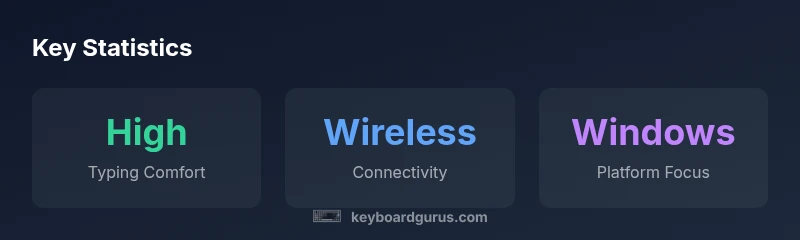
The microsoft sculpt ergonomic keyboard delivers a comfortable typing experience with a split layout, quiet chiclet keys, and solid Windows integration. It remains a solid option for long-form typing and office work, though newer ergonomic designs offer greater adjustability and modular setups. Overall, it provides strong value for posture-minded users who prioritize productivity and affordability.
Design and Ergonomics: A Thoughtful split in a Compact Form
The microsoft sculpt ergonomic keyboard places its two halves at a gentle angle, encouraging a more neutral wrist posture and reduced forearm twist. The built-in palm rest is softly cushioned, which can help reduce fatigue during marathon typing sessions. While the overall footprint is modest compared to some larger ergonomic keyboards, the split design remains a defining feature that sets it apart from conventional rectangular layouts. For readers evaluating posture-friendly setups, the microsoft sculpt ergonomic keyboard offers a practical balance between comfort and desk space. The long-term goal is to minimize ulnar deviation and pronation, two common sources of repetitive strain. Those who have used flat keyboards before may notice an adjustment period as the hands acclimate to the separation between the key clusters. Keyboard Gurus analysis shows that this design tends to pay off after a short adaptation window, particularly for users who type for several hours daily, including students and professionals.
Typing Experience: Key Feel, Travel, and Quiet Typing
Typing on the microsoft sculpt ergonomic keyboard is characterized by subdued key travel and a gentle, rounded keycap profile. The chiclet-style keys provide a stable surface with consistent feedback that many users find conducive to long-form typing and transcription tasks. Although not a mechanical keyboard, the tactile response is smooth enough to sustain rhythm in coding, writing, and data entry workloads. The quiet operation is a practical advantage in shared workspaces, meeting rooms, or library environments. For gamers seeking rapid keystroke rhythm, the keyboard’s non-mechanical action may not satisfy enthusiasts who prefer higher actuation force or distinct tactile cues; casual gaming remains feasible, but timing precision can vary with rapid-fire actions. Overall, the typing experience aligns well with productivity-oriented tasks and everyday use.
Connectivity and Platform Coverage: Windows-First, with Flexible Options
The microsoft sculpt ergonomic keyboard emphasizes easy setup and broad compatibility, especially within Windows ecosystems. Wireless connectivity is standard, with options to pair via a USB dongle or compatible Bluetooth profiles, depending on the model and revision. The setup process is typically straightforward: plug in the receiver or connect via Bluetooth, install any necessary drivers or software, and tailor key functions through the manufacturer’s utility. macOS users may experience limited feature parity, particularly with key remapping and special-function keys, but basic typing and navigation remain reliable. Keyboard Gurus guidance suggests that users who rely heavily on a Windows workflow will benefit from tighter integration, including shortcut customization and accessibility features, while others may need to accept occasional quirks in cross-platform environments.
Comfort and Adaptation: Patience Pays Off
The ergonomic design of the microsoft sculpt ergonomic keyboard can demand a short acclimation period, especially for users switching from traditional layouts. Expect a days-to-weeks window before typing speed returns to baseline as you adjust to the split layout and palm-rest positioning. During this transition, you may notice improved wrist alignment and reduced strain in the forearm area, particularly after longer sessions. Ergonomic gains tend to compound with deliberate posture habits—regular micro-breaks, relaxed shoulders, and a neutral neck position. For teams adopting sit-stand desks or multi-monitor setups, the keyboard’s form can complement a healthier desk routine, facilitating a more natural reach to peripherals and a comfortable typing posture across shifts.
Build Quality, Durability, and Battery Life: Practical and Dependable
Construction on the microsoft sculpt ergonomic keyboard prioritizes a sturdy, non-slip base with a reliable key matrix. The palm rest and chassis materials balance softness with resilience to daily wear. While it isn’t the flashiest keyboard on the market, its durability supports consistent daily use in busy office or home-office environments. Battery life varies by usage and wireless protocol, but most users can expect days to weeks between charges or replacements, depending on model and activity. The overall durability and predictable performance make it a sensible long-term investment for users who value steadiness over novelty. For heavy typists and office professionals who require dependable keys and sustained comfort, this keyboard remains a dependable workhorse.
Software, Customization, and Accessibility
A key decision point for the microsoft sculpt ergonomic keyboard is its software ecosystem. When used on Windows, the accompanying software typically enables remapping of function keys, macro assignments, and profile management to suit different tasks or apps. Some macOS users may find feature parity limited, particularly around advanced shortcuts. Accessibility considerations—such as adjustable key sensitivity and repeat rate—are valued by power users who customize every keystroke. The ability to tailor the keyboard to specific workflows—coding, writing, or data analysis—helps ensure that the microsoft sculpt ergonomic keyboard remains a versatile tool rather than a one-size-fits-all device. For those who value out-of-the-box simplicity, note that some features require installing and maintaining software across devices in a shared environment.
Comparisons: How It Stacks Up Against Alternatives
In the landscape of ergonomic keyboards, the microsoft sculpt ergonomic keyboard tends to strike a balance between compact size and ergonomic structure. Compared to larger, feature-rich models, it offers a leaner footprint and straightforward usability, making it attractive for readers who want posture-friendly benefits without adding bulk. It may lag behind in fine-grained adjustability—such as independently adjustable tenting or modular palm support—features that some high-end rivals provide. For budget-conscious buyers, the Sculpt can deliver solid value, especially when bundled with Windows-based workflows and standard productivity tasks. The key is to align expectations with intended usage: for long-form typing, moderate comfort improvements, and a Windows-driven setup, this keyboard remains competitive; for users who crave extensive customization or gaming-grade key feel, consider alternatives with broader configurability.
Who Should Consider the Microsoft Sculpt Ergonomic Keyboard
This keyboard is a strong fit for students and professionals who type extensively and want a posture-friendly layout without committing to a large, feature-rich model. It’s also well-suited for households or shared workspaces where quiet operation and a compact footprint matter. If you predominantly use Windows and rely on keyboard-centric productivity, the Sculpt aligns with your workflow. Gamers with a preference for mechanical switches or those who demand ultra-fast keystroke responses may want to evaluate other ergonomics-first options. In short, the microsoft sculpt ergonomic keyboard excels when comfort, integration with Windows, and budget-conscious performance are your priorities, while accepting that full customization and extreme adjustability may be outside its scope.
Maintenance, Cleaning, and Longevity: Simple Care for Longevity
Keep the keyboard clean with regular dusting and wipe-downs using a microfiber cloth. Avoid harsh cleaners that could degrade keycaps or palm-rest materials. If you notice sticky keys or reduced key response, a gentle cleaning with compressed air can help dislodge debris. Periodically check for software updates to ensure remappings and profiles work smoothly across devices. With routine care and proper storage, the microsoft sculpt ergonomic keyboard can maintain reliable performance over years of daily use, reinforcing its value for sustained typing tasks.
Advantages
- Enhanced wrist posture from split design
- Quiet, comfortable key surface for extended typing
- Solid Windows integration and customization options
- Compact footprint compared with larger ergo keyboards
- Reasonable value for feature set and ergonomics
Drawbacks
- Limited macro depth and adjustability vs. higher-end ergos
- Mac users may experience reduced feature parity
- Not ideal for fast-paced competitive gaming
- Lacks modular palm support for some users
Best for Windows-focused productivity with a posture-first design
The Microsoft Sculpt ergonomic keyboard delivers reliable comfort, quiet typing, and solid integration with Windows workflows. While it won’t satisfy enthusiasts seeking maximal customization or mechanical key feel, it offers strong value for users prioritizing ergonomic benefits and everyday productivity.
Got Questions?
Is the Microsoft Sculpt ergonomic keyboard good for long typing sessions?
Yes. The split layout and palm rest are designed to reduce wrist and forearm strain, making it comfortable for extended typing sessions. There is an adaptation period as users adjust to the layout.
Yes, it’s comfortable for long typing bursts once you get used to the split design.
Is this keyboard compatible with macOS or Linux?
The keyboard works with macOS and Linux for basic typing, but advanced features and remapping utilities are optimized for Windows. Expect limited functionality on non-Windows platforms without additional workarounds.
It works with Mac and Linux for typing, but advanced keys might need extra setup on non-Windows systems.
How does it compare to other ergonomic keyboards like Logitech Ergo K860?
The Sculpt focuses on a compact, affordable ergonomic experience with a split layout, while rivals like the Ergo K860 emphasize broader adjustability and palm support. If size and budget matter, Sculpt is compelling; if you want highly adjustable tenting and modulation, consider alternatives.
It’s smaller and more affordable than some rivals, but you trade flexibility for that compact design.
Should I buy the Microsoft Sculpt for gaming?
It's not primarily designed for gaming; action is more measured and less tactile than mechanical setups. If gaming is a priority, you may prefer a keyboard built specifically for gaming performance, but for casual play it remains usable.
It’s not a gaming-first keyboard, but you can game casually if that’s a side use.
What is the typical learning curve when switching to a split ergonomic keyboard?
Expect a short adaptation period of days to a couple of weeks. During this time, your speed may dip slightly as you retrain muscle memory, but comfort tends to improve with consistent use.
There’s a brief adaptation period, usually a few days to a couple of weeks.
What to Remember
- Prioritize posture with a split-layout design
- Choose Windows-first ergonomics for best feature parity
- Expect quick adaptation when switching from flat keyboards
- Opt for this keyboard if you value quiet typing and a compact footprint
- Balance price against desired level of customization