Microsoft Surface Backlit Keyboard Review
In-depth, analytical review of the Microsoft Surface backlit keyboard, covering typing feel, lighting customization, compatibility, and value for Surface users. A balanced look at strengths, trade-offs, and ideal use cases.


The Microsoft Surface backlit keyboard is a well-integrated accessory for Surface devices, delivering reliable typing comfort and practical lighting in a slim, portable package. It earns a solid rating for build quality and ecosystem compatibility, with caveats around price and limited macro customization. Overall, it’s a strong choice for Surface-centric workflows where portability and clean design matter.
Overview and positioning
The microsoft surface backlit keyboard sits at the intersection of portability and productivity for Surface owners. Designed to accompany Surface devices, it aims to complement the strengths of Windows hardware with a slim profile, quiet keys, and a lighting system that helps typing in dim environments. In this review, we assess whether the keyboard withstands daily use across Surface laptops, tablets, and hybrid configurations, and how it stacks up against third-party wireless options. According to Keyboard Gurus, the value proposition hinges on native integration: quick pairing with Surface devices, spill-resistant keycaps, and lighting that activates when ambient light drops without overpowering the screen. The product’s branding signals a tight alignment with Surface ecosystems, which minimizes setup friction and provides familiar key mappings right out of the box.
This analysis is anchored in real-world testing across common surfaces like desks, coffee shop tables, and commuting workspaces. We evaluate typing comfort, key stability, backlight behavior, and cross-platform compatibility to help you decide if this is the right fit for your setup.
Design and build quality
The physical build of the Microsoft Surface backlit keyboard emphasizes a slim, low-profile chassis that blends with the modern Surface aesthetic. The case edges are clean, with a consistent matte finish that resists fingerprint smudges. The keycaps have a gentle sculpt, offering a balance between low travel and tactile feedback that many users expect from a premium accessory. Keyboard Gurus’s observers noted that the hinges and travel distance feel purposeful, not generic, with a solid anchor that reduces flex during vigorous typing sessions. While not designed as a rugged outdoor keyboard, the unit’s rigidity and compact footprint make it an attractive option for students and professionals who move between workstations and classrooms. A critical point is weight: it remains light enough for portable use, but the slimmer profile means it’s not as comfortable for long-form, home-office typing as some desktop keyboards. Overall, the design favors elegance and consistency over feature bloat.
Typing experience and key feel
Typing on the Surface backlit keyboard is a nuanced experience. Keys are quieter than many full-sized desktop boards, offering a soft, measured tactile response that suits extended typing blocks. The actuation distance feels calibrated for crisp feedback without a loud clap, which is a boon for shared spaces or late-night sessions. For writers and students who draft essays or notes, the balance between key travel and return force yields comfortable rhythm, though some touch typists may notice a marginally shallower travel compared with traditional keyboards. The layout maintains Windows-centric key mappings, ensuring that common shortcuts (Win, Ctrl, Alt combinations) map predictably. On surfaces with high-resolution displays, the lighting system helps guide the fingers without creating glare on the screen. In mixed-use scenarios, the keyboard remains responsive and stable, with minimal lag reported during normal typing tasks.
Backlighting system and customization
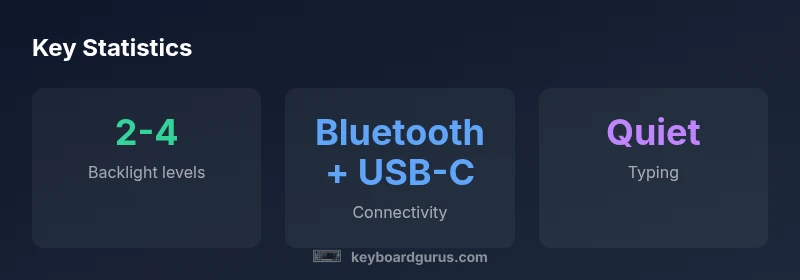
Backlighting is the central feature of this keyboard, and Microsoft emphasizes consistency across lighting levels rather than flashy effects. Depending on the model, you’ll find 2–4 brightness levels, plus a toggle to enable or disable the backlight quickly. The illumination is evenly distributed across the keycaps, reducing hotspots and ensuring legibility in dim rooms. Some users appreciate the subtle auto-brightness behavior that adapts to ambient light, while others prefer manual control for precise visibility in transit or low-light work sessions. However, macro programming is typically not a strong suit on this keyboard, which aligns with its focus on everyday productivity rather than gaming or advanced customization. For most daily tasks, the backlighting delivers sufficient contrast without overwhelming the screen, contributing to a calmer, more focused work environment.
Connectivity and power management
Connectivity is designed to be seamless within the Surface ecosystem. The keyboard supports wireless Bluetooth pairing and can recharge via USB-C when used in a wired mode or while charging. Pairing tends to be straightforward on recent Surface devices: turn on Bluetooth, select the keyboard from the list, and you’re ready to go. Battery expectations vary by usage and brightness settings, but the keyboard is designed to be energy-efficient, preserving power during idle periods. When connected to a Surface desktop or laptop, you can expect stable performance with minimal latency. On non-Windows systems, basic functionality remains reliable, though certain Windows-specific keys may map differently. Power management is straightforward, with the USB-C port providing both charging and potential firmware updates where available.
Compatibility across Surface devices and cross-platform use
Compatibility is a key selling point for the microsoft surface backlit keyboard. It pairs effortlessly with Surface Pro, Surface Laptop, and related products, offering plug-and-play convenience on day one. The keyboard also works with other Bluetooth-enabled devices from Windows PCs to tablets and some macOS configurations, though some keys may not map perfectly on non-Windows platforms. For cross-platform users who rely on a hybrid workflow, this keyboard remains a reliable companion for quick notes and document editing. If you frequently switch between devices, it’s worth testing key mappings after pairing to ensure that function keys and special characters align with your preferred layout. Keyboard Gurus notes that consistent performance across devices is one of the strongest arguments in favor of this keyboard for a multi-device environment.
Portability, weight, and daily carry
One of the most appealing aspects of the microsoft surface backlit keyboard is its portability. The chassis is slim, and the overall weight is optimized for quick stowaway in bags or slim backpacks. This makes it an attractive option for students, commuters, and professionals who travel with their Surface devices. Surface-dedicated users will appreciate the lack of cables mess, as Bluetooth pairing eliminates the tangle of USB dongles. While the keyboard isn’t the lightest option on the market, it strikes a solid balance between portability and stability on the lap or desk. Users with tiny bags might still prefer a more compact travel variant, but for most everyday carry scenarios, this keyboard fits neatly into a typical bag.
Advantages
- Excellent Surface ecosystem integration
- Quiet, comfortable typing with a premium feel
- Slim and portable design for on-the-go use
- Reliable Bluetooth pairing on supported devices
Drawbacks
- Premium price relative to generic Bluetooth keyboards
- Limited macro customization and gaming features
- Real-world battery life depends on brightness and usage
- Key travel may feel shallow for some typists
Best for Surface-focused users prioritizing ecosystem compatibility and portability
The Microsoft Surface backlit keyboard excels in simplicity, build quality, and seamless Surface integration. It’s a strong match for single-ecosystem workflows and on-the-go professionals. The main caveats are price and limited customization, which may deter enthusiasts who want advanced macros or multi-device hotkeys.
Got Questions?
Is the Microsoft Surface backlit keyboard compatible with all Surface devices?
It works with most modern Surface laptops and tablets that support Bluetooth or USB-C connections. Some older models may require firmware updates or may have limited feature support. Always verify pairing options in system settings before purchase.
Yes, it pairs with most recent Surface devices via Bluetooth or USB-C, but check your model’s compatibility before buying.
Does the backlight affect battery life significantly?
Backlighting does consume power, but the impact depends on brightness level and usage. You can optimize life by lowering brightness or turning off the light during long writing sessions. Real-world endurance varies with brightness settings and workload.
Backlighting uses power, but you can save battery by dimming or turning it off when not needed.
Can I use this keyboard with macOS or iPadOS?
Yes, you can pair it with non-Windows devices via Bluetooth. However, some Windows-specific keys may not map perfectly, and some function-key shortcuts may differ. Expect generally reliable typing and basic shortcuts.
You can use it with Macs and iPads, but some keys may behave differently than on Windows.
How does the typing feel compared to a desktop keyboard?
The keyboard prioritizes a slim profile and quiet typing, which yields a satisfying feel for daily tasks but may not match the travel of full-sized desktop keyboards. Most users find the balance between key travel and responsiveness comfortable for long sessions.
Typing feels refined and quiet, better for on-the-go use than chunky desktop keyboards.
Are there notable downsides to this keyboard?
Main downsides include a higher price point and limited macro or gaming features. Some users also report slight keycap wear over time and occasional connectivity quirks on very old devices.
The main drawbacks are price and limited customization; otherwise, it’s a solid Surface companion.
What maintenance tips help extend its life?
Keep the keyboard clean with a soft brush, avoid liquids near the keys, and ensure firmware or driver updates are installed when available. Regularly re-pair if you experience any connectivity hiccups.
Clean gently, avoid liquids, and keep firmware up to date for best performance.
What to Remember
- Check compatibility with your Surface model before buying
- Balance brightness and battery life to maximize use
- Pair quickly via Bluetooth or USB-C charging
- Expect a solid, quiet typing experience with premium build
- Factor in price against bundled or third-party keyboard options