Can You Clean a Keyboard with Isopropyl Alcohol? A Safe Guide
Learn safe methods to clean a keyboard with isopropyl alcohol. This Keyboard Gurus guide covers concentrations, tools, steps, safety tips, and maintenance.


With the right precautions, you can clean a keyboard using isopropyl alcohol. Use a 70% isopropyl-alcohol solution applied to a lint-free cloth or cotton swab, never spray directly onto the keyboard, and avoid excess moisture. For removable keycaps, you can clean them separately and dry thoroughly before reassembling. Test a small area first. Let it dry completely before using.
Can you clean a keyboard with isopropyl alcohol: what you should know
According to Keyboard Gurus, can you clean keyboard with isopropyl alcohol? The answer is yes, with strict moisture control. Use a lightly dampened lint-free cloth or cotton swab and avoid spraying liquid directly onto the keyboard. This practice removes oils, fingerprints, and grime without soaking switches or the PCB. For most users, surface cleaning suffices; for deeper cleaning, you may remove keycaps or clean between keys with swabs. The objective is to balance cleanliness with safety, ensuring the keyboard dries completely before power is restored. Always err on the side of less moisture and more patience to protect the electronics and finish.
Safety and concentration: using isopropyl alcohol with electronics
Isopropyl alcohol is flammable and should be used in a well-ventilated area away from open flames or heat sources. For electronics, 70% IPA is commonly preferred because the water content aids cleaning while limiting rapid moisture absorption. Avoid direct spray, soaking, or leakage into ports. Use a dampened cloth or swab instead, and never submerge the keyboard in liquid. If you must use a higher concentration for stubborn residue, apply sparingly and allow extra drying time. Always supervise the process and stop immediately if you notice moisture near seams or connectors.
Tools and prep: what you’ll need
Gather these items before you begin cleaning: Isopropyl alcohol (70% recommended) in a sealed bottle; a lint-free microfiber cloth (barely damp); a soft-bristled brush for crevices; cotton swabs for corners and between keys; a keycap puller (optional) for deeper cleaning; a dry, lint-free towel for final drying; a small tray to hold removed parts.
Cleaning the exterior and keys: technique that works
Start with a light, damp wipe across the top surface, moving left to right to avoid pooling at the edges. For stubborn smudges, use a cotton swab moistened with IPA and work from the center outward. Always avoid spraying liquids directly onto the keyboard; moisture that seeps into seams or ports can cause corrosion or short circuits. Finish by patting excess moisture away with a dry microfiber cloth and allow the keyboard to air-dry before use.
Removing keycaps and cleaning switches (where applicable)
If your keyboard allows keycap removal, gently lift caps with a proper puller and keep them in labeled containers to preserve layout. Clean keycaps with IPA on a damp cloth, and wipe solderless switch tops and stems with a swab. Let all components dry completely before reassembling. Do not attempt to disassemble the PCB unless you’re trained and confident.
Drying, testing, and reassembly best practices
After cleaning, give the keyboard ample time to dry in a well-ventilated area—air-drying can take 5–15 minutes for most surfaces, longer for deeper moisture. Reattach any removed keycaps and reconnect power, then test each key in a document to confirm all switches respond normally. If you notice stickiness or delay, repeat the dry cycle and inspect for residual moisture.
Common mistakes and troubleshooting tips
Avoid direct spraying, avoid household cleaners, and never use water-rich solutions on electronics. Always test a small area first and don’t rush the drying process; moisture trapped inside can cause long-term damage. When in doubt, consult your keyboard’s manual or seek professional help for internal cleaning tasks.
Tools & Materials
- Isopropyl alcohol (70% recommended)(Pour onto microfiber cloth or cotton swab; never pour directly on the keyboard.)
- Lint-free microfiber cloth(Dampen lightly; the cloth should be barely damp.)
- Soft-bristled brush(For crevices and between keys.)
- Cotton swabs(For tight spaces and corners.)
- Keycap puller(Optional if you plan to remove keycaps.)
- Dry lint-free towel(Used for patting away moisture and drying.)
Steps
Estimated time: 25-45 minutes
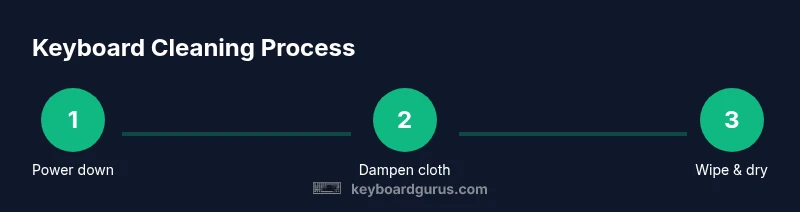
- 1
Power down and disconnect
Shut down the computer and unplug the keyboard. If wireless, remove the batteries. This prevents short circuits and protects sensitive electronics during cleaning.
Tip: Work in a dry, well-ventilated area and keep liquids away from the desk edge. - 2
Prepare your IPA solution and cloth
Pour a small amount of IPA onto the microfiber cloth—never soak it. Wring it gently so the cloth is damp, not dripping. This reduces the risk of moisture wicking into seams.
Tip: Test the damp patch on an inconspicuous area first to gauge reaction on finishes. - 3
Wipe exterior and surfaces
Wipe the top surfaces with the damp cloth, using light, straight strokes; work across rows rather than in circular motions to avoid pooling. For stubborn spots, use a lightly damp swab and lift residue.
Tip: Avoid pressing hard; forceful rubbing can wear lettering or loosen keys. - 4
Deep-clean between keys (optional)
Use a cotton swab dampened with IPA to clean between keys. If you remove caps, do so calmly and keep track of placements. Dry the area thoroughly before reassembly.
Tip: Keep moisture away from switch housings and PCB. - 5
Dry caps and reassembly
If you removed keycaps, place them on a dry towel to air-dry completely. Reattach caps in the correct layout when everything is dry.
Tip: Double-check your typing layout before reattaching. - 6
Test and monitor after cleanup
Reconnect power and test each key in a text editor, looking for stuck or unresponsive switches. If any moisture remains, power down and give extra drying time.
Tip: If in doubt, repeat the dry cycle in a breathable area.
Got Questions?
Is isopropyl alcohol safe for all keyboard types?
Generally safe for most keyboards when used correctly; avoid older electronics with unknown adhesives. Always test on a small area first.
Yes, for most keyboards, but test first.
What concentration should I use?
70% is a common starting point; it balances cleaning power with moisture control. Higher concentrations dry faster but can be harder to control.
Start with 70 percent and adjust if needed.
Can I use water after IPA?
Avoid water near electronics; if you must, use minimal distilled water for keycaps only and ensure dry before reassembly.
Water should generally be avoided on the keyboard itself.
Should I remove the keycaps?
Keycaps removal is optional and helps reach between keys; use a proper keycap puller and place caps in order.
Yes, if you're comfortable, removing keycaps helps.
How long does it take to dry?
Drying times vary; in a dry area, surfaces may dry in 5-15 minutes; deeper areas may take longer.
Drying usually takes a few minutes to a quarter-hour.
Is IPA flammable?
Yes, isopropyl alcohol is flammable; use away from heat sources and ensure good ventilation.
Yes, keep it away from flames.
Watch Video
What to Remember
- Power down before cleaning.
- Use minimal moisture and a damp cloth, not a spray.
- Remove keycaps only if comfortable to do so.
- Dry completely before reassembly and testing.