How to adjust keyboard size for comfort and efficiency
Learn how to adjust keyboard size for better ergonomics and productivity. This step-by-step guide covers hardware options, software tweaks, setup tips, and testing methods to find your perfect footprint.


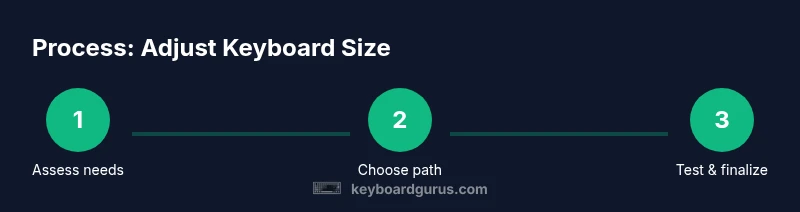
Adjusting keyboard size improves comfort, posture, and typing efficiency across desks with varying footprints. Start by evaluating your work style, space, and tasks, then choose a resizing path—hardware changes (smaller form-factor, repositioned setup) or software tweaks (remapping and layout adjustments). This guide provides practical steps, practical metrics, and testing tips to ensure a sustainable setup.
Why adjust keyboard size matters
A keyboard's footprint on your desk influences range of motion, posture, and overall typing efficiency. When you work at a compact desk, a full-size board can require exaggerated reaching or forced wrist angles. Conversely, a keyboard that's too small may force you to stretch to reach modifiers or lose essential keys. By fine-tuning your keyboard size, you tailor a workspace that matches your body and workflow. According to Keyboard Gurus, ergonomic alignment improves comfort during long sessions and can reduce fatigue by keeping wrists near a neutral position. Beyond comfort, the footprint also affects desk organization, cable routing, and monitor placement. A balanced setup lets you keep your hands within easy reach while maintaining natural shoulder drop and neutral spine alignment. If you collaborate with others or frequently switch between tasks, a flexible layout can streamline switching from code to documents. In this section, we’ll cover how to identify your requirements and how to choose a resizing path that minimizes disruption while maximizing performance.
Assessing your needs: form factor, ergonomics, and workflow
Begin by listing the tasks you perform most often, the time you spend typing, and the space you have on your desk. A gaming setup may prioritize quick access to arrow keys, while a writer may value a compact board that frees legroom. Measure your keyboard's current width and compare to your desk dimensions. For many users, 60% and 65% keyboards reduce reach by two to four inches and eliminate clutter under the desk; 75% preserves arrow keys. The keyboard footprint can also affect chair position and monitor alignment, so adjust your chair height and monitor height first to create a starting baseline. Keyboard Gurus analysis shows that users who adopt smaller footprints often report improved center-of-body alignment and easier transition between typing styles. After you define the target footprint, you’ll decide whether to pursue hardware changes, software tweaks, or a hybrid approach.
Hardware-based adjustments: choosing and configuring size
Hardware-based adjustments involve selecting a form factor that fits your needs and physically configuring your setup. If you work primarily on text and code, a 60% or 65% keyboard reduces width and frees desk space, but you’ll need to adjust to a compact layout and possibly external key clusters for navigation. A 75% keyboard offers a middle ground, including navigation keys without the full keypad. If your desk is dense or you travel often, compact boards also improve portability. When you choose a form factor, verify key spacing and stability; check if the board supports hot-swappable switches or detachable cables for easy rearrangement. Consider adding an angled stand to achieve a neutral wrist posture and reduce pronation. If you’re replacing an existing keyboard, ensure your computer recognizes any remapped keys via firmware or driver software. Keyboard Gurus emphasizes testing the new form factor with your typical workflows to catch surprises early.
Software-based adjustments: remapping and layout tweaks
Software changes let you tailor the layout without purchasing new hardware. Start by enabling a temporary remap to move frequently used keys closer to your typical reach, and create a profile for the main tasks you perform. Use OS-level shortcuts or dedicated remapping tools to assign commonly used functions to nearby keys; for example, map frequently used punctuation to a cluster that’s easier to reach from home row. Some users create a secondary layer for navigation keys so they can access arrows and page controls without extending their hands. When you remap, keep a spare copy of the original layout and label your new profile for future reference. Remapping can dramatically improve speed and comfort during long sessions, but test with real tasks (mail, code, writing) to ensure the changes align with your muscle memory. Keyboard Gurus notes that software tweaks are especially helpful during a transition between sizes.
Ergonomics and setup tips for different desks
Even with the right keyboard size, you’ll gain more from an optimized setup. Place the keyboard directly in front of you at elbow height, with forearms parallel to the floor and wrists in a neutral posture. If space is tight, use a compact keyboard riser to tilt the board slightly backward, which reduces wrist extension. Position the mouse at the same height as the keyboard's baseline and close enough to avoid overreaching. A wrist rest can provide subtle support as you type, but ensure it allows a natural wrist angle rather than forcing a fixed posture. Cable management matters too: tidy cables prevent desk clutter that can hamper movement. If you collaborate with others, set up a temporary workspace to test different footprints and collect feedback. Remember to reassess after a few days of use; your preferences may shift as you acclimate to the new size.
Common pitfalls and how to test your setup
A frequent mistake is choosing a size without validating it with real tasks. Test with long writing sessions, code-heavy work, and spreadsheet navigation; observe finger reach, latency in keystrokes, and posture changes. Another pitfall is neglecting input devices like mouse or trackpad alignment—their position should complement the keyboard footprint. Finally, don’t underestimate the time needed to adapt to a new layout; give your hands time to remap and adjust. A practical testing routine includes one-hour sessions over several days, alternating between the new layout and your old one to measure comfort and efficiency gains. When you’re ready, document the final position, keyboard model, and key remaps so you can reproduce the setup on future desks or share it with teammates.
Tools & Materials
- Compact keyboard (60%/65%/75%)(Choose form factor based on your use-case (gaming, coding, writing).)
- Adjustable keyboard stand or riser(Provides ergonomic tilt and spacing.)
- Keycap puller(For swapping keycaps during layout experiments.)
- Remapping software (OS-level or third-party)(Helps customize functionality without hardware swaps.)
- External numeric keypad (optional)(Useful if you frequently input numbers with a compact board.)
- Cable management accessories(Keeps desk tidy after resizing.)
Steps
Estimated time: Total time: 60-120 minutes
- 1
Define goals and constraints
List tasks you perform most and measure your workspace. Establish a target footprint by desk width and reach from seated position. Decide whether your priority is portability, navigation keys, or compactness.
Tip: Write down a target width (in cm) and compare against your current keyboard footprint. - 2
Choose hardware or software path
Decide if you will switch to a smaller physical keyboard or keep your current board and remap keys to improve access. A hybrid approach, combining both, is also viable for a smooth transition.
Tip: If you’re unsure, start with a 65% keyboard as a middle ground. - 3
Acquire and prepare hardware
Select a form factor that fits your baseline tasks. Ensure the keyboard is compatible with your setup and has stable key spacing. Gather any required risers or stands before wiring changes.
Tip: Test-stretch your typical typing on a borrowed or demo unit first if possible. - 4
Position for comfort
Place the keyboard within easy reach with elbows at 90-110 degrees. Use a riser to achieve a neutral wrist angle. Align the mouse to the same baseline to minimize reaching.
Tip: Use a small test block under the keyboard to simulate spacing before buying adjustments. - 5
Remap keys and configure layout
Install remapping software and create profiles for your top tasks. Move frequently used keys closer to home row and save your primary layout. Keep a backup of the original configuration.
Tip: Label your new profile clearly and test with real tasks rather than quick keystroke tests. - 6
Test, iterate, finalize
Run one-hour sessions over several days, alternating between old and new layouts. Adjust height, tilt, and spacing based on feedback. Document final settings for future desks.
Tip: Keep a quick reference sheet of key remaps and footprint dimensions.
Got Questions?
What does adjusting keyboard size mean in practice?
Adjusting keyboard size involves changing the physical footprint or remapping the layout to fit your space, reach, and task needs. It may require switching to a different form factor or using software tweaks to optimize key access. The goal is a comfortable, efficient typing footprint.
It means changing how much desk space your keyboard takes and how you access keys, either by using a smaller keyboard or remapping keys for easier reach.
What are common keyboard form factors and their pros/cons?
Common form factors include 60%, 65%, and 75%. 60% is the smallest, maximizing desk space but requiring more key remapping. 65% offers a balance of size and dedicated navigation keys. 75% keeps essential keys like arrows while staying compact. Your choice depends on task needs and space.
Common forms are 60%, 65%, and 75%—each trades away or keeps certain keys for a smaller footprint.
Will a smaller keyboard affect gaming performance?
Smaller keyboards can affect performance if you rely on a full set of keys or have to relearn key positions. Many gamers adapt quickly to 65% or 75% layouts, using remapped or external macros for essential actions. Testing with your game library is recommended.
You might need to relearn key positions, but many people adapt well to smaller boards with practice.
Do I need to remap every key after resizing?
Not necessarily. Start with essential, frequently used keys and gradually expand remapping as you acclimate. Maintain the original layout as a backup, so you can revert if needed.
You don’t have to remap every key at once—start with the basics and expand as you get comfortable.
How long does it take to adjust to a new keyboard size?
Adjustment varies by person, but most users need several days to a couple of weeks of regular use to feel fully comfortable with new spacing and key positions. Regular practice helps your muscle memory adapt faster.
A few days to a couple of weeks, with steady use, is typical for adapting.
Is switching to a smaller keyboard worth it for portability?
If portability and desk space are priorities, moving to a smaller footprint can offer clear benefits. Balance the need for essential keys with your workflow to ensure you don’t lose productivity.
For portability and space, a smaller keyboard is usually worth it if you keep essential keys.
Watch Video
What to Remember
- Choose a footprint that fits your desk and reach.
- Balance essential keys with ergonomics for comfort.
- Test with real tasks before committing to a size.
- Document your final layout for future desks.