How to Change Keyboard When Typing: A Practical Guide
Learn how to switch keyboards while typing across Windows, macOS, iOS, and Android. Step-by-step instructions, shortcuts, troubleshooting tips, and best practices for multilingual and fast-paced workflows.


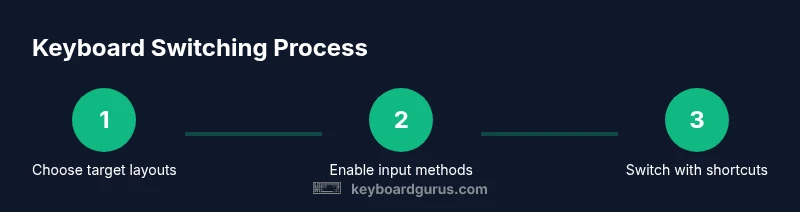
Goal: Change keyboards while typing by switching input methods or layouts on your device. Enable the desired layouts in system settings, assign a quick shortcut, and test the switch in a text editor. With practice, you can toggle between languages or layouts mid-sentence, keeping your typing flow intact for work, study, or gaming.
Why changing keyboards while typing matters
For multilingual writers, coders, and gamers, switching keyboards mid-typing is a productivity superpower. It lets you switch languages, adapt to different character sets, or toggle between layouts optimized for specific tasks. According to Keyboard Gurus, understanding when and why to switch helps reduce friction and keeps your cognitive flow intact during long typing sessions. You’ll gain faster access to the right characters, punctuation, and symbols without breaking your rhythm. This section lays a foundation by distinguishing between keyboard layouts (the physical or virtual arrangement of keys) and input methods (how the system interprets keystrokes to produce characters). By grasping both concepts, you can tailor your setup to your tasks and device ecosystem.
Understanding keyboard layouts and input methods
A keyboard layout defines which key produces which character. Common layouts include QWERTY, DVORAK, and AZERTY, but many languages introduce additional symbols or input characters. An input method (IME) handles language-specific rules, such as combining characters, accents, or non-Latin scripts. On some platforms you enable multiple layouts and switch between them with a shortcut; on others you enable several IMEs for the same layout. The distinction matters because a layout might map keys differently, while an input method might modify how characters are formed, especially for languages with complex scripts. When you plan your setup, decide which layouts you actually need and which IMEs will best support your writing tasks. Keyboard Gurus recommends a clean, minimal configuration to reduce accidental switches and improve typing speed.
Platform-by-platform guidance: Windows, macOS, iOS, Android
Switching keyboards varies by platform but follows similar principles: enable the desired input methods, place them in your quick-access menu, and assign a shortcut if possible. Windows centers around Time & Language settings with a dedicated language bar; macOS uses Input Sources and Keyboard preferences; iOS and Android rely on system keyboards and language options. Start by recording your current configuration, then add new layouts or languages, and finally test switching in a neutral app like a text editor or notes. Keyboard Gurus notes that enabling two or three layouts for different contexts (e.g., English, Spanish, and a code-friendly layout) often yields the best balance of coverage and speed.
Quick shortcuts to switch keyboards across popular OSes
Fast toggles save more time than deep menu navigation. Windows uses a Windows key combined with Space to switch input methods in many setups. macOS can be customized to use Control or Command keys to toggle sources, depending on settings. iOS and Android typically use a globe key or a dedicated shortcut you configure in the keyboard options. For best results, customize a short, memorable combo that you can reach without breaking typing rhythm. Keep a secondary method (like a dedicated symbol or emoji keyboard) accessible but not intrusive.
Common mistakes and how to avoid them
Rushing to a new layout without enabling it properly is a frequent issue. Always verify that the target layout is installed, and confirm it appears in the input menu before attempting to switch. Avoid conflating a layout with an IME that uses complex composition rules; if you’re typing in a non-Latin script, ensure the IME is active for the script you intend. If a shortcut conflicts with an app’s own shortcuts, rebind it in the OS settings. Finally, test across multiple apps to ensure consistency and that switching doesn’t introduce unexpected characters.
Choosing the right keyboard and input setup for your goals
Your choice should reflect how you work. If you frequently write in multiple languages, a dedicated layout for each language—or a robust IME that handles diacritics smoothly—may be worth the trade-off of extra setup time. For coding, a layout with predictable braces and punctuation can improve speed. Gamers and writers who don’t need language switching as often may prefer a lean profile with two layouts and a fast toggle. Remember to consider device compatibility, especially if you switch between a laptop, tablet, and phone.
Troubleshooting switching problems: quick checks
If you can’t switch keyboards, start by confirming the target input method is enabled and listed in your shortcuts. Check OS language settings to ensure the layout is set as default for the task at hand. If the shortcut doesn’t work, try a full restart or reset of the keyboard settings. In some cases, software updates or third-party keyboard apps can interfere with switching signals. Keyboard Gurus recommends documenting any unusual behavior and testing after each change so you can trace the root cause quickly.
Multilingual and cross-platform best practices
When working across platforms, mirror your core layouts so the transition feels seamless. Synchronize settings via cloud accounts if possible, and keep a minimal set of layouts that you actually use. Regularly review your shortcuts to confirm they still align with your workflow and won’t clash with new app shortcuts. For students and professionals, a consistent approach to switching reduces cognitive load and improves accuracy across assignments, discussions, and collaborative work.
Security and privacy: considerations when using multiple keyboards
When you add input methods or IMEs, be mindful of what data they may collect. Some keyboards provide autocorrect and prediction features, which could log keystrokes or phrases. Always review permissions and opt for reputable input methods with clear privacy policies. If you work with sensitive documents, consider temporarily disabling extra input methods or choosing offline layouts for that session to minimize potential exposure.
Tools & Materials
- Device with the target OS (Windows/macOS/iOS/Android)(Ensure you can access system settings and install keyboards/IMEs.)
- Physical or on-screen keyboard(Use for testing layouts and ensuring comfortable key travel.)
- Access to OS settings for language and input sources(Needed to enable and configure layouts and shortcuts.)
- Internet connection (optional but helpful)(Useful for downloading new IMEs or layouts.)
- List of target languages or layouts(Prepare 2–3 preferred layouts for your workflow.)
- Documentation of current setup(Helps you compare before/after and revert if needed.)
Steps
Estimated time: 10-15 minutes
- 1
Identify your goal
Decide whether you need to switch language, layout, or both. Clarify whether you require per-application switching or global toggling, and which languages or scripts you will use most.
Tip: Write down target layouts and language codes before you begin. - 2
Open the keyboard/input method settings
Navigate to the platform’s settings: Windows -> Time & language -> Language; macOS -> System Preferences -> Keyboard -> Input Sources; iOS/Android -> System Settings -> Keyboard or Language settings. Confirm you can access the input menu.
Tip: Note the existing shortcuts and where the input menu lives in your UI. - 3
Add or enable input methods
Install or activate the desired keyboard layouts or IMEs. Ensure they appear in the input menu and are selectable from your quick-access area.
Tip: Prefer layouts that you will actually use regularly to avoid clutter. - 4
Set a preferred shortcut
Choose a switch shortcut that’s easy to reach while typing and unlikely to conflict with app shortcuts. Configure it in the OS settings.
Tip: Use a two-key combination rather than a single key to reduce accidental presses. - 5
Test the switch in context
Open a document and type with each layout. Confirm that switching doesn’t insert unwanted characters and that common punctuation behaves as expected.
Tip: Test in both plain text and rich editors to catch edge cases. - 6
Create a quick-access workflow
If you switch frequently, set up a per-task profile or quick-access button/shortcut so you can toggle without leaving your editor.
Tip: Keep your workflow consistent across devices if possible. - 7
Troubleshoot common failures
If switching fails, re-check enabling steps, ensure there are no conflicting shortcuts, and verify the active input method for the current app. A restart can resolve stubborn glitches.
Tip: Document any error messages to speed future fixes. - 8
Document your setup for future use
Record which layouts you use, their shortcuts, and where they appear in your UI. Update this record after platform updates or new devices.
Tip: A clear reference saves time when switching across devices.
Got Questions?
How do I change keyboard language on Windows 10/11?
Open Settings > Time & language > Language. Add the desired language and choose a layout. Use Windows key + Space to switch between inputs quickly. If needed, customize shortcuts in the Language settings.
On Windows, go to Settings, add your language, and use Windows key plus Space to swap between keyboards.
How do I switch keyboards on macOS?
Go to System Preferences > Keyboard > Input Sources. Add the layouts you need and enable a shortcut in Keyboard preferences to switch between them. You can also enable a menu bar input source selector for quick access.
On Mac, add input sources in Keyboard settings and set a shortcut to switch between them.
Can I add multiple input methods on iOS or Android?
Yes. In iOS or Android, install or enable multiple keyboards through Settings > Keyboard (iOS) or System > Languages & input (Android). You can switch using the globe key or the chosen shortcut, depending on the device.
You can enable multiple keyboards in your device settings and switch with the globe key or a configured shortcut.
What is the difference between keyboard layout and input method?
A layout maps keys to characters, while an input method handles language-specific rules and scripts. You may need both: a layout for typing characters and an IME to compose scripts or accents.
A layout maps keys; an input method handles language rules for complex scripts.
Why won’t my keyboard switch reliably?
Check that the target layout is enabled, verify shortcut conflicts, and confirm the active input method for your current app. Restarting the device can fix stubborn issues.
If switching is flaky, verify enabled layouts and shortcuts, then restart if needed.
Is it better to learn multiple layouts for gaming or coding?
For gaming, a simple dual-layout setup with a fast toggle is often enough. For coding, a layout with predictable punctuation and braces can speed up typing and reduce errors.
Dual layouts work well for gaming, while coding benefits from a predictable layout.
Watch Video
What to Remember
- Switch keyboards with OS shortcuts to maintain flow.
- Enable only the layouts you actually use to minimize clutter.
- Test across apps to ensure consistent behavior.
- Document your setup for quick recovery later.