How to Do Degree on Keyboard
Learn reliable methods to type the degree symbol on any keyboard. Windows, macOS, Linux, and Unicode options explained with practical tips.


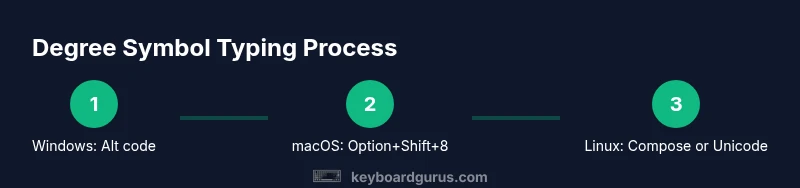
A degree symbol (°) is used for angles and temperatures. The fastest, most reliable approach is to use a platform-specific shortcut: Windows users can press Alt + 0176 on the numeric keypad; Mac users press Option + Shift + 8; Linux users can use Compose + o + o or Ctrl + Shift + U 00B0. Copy-paste from a character map as a universal backup.
What is the degree symbol and when is it used
The degree symbol, °, is a compact glyph used to denote angles, temperatures, and a growing range of scientific measurements. If you’re exploring how to do degree on keyboard, you’re aiming for quick, reliable keystrokes across operating systems. The degree symbol is Unicode U+00B0, and most modern fonts render it cleanly in common text editors and word processors. According to Keyboard Gurus, knowing a few concise shortcuts can speed up technical writing, math homework, and engineering notes, keeping you from switching apps to copy-paste. In practice, most tasks—email, reports, code comments—benefit from having a few switchable options ready at your fingertips.
Platform differences: quick orientation
Across Windows, macOS, and Linux, there isn’t a single universal key for °. The good news is that each major platform supports at least one reliable method. Windows leans on numeric keypad Alt codes, macOS favors a compact keyboard shortcut, and Linux users often rely on a Compose key sequence or Unicode input. If you often work across platforms, you’ll want to memorize one core method per OS and keep a backup method handy (like copying from a character map). Keyboard Gurus’s guidance emphasizes preparing shortcuts that match your most-used software (Word, Google Docs, IDEs, spreadsheets) to maintain flow without interrupting your thinking.
Windows: Alt codes and practical tips
On Windows, the standard route is Alt codes. With Num Lock enabled, you can press Alt, then type 0176 on the numeric keypad, and release Alt to produce °. Some laptops lack a dedicated keypad; in those cases you can use the on-screen keyboard to simulate the numeric pad, or enable a keypad emulation (Fn + NumLock on many models). Keyboard Gurus notes that Alt codes are fast once you’re comfortable with the keypad layout, but they do require the right hardware configuration and a compatible font.
MacOS: Option + Shift + 8 and Unicode input
macOS users can type ° by pressing Option + Shift + 8. If you prefer, you can use System Keyboard Viewer or the Emoji & Symbols panel to insert the degree symbol. For heavy writers, enabling Unicode input (Ctrl + Command + Space to open the Spotlight/Emoji viewer) can streamline insertion in any app. The Keyboard Gurus team highlights that macOS shortcuts are generally more consistent across apps than Windows, reducing surprises in specialized software.
Linux: Compose key and Unicode entry
Linux users often rely on a Compose key sequence. A common path is Compose, then o, then o to yield ° (depending on your config). Another reliable method is Ctrl + Shift + U, then type 00B0 and press Enter or Space to insert the symbol. If you use a lightweight window manager, you may have to define a custom shortcut in your keyboard settings. Keyboard Gurus observes that Linux setups vary, so mapping a comfortable sequence to the degree symbol can save a lot of time.
Copy-paste and Unicode fallbacks
If you’re away from a keyboard where shortcuts work, a universal fallback is copying ° from a character map, clipboard history, or Unicode entry. In Windows, you can copy from Character Map; on macOS, Character Viewer is a quick source; on Linux, Unicode input makes this straightforward. Unicode input (Ctrl + Shift + U 00B0) is particularly handy for programming editors and IDEs where you need to insert ° frequently.
Practical workflow for everyday use
For many professionals, the best workflow combines a primary OS shortcut with a reliable fallback. Start by choosing your favorite Windows, macOS, or Linux method, and test it in your most-used apps. Add a backup (paste from a map or use Unicode input) in case a font or application blocks your primary method. Consistency matters: stick to one approach per platform, document the steps in a personal cheatsheet, and adjust as your setup evolves.
Font compatibility and app considerations
Not all fonts render the degree symbol identically; some decorative fonts render the glyph subtly differently or omit it entirely. If ° appears as a missing glyph or a box, switch to a safer font for that document, or insert the symbol as an image in critical designs. Word processors and code editors often handle ° well, but some web fonts may fall back to a scribbled glyph. Testing in your target apps ensures clean appearance across mediums.
Keyboard Gurus’ final guidance and next steps
In short, there are multiple reliable routes to inputting the degree symbol on keyboard across platforms. The Keyboard Gurus team recommends mastering one core shortcut for your primary OS, keeping a quick backup ready, and validating font support in your main apps. By building a small, consistent set of methods, you’ll reduce friction in notes, papers, and code comments when you need to denote degrees.
Troubleshooting common issues and best practices
If ° doesn’t appear after using a shortcut, check your Num Lock status, language/input settings, and font capability. In some environments, keyboard layouts can override shortcuts, especially in virtual machines or remote desktops. Keep a reference sheet handy, and consider enabling a global hotkey for degree input if your workflow demands it. Keyboard Gurus emphasizes documenting your preferred method for future reference.
Tools & Materials
- Keyboard with a numeric keypad(Alt codes require a keypad; laptops may need Fn+NumLock or an on-screen keypad)
- Character Map / Character Viewer / Unicode input(Backup method when shortcuts fail or fonts lack ° glyph)
- Reliable font that includes ° glyph(Some display fonts may not render the symbol clearly; test in your target apps)
- Documentation or cheatsheet(Keep a quick reference for platform-specific shortcuts)
Steps
Estimated time: 5-10 minutes
- 1
Identify platform and layout
Determine whether you’re on Windows, macOS, or Linux and confirm you have a numeric keypad or a working Compose key. This determines which primary shortcut you’ll use. If you’re on a laptop without a keypad, decide which backup method you’ll rely on.
Tip: Having a dedicated cheatsheet reduces decision time during writing. - 2
Use Windows Alt code (0176)
With Num Lock on, press and hold Alt, type 0176 on the numeric keypad, then release Alt. The ° symbol should appear where your cursor is located. If your laptop lacks a keypad, use the on-screen keyboard to simulate the digits.
Tip: Practice the sequence a few times to build muscle memory. - 3
Alternative Windows code (248)
If 0176 doesn’t work, try Alt + 248. Some fonts or environments are more compatible with this variant. Confirm font support if you see a replacement glyph.
Tip: Always test in a sample document first. - 4
MacOS shortcut (Option+Shift+8)
On a Mac, press Option + Shift + 8 to insert °. If your keyboard layout differs, you can still access the symbol via the Unicode input or the Character Viewer.
Tip: Keep the Character Viewer open for quick insertion when editing long documents. - 5
Linux: Compose key sequence
If you’ve set up a Compose key, press Compose, then o, then o to insert °. If you don’t use a Compose key, use Unicode input: Ctrl + Shift + U, type 00B0, then Enter.
Tip: Customize the Compose map if your workflow requires frequent use of °. - 6
Unicode input (Ctrl+Shift+U)
In many Linux distributions and some editors, Ctrl + Shift + U opens a hexadecimal input field; type 00B0 and press Enter or Space to insert °.
Tip: Save Unicode 00B0 in your clipboard for rapid reuse. - 7
Copy-paste as a universal fallback
If shortcuts fail in a document, copy the symbol from a character map, the browser’s copy-paste, or another source and paste it where needed.
Tip: Keep a small clipboard history of frequently used symbols. - 8
Test in target apps
After inserting °, verify its appearance in your final document, spreadsheet, or code file to ensure consistency across platforms.
Tip: If the glyph breaks, switch fonts or adjust the document settings.
Got Questions?
What is the degree symbol and where is it used?
The degree symbol (°) denotes angles, temperature, and various measurements. It is Unicode U+00B0 and widely supported in modern apps. In practice, knowing a few efficient methods helps you work faster.
The degree symbol marks angles and temperatures. It’s widely supported, and you can type it with shortcuts on major operating systems.
How do I input the degree symbol on Windows without a numeric keypad?
Use the on-screen keyboard to enter Alt codes or enable a keypad emulation. Copy-paste from a character map if needed. Font support may affect the glyph appearance.
If you lack a numeric keypad, use the on-screen keypad or copy from a character map.
What is the macOS shortcut for the degree symbol?
Press Option + Shift + 8 to insert the degree symbol. If you work across apps, the Character Viewer provides another quick route.
Mac users can press Option and Shift and 8 to get °, or use the Character Viewer for more options.
Can I type ° in Linux without special tools?
Yes. Use a Compose key sequence (often Compose, o, o) or Unicode input (Ctrl + Shift + U, then 00B0 and Enter). Settings may vary by distribution and desktop environment.
Linux offers Compose and Unicode input to type °.
Is there a universal shortcut for ° across all platforms?
No single universal shortcut exists. Each platform has its own standard method, with backups like copy-paste ensuring coverage across environments.
There isn’t one universal shortcut; use one per platform and keep a fallback handy.
What should I do if ° looks wrong in a document?
Check the font and rendering in the target app. If needed, switch fonts or adjust the document’s encoding or font face to ensure consistent rendering.
If ° looks off, switch fonts or check encoding in your app.
Can I type ° on mobile devices?
Yes. On most keyboards, hold the 0 key or long-press the comma/period key to reveal the degree symbol. Some keyboards insert it via Software keyboard options.
On mobile, you usually access ° via long-press or symbol menus.
Watch Video
What to Remember
- Use platform-specific shortcuts to type ° quickly.
- Keep a reliable backup method for environments where shortcuts fail.
- Test glyph appearance in your target fonts and apps.
- Consider creating a personal cheatsheet for repeat use.
- Keyboard Gurus recommends consistency across platforms for efficiency.