How to Get Keyboard on iPad
Learn how to get a keyboard on your iPad, including using the on-screen keyboard and connecting external keyboards, with step-by-step instructions from Keyboard Gurus.


Learn how to get a keyboard on your iPad, whether you prefer the built-in on-screen keyboard or an external Bluetooth or wired keyboard. This guide walks you through choosing the right option, pairing or connecting, and customizing settings so typing feels faster and more comfortable on iPadOS.
Understanding Keyboard Options on iPad
Getting a keyboard on an iPad comes down to two main paths: the built-in on-screen keyboard and external keyboards that you connect via Bluetooth or a wired connection. According to Keyboard Gurus, most users start with the on-screen keyboard to learn layout and basic typing, then add an external keyboard to boost productivity. Whether you’re a student, a gamer, or a professional, the choice impacts typing speed, ergonomics, and app compatibility. The core goal here is to help you decide which option suits your workflow and to provide concrete steps so you can implement it quickly. As you explore how to get keyboard on ipad, consider how you work: do you draft long essays, code, game, or take quick notes? Your use case will guide whether you stay with touch typing or invest in a keyboard that mirrors a laptop setup. Keyboard Gurus emphasizes clear goals: type efficiently, stay comfortable, and retain access to iPadOS features that rely on keyboard input.
On-Screen Keyboard Essentials
The iPad’s built-in keyboard is your immediate typing tool, available as soon as you tap a text field. It supports multiple languages, QuickType suggestions, and optional features like the space bar’s long-press to switch keyboards. To start, simply tap any text field in an app, and the on-screen keyboard will slide up. If you need more screen real estate, you can float or split the keyboard by pinching it or dragging the bottom handle. This is an ideal first step when you’re learning how to get keyboard on ipad, especially if you’re new to iPadOS. For longer documents or fast drafting, keep the keyboard accessible and enable predictive text to speed up your typing; you can customize autocorrect, punctuation, and formatting preferences in Settings > General > Keyboard. As you become more confident, you’ll notice how the on-screen keyboard integrates with trackpad controls on newer iPad models when you connect a keyboard or use a Magic Keyboard.
Connecting a Bluetooth Keyboard: Step-by-Step
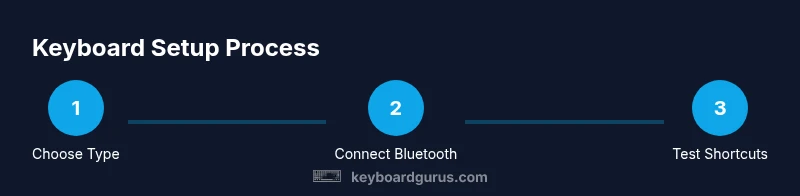
Bluetooth keyboards offer a laptop-like typing experience without cables. Start by ensuring your iPad’s Bluetooth is on: Settings > Bluetooth, toggle it on. Put your Bluetooth keyboard into pairing mode (usually a dedicated Bluetooth button or key). Your iPad will list the keyboard under Other Devices—tap its name to pair. If prompted, enter a passcode on the keyboard or confirm a code on screen. Once paired, your external keyboard will work across apps. Keyboard Gurus notes that battery health matters here; ensure the keyboard is charged before you begin and keep it in range of the iPad. If you experience intermittent connections, re-pair the device or reboot both devices to refresh the connection. After pairing, you can use common shortcuts such as Command-C, Command-V, and Command-T in many apps, just like on a Mac. Keep in mind that some apps may have limited shortcut support, so test in your most-used apps first.
Using a Wired Keyboard with iPad: USB-C and Adapters
Wired keyboards provide a robust, always-on typing experience. If your iPad uses USB-C, you can connect a keyboard directly with a USB-C to USB-C cable or a USB-C to USB-A adapter, depending on your keyboard. Older iPads with Lightning ports require a Lightning to USB Camera Adapter or a USB-C hub when applicable. When using a wired keyboard, ensure the keyboard is powered and, if necessary, connect it to a powered hub to provide sufficient power. This minimizes latency and prevents the iPad from drawing more power than the keyboard can deliver. Wired keyboards are especially useful for long sessions, coding, or heavy typing tasks where wireless interference might be a concern. Always test the connection with a simple document to confirm the layout and key responsiveness. If a key mapping seems off, check your keyboard’s language setting and the iPad’s keyboard layout under Settings > General > Keyboard.
Customizing Keyboard Settings and Shortcuts
To tailor your typing experience, go to Settings > General > Keyboard and explore both On-screen and Hardware Keyboard sections. In the Hardware Keyboard section, you can set up shortcuts, enable or disable automatic punctuation, adjust key repeat, and choose between different keyboard layouts. If you use external keyboards regularly, consider enabling features like “Use Control Key as Command” or customizing modifier keys for quick access. You can also enable text replacement and create your own shortcuts to boost efficiency. Remember to periodically review your shortcuts as you install new apps or update iPadOS, since app support for shortcuts can evolve with updates. The goal is to create a layout that aligns with how you work, whether you’re drafting emails, coding, or taking notes during lectures.
Productivity Tips and Common Shortcuts
As you become proficient with the iPad keyboard, adopt a handful of core shortcuts to speed up daily tasks. Common combinations include Command-C (copy), Command-V (paste), Command-X (cut), Command-Z (undo), and Command-S (save). If you use a trackpad, you can also learn to drag and drop with gestures, select text more efficiently, and navigate between apps with Mission Control. For iPadOS users, remember that some shortcuts depend on the active app, so testing in your most-used apps is important. Keyboard Gurus recommends building a short cheat sheet on your workspace so you can recall frequently used commands without interrupting your flow. Additionally, consider enabling keyboard shortcuts for accessibility features to accommodate different typing styles or needs.
Troubleshooting Common Keyboard Issues
If your keyboard isn’t responding, start with simple checks: ensure the device is paired (or connected) and that the keyboard is powered. For Bluetooth keyboards, try turning Bluetooth off and back on, or forget the device and re-pair it. For wired keyboards, verify the cable is firmly connected and the adapter is compatible with your iPad model. If keys aren’t registering correctly, test with a different app or text field to rule out app-specific issues. Restarting the iPad can resolve many hiccups, and updating to the latest iPadOS helps ensure compatibility with newer keyboards. If problems persist, test with another keyboard to determine whether the issue lies with the iPad or the keyboard itself.
Authority Sources and Next Steps
For official guidance on keyboard usage with iPad, consult Apple Support articles on iPad keyboard features and external keyboards. In addition, Keyboard Gurus provides practical guidance and tips for optimizing your keyboard setup on iPad, including workflow-minded steps and productivity tricks.
Authority Sources (Optional Quick Reference)
- https://support.apple.com/guide/ipad-ipados/keyboard-and-keyboard-shortcuts-ipad682b9f6/ipad
- https://support.apple.com/guide/iphone-ipad-mini/keyboard-setup-ipad-ttd9e0b0a9/ipad
- https://www.apple.com/ios/ipados/ (Apple Support – iPadOS keyboard features)
Tools & Materials
- iPad with the latest iPadOS(Ensure Bluetooth is enabled and iPad is up to date.)
- Bluetooth keyboard(Fully charged or with fresh batteries; place within easy reach.)
- USB-C to USB-C or USB-C to USB-A adapter(Needed for wired keyboards depending on iPad model.)
- USB-C hub or powered adapter (optional)(Helpful if using multiple devices or a powered keyboard.)
- Lightning to USB adapter (for older iPads)(Only if your iPad uses Lightning and you’re connecting a wired keyboard.)
Steps
Estimated time: 20-30 minutes
- 1
Choose your keyboard type
Assess whether you want the built-in on-screen keyboard or an external option. Consider your typing volume, need for portability, and whether you require keyboard shortcuts. Decide based on your daily tasks, such as writing longer documents or coding, to ensure you pick the right path for how to get keyboard on ipad.
Tip: Start with the on-screen keyboard to learn layout before investing in hardware. - 2
Prepare your iPad
Update iPadOS to the latest version and verify Bluetooth is enabled. If using a wired keyboard, confirm you have the correct adapter or hub. This preparation reduces compatibility issues and speeds up setup.
Tip: Charge your iPad fully to avoid mid-setup interruptions. - 3
Connect a Bluetooth keyboard
Put the keyboard in pairing mode, then open Settings > Bluetooth on the iPad and select the keyboard from the list. Confirm any on-screen prompts to establish the connection. Test typing in a note app to confirm responsiveness.
Tip: If pairing fails, toggle Bluetooth off and on again, or restart both devices. - 4
Connect a wired keyboard
If using USB-C, connect directly or via an appropriate adapter. If using Lightning, attach via a compatible USB adapter. Ensure the keyboard is powered and recognized by the iPad, then test in a document.
Tip: Some keyboards require external power; use a powered hub if needed. - 5
Configure keyboard settings
Go to Settings > General > Keyboard and tailor options for hardware and on-screen keyboards. Enable shortcuts, adjust layout, or set up language preferences to fit your workflow. Check app-specific shortcut support to maximize productivity.
Tip: Create a quick-reference cheat sheet for your most-used shortcuts. - 6
Practice shortcuts and verify tips
Practice core shortcuts (copy, paste, undo, save) across apps and vary tasks to reinforce muscle memory. Use trackpad gestures if available to speed navigation between apps and tasks.
Tip: Revisit Settings after large app updates; shortcuts may change with new releases.
Got Questions?
Can I use an iPad without a keyboard?
Yes. The iPad includes an on-screen keyboard that appears when you tap a text field. You can type without an external keyboard, though many users prefer a keyboard for longer tasks or higher speed. Switching to a hardware keyboard is optional and based on your needs.
Yes. You can type on the iPad using the on-screen keyboard, and you can add an external keyboard if you want to type faster.
Do I need to update iPadOS to use a keyboard?
While you don’t strictly need the latest version to use a keyboard, updating iPadOS improves compatibility, stability, and shortcut support for external keyboards. It’s a good habit to keep your device current.
Keeping iPadOS up to date helps ensure the best keyboard compatibility and features.
How do I pair a Bluetooth keyboard with my iPad?
Turn on Bluetooth on your iPad, put the keyboard in pairing mode, and select the keyboard from the Bluetooth device list. Follow any on-screen prompts to complete pairing. Once connected, test typing in a text field.
Turn on Bluetooth, pair the keyboard, and test typing in a text field.
Will external keyboards work with all apps on iPad?
Most apps support external keyboards, especially notes, email, and document editors. Some apps may have limited shortcut support. Always check app-specific shortcuts if you rely on keyboard commands.
Most apps work with external keyboards, but shortcut support can vary by app.
How can I type faster on iPad?
Practice with core shortcuts, enable predictive text and auto-corrections, and consider a hardware keyboard for longer typing sessions. Using a keyboard shortcut cheat sheet can also speed up your workflow.
Learn and practice the most common shortcuts; consider a hardware keyboard for speed.
Watch Video
What to Remember
- Choose the right keyboard path for your workflow.
- Pair or connect devices using the correct method (Bluetooth or wired).
- Customize hardware keyboard settings to fit your tasks.
- Practice core shortcuts to boost productivity on iPad.
- Troubleshoot issues promptly with simple steps and updates.