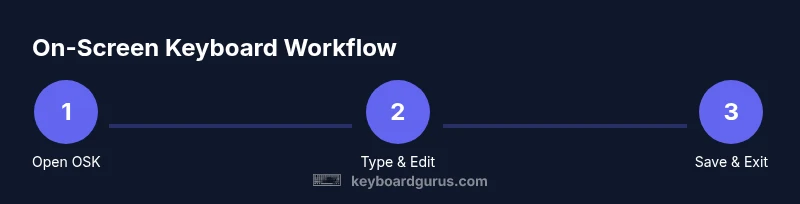
How to Use the Windows 10 On-Screen Keyboard
A comprehensive guide to enabling, customizing, and typing with the Windows 10 on-screen keyboard—perfect for accessibility, quick input, or troubleshooting on laptops and desktops.


Using the Windows 10 on-screen keyboard enables typing without a physical keyboard. This guide shows how to enable, navigate, and customize it for accessibility, quick input, or troubleshooting on laptops and desktops. Follow these steps to become proficient with screen typing on Windows 10.
Why the Windows 10 On-Screen Keyboard Matters
According to Keyboard Gurus, the Windows 10 on-screen keyboard is a versatile tool that adds flexibility to any setup. Whether you’re working on a small tablet, a laptop with a damaged physical keyboard, or you simply prefer touch input for certain tasks, the on-screen keyboard provides reliable access to all standard keys, function keys, and shortcuts. Keyboard Gurus analysis also notes that using the on-screen keyboard can improve accessibility for users with motor or visual challenges by offering adjustable sizing, key spacing, and a split layout option. In daily use, this tool can help you type quickly while keeping your hands in a comfortable position, avoid typos, and maintain workflow continuity when a hardware keyboard isn’t accessible.
Activating the On-Screen Keyboard
Activating the Windows 10 on-screen keyboard is quick and straightforward. You can open it by typing “osk” in the Run dialog (Windows key + R), or by navigating to Settings > Ease of Access > Keyboard and turning on Use the On-Screen Keyboard. For frequent use, pin the OSK to your taskbar or Start menu for one-click access. If you prefer a quick macro, you can create a small script that launches “osk” with a single keystroke. Keyboard Gurus emphasizes that enabling the OSK is often the first step in a more accessible and resilient workflow, especially on devices with touch screens or damaged physical keyboards.
Basic Navigation and Text Entry
Once the On-Screen Keyboard is visible, you can interact with it using a mouse, trackpad, or touch input. The layout mirrors a physical keyboard, including the number row and function keys in most configurations. To type, simply click or tap the keys. You can press and hold for capital letters or use the Shift key, just like a standard keyboard. If you enable the numeric keypad view or the separate function row, you’ll have full access to numeric input and shortcuts without a hardware keyboard.
Advanced Features and Shortcuts
Windows 10’s On-Screen Keyboard supports several advanced features to speed up typing. You can switch languages and keyboard layouts via the language bar, use Ctrl or Alt combinations via the OSK, and enable features like Dictation to input text by voice. Some users prefer the Touch Keyboard mode on tablets for larger keys and easier tapping. Keyboard Gurus recommends practicing common shortcuts (copy, paste, undo) using the OSK to build muscle memory and reduce reliance on a physical keyboard.
Common Issues and Troubleshooting
If the On-Screen Keyboard doesn’t appear, verify that it is enabled under Settings > Ease of Access > Keyboard. If you can’t type in a specific app, check that the app supports on-screen input and that accessibility settings aren’t restricting input. Updates or driver changes can occasionally affect OSK behavior, so keeping Windows up to date is helpful. If the keyboard appears but keys don’t register, try restarting the OSK or the computer, and test with another input method to isolate the issue.
Best Practices for Efficient On-Screen Typing
To maximize efficiency, customize the OSK size and layout to fit your hands and screen real estate. Place the keyboard where you can reach all keys comfortably, enable the numeric keypad when needed, and practice short minimal moves for common tasks. Consider enabling Dictation for long-form typing and pairing the OSK with a dedicated pointing device for faster navigation. Keyboard Gurus suggests creating a short, repeatable workflow for frequent tasks to minimize switching costs between input methods.
Tools & Materials
- Windows 10 PC or tablet(Ensure the device is up to date with the latest Windows 10 build and accessibility settings.)
- Mouse or touch input device(For interacting with the On-Screen Keyboard if not using a touchscreen.)
- Language packs (optional)(Add additional layouts for multilingual typing if needed.)
- Internet connection (optional)(Useful for updates and language pack downloads.)
Steps
Estimated time: 15-25 minutes
- 1
Open the On-Screen Keyboard
Open the On-Screen Keyboard by typing 'osk' in the Run dialog (Windows key + R) or navigate to Settings > Ease of Access > Keyboard and turn on Use the On-Screen Keyboard. Pinning OSK to the taskbar speeds access for daily use.
Tip: Tip: Create a desktop shortcut or taskbar pin for one-click access. - 2
Adjust size and position
Drag the edges to resize the keyboard and drag it to a comfortable screen position. A larger layout can reduce finger errors on touch devices.
Tip: Pro tip: Center the OSK at the bottom of the screen for natural reach. - 3
Type with mouse or touch
Click or tap keys to enter text. On touch devices, enable larger key targets and use the hover state for subtle feedback.
Tip: Pro tip: Use long-press on a key to access secondary symbols if available. - 4
Use modifiers and shortcuts
Utilize Shift for capitals, Caps Lock for continuous capitalization, and OSK’s Ctrl/Alt keys to execute common shortcuts. Practice copying and pasting to speed up workflows.
Tip: Pro tip: Memorize a few essential combos (Ctrl+C, Ctrl+V) using the OSK. - 5
Switch language or layout
Change input language or keyboard layout via the Language bar or Settings > Time & Language > Language. Some layouts require you to add the language first and then select the keyboard.
Tip: Pro tip: Keep your most-used layouts readily accessible. - 6
Enable numeric keypad and dictation
If you type numbers often, switch to the numeric keypad view. For longer passages, use Voice Dictation to reduce manual typing.
Tip: Pro tip: Use Dictation in tandem with OSK for faster input in long documents. - 7
Close or pin OSK for quick access
Close the OSK when not needed, or keep it pinned to the taskbar for quick reuse during a session.
Tip: Warning: Avoid keeping OSK open on shared devices to protect sensitive data.
Got Questions?
What is the Windows 10 On-Screen Keyboard?
The Windows 10 On-Screen Keyboard is a built-in virtual keyboard that lets you type with a mouse, stylus, or touch. It mirrors a physical keyboard and supports common modifiers and shortcuts.
The Windows 10 On-Screen Keyboard is a built-in virtual keyboard that you can use with a mouse, stylus, or touch, mirroring a physical keyboard.
How do I open the On-Screen Keyboard quickly?
Open the Run dialog (Windows key + R) and type 'osk', or go to Settings > Ease of Access > Keyboard and enable Use the On-Screen Keyboard.
Open Run with Windows key + R, type osk, and press Enter to launch the On-Screen Keyboard.
Can I use different languages with OSK?
Yes. You can add language packs and switch layouts via the Language bar or Settings > Time & Language > Language. Some layouts may require a restart.
Yes. You can add languages and switch layouts through the Language settings.
How do I customize the OSK layout?
Customize through Settings > Ease of Access > Keyboard to adjust size, position, and whether to show the numeric keypad. Some apps may have their own layout requirements.
You can adjust size and position in the settings, and enable the numeric keypad as needed.
How do I disable or hide the On-Screen Keyboard?
Close the OSK by clicking the close button or press Esc. You can also disable the feature in Settings > Ease of Access > Keyboard.
Just close the keyboard or switch off the feature in accessibility settings.
Is the On-Screen Keyboard secure to use on shared devices?
OSK itself is a local input method; however, always consider device trust and privacy when typing sensitive data on shared systems.
It’s a local input tool, but privacy on shared devices depends on the environment you’re in.
Watch Video
What to Remember
- Enable the OSK for flexible input
- Navigate, type, and use modifiers confidently
- Customize language/layout for efficiency
- Pin OSK for fast, repeatable access