How to Make My Keyboard Bigger on iPad: Step-by-Step Guide
Discover practical, safe methods to enlarge the on-screen keyboard on your iPad. This guide covers accessibility Zoom, Display Zoom, and larger-key keyboards, with actionable steps and tips.


By the end of this guide, you will know how to make your iPad keyboard bigger using built-in accessibility tools, display settings, or by trying a larger-key third-party keyboard. Key requirements include an up-to-date iPadOS, some quick settings changes, and a moment to test typing comfort. The steps are straightforward and safe, and you can switch back anytime.
How the iPad keyboard sizing works
If you're wondering how to make my keyboard bigger on ipad, you're not alone. The size of the on-screen keyboard is closely tied to the device's display scale and how text is rendered across apps. According to Keyboard Gurus, there are three practical approaches: magnifying the entire screen with accessibility tools, increasing the overall UI scale via Display Zoom, or selecting a third-party keyboard with larger keys. Each method carries trade-offs in usability, battery life, and app compatibility, so your choice should align with your primary tasks—whether you’re taking notes, composing messages, or gaming. The Keyboard Gurus team found that a well-chosen method can substantially improve comfort without compromising accuracy. Understanding these options helps you tailor a setup that feels natural during long study sessions or work sprints.
Three practical methods to enlarge a keyboard on iPad
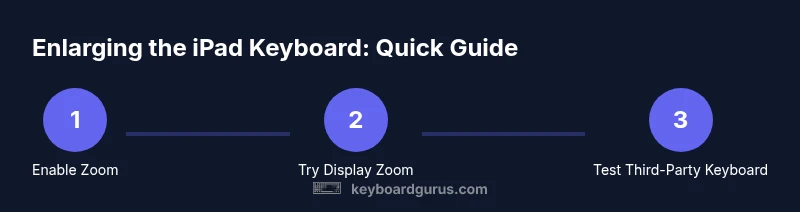
There are three main paths to a bigger keyboard on iPad. First, you can magnify the entire screen using Accessibility Zoom for a quick, universal fix. Second, Display Zoom scales the user interface and can make the keyboard appear larger without changing font sizes elsewhere. Third, you can experiment with a third-party keyboard that offers larger keys or adjustable layouts. Each approach has benefits and downsides—Zoom is fast and reversible, Display Zoom preserves some fidelity, and third-party keyboards can offer permanence but may raise privacy considerations. The Keyboard Gurus team emphasizes starting with the least intrusive option and only moving to alternatives if you still experience strain after a few typing sessions.
Method A: Accessibility Zoom — quick magnification of the keyboard
Accessibility Zoom is a fast path to a bigger keyboard. It magnifies everything on screen, including keys, text, and controls. You enable Zoom in Settings > Accessibility > Zoom, then use the three-finger double-tap to toggle zoom. You’ll want to adjust the zoom level while typing in your most-used apps to find a comfortable balance between key size and visibility. A common pitfall is losing track of where your fingers are when zoomed in too far, so set a comfortable magnification prior to long sessions. The upside is immediate relief for eyes and wrists; the drawback can be narrowed peripheral view and increased navigation effort.
Method B: Display Zoom — scale the UI for a larger look
Display Zoom changes the overall UI scale, including the keyboard, without changing app content too aggressively. Go to Settings > Display & Brightness > View and choose Zoomed. After the change, test across several apps to ensure text remains legible and typing remains accurate. If your content looks cramped or the keyboard feels oversized for some apps, revert to Standard view and re-evaluate. Zoomed view is particularly helpful for users who switch frequently between reading and typing, as it reduces the need to squint or hunt for keys.
Method C: Third-party keyboards with larger keys
If built-in options don’t deliver the desired feel, consider a third-party keyboard that offers larger keys or adjustable layouts. Look for keyboards that explicitly advertise larger-key modes or customizable key sizes. When evaluating options, review privacy policies and data handling settings, as some keyboards transmit keystrokes to a cloud service. Install from a trusted source, enable any required permissions, and test the keyboard in your common apps to confirm typing accuracy, speed, and comfort. This path is more permanent but may require ongoing updates and privacy considerations.
Testing across apps and tasks to confirm comfort
After selecting a method, test across your most-used apps: email, messaging, note-taking, and study tools. Pay attention to typing speed, error rate, and whether your wrists feel less strained. If you’re studying or coding, ensure code blocks and special characters remain accessible with the chosen setup. Keep a short log of what works well and what doesn’t to guide future tweaks. If you frequently switch tasks, consider a quick toggle that lets you revert to standard keyboard sizing in seconds.
Troubleshooting and safety considerations
If you notice lag, blurred keys, or reduced battery life after enabling Zoom or Display Zoom, revert to your previous setting and re-test for at least 10 minutes of continuous typing. Third-party keyboards can introduce privacy concerns; always review permissions and avoid keyboards that require unnecessary data access. For long study sessions, balance accessibility features with system performance by keeping your iPadOS updated and closing unused apps. Keyboard sizing should reduce strain without compromising accuracy or speed.
Best practices and a practical checklist
Create a simple routine: pick a primary method, test for 15–20 minutes, gather feedback from typing tasks, and then refine. Use the accessibility shortcut (or a quick-setup) to toggle features when you switch between reading and typing. Keep a small note of which apps work best with your chosen setting and which do not. Practically, most readers find Zoomed Display plus a lightweight third-party keyboard to be the optimal blend for day-to-day use, balancing visibility and input accuracy.
Tools & Materials
- iPad with latest iPadOS(Ensure the device is updated to the latest iPadOS for the newest accessibility and display features.)
- Settings app(Needed to adjust Zoom, Display Zoom, and View options.)
- External keyboard (optional)(Helpful for testing a physical keyboard experience if you want to compare ergonomics.)
- Stable Wi-Fi or cellular connection(Needed only if you download a third-party keyboard or update iPadOS.)
Steps
Estimated time: 15-25 minutes
- 1
Decide on your method
Evaluate whether you want to magnify the entire screen, scale the UI, or try a larger-key keyboard. Consider where you type most (notes, emails, chats) and how much you value stability versus customization.
Tip: Choose one primary method to start; you can layer additional options later if needed. - 2
Enable Screen Zoom
Open Settings > Accessibility > Zoom and switch Zoom on. Then practice with the three-finger double-tap to quickly toggle magnification on and off during typing.
Tip: Set a comfortable zoom level before heavy typing sessions to reduce eye strain. - 3
Apply Display Zoom (Zoomed UI)
Go to Settings > Display & Brightness > View and select Zoomed. Test typing in your most-used apps to ensure keys remain legible and ergonomically reachable.
Tip: If fonts or icons become too large in some apps, switch back to Standard view for those apps. - 4
Test a third-party keyboard
Install a keyboard with larger keys and test across your typical tasks (note-taking, chat, coding). Review privacy settings and permissions before enabling.
Tip: Use their built-in stats or prompts to adjust key height or layout if available. - 5
Evaluate comfort and accuracy
Type for 10–15 minutes in several apps and track any changes in speed and error rate. Decide if you will keep the change or revert.
Tip: Keep a short log and review after a day to confirm stability. - 6
Make the change permanent or reversible
If you’re satisfied, keep the chosen setup; if not, revert to current settings and try another approach. Consider creating a quick-access toggle for Zoom.
Tip: Document your preferred configuration for future device resets.
Got Questions?
Can I permanently enlarge the keyboard for all apps using only iPad settings?
You can increase perceived keyboard size with Display Zoom or Accessibility Zoom, but results vary by app. Some apps render keyboards differently, so you may need to adjust per app. If a permanent, universal solution is essential, third-party keyboards with adjustable keys can be a more consistent option—while keeping privacy considerations in mind.
Display Zoom or Accessibility Zoom can magnify the keyboard, but apps vary. For consistent results, consider a keyboard with adjustable keys, while watching privacy and permissions.
Is it safe to enable Zoom on my iPad for long typing sessions?
Yes, enabling Zoom is safe for everyday use. It magnifies the entire screen and can be turned off quickly. Monitor battery impact and ensure your iPad remains within comfortable viewing range, especially during long typing sessions.
It's safe to use Zoom, just monitor battery and comfort, and switch off when not needed.
Will switching to Display Zoom affect photos or apps that rely on precise layouts?
Display Zoom can affect how content is laid out in some apps, potentially causing cropping or changed alignment. If you rely on precise layouts for design or editing, test thoroughly and revert if issues appear.
Some apps may crop or reflow with Display Zoom, so test before committing.
Can a third-party keyboard compromise privacy?
Some third-party keyboards request permissions to help with typing. Review the app’s privacy policy and disable full access if you’re concerned about data handling.
Be mindful of permissions; review privacy policies and disable full access if possible.
What should I do if none of the methods feel comfortable?
Try a hybrid approach: use Zoom for occasional reading sessions and Display Zoom for typing bursts, or alternate with a larger-key keyboard. If discomfort persists, take a break and reassess your posture and workstation angle.
If nothing feels right, mix methods and re-evaluate your setup after a break.
Does updating iPadOS impact keyboard sizing features?
Yes, OS updates can add or adjust accessibility features. After updating, revisit Zoom and Display Zoom options to ensure they still meet your needs.
Update first, then check your accessibility settings to adjust as needed.
Is there a dedicated 'keyboard bigger' feature in iPadOS?
There isn’t a single dedicated 'keyboard bigger' switch in iPadOS, but a combination of Zoom, Display Zoom, and careful app testing achieves the same goal in most cases.
There isn’t one switch; use Zoom, Display Zoom, and testing to enlarge the keyboard.
Watch Video
What to Remember
- Enable Zoom to rapidly magnify the keyboard for comfort.
- Display Zoom offers a broader scale without changing core app content.
- Test third-party keyboards for larger keys and check privacy settings.
- Always test across tasks and set a quick revert option.