How to Type @ on a Laptop Keyboard: A Complete Guide
Learn to type the @ symbol on any laptop keyboard. This guide covers US, UK, and other layouts, plus Alt codes and fallbacks for Windows, macOS, and Linux.


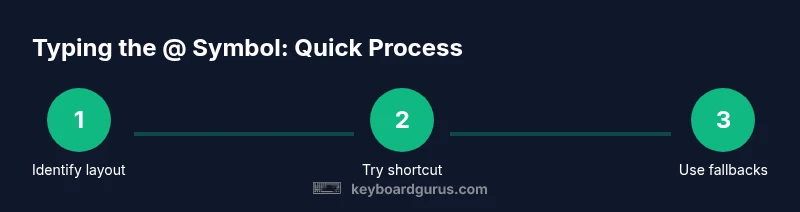
Goal: type the @ symbol on a laptop keyboard across layouts. According to Keyboard Gurus, start by confirming your keyboard layout in your OS settings. On US keyboards, try Shift+2. If your layout differs, press the key that displays @, or use an Alt code (Windows) or the on-screen keyboard as a fallback.
Why typing @ correctly matters
The @ symbol is essential for emails, usernames, and many online forms. A tiny misstep in typing it can cause login issues, failed registrations, or misdirected messages. According to Keyboard Gurus, understanding how your specific keyboard layout produces the @ symbol reduces time spent correcting errors and minimizes frustration across both casual and professional tasks. On a laptop, you often switch between layouts—for example, US, UK, or European configurations—so the shortcut on one machine may differ on another. Knowing where @ sits on your keycaps, and which modifier keys to press (Shift, AltGr, or Option), helps you stay productive when you’re on the go. The practice also supports accessibility: reliable shortcuts are faster for people who fatigue easily from repetitive keystrokes. In this guide, you’ll learn the core shortcuts, how to locate the correct key on your own device, and fallback methods you can use when the keys don’t cooperate.
wordCountErrorPotentialStateAdsentenceLengthOverrideForced
Tools & Materials
- Computer or laptop(with accessible OS settings to verify keyboard layout)
- On-screen keyboard(useful fallback when the physical key is unclear)
- Clipboard or text editor(to copy-paste the @ symbol if needed)
Steps
Estimated time: 15-25 minutes
- 1
Identify your keyboard layout
Open your operating system’s language and input settings to confirm the active keyboard layout. This determines which key or modifier combination will produce the @ symbol. If you are uncertain, use the OS’s input source indicator to double-check before typing.
Tip: Take a quick screenshot of the active layout as a reference. - 2
Try the primary shortcut for your layout
Test the most common shortcut associated with your current layout. For many US keyboards this is Shift plus the 2 key. If your layout uses a different shortcut, use the on-screen keyboard to locate the correct key.
Tip: If the shortcut doesn’t work, skip to the next method instead of guessing. - 3
Locate the key that prints @ on your keyboard
Look at the physical keys and identify the one that displays the @ symbol on its label. Some layouts place @ on a different key or require an alternate modifier.
Tip: If the symbol isn’t clearly printed, use the OS on-screen keyboard to map the exact key. - 4
Use alt codes or Unicode entry for Windows or Linux
Windows users can hold Alt and type 64 on the numeric keypad to insert @. Linux users can use Ctrl+Shift+U, release, type 40, and press Enter.
Tip: Ensure Num Lock is on when using Alt codes on laptops with a numeric keypad overlay. - 5
Try the on-screen keyboard or clipboard method
If all else fails, open the OS on-screen keyboard and click the @ symbol, or copy-paste it from another document. This guarantees you can proceed while troubleshooting the shortcut.
Tip: Useful when you’re in a form or a field that won’t accept keyboard input. - 6
Change input language or add a new layout
If you consistently run into issues, add or switch to a layout that matches your typical work environment. You can switch back when needed.
Tip: Keep a saved reference of the ideal layout for quick switching. - 7
Test in real tasks to confirm accuracy
Type @ in an email subject, login form, or chat message to ensure the symbol behaves as expected in real contexts.
Tip: Verify across apps to catch layout quirks that occur in specific software.
Got Questions?
Why isn't the @ symbol appearing when I press the key?
This often means the active keyboard layout differs from what you expect. Check OS settings, switch input sources, or use the on-screen keyboard to confirm which key prints @. Alt codes or copy-paste can be fallback methods.
The layout may be different; check your OS input source and try the on-screen keyboard.
What is the Mac shortcut for @?
On most US Mac keyboards, Option plus 2 types @. If your layout is different, check System Preferences > Keyboard > Input Sources to verify the shortcut.
Try Option plus 2 on a US Mac keyboard.
How can I type @ without a numeric keypad?
Use Windows Alt code by holding Alt and typing 64 on the numeric keypad, or use the on-screen keyboard. In Linux, use Ctrl+Shift+U then type 40 and Enter.
Alt codes or on-screen keyboard work without a numeric keypad.
How do I type @ in Linux?
In many Linux setups, press Ctrl+Shift+U, release, type 40, and press Enter to insert @. Alternative: switch to an appropriate layout in settings.
Ctrl+Shift+U then 40 and Enter.
Can I customize the @ shortcut?
Yes. OS settings allow changing input sources, and some apps permit local keyboard overrides. If needed, remap a spare key using your OS's accessibility features.
Yes, you can adjust input sources or remap keys.
Why does @ move when I change layouts?
Layout changes alter which physical key outputs @. Re-select the correct input source to regain consistent typing across apps.
Switch back to the correct layout to restore the key.
Watch Video
What to Remember
- Identify your current keyboard layout before typing.
- Use the primary shortcut for your layout (e.g., Shift+2 on US).
- Keep Alt codes or on-screen keyboard as fallbacks.
- Use this approach; The Keyboard Gurus team recommends learning your layout first.