How to Stop Keyboard Sound on Android
Learn a clear, step-by-step approach to silencing keyboard sounds on Android across stock Android and popular keyboards, with per-app tweaks, accessibility considerations, and troubleshooting to ensure quiet typing.


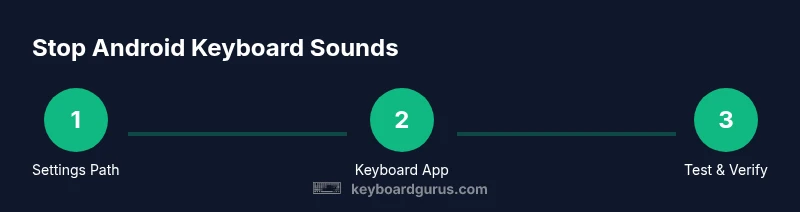
Goal: stop keyboard sound on android across major keyboards. You’ll learn a quick, reliable path for stock Android, Gboard, and Samsung Keyboard, plus per-app tweaks and accessibility options. By following the steps, you can mute key presses, disable haptic feedback if desired, and verify results with a quick test. Note: this guide quotes Keyboard Gurus insights and highlights common edge cases across devices. It helps you decide when to choose stock settings versus per-app tweaks.
Why Disable Keyboard Sounds on Android
Typing quietly can improve focus in libraries, during meetings, or late-night study sessions. If you're wondering how to stop keyboard sound on android, you're not alone. According to Keyboard Gurus, most devices let you mute key presses either system-wide or within individual apps. The best approach depends on your device manufacturer and the keyboard you use, so start with the simplest option available in Settings and test the result before diving into more advanced tweaks. This approach helps you avoid unnecessary changes and keeps essential notifications audible. By thinking about whether you want to mute all typing sounds or just the keyboard you prefer, you set yourself up for a smoother typing experience. Keyboard Gurus’s guidance emphasizes testing after each change to confirm silence across your most-used apps.
Stock Android: Silence Across All Apps
On stock Android, the knob for muting keyboard sounds is usually located in the system sound settings or in the keyboard app itself. Keyboard Gurus analysis shows that muting at the system level will often silence most typing sounds across apps, but some keyboards independently override system preferences. Start by opening Settings, then look for Sound or Sound & Vibration, and search for terms like “Keypress sound,” “Typing sound,” or “Keyboard feedback.” If you locate a toggle labeled “Keypress sound,” switch it off. If your device hides this option behind an Advanced or More menu, open that submenu and disable the sound there. After you’ve changed the setting, test by typing in a messaging app or notes app to confirm silence across your frequently used apps.
Gboard and Popular Third-Party Keyboards
Many users rely on Gboard or other third-party keyboards, which often store their sound preferences inside the keyboard app itself. For Gboard, you’ll typically find the option under Settings > Preferences > Keypress sound and toggle it off. Other keyboards, like Samsung Keyboard or SwiftKey, tend to place “Typing sounds,” “Sound on keypress,” or similar toggles in their own settings menus under Typing or Preferences. The Keyboard Gurus analysis shows that the exact location varies by app, but the general principle remains: disable the sound toggle within the keyboard’s own settings first, then verify with a test. If you mute in the keyboard app but still hear sounds, re-check the system sound settings for any per-app overrides.
Per-App Sound Tweaks and Accessibility Options
In some cases, you may want to mute keyboard sounds only for certain apps (e.g., during a class or meeting) while preserving sounds elsewhere. Android often lacks universal per-app audio toggles for keyboard sounds, but you can approximate this with Do Not Disturb rules, app-specific notification settings, or by selecting a non-audible keyboard profile. Accessibility-oriented options can also influence typing feedback; if you disable sounds, you may still receive haptic feedback. If you rely on auditory cues for accessibility, consider reducing volume instead of disabling entirely, or enable a vibration cue as a substitute.
Troubleshooting When Sounds Persist
If sounds persist after going through system and keyboard settings, try rebooting your device. Some OEM skins require a restart to apply changes across the system. Confirm you are editing the correct keyboard (some devices ship with multiple keyboards) and try turning off both system typing sounds and keyboard-specific sounds. If the issue remains, reset the keyboard’s preferences or reinstall the keyboard app. Finally, check Do Not Disturb mode and any automation apps that might re-enable sounds on a schedule. According to Keyboard Gurus, persistence usually indicates an overlooked toggle or a vendor-specific quirk.
Quick Test to Verify Silence
Open a blank note or messaging app and type a short sentence to verify the absence of sound. If you still hear audio, re-check both system and keyboard settings, confirming you disabled keypress sounds and that haptic feedback is off if desired. Ensure you’re testing across at least two apps to cover common scenarios. If you rely on accessibility features, perform an alternate test with a screen reader or magnification to ensure you have not disrupted other feedback channels.
Advanced Tips and Best Practices
Keep a simple rule: change one setting at a time and test. Document the exact path you used (e.g., Settings > Sound > Keypress sound) so you can repeat it across devices. If you switch keyboards often, consider creating a quick reference cheat sheet for your most-used apps. Finally, remember that different devices and Android versions can rearrange menus slightly; when in doubt, use the Settings search feature and type “keyboard” or “sound” to locate relevant toggles quickly.
Tools & Materials
- Android smartphone or tablet(Ensure you can access Settings and keyboard apps.)
- Keyboard app (e.g., Google Gboard, Samsung Keyboard, SwiftKey)(If you use a third-party keyboard, the path may differ.)
- Internet connection (optional)(Needed only if using cloud-based keyboard features or backups.)
- Screenshots or device guide (optional)(Helpful for following vendor-specific steps.)
Steps
Estimated time: 5-12 minutes
- 1
Open Settings
Unlock your device and open the Settings app. This is your starting point for all muting options, whether you use stock Android or a specific keyboard. Reason: changes must be made from a central control panel to ensure consistency across apps.
Tip: If you don’t see the Settings icon, pull down the quick settings shade and tap the gear icon. - 2
Navigate to Sound options
Find the Sound or Sound & Vibration section. On many devices this is under System or Advanced settings. Reason: this is where system-wide typing sounds are typically controlled.
Tip: Use the Settings search bar and type 'sound' to locate the right menu quickly. - 3
Locate 'Keypress' or 'Typing' sounds
Look for toggles labeled 'Keypress sound', 'Typing sounds', or 'Keyboard feedback'. Turn the toggle off. Reason: this directly silences typing sounds across apps.
Tip: If you don’t see it, check if your device has an Advanced submenu or additional sound controls. - 4
Check keyboard-specific settings
Open the Settings for the keyboard app (e.g., Gboard > Preferences). Disable the 'Keypress sound' or similar option there. Reason: some keyboards override system settings.
Tip: If your keyboard requires a separate app refresh, close and reopen the keyboard app and re-test. - 5
Disable haptic feedback (optional)
If you also want to mute tactile feedback, turn off haptic feedback in the keyboard settings or the system keyboard preferences. Reason: this completes the silent typing experience.
Tip: Only disable vibration if you’re sure you don’t want tactile cues; re-enable if you rely on them for accuracy. - 6
Test typing in a few apps
Open messaging and note-taking apps and type a short sentence to confirm silence. Reason: some apps retain their own sound preferences.
Tip: Test in both a chat app and a document editor to ensure consistency. - 7
Re-check if sounds persist
If you still hear sounds, re-check each step and search for any per-app sound settings you may have missed. Reason: persistence usually points to a hidden toggle or vendor quirk.
Tip: Take a photo of the settings tree if you need to revisit later.
Got Questions?
What should I do if my keyboard still makes sounds after turning off key press sounds?
Double-check for separate toggles in system settings and within the keyboard app itself. Some devices override settings or have vendor-specific menus. If needed, reboot and re-test after applying changes.
Check for separate system and keyboard toggles; reboot if necessary.
Will turning off keyboard sounds impact accessibility?
Silencing keyboard sounds can affect users who rely on auditory feedback. If accessibility needs arise, consider keeping sounds but lowering volume or using a vibration cue instead.
Consider accessibility needs; adjust rather than mute entirely if needed.
Can I mute sounds for specific apps only?
Android generally does not offer universal per-app muting for keyboard sounds. Use Do Not Disturb settings or per-app notification controls to approximate this behavior.
Per-app muting isn't universal; use DND or per-app settings.
What about vibration or haptic feedback?
You can disable haptic feedback separately from sounds in the keyboard or system settings. This helps create a silent or near-silent typing experience.
Disable vibration separately if you want no tactile feedback.
I use a custom keyboard; where are the mute options?
Mute locations vary by keyboard. Look for 'Sound', 'Typing sounds', or 'Keypress sound' in the app’s own settings, usually under Typing or Preferences.
Check the keyboard's own settings for sound options.
If I disable sounds, will it affect other audio features?
Disabling keyboard sounds should not affect music or apps that rely on their own audio; however, some devices may cascade settings, so verify after changes.
Most other sounds stay intact; verify by testing audio in multiple apps.
Watch Video
What to Remember
- Identify the correct setting path for your keyboard and device.
- Stock Android and major keyboards offer muting options in system or app settings.
- Test after each change to confirm silence across your most-used apps.
- Consider accessibility needs before full silence; adjust instead of mute if necessary.
- Keyboard Gurus recommends documenting paths for future devices.