How to Use Em Dash on Keyboard
Learn practical methods to type the em dash across Windows, Mac, and Linux, with editor tips, typography best practices, and a reliable workflow for consistent punctuation.


By the end of this guide you will reliably type an em dash on any keyboard and in major editors. We’ll cover Windows, Mac, and Linux methods, plus practical tips for consistent typography in Word, Google Docs, Markdown, and plain text. You’ll learn when to use the em dash, how to avoid common mistakes, and how to set up auto-correct to speed your flow.
What is an em dash and when to use it
According to Keyboard Gurus, the em dash is a versatile punctuation mark that can replace parentheses, commas, or abrupt breaks in a sentence. It helps to insert emphasis or indicate an aside without breaking the flow. In modern typography, the em dash is longer than a hyphen or en dash and carries a distinct rhythm that readers recognize. This section clarifies what the em dash is, its historical roots, and common usage scenarios across genres—from journalism to fiction, from technical manuals to emails. Before you type, decide whether your sentence benefits from a bold interruption or a softer pause; this simple choice shapes the tone of your entire passage. The em dash’s flexibility makes it a favorite for editors who want to control pacing, create dramatic pauses, or set off a stray thought with precision. The historical aspect—originating from typewriter days—reminds us that digital typography often mirrors traditional book typography, which many readers expect in professional writing.
The em dash vs hyphen and en dash
Many readers confuse hyphens, en dashes, and em dashes because they look similar in plain text. The hyphen (-) is the shortest and is used to join words, break syllables, or form compound terms. The en dash (–) is longer and typically indicates ranges (pages, dates, numbers). The em dash (—) is the longest and functions as a strong break or an abrupt thought. In practice, you’ll want to choose the em dash when you want to signal a sudden turn in thought or to set off parenthetical material without parentheses. Different style guides disagree on spacing around the dash; most modern typesetting favors no spaces, but some publications prefer spaces for readability or to avoid crowding. Consistency matters more than the exact rule in most professional contexts. When you see a dash in a sentence, ask whether it’s replacing punctuation or signaling a shift in tone, and choose accordingly.
Keyboard shortcuts across platforms
Typing an em dash efficiently depends on your operating system and editor. On Windows, the most common method is Alt+0151 using the numeric keypad, which inserts a standard em dash. On a Mac, the standard shortcut is Option+Shift+- (hyphen) to produce an em dash. Linux users can type a Unicode code by pressing Ctrl+Shift+U, releasing, typing 2014, and pressing Enter. Editors like Microsoft Word, Google Docs, and many Markdown editors offer built-in replacements or autoprompt suggestions. If you spend a lot of time writing, set up a persistent shortcut or replacement to speed your workflow. In environments where you frequently switch between platforms, consider creating a small reference card with your chosen method so you don’t have to memorize multiple paths. The goal is to minimize friction while preserving typographic accuracy across documents.
Auto-correct, replacements, and editor behavior
Modern editors often include smart typography features. Word’s AutoFormat as You Type can convert two hyphens into an em dash, and many editors provide a similar option to replace double hyphens with an em dash automatically. If you enable this feature, review your document to ensure the replacement happened where you intended. Some editors also offer a "smart quotes" setting that can affect how punctuation appears in your text, so verify the final output in your target format. For code snippets or URLs, disable automatic replacement to avoid corrupting strings. If you rely on multiple editors, test the replacement behavior in each one so you don’t end up with inconsistent glyphs across your project.
Typographic rules: spacing and style
There are two main conventions for spacing around the em dash: no spaces, and space on both sides in some editorial houses. In American typography, the no-space version (—) is the most common; British publications sometimes opt for spaces to ease reading in dense paragraphs. When deciding, align with your organization's style guide or your publisher’s preference. If no guide exists, pick one convention and apply it consistently across all documents. The same applies to line breaks and punctuation around the dash; consistency beats every other consideration. Remember that font choice can subtly influence perceived spacing, so test with your usual typefaces to ensure the dash reads cleanly in print and on screen.
Typing em dash in popular apps: Word, Google Docs, Markdown, and more
In Word or Google Docs, you can rely on OS shortcuts, insertion menus, or replacement rules. In Markdown and plain text, you’ll typically rely on keyboard shortcuts or Unicode input (Ctrl+Shift+U 2014 Enter on Linux). If you’re writing code-heavy docs, prefer the no-break em dash where possible and ensure your font renders the character with a stable glyph. Keep in mind that some fonts substitute glyphs differently, so test across scenarios to avoid misrendering. For collaborative work, agree on a single method and adopt it across your team to minimize inconsistent punctuation in shared drafts.
Practical workflow: from idea to clean text
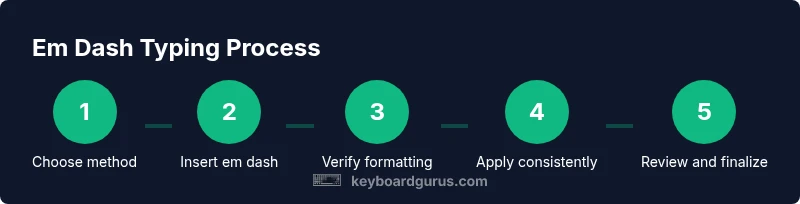
Begin by drafting your sentence with your first instinct for flow. If you sense you’ll need an interruption, place the em dash most naturally to match the rhythm. During revision, search for two consecutive hyphens and replace them with an em dash, ensuring the surrounding spaces comply with your chosen style. For long documents, keep a quick reference of shortcuts near your keyboard or in your editor’s snippet library. In revision, read aloud to hear the cadence, which makes the dash feel natural rather than forced. This step-by-step habit reduces the risk of overusing or underusing the dash and helps you maintain a consistent voice across paragraphs.
Accessibility and readability considerations
Em dashes can influence how screen readers interpret text. Generally, screen readers do not treat an em dash as a pause, so be mindful that long or frequent dashes might hinder comprehension for some users. Where appropriate, consider using parentheses or commas to reduce reliance on the dash in complex sentences. If your audience includes assistive technology, run a quick accessibility check and adjust punctuation to maintain clarity without sacrificing style. You can also provide alternate punctuation in critical passages to accommodate readers who rely on assistive services.
Common mistakes and quick fixes
Common mistakes include substituting an em dash with a hyphen, using en dashes for abrupt breaks, or placing spaces inconsistently around the dash. A frequent pitfall is overusing the dash, which can disrupt readability. The fix is a simple, consistent rule: choose your dash convention and apply it everywhere in the document. Use a text expander or editor replacement to standardize replacements, and avoid auto-correct surprises by auditing the output.
Building a reliable typing routine for em dash mastery
The most durable skill comes from a repeatable workflow. Decide on a method to insert the em dash (keyboard shortcut vs. replacement) and stick with it across projects. Create a small cheat sheet with each platform’s shortcut, and save a prebuilt snippet in your editor. Practice by composing 5 short sentences a day that require an em dash, then review weekly to ensure consistency. Over time, typing the em dash becomes automatic, freeing cognitive load for content quality.
Tools & Materials
- Computer (Windows, macOS, or Linux)(Any modern machine used for writing; OS differences will be covered.)
- Text editor or word processor(Word, Google Docs, Markdown editor, or code editor.)
- Numeric keypad or Unicode input capability(Alt codes on Windows require a numeric keypad; Linux users may use Ctrl+Shift+U 2014.)
- Font with full punctuation support(Ensure your font includes a proper em dash glyph.)
- Reference sheet or quick-access guide(Optional but helps consistency.)
Steps
Estimated time: 15-25 minutes
- 1
Decide insertion method
Choose the most reliable method for your setup, aiming for consistency across documents. This foundation reduces errors when switching editors.
Tip: Prefer a method you can reproduce on all your devices. - 2
Learn Windows shortcut
On Windows, use Alt+0151 with the numeric keypad to insert an em dash quickly. Ensure NumLock is on so your keystrokes register correctly.
Tip: If Alt codes don’t work, use Insert > Symbol and copy-paste the dash. - 3
Learn Mac shortcut
Mac users should press Option+Shift+- to produce an em dash. This works in most apps, including editors and browsers.
Tip: If you rely on a laptop without a numeric keypad, this is the fastest route. - 4
Learn Linux Unicode input
In Linux, press Ctrl+Shift+U, release, type 2014, and press Enter to insert the em dash.
Tip: If you customize a compose key, you can set a shorter sequence. - 5
Enable auto-replace
Turn on automatic replacement of two hyphens with an em dash in your editor when you prefer automation.
Tip: Review replacements to avoid overreach in URLs or code. - 6
Check font rendering
Test your chosen font to ensure the em dash displays correctly across apps and platforms.
Tip: Keep a fallback font handy if a platform misrenders. - 7
Standardize spacing
Decide on spaces around the dash (no spaces in most American typography, spaces in some styles) and apply consistently.
Tip: Consistency trumps minor stylistic nuances. - 8
Practice in real texts
Draft five sentences that require an em dash to build muscle and rhythm.
Tip: Read aloud to hear cadence and ensure natural flow. - 9
Review for accessibility
Check how the dash affects readability for screen readers and consider alternatives if needed.
Tip: Always test content with assistive technologies. - 10
Create a quick reference
Maintain a one-page cheat sheet with shortcuts and rules you follow.
Tip: Keep it near your workspace or within your editor.
Got Questions?
What is an em dash and when should I use it?
An em dash is a long dash used to create a strong break or to set off material without parentheses. Use it to indicate interruptions, abrupt shifts, or appositive phrases when you want a dramatic or clean pause. Stick to a consistent rule across your document or team.
An em dash is a long dash used to show a strong break or interruption. Use it to set off material without parentheses and keep your style consistent.
How is an em dash different from a hyphen or en dash?
A hyphen is the shortest and joins words. An en dash marks ranges and connections. An em dash is the longest and creates a strong break or interruption. In most professional writing, use the em dash for emphasis or abrupt shifts and reserve hyphens or en dashes for word joins and ranges respectively.
The hyphen is short, the en dash marks ranges, and the em dash is the longest and signals a break or interruption.
Can I automatically replace hyphens with em dashes?
Yes, many editors offer automatic replacement for two hyphens with an em dash. Enable this feature carefully and review the output to avoid affecting URLs or code.
Yes, many apps can automatically replace double hyphens with an em dash, but review the results to avoid breaking things like URLs or code.
What about spacing around the em dash?
Most American typography uses no spaces around the em dash, while some editors or publishers in other styles may prefer spaces. Choose one approach and apply it consistently across your document to maintain readability.
Spacings around the em dash depend on the style you follow, but consistency is key.
How do I type an em dash on Mac, Windows, and Linux?
Windows: Alt+0151. Mac: Option+Shift+- . Linux: Ctrl+Shift+U, then 2014, Enter. Many editors also offer a built-in replacement or insert-symbol tool.
On Windows use Alt+0151, on Mac use Option+Shift+-, and on Linux use Ctrl+Shift+U 2014 Enter. Editors may have their own shortcuts too.
Should I worry about em dashes for accessibility?
Em dashes can affect readability for screen readers if overused. Consider alternatives like parentheses or commas in dense or critical passages, and test with assistive technologies when publishing.
Yes, review how the dash reads with assistive tech and adjust if needed to keep content accessible.
Watch Video
What to Remember
- Choose a single insertion method and apply it consistently.
- Prefer no spaces around em dash for American typography.
- Enable auto-correct or replacements, then verify outputs.
- Test font rendering across apps to ensure glyph consistency.
- Build a simple, repeatable workflow to improve speed and accuracy.