How to Use F Keys on 60 Keyboard: A Practical Guide
Learn how to access and customize F1–F12 on a 60% keyboard. This guide covers Fn layers, Fn-lock, OS differences, and practical remapping tips for gamers, students, and professionals.


According to Keyboard Gurus, how to use f keys on 60 keyboard is driven by the Fn layer. This quick answer explains how to access F1–F12 on a 60% layout, toggle Fn-lock, and recognize common layout variations. Mastering the Fn layer lets you run media, system, and productivity shortcuts with a compact keyboard.
Understanding the Fn Layer on 60% Keyboards
A 60% keyboard saves space by removing the traditional function row and navigation cluster. Since F1–F12 are not on the primary key row, they live behind a function (Fn) layer. This means you access a standard set of F-keys by holding Fn, then pressing the corresponding key on the top row or toward the right edge, depending on the model. The Fn layer also powers media controls, brightness, and window management shortcuts.
Within keyboards this size, the exact layout varies by maker. Some boards place F1–F12 on the number row with tiny legends; others dedicate a secondary function row along the top edge. A few devices switch to an on-demand layer using a single key to toggle F-keys on or off. Understanding your model’s legend and any default Fn behavior will save you time in daily use.
Tip: keep a quick-reference card near your desk until you memorize your own device’s mappings. This prevents you from guessing during important tasks.
How F-Keys Are Mapped on a 60% Layout
On a typical 60% keyboard, F1 through F12 are not printed on the primary number row. Instead, you use the Fn key with a function-row key or number to trigger the F-keys. Some layouts assign F1 to the same physical key as the standard F1 on the top of the board; others put F1–F12 across a dedicated function layer accessed by Fn. The mapping depends on the product, firmware, and any software layer the manufacturer provides.
Keyboard Gurus analysis shows that Fn-key behaviors vary by layout and manufacturer, so you should check your model’s documentation for the exact key pairs. If your keyboard includes a software configurator, you can often reassign which action is bound to Fn+X. This is especially helpful if you rely on a specific set of F-key shortcuts in creative software or IDEs. Always test mappings after changing them to avoid surprises in production work.
Examples of common mappings: Fn+F1 often opens help in apps, Fn+F5 refreshes a page, Fn+F4 closes windows, Fn+F11 toggles full-screen, and Fn+F12 may control external media.
Accessing F1–F12 on a 60% Keyboard: Core Techniques
To access F1–F12 on most 60% keyboards, press and hold Fn, then press the corresponding function key. If your device supports Fn-lock, you can toggle it so the primary row acts as F-keys by default. Fn-lock is typically activated with a keyboard shortcut like Fn+Esc or with a dedicated switch on the board; consult your manual for the exact method. If you disable Fn-lock, pressing the F-keys alone will trigger the normal actions (volume, brightness) that the keys are bound to when Fn-lock is on.
Practice briefly in a browser or text editor to confirm which keys trigger which commands. Some keyboards swap the primary action when you press Fn without holding it, so you might see inconsistent results if you assume a fixed mapping.
Fn-Lock and Hardware Toggles
Fn-Lock can be hardware-based or firmware-based. Hardware toggles are physical switches or keys; firmware toggles are controlled by the boot firmware and vendor software. If you use Fn-Lock frequently, choose a keyboard that provides a clear toggle and a stable mapping. When Fn-Lock is on, F1–F12 behave as function keys by default; when it’s off, the keys perform their secondary functions (volume, playback, brightness, etc.).
If your keyboard lacks a clear Fn-Lock option, you can often achieve the same effect by using a software profile that remaps common tasks to the F-keys and disabling alternate actions.
OS-Specific Considerations: Windows, macOS, and Linux
Windows, macOS, and Linux treat Fn behavior differently, so it’s important to test mappings across your primary apps. On Windows, F-keys frequently participate in application shortcuts; on macOS, media controls are often bound to the Fn layer unless you enable a global function-mode. Linux users may find layout variability across desktop environments. In all cases, ensure the Fn layer settings survive reboot and consider bookmarking the vendor’s support pages for model-specific quirks.
Keyboard Gurus analysis shows that OS-level settings can influence how Fn and F-keys behave; a small adjustment in system preferences or a firmware update can align behavior with your workflow.
Customizing F-Keys with Software Remaps
Many keyboards ship with companion software that lets you tailor F-key behavior. If your device doesn’t include software, OS-level remapping (via built-in utilities or third-party tools) is a reliable alternative. When remapping, start with your most-used shortcuts (e.g., in IDEs, browsers, spreadsheets) and assign them to a comfortable F-key combination. Save profiles for different tasks (gaming vs productivity) and switch with a hotkey or quick-access panel. Remember to document mappings so you don’t forget them later.
Troubleshooting Common Fn Key Issues
If F-keys don’t respond, verify that Fn is not stuck in an unresponsive state, test with several apps to rule out application-specific bindings, and check for a Fn-Lock toggle. Ensure the keyboard firmware is current and that you’re using the latest vendor software if available. A full system restart can clear stubborn remappings, and testing the board on another computer can determine if the issue is hardware-related.
Real-World Use Cases: Gaming, Productivity, and Coding
Gamers often rely on F-keys for quick actions and macros; a reliable Fn layer makes these shortcuts feel like a native part of the game. Students and professionals benefit from mapping F-keys for navigation, debugging, and document control, reducing the need to switch to a full-sized keyboard. Coders frequently assign common IDE commands (build, run, search) to F-keys for speed and flow. The key is consistency—choose a mapping that you can rely on under pressure and keep it the same across apps.
Keyboard Gurus Perspective and Practical Advice
The Keyboard Gurus team recommends approaching 60% keyboards with a practical mindset: learn the Fn layer first, then customize only what you actually use. Start with a default mapping, test it in your daily pipelines, and gradually tune it. If you depend heavily on F-keys for work, prioritize keyboards that offer a clear Fn-Lock and solid software support. This approach minimizes confusion and maximizes productivity over time.
Tools & Materials
- 60% keyboard (any layout, mechanical or membrane)(Ensure it has an Fn layer or a way to access F-keys)
- Computer or test device(Windows, macOS, or Linux for cross-checks)
- User manual or manufacturer website(Model-specific Fn mappings and Fn-Lock methods)
- Remapping software or OS settings(Optional for customizing F-keys)
- Notebook for quick-reference mappings(Helpful during learning phase)
Steps
Estimated time: 20-30 minutes
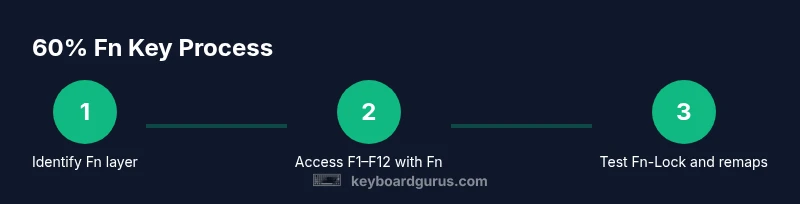
- 1
Identify the Fn layer on your keyboard
Inspect the top row and any legends on the keycaps. Confirm which keys trigger F1–F12 when Fn is pressed and note any special icons for media or brightness. This establishes your baseline mappings before you begin testing.
Tip: Look for a dedicated Fn key near the bottom-left or bottom-right corner and test with your chosen OS. - 2
Test Fn + F keys in a simple app
Open a text editor or browser and press Fn plus F1–F12 to verify each F-key function. Document any discrepancies between the intended F-key action and the actual result.
Tip: Keep a small list of observed mappings as a quick reference while you learn. - 3
Enable Fn-Lock if you want F-keys by default
If your model supports Fn-Lock, activate it to make F1–F12 active without holding Fn. If your device lacks a toggle, skip this step and rely on Fn for access.
Tip: Check the manual for the exact Fn-Lock combination; common options include Fn+Esc or a hardware switch. - 4
Try model-specific remapping software
If your keyboard ships with software, use it to remap frequently used F-keys or to create profiles for different tasks. Save the profile when you’re satisfied.
Tip: Name profiles clearly (e.g., 'Work', 'Gaming') so you can switch instantly. - 5
Test OS-specific behavior
Verify how F-keys behave under Windows, macOS, and Linux. Some systems treat function keys as media controls unless Fn-Lock is engaged or system preferences are adjusted.
Tip: Document OS-specific quirks for quick reference during cross-platform work. - 6
Apply real-world shortcuts
Assign the most-used shortcuts (e.g., in your IDE or browser) to F-keys to reduce keystrokes and improve workflow.
Tip: Avoid overloading a single F-key; spread critical shortcuts across multiple keys. - 7
Validate on a timer
Use your mapped shortcuts during a normal work session and watch for drift or accidental mappings. Adjust as needed.
Tip: Give yourself a 1-hour test window to evaluate comfort and reliability. - 8
Document and save your final setup
Record your final Fn mappings and profiles for future reference. This reduces re-learning and ensures consistent productivity.
Tip: Store a copy of your configuration in a safe place.
Got Questions?
What is a 60% keyboard, and why are F-keys not on the main row?
A 60% keyboard omits the traditional function row and navigation cluster to save space; F-keys are accessed via the Fn layer. This design focuses on compact layouts while keeping essential shortcuts available through Fn combinations.
A 60% keyboard saves space by removing the function row; you use the Fn layer to access F-keys.
How do I access F1-F12 on a 60% keyboard?
Press and hold Fn, then press the key mapped to the F-key. Some models require Fn-Lock to keep F-keys active without holding Fn.
Hold Fn and press the F-key you want. If you want to use F-keys without holding Fn, enable Fn-Lock if your keyboard supports it.
What is Fn-Lock and how do I enable it?
Fn-Lock is a toggle that makes F-keys act as F-keys by default. It can be hardware-based or firmware-based; check your manual for the exact method (often Fn+Esc or a switch).
Fn-Lock lets the F-keys stay on by default; look up your model's method, usually Fn+Esc or a small switch.
Can I remap F-keys permanently?
Yes, many keyboards and operating systems support remapping. Use vendor software or OS-level settings to bind F-keys to your preferred shortcuts.
Yes, you can remap F-keys using software or OS settings to customize shortcuts.
Are there OS differences in Fn behavior between Windows and macOS?
Yes. Windows and macOS treat F-keys differently, and some keyboards require Fn for media controls on macOS. Check system preferences and test mapping in your primary apps.
Windows and macOS handle Fn keys differently; you may need to adjust settings for your main apps.
What should I do if my F-keys don’t respond?
Verify Fn status, check that Fn-Lock isn’t forcing alternate actions, test with another app, and update firmware if available. Restarting can clear misconfigurations.
If F-keys stop working, check Fn-Lock, try another app, and consider a firmware update.
Watch Video
What to Remember
- Master the Fn layer before turning to remaps
- Fn-Lock can simplify access to F-keys
- OS differences matter; test across Windows, macOS, Linux
- Remap only what you actually use regularly
- Document mappings for long-term consistency