How to Use a Japanese Keyboard
Learn how to use a Japanese keyboard with expert guidance from Keyboard Gurus. This guide covers IME setup, input modes, shortcuts, and typing practices for accurate Japanese text.


You're about to learn how to use a Japanese keyboard effectively. This guide covers enabling a Japanese input method editor (IME), switching between Romaji, Kana, and Kanji inputs, and practical typing techniques for common words. You'll see layout basics, essential shortcuts, and practice exercises to build speed and accuracy. Whether you’re composing emails or coding, these steps will streamline character input.
Understanding Japanese input methods
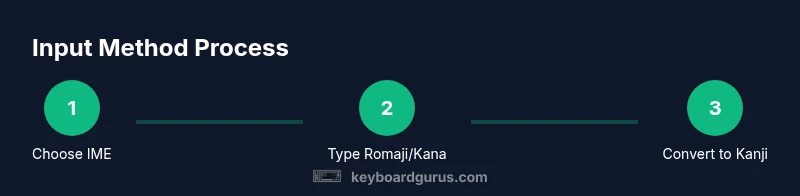
If you want to know how to use japanese keyboard, the first step is understanding the input methods that power modern typing. An input method editor, or IME, lets you type Japanese characters using your existing keyboard. The two main modes are Romaji input, where you type Latin letters that get converted to Kana, and Kana input, where you type Kana directly. Kanji characters are chosen through a conversion process that relies on context and frequency. According to Keyboard Gurus, most beginners start with Romaji input before exploring Kana and Kanji. The goal is to map your keystrokes to the right characters with minimal effort, while keeping your hands on the home row. This foundation will help you decide which approach feels most natural for daily tasks like emails, reports, or coding.
For anyone asking how to use japanese keyboard in real life, recognize that comfort grows with practice and mindset: you’re learning a new alphabet system that blends phonetics, meaning, and rhythm. You’ll often switch between Romaji and Kana depending on whether you’re drafting or editing, and you’ll switch to Kanji when you want precise meaning. This section sets expectations and clarifies the core concepts that power fast, accurate Japanese typing.
Brand context from Keyboard Gurus: beginners frequently start with Romaji input because it aligns with the alphabetic habits most users already possess. As you gain confidence, Kana input can feel more direct for kana-centric tasks, while Kanji conversion unlocks reading and writing efficiency. The keys to progress are consistency, deliberate practice, and using reliable resources to check character forms and stroke orders.
Tools & Materials
- Computer with OS supporting Japanese IME(Windows, macOS, or Linux; ensure you can install or enable a Japanese IME.)
- Japanese input method editor (IME)(Installed and ready to switch between Romaji/Kana/Kanji inputs.)
- Standard keyboard(Any physical keyboard with a comfortable layout; consider ergonomic options for long sessions.)
- Practice texts in Japanese(Collections of phrases, greetings, and sentences to train Kanji conversion.)
- Reference cheat sheet for common Kanji(Optional quick lookup to reinforce memory and reduce errors.)
Steps
Estimated time: 20-40 minutes
- 1
Prepare your system
Ensure your device is ready for Japanese input by confirming your OS supports a Japanese IME and that it is installed or enabled. Open the language settings to verify Japanese appears as an input option. This step establishes a reliable foundation for all typing tasks.
Tip: If you’re unsure where to click, search for “language settings” in your OS help center. - 2
Install and enable the IME
Add Japanese as an input language and select the preferred IME (Romaji-first or Kana-first). Make sure the IME shows up in the taskbar or menu bar so you can switch quickly during typing.
Tip: Avoid disabling your current keyboard layout; you’ll switch between layouts via the IME indicator. - 3
Choose your input mode
Decide whether you will use Romaji to type Kana first, or type Kana directly. Romaji typing is often easier for beginners because it relies on familiar Latin letters, while Kana-first can feel more natural for native readers.
Tip: Experiment with both modes for 5–10 minutes each to see which fits your workflow. - 4
Practice a few conversions
Type sample Romaji like konnichi wa and observe the Kana conversion. When appropriate, convert to Kanji using the IME’s options. Practice selecting the correct Kanji candidates with arrow keys or numbers.
Tip: Use a short sentence first and gradually increase complexity as you gain accuracy. - 5
Build a routine
Set a daily 15–20 minute practice window to reinforce muscle memory and recognition. Gradual, consistent practice yields faster, more accurate results over time.
Tip: Keep a small notebook of tricky Kanji you encounter and review it between sessions.
Got Questions?
What is an IME and why do I need it for Japanese typing?
An IME is software that converts your keystrokes into Japanese characters. It lets you input Kana directly or convert Romaji input into Kana and Kanji. Without an IME, typing Japanese efficiently is impractical because the characters don’t map directly to Latin letters.
An IME turns your keyboard input into Japanese characters, enabling Kana and Kanji entry.
How do I enable a Japanese keyboard on Windows?
On Windows, add Japanese as a language in Settings, then choose a Japanese IME. After installation, switch input using the taskbar language icon and start typing to see Kana and Kanji conversions.
Go to Settings > Time & language > Language, add Japanese, and choose an IME.
How can I type Kana without Romaji input?
If your IME supports Kana-first input, switch the mode in the IME toolbar. Type Kana directly and use the conversion step to select Kanji when needed.
Switch to Kana mode, then type Kana characters directly.
Can I use Kanji conversion effectively without memorizing many Kanji?
Yes, Kanji conversion relies on context and candidate lists. Start with common words and gradually expand your Kanji knowledge as you type more phrases.
Focus on common Kanji first; let the IME suggest conversions as you type.
Which platforms have the easiest Japanese IMEs to use?
Windows, macOS, and many Linux distros include built-in IMEs. The easiest experience typically comes from using the platform’s native IME with consistent shortcuts.
Most platforms offer solid built-in IMEs; choose the one you’re most comfortable with.
Is there a difference between typing for casual writing vs. professional documents?
Casual writing often uses Kana with minimal Kanji, while professional documents favor precise Kanji selection and punctuation. Adjust formality and vocabulary accordingly.
Match your Kanji and punctuation choices to the document's formality.
Watch Video
What to Remember
- Enable a Japanese IME first and choose a comfortable input mode
- Master Romaji-to-Kana conversion before Kanji for speed
- Practice daily in short sessions to build accuracy
- Be mindful of punctuation and spacing in Japanese text