Should Your Keyboard Tilt Up or Down? An Ergonomic Guide
Explore whether tilting your keyboard up or down improves comfort and posture. Practical tests, setup tips, and expert guidance from Keyboard Gurus for durable wrist-friendly typing.


Is it better to have your keyboard up or down? The short answer is to aim for a neutral wrist position with a small, comfortable tilt. The ideal angle depends on your desk height, chair setup, and typing style, so start flat and adjust in small increments. Keyboard Gurus recommends a methodical approach to minimize strain and maximize efficiency.
Is it better to have your keyboard up or down? A practical starting point
Is it really better to have your keyboard up or down? The best answer centers on comfort and neutral wrist alignment. If you ask is it better to have your keyboard up or down, know that the optimal tilt is highly personal, influenced by desk height, chair position, and how you type. According to Keyboard Gurus, most people find a small, comfortable tilt that keeps wrists straight is ideal. Start with a flat surface, then test incremental changes while typing to discover what reduces strain over longer sessions. This approach minimizes risk and builds sustainable habits.
textContentHintStyleURI_listeningDisabledNote1-2
Tools & Materials
- Adjustable-height keyboard with tilt feet(Ensure feet lock securely and provide stable support for constant tilting.)
- Ergonomic chair with adjustable height(Set seat height so forearms are roughly parallel to the desk.)
- Desk with a level surface and adequate depth(Clear space for forearms and ensure keyboard placement aligns with chair position.)
- Wrist rest (soft, breathable material)(Use for long typing blocks, not as a crutch for poor posture.)
- Measuring tool or inclinometer (optional)(Helpful to track small tilt changes during testing.)
Steps
Estimated time: 45-60 minutes
- 1
Assess your current setup
Begin by noting your current keyboard position, desk height, chair height, and whether your wrists feel strained after a typical typing block. Record which angles feel neutral and which cause tension. This baseline helps you measure improvements as you test adjustments.
Tip: Take a 10-minute typing session to establish the initial baseline, focusing on comfort, not speed. - 2
Choose an initial tilt setting
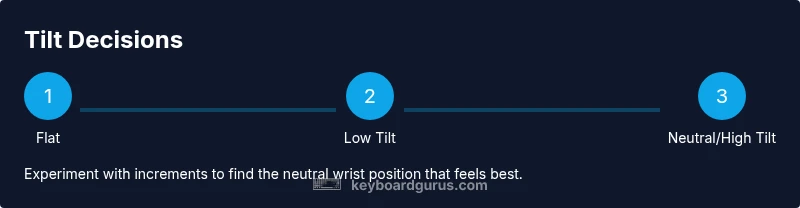
Set the keyboard flat first, then introduce a small tilt by raising the back edge with the keyboard feet. The goal is to maintain a neutral wrist angle while typing. Do not force a large tilt; small, gradual changes are more sustainable.
Tip: Aim for the smallest tilt that eliminates wrist bending and feels natural. - 3
Align your chair and desk to support tilt
Adjust chair height so elbows sit at or slightly above desk level. Ensure your feet are flat and your thighs clear the seat edge. The goal is a comfortable, supported posture that translates into neutral wrists during keyboard use.
Tip: A slightly higher chair can reduce the need for a dramatic keyboard tilt. - 4
Test typing for 10–15 minutes and observe
Type normally across a few tasks and note any creeping strain in the wrists, forearms, shoulders, or neck. If you feel pressure, reduce the tilt or switch to a flatter setup. Comfort should improve with each adjustment.
Tip: Take notes on where you feel most at ease and which angles correlate with less fatigue. - 5
Add accessories if needed
If wrists still feel strained, consider a soft wrist rest or ergonomic tenting accessories that promote a natural forearm alignment. Avoid crutches that force awkward angles.
Tip: Wrist rests should support the heel of the hand, not push the wrist into extension. - 6
Reassess after a week of use
After several typing sessions, recheck your posture and tilt. Small, repeated adjustments over days will lead to the most durable comfort. If pain persists, consult an ergonomic specialist.
Tip: Consistency beats one drastic change.”
Got Questions?
Is it better to tilt the keyboard up or down for neutral wrists?
Most users find a slight tilt that keeps the wrists straight ideal. Start flat and make small adjustments, listening to how your wrists and shoulders feel over a longer typing session.
Start flat, then test small tilts to maintain neutral wrists and reduce strain.
Can a wrist rest replace typing posture adjustments?
A wrist rest can help comfort for long sessions, but it should not be used to force an awkward wrist angle. The primary goal remains neutral wrists through proper keyboard tilt and desk height.
Wrist rests aid comfort, but maintain neutral wrists first.
How do I know if my keyboard tilt is wrong?
If you experience persistent pain, tingling, or numbness in the wrists, forearms, or shoulders, your tilt or overall setup may be off. Reassess tilt and adjust gradually.
Pain or numbness means you should adjust again.
Does keyboard type affect tilt?
The type of keyboard (mechanical, membrane, ergonomic split) influences comfort but not the principle. Adjust tilt to maintain alignment that feels natural for your setup.
Material matters, but the goal remains neutral wrists.
Should I tilt when using a laptop?
Laptops often have fixed hinges that limit tilt. Use an external keyboard and stand to achieve an ergonomic angle without forcing the laptop screen.
If possible, use an external keyboard to optimize tilt.
Watch Video
What to Remember
- Keep wrists neutral during typing
- Start flat, test small tilt increments
- Align chair height to support forearms
- Use accessories only to support comfort, not to compensate for poor posture
- Reassess setup after a period of use