Where Is the Fn Key on Your Keyboard? A Complete Guide
Learn where the Fn key sits on different keyboards, how to identify layouts, and tips to customize Fn behavior across Windows, macOS, and laptops. A clear, expert guide by Keyboard Gurus.


To answer keyboard where is fn, the Fn key placement varies by device. On most full-size keyboards, it's in the bottom-left corner or on the left side of the function row. Laptops often place Fn with Ctrl or Esc, and Apple/Mac keyboards use a dedicated Fn or Globe key. Check your model's layout to confirm.
What the Fn key is and why it matters
The Fn key is a modifier used to activate secondary functions that are printed in a different color on many keyboards. It lets you access media controls, display brightness, keyboard backlighting, macro shortcuts, and other hardware features without diving into software menus. Because there is no universal standard for Fn placement, how you use it depends on your device. This is especially true when you search for keyboard where is fn; practitioners often find different corners labeled Fn depending on brand and form factor. For everyday typing, understanding the Fn key reduces errors and speeds up workflows. Keyboard Gurus emphasizes that knowing the exact position on your model saves time during gaming, coding, or content creation, where quick toggling of system functions matters. In the sections that follow, we break down where Fn typically sits on desktop keyboards, laptops, and compact formats, plus how to verify your own layout quickly using simple tests.
Where Fn sits on most keyboards
Most keyboards place Fn in the bottom left corner, just to the left of Ctrl, or along the left edge of a secondary function row. On some keyboards Fn is a dedicated key; on others it shares a key with Ctrl or Windows and must be pressed with Fn to access the secondary actions. When you look at the F1 to F12 row, the secondary actions are usually printed with a different color or symbol. If your keyboard uses a Fn row approach, the action keys double as media keys when Fn is not pressed. In practice, you often see a pattern: Fn in the bottom left corner on many non Apple boards, and Fn on the left edge of the function keys on some gaming boards. The variety means you should inspect your own keyboard to confirm.
Laptop layouts and caveats
Laptops present the most variation. Budget machines often place Fn in the bottom left and pair it with the Ctrl key, while premium ultrabooks may position Fn on the left edge of the main cluster or rely on a dedicated block near the arrow keys. Some models combine Fn with the Esc key in the top left, so a quick glance at the labels reveals the working scheme. The compact footprint pushes Fn into unusual spots, such as the bottom row near the space bar or on the same key as the arrow cluster. If you travel with your laptop, knowing this ahead of time prevents accidental mode toggling during presentations or gaming sessions.
Mac keyboards and musings on Fn
Apple keyboards subscribe to their own logic. Older Mac desktops and laptops often place Fn in the bottom left corner, mirror to the Windows layout, while newer Mac keyboards may use a Globe key for input switching. Some Mac models make the Fn action the default for special keys, and you enable the opposite behavior in System Preferences or Key Remapping utilities. The upshot is that Mac users should verify the exact layout on their device and leverage macOS settings to tailor Fn behavior to personal workflows. This nuance matters for developers who rely on keyboard shortcuts across Windows and macOS.
Compact layouts and the 60 65 75 percent family
Compact boards such as 60, 65, or 75 percent keyboards compress the layout by removing the separate function row or number pad. Fn placement becomes critical because there is no dedicated Fn row in many cases. Some 60 percent boards place Fn in the bottom left and require you to hold Fn to access F1–F12, while others put a combined Fn lock that swaps the F keys with the number row. When using these boards, you may rely on secondary legends printed on the keys or use software to map Fn to a preferred baseline action. If you work with laptops or portable keyboards, expect similar compact layouts and document Fn behavior for fast recall.
How to test Fn behavior on your keyboard
First locate the Fn key on your device. Then test a few representative keys on the F row and the media cluster to observe how Fn changes their actions. For example, press Fn with a function key to see whether it activates the special feature or the standard function. If the action remains unchanged, Fn is likely not required or a Fn lock is engaged. Keep notes of which keys require Fn to perform their non standard actions. This hands on check is quick and reveals the true layout without relying on a manual.
Enabling Fn lock and swapping Fn with Ctrl
Some keyboards support Fn lock that reverses the typical behavior, letting you use the F keys without holding Fn. On desktops, you typically enable this in BIOS or UEFI firmware; on laptops, a dedicated Fn Lock key or a keyboard shortcut might toggle it. In Windows, you can also adjust the default behavior in the BIOS or in vendor software that controls keyboard firmware. If you prefer a Windows style FnForward, look for an option labeled Fn lock, Function key behavior, or Action Keys. Mac users can adjust Fn behavior in System Preferences or through third party utilities. This adjustment helps match your temperament and workflows.
Workflow tips for gamers and productivity tasks
If you game or produce video content, you may need rapid access to media controls. Set Fn to invert only when needed, or enable a per application profile in your keyboard software. For programming or writing, you might map frequently used function keys to be baseline actions and reserve media keys for quick media control. Consider keeping a quick reference sheet near your desk to remind you of Fn placements for your typical use cases. Also, check for a hardware toggle on the keyboard to avoid software conflicts during intense sessions.
Quick layout reference by category
Desktop full size: Fn near bottom left; dedicated Fn key common; media keys often on F row Laptop: Fn varies; often near Ctrl or Esc; note any Globe key in newer models Mac: Fn or Globe key; System Preferences controls; check model specific layout Compact 60/65/75%: Fn row may be merged; rely on legends or software mappings Troubleshooting tip: when in doubt, test a few keys and compare to the key legends on the keyboard itself
Tools & Materials
- Keyboard or device with a keyboard(Any device (laptop, desktop, or external keyboard))
- Model diagram or manufacturer layout shot(Useful to confirm layout specifics for rare or custom boards)
- Notepad or digital note app(Record observed Fn behavior for future reference)
- Internet access(Verify model-specific Fn layout or firmware options if needed)
Steps
Estimated time: 15-25 minutes
- 1
Identify the Fn key location
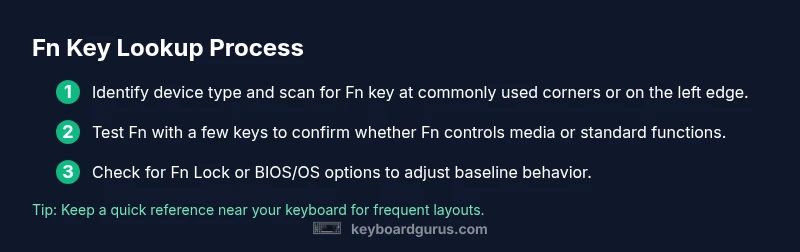
Scan the keyboard perimeters and note common spots such as the bottom-left corner or the left edge of the function row. Compare against key legends to confirm whether Fn exists as a dedicated key or shares a key. This step establishes your baseline before testing actions.
Tip: If you can't locate a labeled Fn, check the manufacturer site or product manual for your exact model. - 2
Test Fn with representative keys
Press Fn with a few function keys (F1–F12) and observe whether the keys perform the standard action or a special function. Note which keys require Fn for the secondary action and which do not.
Tip: Begin with common tasks like volume or brightness to quickly map behavior. - 3
Check for Fn Lock or swap options
Look for a dedicated Fn Lock key or a system/BIOS setting that changes Fn behavior. On laptops, a toggle in firmware or a keyboard software suite may exist.
Tip: If you can access BIOS/UEFI, scan the Keyboard or Advanced settings for Function Key behavior. - 4
Experiment with OS level controls
In Windows or macOS, some OS features can override hardware Fn behavior. Test media controls and system shortcuts to see if software settings are influencing the outcome.
Tip: Document any OS level changes you make to revert if needed. - 5
Consider remapping if needed
If you rely on a specific Fn pattern, use built-in remapping options or vendor software to tailor Fn actions to your workflow.
Tip: Many keyboards support per-app profiles for consistent shortcuts. - 6
Record results and update your desk reference
Summarize Fn behavior for your primary keyboard setup and keep a small cheat sheet handy near your workstation.
Tip: Update the cheat sheet if you switch keyboards or firmware revs.
Got Questions?
Where is the Fn key located on a standard keyboard?
The Fn key is typically in the bottom-left corner or along the left edge of the function row. Layouts vary by brand and device, so confirm on your model by looking for a dedicated Fn key or a mixed key with Fn legends.
The Fn key is usually found in the bottom-left corner or near the function keys, but it can differ by device.
Do all keyboards have a separate Fn key?
No. Some compact keyboards merge Fn with another key or rely solely on function keys. It depends on the form factor and brand.
Not every keyboard has a separate Fn key; compact layouts may merge it with other keys.
What is Fn lock and should I use it?
Fn lock reverses typical Fn behavior so you can use the F keys without holding Fn. It is commonly toggled via a dedicated key or BIOS setting.
Fn lock switches Fn behavior so F keys work by default.
Can I remap Fn on Windows or macOS?
Yes. Both Windows and macOS offer built-in options or vendor software to remap Fn behavior, and some keyboards provide hardware switches.
You can remap Fn behavior on Windows or Mac using built-in options or vendor tools.
Is the Fn key used on Apple keyboards?
Yes, Apple keyboards include an Fn key or a Globe key depending on model; macOS settings can modify its behavior to suit shortcuts.
Apple keyboards do have Fn or Globe keys, adjustable via macOS settings.
How can I verify Fn layout without a manual?
Observe the key legends, test Fn combinations on a few keys, and compare results to expected actions. If unsure, search the model page or user forums for layout specifics.
Test a few Fn combinations and check the key legends to confirm the layout.
Watch Video
What to Remember
- Identify your Fn layout first
- Know common positions by form factor
- Test Fn behavior across keys
- Enable Fn Lock if necessary
- Remap Fn for productivity