Mouse and Keyboard on iPad: A Comprehensive Guide
Learn how to connect, configure, and optimize a mouse and keyboard on iPad for productivity. From Bluetooth vs USB-C to shortcuts, gesture basics, and troubleshooting, Keyboard Gurus guides you through every step.


With a supported iPad and a mouse and keyboard, you can navigate, type, and edit more efficiently. This guide explains how to connect, configure, and optimize a mouse and keyboard on iPad for productivity, gaming, and accessibility. Learn about Bluetooth vs USB-C, cursor behavior, gestures, shortcuts, and troubleshooting tips, plus practical setup steps for everyday use.
Why a mouse and keyboard on ipad matters
For many workflows, using a mouse and keyboard on ipad delivers precision, speed, and ergonomics that touch alone can’t match. When you need to edit long documents, switch between apps, or perform data entry, a pointer plus physical keys reduce fatigue and increase accuracy. Keyboard Gurus has found that users who adopt a dedicated pointing device and keyboard report smoother navigation and faster editing sessions. In this guide, you’ll learn how to choose devices, connect them, and tailor iPadOS behavior to your needs. The term mouse and keyboard on ipad is not just about typing faster; it’s about expanding what you can accomplish with this platform.
bold and another paragraph about integration with iPadOS and apps.
Tools & Materials
- Bluetooth mouse (HID-compatible)(Compact, flat profile preferred for under-hand use.)
- Bluetooth keyboard(US QWERTY layout recommended for broad compatibility.)
- USB-C to USB-A adapter(Use if your mouse is USB-A and your iPad is USB-C only.)
- USB-C hub or dock(Allows multiple peripherals and power delivery.)
- Lightning to USB camera adapter(For older iPads with Lightning ports.)
- iPad with iPadOS 13.4+(Software support for pointer input.)
- Stable workspace setup(Fine-tuned desk surface aids accuracy.)
Steps
Estimated time: 20-30 minutes
- 1
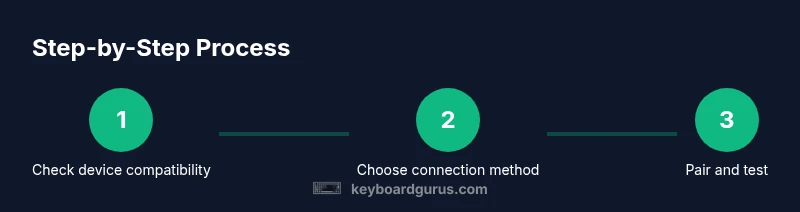
Verify compatibility and requirements
Confirm your iPad model supports pointer input and is running iPadOS 13.4 or later. Check Settings > General > About for the OS version and ensure HID devices are supported. If you’re using a wired device, verify you have the appropriate adapter or hub.
Tip: If in doubt, connect a Bluetooth mouse first to test basic functionality. - 2
Choose connection method and hardware
Decide between Bluetooth and USB-C based on portability and latency needs. For travel, Bluetooth is convenient; for stable performance, USB-C with a hub is ideal. Ensure you have a compatible mouse and keyboard before pairing.
Tip: Keep spare adapters in your bag for on-the-go setups. - 3
Pair or connect your devices
Put the mouse into pairing mode and select it from Settings > Bluetooth on the iPad. For wired connections, plug the USB-C adapter and confirm the device appears in the same settings menu. Test the cursor across multiple apps to confirm responsiveness.
Tip: If pairing fails, remove the device from the list and pair again; a fresh pairing often resolves issues. - 4
Configure pointer settings
Open Settings > Accessibility > Pointer Control to adjust tracking speed, acceleration, and button behavior. Enable features like secondary actions if your mouse supports them, and customize scrolling behavior for comfort across apps.
Tip: Start with a mid-range speed and adjust in small steps. - 5
Set up essential shortcuts
Learn Cmd-based shortcuts (copy, paste, undo, switch apps) and map frequently used actions to keyboard keys in your most-used apps. Test shortcuts in Notes, Pages, and your browser to ensure consistency across workflows.
Tip: Document your most-used shortcuts for quick reference. - 6
Test across apps and refine
Open a variety of apps—notes, word processors, emails, and browsers—to confirm consistent input behavior. Refine pointer speed and shortcut mappings based on real-use feedback.
Tip: Keep a small quick-start sheet handy for ongoing use.
Got Questions?
Does my iPad support a mouse and keyboard?
Most iPads with iPadOS 13.4 or later support a mouse or trackpad and a keyboard via Bluetooth or USB-C. Compatibility depends on the device and the HID standard. Check Settings > Bluetooth for wireless devices or Settings > General > USB accessories for wired setups.
Most iPads running iPadOS 13.4 or later support a mouse and keyboard. Check your Bluetooth or USB settings to confirm compatibility.
Which connection method should I choose: Bluetooth or USB-C?
Choose Bluetooth for portability and fewer cables; choose USB-C for lower latency and reliable power when you’re at a desk. If your iPad has USB-C, a hub can let you connect both a mouse and keyboard simultaneously.
Bluetooth is great for portable use, while USB-C usually offers steadier input and power at a desk.
Can I use two mice or two keyboards at the same time?
iPadOS typically supports one primary pointer, though you can connect multiple devices. In practice, you’ll use one active cursor, so plan your setup accordingly.
Only one primary pointer is supported at a time.
How can I customize common shortcuts in apps?
Cmd-based shortcuts are standard across iPadOS. Some apps let you remap or create app-specific shortcuts in their Help or Settings sections.
Use Command shortcuts like Cmd+C and Cmd+V, and check each app’s help section for remappings.
Why does the cursor lag or jump sometimes?
Lag can result from Bluetooth interference, low battery, or aggressive pointer settings. Re-pair devices, charge them, and adjust tracking speed to improve responsiveness.
Lag can come from interference; try re-pairing and charging devices, and adjust pointer settings.
What apps benefit most from a mouse and keyboard on ipad?
Note-taking, word processing, emails, coding editors, and productivity suites typically gain the most from a mouse and keyboard on ipad.
Note-taking, word processing, and editing apps benefit most.
Watch Video
What to Remember
- Pair a compatible mouse and keyboard to unlock precise input.
- Bluetooth or USB-C options depend on device and use-case.
- Calibrate pointer speed to feel like a natural extension of your hand.
- Master Cmd-based shortcuts to boost efficiency across apps.
- Test workflows in multiple apps to ensure seamless performance.