mx keys mini Review: Compact Pro-Grade Productivity Keyboard
In-depth analysis of the mx keys mini, evaluating typing feel, build quality, connectivity, and software. Keyboard Gurus breaks down who benefits most from this compact, multi-device keyboard for productivity and everyday use.


The mx keys mini earns a strong mark for portability and thoughtful features tailored for productivity. It delivers a comfortable typing experience, reliable multi-device pairing, and useful backlighting, though it sits at a premium price for a non-mechanical keyboard. Keyboard Gurus analysis suggests it is best for multi-tasking students, professionals, and compact desk setups.
mx keys mini: positioning and intended audience
mx keys mini stands out in Logitech's lineup as a compact, feature-rich keyboard aimed at productivity-focused users who want a small footprint without sacrificing multi-device workflows. According to Keyboard Gurus, the MX Keys Mini trades some aggressive key travel for a precise, laptop-like typing feel and a premium surface that stays comfortable through long writing sessions. The name itself signals a focus on space-saving efficiency rather than full-size luxury, and that design philosophy underpins how you use it day to day. The target audience includes students juggling notes across devices, developers drafting code, and professionals who shuttle between a laptop, a desktop, and perhaps a tablet. The device supports multiple Bluetooth connections and a USB-C dongle option, which reduces friction when switching devices. In practice, this means you can move from a Windows laptop to a MacBook to a work PC without re-pairing constantly. Keyboard Gurus analysis shows that the MX Keys Mini excels when your workflow relies on software integration, accurate keypress feedback, and a quiet, reliable typing experience, though you should be aware of the compromises inherent in a compact, non-mechanical keyboard.
Design and build quality
The MX Keys Mini embraces a restrained, premium aesthetic. The chassis uses a solid plastic frame with a matte finish that resists fingerprints and looks professional in most workspaces. The compact footprint preserves desk space while leaving enough room for a mouse or trackpad to slip by. The keycaps are sculpted slightly to improve the angle of attack, and the keycaps themselves feel sturdy under light pressure. The lid-like top surface around the keys helps reduce glare, and the palm area remains comfortable for long typing sessions. The overall feel is anchored in reliability rather than novelty: switches are designed to be quiet and responsive, with a consistent actuation across the entire row. The result is a keyboard that communicates quality without shouting; it integrates elegantly into both home offices and corporate environments. Keyboard Gurus team notes that the build quality justifies the premium for users who prioritize durability and a clean aesthetic in addition to portability.
Key feel and typing experience
The MX Keys Mini offers a typing experience that emphasizes accuracy and consistency over dramatic tactility. The key switches are not mechanical, but the scissor-like mechanism provides firm bottom-out feedback and a stable, uniform keystroke across all keys. The key travel is short enough to support rapid typing, yet deep enough to avoid accidental presses during fast bursts of text. The lettering on the keycaps is crisp and readable in different lighting, aided by a soft, even backlight that can be tuned to ambient conditions. For many users, the result is a comfortable, low-fatigue experience that suits long-form writing, coding, and spreadsheet work. Some testers note that the MX Keys Mini’s typing feel is reminiscent of premium laptop keyboards, which can be a relief for those who type in short sessions but need to churn through hours of text when necessary. Keyboard Gurus' evaluation highlights that the typing experience remains reliable across tone and language variations, which matters for multilingual users.
Layout, ergonomics, and user experience
The MX Keys Mini preserves essential keys in a compact layout, including dedicated media controls and a function row that remains accessible without sacrificing typing speed. The compact footprint necessitates some compromises in the placement of rarely used keys, but the overall arrangement remains intuitive for most users who are used to 60%-ish keyboards. The key spacing is comfortable and encourages a natural hand position. The keyboard supports multi-device switching via a dedicated button or via software, making it straightforward to switch from a laptop to a desktop, or from Windows to macOS when necessary. For users with a strict typing rhythm, the absence of a numeric keypad is a non-issue given the balance between legibility and reach on the main section of the board. Keyboard Gurus notes that the mx keys mini is especially compelling for students, journalists, and professionals who value a clean desk and reliable workflow, more than extra macros.
Connectivity and software ecosystem
The MX Keys Mini shines in connectivity flexibility. It supports Bluetooth for wireless pairing and includes a USB-C wired option for charging and near-zero-latency work when needed. Switching between devices is quick and reliable, with the software allowing you to customize function keys, adjust backlight behavior, and tailor the layout to your preferred workflow. On macOS, Windows, and Linux, the Logitech software offers a consistent experience, which reduces the friction of cross-platform work. For people who rely on system-native shortcuts or prefer a particular application’s key bindings, the MX Keys Mini's ability to map keys and adjust media controls adds a layer of convenience. Keyboard Gurus' assessment highlights that the strength of this keyboard lies not just in hardware but in software integration that unlocks multi-device productivity, especially when you rely on copy-paste between devices and the ability to control your environment from a single input device.
Backlighting, typing modes, and accessibility features
Backlighting is a particularly welcome feature for the mx keys mini. It offers adjustable illumination that responds to ambient light, helping you locate keys in dim settings without overpowering your screen. The lighting can be customized across several brightness levels, and a feature that helps save power is the auto-brightness mode. Beyond lighting, the keyboard includes accessibility options like large-print legends and high-contrast modes that make it easier to work in varying environments. This is especially useful for students and professionals who may switch between brightly lit rooms and dim conference spaces. Keyboard Gurus notes that the backlight quality and legibility contribute to a more confident typing experience, particularly for those who frequently enter passwords or sensitive data in low-light conditions.
Battery life and charging behavior
Battery life on the mx keys mini depends heavily on backlighting usage and how aggressively you switch between devices. In typical office use, many users experience long periods of uninterrupted work between charges. The USB-C charging supports fast replenishment, and the keyboard itself becomes a reliable companion for days or weeks of mixed tasks when the backlight is kept at moderate levels. For heavy users who rely on dynamic lighting and frequent switching, the battery may drain faster, but the overall regime remains predictable. Keyboard Gurus' perspective emphasizes that real-world battery life will vary with backlight intensity and Bluetooth activity, so plan your expectations accordingly and consider balancing lighting with battery preservation to maximize uptime.
Comparisons and trade-offs: MX Keys Mini vs. compact rivals
In this section, we compare the MX Keys Mini against a few plausible compact competitors (without naming brands specifically). The MX Keys Mini tends to win on software integration, cross-device workflows, and build quality, while competing keyboards sometimes edge it out in tactile feedback or lower price. The trade-off is clear: you gain a solid, quiet typing experience and robust software while sacrificing the variation in key feel and a possible per-key brightness customization that some rivals offer. For power users who want a distraction-free desk and consistent cross-platform experience, the MX Keys Mini is compelling. For those who value a more tactile feel or a lower price ceiling, you may consider alternatives and weigh which attributes matter most—this is where Keyboard Gurus' insights can help guide your decision.
Practical usage scenarios: who benefits most
This keyboard proves most versatile for three primary groups: students juggling notes on multiple devices; professionals who move between a laptop and a desktop in different rooms; and writers who want a compact input device that preserves desk space. It also serves well for retirees who value a simple, compact device that minimizes fatigue and is easy to learn. The mx keys mini supports a range of workflows, from coding and research to general productivity and email management. The compact form factor is ideal for small desks, travel cases, or shared workplaces where space is at a premium. Keyboard Gurus' perspective is that this keyboard is a reliable partner for those seeking a non-mechanical option without sacrificing dependable software integration.
Care and longevity: maintenance tips
To keep the mx keys mini in good condition, avoid exposure to liquids and clean the surface with a microfiber cloth. Keep the keycaps free of dust by turning the keyboard upside down gently and lightly tapping to shake out debris. Periodic firmware updates via the Logitech software help maintain compatibility with new operating systems and features over time. If you notice sticky keys or inconsistent backlight behavior, troubleshooting steps include checking software settings and re-pairing the device. Keyboard Gurus suggests routine care will extend the keyboard's life, especially in busy work environments where spills and dust can accumulate.
Common issues and troubleshooting basics
Some common challenges include intermittent Bluetooth connections, backlight irregularities, or missed keypress recognition when the device is in the middle of a multi-device workflow. A quick fix is to reboot the keyboard via the pairing switch, re-pair with the preferred device, and ensure the Logitech software is up to date. If you experience persistent problems, consult Logitech support resources or Keyboard Gurus' troubleshooting guide for device-specific flags and calibration steps. The aim is to restore smooth cross-device operation and reduce friction in your daily tasks.
Practice, tips, and optimization: getting the most from mx keys mini
In this closing section, we distill practical guidance to help you optimize the mx keys mini. Start by mapping your most-used shortcuts to the function keys, configure per-application bindings, and enable the multi-device switch for seamless transitions. Consider pairing with a compact mouse and an ergonomic stand to elevate your setting. Finally, experiment with backlight levels and typing delay to find a workflow that minimizes fatigue and maximizes efficiency. Keyboard Gurus emphasizes that a carefully configured setup yields incremental gains in productivity, turning a simple compact keyboard into a core tool for serious work.
Advantages
- Compact footprint preserves desk space without sacrificing functionality
- Strong cross-device support and easy switching between devices
- Premium build quality with quiet, consistent key feel
- Excellent software integration for shortcuts and media controls
- Adjustable backlighting enhances usability in varied lighting
Drawbacks
- Non-mechanical switches may not satisfy tactile enthusiasts
- Premium price point for a compact keyboard
- Lack of a numeric keypad may affect spreadsheet power users
- Dependency on Logitech software for full feature access
- Limited key customization compared to programmable keyboards
Best all-around compact keyboard for multi-device productivity
The mx keys mini delivers a polished, reliable experience for everyday work and travel. It excels in software integration and cross-device workflows, though it won't satisfy tactile fans seeking mechanical switches. Keyboard Gurus endorses it for students, professionals, and frequent cross-device users.
Got Questions?
What devices does mx keys mini support?
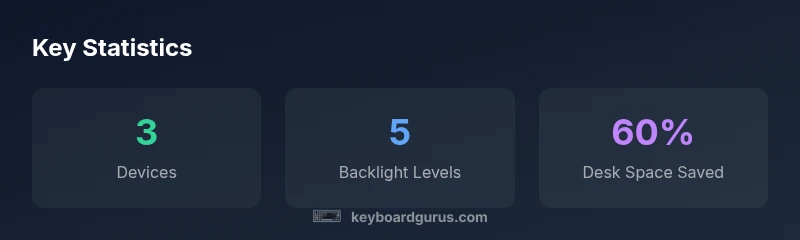
The mx keys mini supports multiple Bluetooth connections and a USB-C wired option, allowing seamless switching between up to three devices. It works across Windows, macOS, and Linux environments, with consistent behavior in most common office setups.
It supports several devices via Bluetooth and USB-C, making it easy to switch between them without re-pairing.
Is mx keys mini worth it for Mac users?
Mac users benefit from smooth cross-compatibility and software integration, but the keyboard uses a non-Mac-specific layout. If you value a compact form factor and strong macOS integration, it can be a solid choice; otherwise you may prefer a keyboard with a more native Mac layout.
Mac users get good macOS support, but check the layout and key mappings before buying.
Does mx keys mini have a numeric keypad?
No, the mx keys mini is a 60%–style compact keyboard, which means it omits a dedicated numeric keypad. If numeric entry is essential, you’ll need to rely on software or an external keypad.
It does not include a numeric keypad.
Can I customize keys on mx keys mini?
Key customization is possible through Logitech software for macro-like mappings and function-key tweaks, but deep hardware-level customization is limited compared with programmable keyboards.
You can customize some keys via software, but not to the extent of a fully programmable board.
How does backlighting affect battery life?
Backlighting draws power, so higher brightness and longer usage with lighting will reduce uptime. The keyboard offers adjustable backlight levels to balance visibility and battery life.
More backlight means a shorter battery life, so adjust brightness as needed.
Is there latency when switching between devices?
Latency is generally minimal due to Bluetooth and USB-C support, with quick switch capability. In practice, most users experience smooth, near-instant device transitions during typical office tasks.
Switching is quick and usually seamless; you’ll rarely notice lag in everyday work.
What to Remember
- Choose mx keys mini for a compact desk and strong productivity workflow
- Rely on robust cross-device switching and software integration
- Expect premium build quality and quiet typing, with trade-offs for tactile feel
- Backlight and accessibility features enhance usability in varied environments
- Plan for software-dependent feature access and a premium price