Samsung Tablet and Keyboard: The Complete Setup Guide
Master pairing a Samsung tablet with a keyboard, enabling DeX, and maximizing productivity with practical workflows, safety tips, and troubleshooting for everyday use.


Goal: You will pair your Samsung tablet with a keyboard to create a portable, desktop-like workstation for work, study, or play. Key requirements include a compatible Samsung tablet, a Bluetooth or USB-C keyboard, and basic DeX knowledge. This guide walks you through setup, common pitfalls, and practical workflows to maximize productivity on the go.
Samsung tablet and keyboard: Why this pairing matters
Pairing a Samsung tablet with a keyboard unlocks a portable, desktop-like workflow that suits students, professionals, and gamers who value mobility without sacrificing productivity. When used together, the keyboard expands typing speed, reduces strain during long drafting sessions, and complements the Galaxy ecosystem with familiar apps and shortcuts. According to Keyboard Gurus, this combination delivers a balanced blend of portability and efficiency, especially when you enable desktop-like experiences such as DeX. In everyday tasks, a keyboard turns casual note-taking into structured documents, while the tablet’s touchscreen remains ideal for quick sketches, web research, and media consumption. The goal is to choose compatible hardware, set up a reliable connection, and tailor your workflow so that you can switch between typing-intensive work and on-screen exploration without friction. This section will help you understand why the pairing matters and what you gain when you invest in a good keyboard and a capable Samsung tablet.
Choosing the right Samsung tablet model for keyboard use
The Samsung Galaxy Tab lineup covers a broad spectrum of sizes, weights, and capabilities. For keyboard-focused work, you want a model that balances screen real estate with portability, plus strong battery life and a keyboard-friendly ecosystem. Consider screen size and resolution for comfortable typing and reading, processor performance for multitasking, RAM for smooth app switching, and OS updates that ensure DeX and Bluetooth stability. Think about whether you value a built-in kickstand, a compatible keyboard case, or a dock that supports DeX and external displays. While every model supports Bluetooth keyboards, some models excel with USB-C connections or official DeX-enabled docks. Your choice should align with how you plan to work: light note-taking and research on the go, or full-fledged document editing and forms completion on the move.
Keyboard options: cases, docks, and Bluetooth keyboards
There are three broad categories of keyboard solutions for the Samsung tablet: keyboard cases, Bluetooth wireless keyboards, and USB-C docks with built-in keyboards. Keyboard cases provide protection and an integrated typing surface, often with adjustable angles to suit sitting or standing work. Bluetooth keyboards offer the most flexibility, allowing pairing with multiple devices and continued use when the case isn’t convenient. USB-C docks with a built-in keyboard can deliver a desktop-like feel when you dock the tablet and connect external displays, mice, and keyboards. When choosing, prioritize key travel, layout familiarity, and ergonomics. If you type for long periods, look for models with comfortable key spacing, a reliable battery, and low latency.
Connect and configure: pairing, DeX, and settings
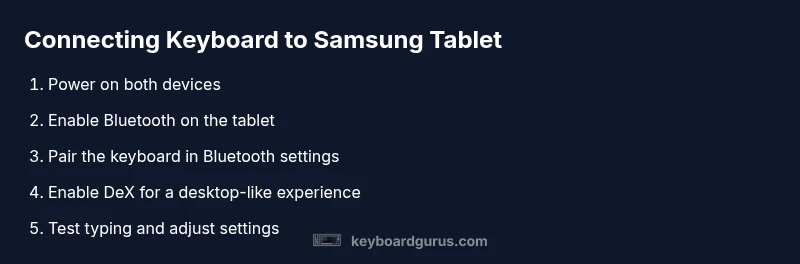
Getting started requires a reliable pairing workflow. Turn on Bluetooth on the tablet, put the keyboard in pairing mode, and select the device from the Bluetooth menu. Once connected, enable DeX for a desktop-like interface if you plan to do heavy document editing or multitasking. In the tablet settings, adjust keyboard language, shortcuts, and key repeat rate to your preference. Some keyboards offer dedicated function keys, which you can map to common tasks within your preferred apps. Regularly check for firmware updates on both devices to maintain compatibility and performance.
Productivity workflows: note-taking, writing, and multitasking
With a Samsung tablet and keyboard, you can switch between note-taking apps, word processors, and spreadsheets with ease. Use Samsung Notes for quick capture, a word processor for drafting, and a spreadsheet app for data entry. DeX mode helps you run desktop apps more efficiently, letting you resize windows, use multiple monitors (when available), and keep a clean, organized workspace. Create keyboard shortcuts for your most frequent actions, such as starting a new document, switching apps, or duplicating lines. Consistency in your layout and file naming improves long-term productivity and reduces cognitive load during peak sessions.
Gaming, media, and accessibility with a keyboard
Gaming on a tablet with a keyboard is feasible for casual genres and cloud-streamed titles. A keyboard can enhance control and comfort for certain games, especially those requiring precise input or rapid typing in chat. For media consumption and creative work, the keyboard can accelerate transcription, script writing, and captioning tasks. Accessibility features such as larger text, screen magnification, and voice-to-text can complement keyboard usage, making long sessions more comfortable. Adjust screen brightness and blue-light filters to reduce eye strain during extended work sessions.
Ergonomics, battery life, and durability
Ergonomics matter when you type for extended periods. Choose a setup that places your wrists in a neutral position and allows your elbows to stay close to your body. Use a stand or detachable kickstand to achieve a comfortable typing angle and avoid neck strain. Battery life matters for mobility, so pick a keyboard with a reliable battery, and keep a charging plan that supports your work rhythm. Durable keyboard cases and protective covers help extend device life, especially during travel or commutes. Regularly inspect connectors and cables, and use only approved charging accessories to protect your gear.
Security, data management, and backups
Protecting your work starts with device security and prudent data management. Enable device unlock security, keep apps updated, and back up documents to a cloud service or local storage. When using DeX and shared environments, log out of apps and lock the device when stepping away. If you work with sensitive information, enable encryption where available and consider a separate workspace profile for personal and work data. Regular backups ensure you don’t lose critical notes and documents if the device is damaged or misplaced.
Maintenance and troubleshooting: keeping the setup reliable
A reliable Samsung tablet and keyboard setup requires regular maintenance. Clean the keyboard gently to remove dust and crumbs, update firmware and OS, and re-pair devices if connection issues arise. If Bluetooth pairing fails, restart both devices and re-enter pairing mode. When DeX is slow, close unused apps, disable unnecessary background tasks, and check for firmware updates. For physical wear, inspect the keyboard case for cracks and ensure the kickstand remains stable. A proactive maintenance routine reduces downtime and keeps your workflow flowing smoothly.
Tools & Materials
- Samsung tablet (Galaxy Tab series)(Any current or recent model with Bluetooth support)
- Bluetooth keyboard (or USB-C keyboard)(Bluetooth 5.0+ preferred; USB-C keyboards require a USB-C hub/dock if needed)
- Keyboard case or stand(Protects the tablet and provides typing angle)
- USB-C cable(For wired charging or dock connections if needed)
- USB-C hub or Dock (optional)(Useful for external monitor, mouse, or HDMI display)
- S Pen (optional)(Helpful for sketching while the keyboard is attached)
- Microfiber cloth(For screen and keyboard cleaning)
Steps
Estimated time: 15-25 minutes
- 1
Power on both devices
Turn on the Samsung tablet and ensure the keyboard has power. Verify the keyboard's battery status or charge level before starting to avoid mid-setup interruptions.
Tip: Charge the keyboard the night before a long work session to prevent interruptions. - 2
Enable Bluetooth on the tablet
Open Settings > Connections > Bluetooth and ensure Bluetooth is turned on. This makes the tablet visible to nearby keyboards and ready for pairing.
Tip: If Bluetooth is slow to respond, toggle the switch off and back on. - 3
Put the keyboard in pairing mode
Activate pairing mode on the keyboard according to its manual, then select it from the tablet’s Bluetooth list and pair.
Tip: If the keyboard appears but won’t pair, forget the device in the list and retry the pairing process. - 4
Enable DeX (desktop-like experience)
In Settings, locate DeX options and turn it on for compatible apps. This provides a windowed desktop-style interface suitable for productivity tasks.
Tip: Use DeX shortcut keys to switch between apps quickly and reclaim screen space. - 5
Adjust keyboard settings
Go to Keyboard settings to map shortcuts, adjust key repeat rate, and configure language/layout to match your typing habits.
Tip: Assign commonly used functions to easy-to-reach keys for faster workflows. - 6
Create workflows and shortcuts
Set up document templates, clipboard history, and task-specific shortcuts to streamline repetitive actions.
Tip: Document your shortcut mappings so you can reuse them across sessions. - 7
Test and finalize
Open your preferred apps, draft a quick document, and verify that navigation, typing, and DeX windows behave as expected. Resolve any latency or misalignment.
Tip: Keep a short checklist handy to confirm all steps are functioning before critical work.
Got Questions?
How do I connect a Bluetooth keyboard to a Samsung tablet?
Turn on Bluetooth on the tablet, put the keyboard in pairing mode, and select the keyboard from the list. If the pairing fails, restart both devices and try again. Once connected, test typing in a note app to confirm responsiveness.
Turn on Bluetooth on the tablet, pair the keyboard, and test typing to confirm responsiveness.
What is DeX, and should I use it with a keyboard?
DeX provides a desktop-style interface that centers around windows, resizable apps, and better multitasking. It’s especially helpful for longer documents, spreadsheets, and presentations. Use it when you need a more productive workspace.
DeX is a desktop-like interface for multitasking; use it for more efficient work.
Can I use a USB-C keyboard with my Samsung tablet?
Yes, you can use a USB-C keyboard with compatible tablets, usually via a USB-C hub or dock. This setup supports wired connections and may offer more stable latency for some tasks. Ensure the hub supports your tablet’s video or data needs if you plan to connect external displays.
Yes, via a USB-C hub or dock; check compatibility for displays if needed.
Will all Samsung tablets support keyboards equally?
All modern Samsung tablets support keyboards, but performance varies with CPU, RAM, and software optimization. For the best experience, choose a model with updated OS support and strong Bluetooth or USB-C performance, then optimize DeX settings for your workflow.
Most current tablets support keyboards; performance depends on the model and software.
How can I improve typing comfort on a tablet keyboard?
Adjust the keyboard angle with a stand or case, use a palm rest if available, and consider a keyboard with comfortable key travel. Taking short breaks helps mitigate strain during long sessions.
Adjust angle, use a palm rest, and take breaks to reduce strain.
Are there essential shortcuts for DeX?
Yes. Learn a few core shortcuts for window management, launching apps, and quick navigation. Customizing shortcuts to your most-used actions can dramatically reduce click-time and increase productivity.
There are core DeX shortcuts; customize them for your workflow.
Watch Video
What to Remember
- Pairing enables a portable desktop-like workflow.
- DeX unlocks windowed productivity on tablets.
- Choose a keyboard and case that fits your use case and posture.
- Optimize shortcuts to speed up daily tasks.
- Regular updates reduce compatibility issues over time.