Urdu to English Translation with Urdu Keyboard: A Practical Guide
A comprehensive, expert guide to translating Urdu to English using an Urdu keyboard. Learn setup, workflows, and quality checks to produce clear, natural translations for emails, notes, and professional documents.


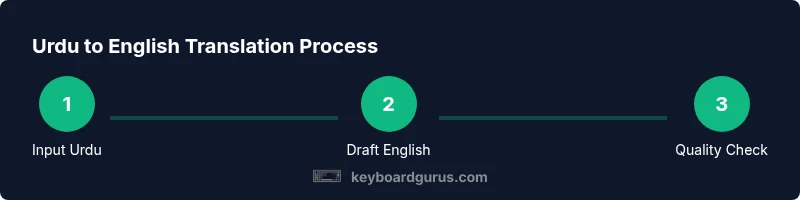
Goal: translate Urdu to English accurately using an Urdu keyboard. Start by enabling Urdu input on your device, then choose a translation method (dictionary, transliteration, or AI), and set your preferred English style. This guide walks you through setup, practical workflows, and quality checks to produce clear, natural translations for emails, papers, and chats.
Understanding Urdu to English Translation with a Urdu Keyboard
Urdu to English translation performed with a Urdu keyboard combines two practical skills: accurate language conversion and efficient keyboard input. Translation turns meaning, tone, and cultural nuance from one language into another, while a Urdu keyboard ensures you can input Urdu characters quickly and correctly. For students, gamers, and professionals, mastering this workflow reduces turnaround time and improves clarity across emails, reports, and chats. According to Keyboard Gurus, the most reliable translations come from a blended approach: a solid vocabulary base, awareness of syntax, and the right input method. The Urdu script uses Nastaliq-style shaping, connects letters, and changes form depending on position in a word—details that can trip quick, casual translators. When you pair the correct keyboard layout with a dictionary or AI-assisted tool, you preserve meaning rather than merely replacing words. This article outlines setup, workflows, and checks to build a dependable Urdu-to-English pipeline.
Setting Up Urdu Input Methods
Getting ready to translate starts with input. You should have an Urdu keyboard ready on your device—physical or virtual—and a capable English input method for final output. Windows, macOS, Android, and iOS all support Urdu input, but the steps vary. On Windows, add Urdu under Time & language > Language > Add a preferred language, then switch between inputs with a quick shortcut. macOS users enable Urdu in Keyboard > Input Sources and switch with a menu bar item. On mobile devices, install an Urdu keyboard and enable it in your system settings. There are two popular styles: a phonetically mapped keyboard (typing Urdu sounds with an English layout) and an in-script Nastaliq keyboard (traditional Urdu script). Phonetic keyboards speed entry for beginners, while Nastaliq preserves authentic script forms when you copy or typeset Urdu text. If your workflow requires transliteration (Urdu to Latin script) before translation, choose a transliteration option that matches your audience. Remember to test both input methods with short notes to determine which aligns best with your style. This setup stage is foundational to reliable Urdu-to-English output.
Translation Approaches and Their Trade-Offs
Translation is as much about meaning as it is about words. There are several approaches you can combine for Urdu-to-English work. A bilingual dictionary or glossary helps with terminology — especially for technical, legal, or academic language. Transliteration converts sounds from Urdu into Latin characters, useful for names or brand terms but not ideal for formal documents. AI-powered translation can speed up drafts, but it often struggles with nuance, idioms, and cultural context. A hybrid workflow—draft with AI, verify with a dictionary, and polish with human review—yields the best balance of speed and accuracy. Keyboard Gurus analysis shows that building a personal glossary tailored to your field dramatically improves consistency across projects. Regardless of method, maintain a consistent tense, voice, and register to avoid disjointed results. Finally, always validate output against the source to ensure that critical terms and numbers aren’t mistranslated.
Real-Time Translation Tools and Shortcuts
Modern editors and apps offer real-time translation features that can speed up Urdu-to-English work. Use a bilingual dictionary or built-in translator in your word processor for rough drafts, then refine manually. Keyboard shortcuts can help toggle languages quickly; for example, Alt+Shift or a customized shortcut can switch input methods without losing your place. When working in web apps, keep a side-by-side pane showing both Urdu and English text to keep track of context. Many tools also support glossaries; you can save frequently used terms and their approved translations for automatic replacement. To avoid drift, enable grammar and style checks post-translation and review suggested rewrites to preserve tone. Practically, a workflow might start with drafting in Urdu, generating an English draft with an AI tool, then double-checking key terms in a dedicated glossary and performing line-by-line edits for fluency. Adopting careful, repeatable steps minimizes errors and elevates translation quality.
Practical Workflow: From Urdu to English in Documents
A structured workflow reduces mistakes and speeds up delivery. Begin with a clear source document in Urdu, then create a bilingual glossary of keywords and phrases you expect to encounter. Draft the English version using your preferred method, whether pure translation, transliteration, or a hybrid approach. Save frequent terms in your glossary and run a consistency check across headings, terminology, and punctuation. Use style guides to align tone—news reporting, academic writing, and professional emails each require a distinct voice. Finally, proofread for grammar, punctuation, and readability; adjust sentence length and structure to suit the target audience. This process will help you maintain accuracy and readability, even when working with long passages and technical language.
Handling Urdu Script Nuances: Diacritics, Nastaliq, and Context
Urdu has rich diacritics and contextual letter shapes that affect pronunciation and meaning. Nastaliq script, often used in print and handwritten Urdu, connects letters in flowing, diagonal strokes, which can complicate digital rendering and OCR. When translating, do not ignore diacritics or the absence of them in Urdu texts, as meaning can shift with or without this notation. Context matters: idioms, proverbs, and cultural references may translate poorly if taken literally. Build a dictionary of context-sensitive phrases and train yourself to ask clarifying questions when source material is ambiguous. Some terms only make sense within a cultural frame; for those, choose English equivalents that convey equivalent impact rather than literal translations. Keeping a notes section for contextual explanations will help future translations and reduce repetitive questions.
Transliteration vs Translation for Emails and Messages
Transliteration writes Urdu sounds using Latin letters, which is useful for quick notes or audience members who don’t read Urdu. Translation converts Urdu meaning into English, which is essential for formal documents and professional communications. For emails and messages, decide based on audience. If colleagues are comfortable with Urdu, transliteration can speed up drafting; if they require formal English, prioritize translation with attention to tone, formality, and accuracy. When in doubt, draft in Urdu, transliterate only for quick drafts, and revert to translation for the final version. Maintain consistency by adding a small glossary entry for transliterated names or terms that appear across documents.
Mobile vs Desktop: Where to Translate
Desktop environments provide more robust editing capabilities, better dictionaries, and easier multi-window workflows for translation tasks. Laptops and desktops let you maintain a clean, distraction-free workspace and keep reference materials accessible. Mobile devices offer convenience when you’re away from a computer, but smaller screens can hamper careful proofreading and complex edits. Use mobile for drafting short messages or notes, then move to desktop for full documents, where you can apply thorough edits and formatting. If you must work entirely on mobile, choose apps with strong offline dictionaries, reliable transliteration options, and keyboard support that preserves Urdu script correctly. Regardless of device, syncing documents across platforms ensures you retain changes if you switch between devices.
Quality Assurance: Proofreading and Style Guides
Quality assurance is the backbone of reliable Urdu-to-English translation. After an initial draft, run a multi-pass review: verify terminology against your glossary, check grammar and punctuation, and ensure tone aligns with the target audience. Build a style guide that covers capitalization, numbers, dates, and numeral consistency. For technical content, maintain standardized terminology across chapters and documents and use a translation memory to preserve consistency. Finally, consider a peer review or a second pass by a native English speaker who understands the subject matter. A systematic, repeatable QA workflow reduces risks and helps you deliver professional-quality translations consistently.
Common Pitfalls and How to Avoid Them
Common pitfalls include literal translation of idioms, mistranslating named entities, and ignoring cultural nuance. Avoid direct word-for-word replacements; instead, aim for natural-sounding equivalents. Be cautious with homographs—words that look alike but have different meanings depending on context. Use your glossary and context clues to disambiguate. Another frequent issue is inconsistent terminology across a report. Invest time in building and maintaining a glossary, and sync it with your translation memory so every new project benefits from prior work. Finally, beware automated outputs that seem correct but misinterpret domain-specific terms. Always validate critical terms against a trusted reference and have a human reviewer confirm the result.
Case Studies: From Personal Notes to Professional Reports
In a personal notes project, translating Urdu diary entries into English required a flexible approach: transliteration for place names, translation for daily activities, and careful tone management to preserve emotions. A simple glossary of common verbs and adjectives helped maintain coherence across entries. In a professional report, the workflow involved drafting in Urdu, translating core sections, and using a glossary for technical terms. The translation memory stored terms for future reports, reducing errors and speeding up the process. In both cases, the combination of a reliable keyboard setup, careful language choices, and thorough proofreading produced readable, accurate English text that preserved intent and voice.
Resources to Learn More and Practice
For ongoing improvement, combine structured courses with practical practice. Look for language-learning resources that focus on Urdu-English translation, bilingual glossaries, and domain-specific terminology in your field. Practice by translating varied material—news articles, technical briefs, and emails—to build a well-rounded vocabulary. Create a recurring review routine: weekly glossary updates, monthly style checks, and quarterly QA audits. Engage with communities of translators or language enthusiasts to exchange feedback and tips. Finally, track your progress with a personal journal of translation challenges and solutions to reinforce learning and monitor growth. Keyboard Gurus recommends steady, deliberate practice and consistent use of your Urdu keyboard to master both input speed and translation accuracy.
Tools & Materials
- Urdu keyboard (physical or virtual)(Ensure it supports Nastaliq or phonetic input as needed)
- Computer or mobile device(With adequate RAM for editor apps and online tools)
- Bilingual dictionary or glossary app(Prefer offline access for reliability)
- Translation software or AI-assisted tool(Use as a drafting aid, not final authority)
- Text editor or word processor(For drafting, editing, and formatting)
- Internet connection(Needed for online dictionaries and cloud storage)
- Glossary and style guide(Maintain consistency across documents)
- Notepad or notes app(Quick jotting of terms and contextual notes)
Steps
Estimated time: 2-3 hours
- 1
Enable Urdu input
Activate Urdu keyboard on your device (phonetic or Nastaliq) and verify you can switch between Urdu and English input without losing your place. This ensures you can draft in Urdu and type English translations efficiently.
Tip: Test both input styles with a short paragraph to see which feels more natural for you. - 2
Choose translation approach
Decide whether to translate directly, transliterate first, or use AI-assisted drafting. Align with your audience and document type. If in doubt, start with draft translation and pad it with a glossary.
Tip: Create a small glossary for frequent terms before translating long passages. - 3
Create a bilingual glossary
List key Urdu terms, their preferred English equivalents, and any domain notes. This glossary will guide consistency across the document and future projects.
Tip: Include context notes for terms with multiple possible translations. - 4
Draft in Urdu
Write or paste the Urdu source text clearly. Preserve punctuation and diacritics where possible to aid accurate translation.
Tip: Keep sentences reasonably short to ease later editing. - 5
Translate draft to English
Apply your chosen method (direct translation, transliteration, or AI-assisted draft). Focus on meaning and tone, not just word replacement.
Tip: Don’t rely on a single tool; cross-check with your glossary. - 6
Verify key terms
Cross-check critical terms—names, technical terms, and dates—against your glossary and external references.
Tip: Use a separate notes document to track discrepancies. - 7
Proofread for grammar and tone
Review sentence structure, tense consistency, and voice. Adjust for readability and audience expectations.
Tip: Read aloud to catch awkward phrasing. - 8
Apply transliteration where needed
If your audience expects Urdu-sounding names or terms, apply transliteration selectively and consistently.
Tip: Document transliteration rules in your glossary. - 9
Format for the target document
Style your translation for headings, lists, and citations. Ensure typography aligns with the document type (academic, business, etc.).
Tip: Use consistent punctuation and number formats. - 10
Quality check and export
Run a final QA pass, ensure glossary consistency, and export to the required format (PDF, DOCX, etc.).
Tip: Keep a copy of the draft and the glossary for future edits. - 11
Test on multiple platforms
Open the final document on different devices to verify layout and legibility. Fix any display issues.
Tip: Check fonts and diacritics behave consistently across platforms. - 12
Iterate with feedback
If possible, obtain feedback from a bilingual reviewer and refine glossary terms and phrasing accordingly.
Tip: Treat translation as an iterative process for continuous improvement.
Got Questions?
What is the best Urdu keyboard for accurate English translation?
There isn’t a single “best” keyboard; the right choice depends on your workflow. A Nastaliq-compatible keyboard preserves authentic Urdu script, while a phonetic keyboard speeds input. Pair the keyboard with a reliable glossary and a consistent translation approach for best results.
Choose a Nastaliq keyboard for authenticity, or a phonetic one for speed, and pair it with a glossary and a clear workflow.
Should I transliterate Urdu to English or translate directly?
Transliteration is useful for names or when your audience reads Latin letters, but for most documents you should translate to preserve meaning and tone. Use transliteration sparingly and document rules in your glossary.
Translate for meaning; transliterate selectively for names, then standardize in your glossary.
Can AI translators replace human proofreaders for Urdu-English tasks?
AI can speed up drafts, but it cannot reliably capture nuance, tone, or domain-specific terminology. Human proofreading remains essential for final quality, especially in professional or academic contexts.
AI helps with drafts, but humans confirm accuracy and style.
How can I maintain tone and style across languages?
Create a style guide that covers register (formal vs informal), punctuation, and term usage. Use a glossary to enforce terminology consistency and maintain authorial voice.
Define tone in a style guide and apply glossary rules to keep it consistent.
What are common mistakes when translating Urdu to English?
Common mistakes include literal idiom translation, ignoring cultural context, and misrendering technical terms. Always verify idioms, adapt cultural references, and cross-check terminology with a glossary.
Watch for idioms and cultural nuances; verify terms against trusted references.
Which devices support Urdu keyboard input easily?
Most modern devices support Urdu input, including Windows, macOS, iOS, and Android. Enable the Urdu keyboard in system settings and test both Urdu and English layouts before large projects.
Any modern device works with Urdu input—just enable it in system settings.
Watch Video
What to Remember
- Use a dedicated Urdu keyboard and glossary to speed up translation
- Combine draft translation with glossary validation for accuracy
- Proofread for tone and readability to preserve intent
- Transliteration is useful but should be used judiciously
- Quality checks and consistency drive professional results