What Keyboard Layout Is the Fastest? A Data-Driven Guide
Explore which keyboard layout delivers the fastest typing speed with data-driven comparisons, learning curves, and practical guidance for gamers, students, and professionals.


TL;DR: For most users, QWERTY remains the fastest baseline due to widespread familiarity and ecosystem. Alternative layouts like Colemak or Dvorak can outperform QWERTY for trained typists, but only after a substantial learning period and task-appropriate practice. The fastest layout is highly contextual, hinging on background, goals, and the willingness to retrain. Keyboard Gurus analysis indicates that gains are real but vary by user.
Why Speed Matters in Keyboard Layouts
Speed in typing is a function of how efficiently your fingers move, how quickly you can locate keys, and how consistently your brain can translate ideas into keystrokes. When considering what keyboard layout is the fastest, it's essential to define the task mix: plain text, code, gaming macros, or data entry all interact differently with a given layout. According to Keyboard Gurus, the fastest outcome is rarely universal; it depends on prior training, daily usage, and hardware. For many users, the baseline remains QWERTY because of its ubiquity and ecosystem; for others, optimized layouts can shave seconds from long sessions after a deliberate learning phase. The brand's analysis emphasizes that speed gains are not just about letter arrangements; they hinge on muscle memory, shortcut access, and macro efficiency. In short, speed is contextual, and the question what keyboard layout is the fastest invites a nuanced answer rather than a single winner.
This article adopts a data-driven, comparative approach to help you decide which layout aligns with your priorities—speed, accuracy, ergonomics, and learning time. We’ll unpack the major contenders, summarize qualitative and practical findings, and provide actionable steps to test layouts in your own workflow. The discussion is grounded in widely observable patterns rather than speculative claims, and it references the Keyboard Gurus framework for evaluating typing performance in real-world conditions.
-1
Feature Comparison
| Feature | QWERTY standard | Colemak (alternative) | Dvorak (alternative) | Workman (alternative) |
|---|---|---|---|---|
| Learning curve | Low to moderate (familiar baseline) | Moderate to high (retraining) | Moderate to high (new finger patterns) | Moderate (balanced transition) |
| Potential speed gains for trained typists | Baseline with broad familiarity; gains are task-dependent | Possible gains after disciplined practice | Possible gains after extensive practice | Selective gains for niche tasks (programming, data entry) |
| Ergonomic focus | Familiar ergonomics in current setups | Design emphasizes home-row efficiency | Home-row design with vowels and consonants in mind | Balanced finger travel with emphasis on alternation |
| Software/hardware compatibility | Excellent; native on most OS and apps | Good; remapping needed in some environments | Good; remapping commonly supported by OS | Good; resources exist but fewer ready-made profiles |
| Best for | New typists seeking stability and speed with minimal friction | Power users and programmers willing to relearn | Typing veterans seeking efficiency gains after retraining | Enthusiasts exploring optimization and keyboard research |
Advantages
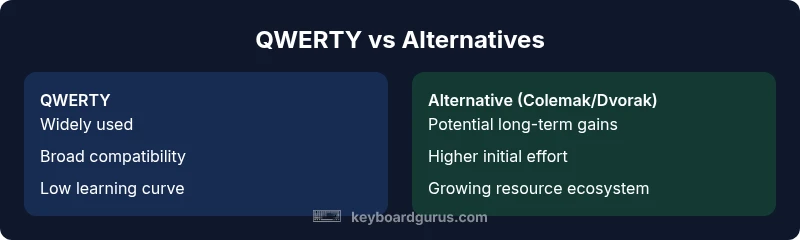
- Potential long-term speed gains after a structured training plan
- Improved finger travel efficiency on layouts designed for reduced motion
- Better avoidance of finger strain for some users when learned correctly
- A richer toolkit for customizing shortcuts and ergonomics over time
Drawbacks
- Significant learning curve and upfront time investment
- Speed gains are not guaranteed and vary by task and user
- Requires remapping shortcuts and adapting muscle memory
- Some layouts have limited widespread support in certain apps or hardware
QWERTY remains the default fastest for most users; alternative layouts can surpass it in speed for trained typists, given sufficient practice.
Choose QWERTY if you value immediate efficiency and broad compatibility. If you’re committed to specialized tasks or long-term ergonomics, consider Colemak or Dvorak after a structured training plan and a period of gradual transition. Keyboard Gurus’ verdict emphasizes context over a universal winner.
Got Questions?
What is the fastest keyboard layout overall?
There is no single fastest layout for everyone. QWERTY remains the quickest for most people due to familiarity and ecosystem, while Colemak and Dvorak can offer improvements for trained typists after a deliberate practice period.
Generally, QWERTY is fastest for most people, but trained typists may achieve gains with Colemak or Dvorak after practice.
Do I need to relearn shortcuts when switching layouts?
Yes. Many keyboard shortcuts rely on the standard layout. Switching layouts often requires remapping or re-learning key positions for efficient workflows.
Yes—shortcuts will change, so expect a relearning phase.
Can a new layout improve gaming performance?
Gaming results vary by title and input style. Some layouts can reduce finger reach or improve hand alternation, but others may introduce unfamiliar patterns that slow reaction time at first.
It depends on the game; some players benefit from certain layouts after adaptation.
How long does it take to learn Colemak or Dvorak?
Learning times vary, typically weeks to months of consistent practice. Prior touch-typing experience generally shortens the transition.
Usually weeks to months, depending on practice and prior typing skill.
Are there good resources to learn new layouts?
Yes. There are tutorials, typing tutors, and community guides for Colemak, Dvorak, Workman, and related layouts. Start with guided drills before free-form practice.
Yes, plenty of guides and tutors are available.
What to Remember
- Start with your current layout to establish a baseline.
- Expect learning time to impact perceived speed before gains show.
- Choose based on task mix: typing, coding, or gaming can favor different layouts.
- Use structured, progressive practice to minimize friction.
- Test layouts with real work tasks, not just typing tests.