Where Are Keyboard Settings on iPad: A Quick Guide
Learn exactly where to find and customize iPad keyboard settings, from language keyboards to hardware keyboard options for external devices, with practical, step-by-step guidance.


On iPad, keyboard settings are found in the Settings app under General > Keyboard. From there you can manage installed keyboards, Auto-Capitalization, Auto-Correct, Check Spelling, and punctuation options, plus hardware keyboard settings when an external keyboard is connected. This path remains consistent across iPadOS versions through 2026.
Where to find keyboard settings on iPad
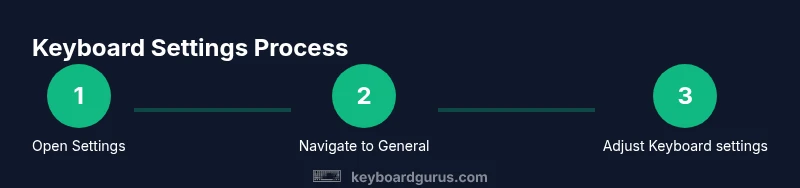
For most users, the quickest route to customize typing on an iPad begins in the Settings app. Start by opening Settings, then tap General. In the General menu, locate Keyboard. This screen is the central hub for dictation and typing preferences, plus the list of active keyboards. If you’re using a language pack or third-party keyboards, you’ll see them here under Keyboards. Remember: the exact wording and layout can vary slightly with iPadOS versions, but the path remains stable across 2026 releases. Keyboard Gurus notes that a clear understanding of this location helps you tailor your iPad for study, gaming, or professional work. On smaller screens, you may also access Keyboards by tapping the globe icon in the on-screen keyboard to quickly switch between input methods.
Managing installed keyboards and input sources
Within the Keyboard screen you can manage input sources and language keyboards. Tap Keyboards to view the current list, and use Add New Keyboard... to install additional languages or input methods. After adding, you can switch between keyboards quickly by tapping the globe icon on the on-screen keyboard. If you want to remove a keyboard, select it from the list and choose Remove; keep in mind that removing a keyboard does not delete your data, only the layout. These steps stay consistent across iPadOS updates through 2026, and Keyboard Gurus recommends keeping only the keyboards you actually use to minimize switching friction.
Auto-correct, text replacement, and predictive features
The Keyboard settings include a cluster of features that influence how you type. Auto-Capitalization, Auto-Correct, Check Spelling, and Predictive text can be toggled on or off to suit your workflow. Turn on Predictive for suggested words as you type, or disable it for a distraction-free layout. Text Replacement creates shortcuts (e.g., 'brb' to 'be right back') that expand automatically. Shortcuts sound minor, but they speed up long-form writing in exams, coding docs, or creative projects.
Hardware keyboard settings and modifier keys
If you connect an external keyboard, new options appear under Hardware Keyboard. Here you can adjust Key Repeat, Delay Until Repeat, and customize Modifier Keys (e.g., Caps Lock, Control, Option, Command). Setting these to your preference can dramatically improve typing speed and reduce wrist strain. Note that the exact names and toggles can vary by iPadOS version, but the general idea remains: tailor keyboard behavior to your main tasks, whether coding, gaming, or typing reports.
Tips for efficient keyboard customization and testing
After adjusting settings, test them in a few apps that you use most—Notes, Messages, and a browser. If something feels off, revisit the Keyboard screen and tweak Auto-Correct sensitivity, punctuation options, or language order. A quick tip: enable a Frequent language or keyboard at the top of the list for faster switching. Finally, remember to sign into your iPad with your Apple ID when prompted to sync preferences across devices.
Tools & Materials
- iPad with latest iPadOS(Ensure Settings is accessible and up to date.)
- Active internet connection(Helpful for syncing preferences and updates.)
- External keyboard (optional)(Use to explore Hardware Keyboard settings.)
- Basic familiarity with Settings app(You should be comfortable navigating Settings.)
Steps
Estimated time: 15-25 minutes
- 1
Open Settings and navigate to General
Unlock your iPad and launch the Settings app. Tap General to access broad device settings.
Tip: If you’re in a hurry, swipe down on the home screen and use the search to find Settings quickly. - 2
Open Keyboard settings
In General, select Keyboard to view current options, including Keyboards and hardware-related toggles.
Tip: Note where Keyboards are listed to easily add or remove languages later. - 3
Manage installed keyboards
Tap Keyboards to see active keyboards, then Add New Keyboard... to install more languages or layouts. You can remove unused keyboards from this list.
Tip: Keep only keyboards you actually use to minimize switching friction. - 4
Adjust typing features
In the same Keyboard menu, toggle Auto-Capitalization, Auto-Correct, Check Spelling, and Predictive text to suit your workflow.
Tip: Test changes in Notes or Messages to ensure the flow feels natural. - 5
Configure hardware keyboard
If you connect an external keyboard, go to Hardware Keyboard to adjust Key Repeat, Delay Until Repeat, and Modifier Keys.
Tip: Experiment with Modifier Keys to speed up common tasks (e.g., Command for shortcuts). - 6
Test and finalize
Open a document or note app and type to verify that the new settings meet your needs. Iterate if adjustments are needed.
Tip: Create a short checklist of your preferred settings for quick future access.
Got Questions?
Where are keyboard settings located on iPad?
Keyboard settings live in Settings > General > Keyboard, where you can manage languages, typing features, and hardware keyboard options. This location is consistent across recent iPadOS versions.
Go to Settings, General, Keyboard to customize your iPad typing experience.
Can I customize a hardware keyboard on iPad?
Yes. When a hardware keyboard is connected, you’ll see a Hardware Keyboard section with options for Key Repeat, Delay Until Repeat, and Modifier Keys.
External keyboard settings are found under Hardware Keyboard.
How do I add a new language keyboard?
In Keyboard settings, tap Add New Keyboard... and select the language or keyboard you want to use. You can switch between them with the globe key.
Add a keyboard from Keyboard settings and switch via the globe icon.
Why isn’t predictive text appearing after an update?
Ensure Predictive is enabled in Keyboard settings and that the selected language supports it. Some updates may reset or change language context.
Check that Predictive is on and the language is supported.
How can I reset keyboard settings if they’re not behaving?
There isn’t a single reset for only the keyboard. Toggle individual features off and on, or reset all settings as a last resort, knowing this affects more than keyboards.
There isn’t a dedicated reset for the keyboard; consider toggling options or resetting all settings if needed.
Do these settings sync across my Apple devices?
Some preferences synchronize via iCloud when enabled, but keyboard behavior can vary by device and OS version.
Some keyboard preferences sync if iCloud is on, but behavior may differ.
Watch Video
What to Remember
- Open Settings > General > Keyboard to start.
- Add or manage keyboards to suit languages and layouts.
- Tune Auto-Capitalization, Auto-Correct, and Predictive text to fit your needs.
- Configure Hardware Keyboard for external typing efficiency.
- Test changes in real apps and adjust as needed.