Where is Keyboard on Apple Watch: A Step-by-Step Guide
Discover where the keyboard appears on Apple Watch, how to activate it, and practical typing tips. Learn Scribble, dictation, and Quick Replies for wrist typing.


On Apple Watch, the keyboard appears as an on-screen input option when you tap a text field. You can also use Scribble, dictation, or Quick Replies for quick messages. This guide shows exactly where to find the keyboard, how to enable it, and tips for accurate wrist typing. You’ll learn which watch faces and apps trigger the keyboard, and how to switch input methods quickly.
What the keyboard means for your Apple Watch experience
If you’re new to typing on a tiny screen, the keyboard on Apple Watch can feel like a puzzle. According to Keyboard Gurus, understanding where the input appears and which methods you can use will dramatically improve your daily texting and note-taking. The keyboard isn’t the only option—Scribble, dictation, and Quick Replies give you flexibility for different tasks. This section sets the scene by explaining why a wrist-sized keyboard matters and how it fits into your overall workflow across devices. By the end, you’ll know when to reach for each input method and why choosing the right one boosts speed and accuracy.
How Apple Watch input methods work in practice
Apple Watch offers multiple ways to input text beyond a traditional keyboard. The on-screen keyboard is one option, but many users rely on Scribble for handwriting-style input, dictation for voice-to-text, and Quick Replies for fast canned responses. Keyboard availability can depend on the app you’re using and the current screen state. Keyboard Gurus analysis shows that most users switch between methods to balance speed, accuracy, and convenience, especially when engaged in short chats or quick replies during workouts or commutes.
Where is keyboard on Apple Watch and how to access it
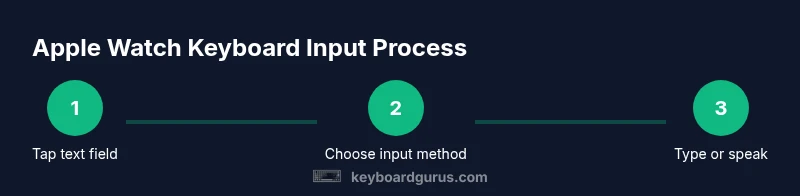
The question “where is keyboard on apple watch” is answered by tapping a text field in any Messages, Mail, or Notes entry. When the field is active, the on-screen keyboard should appear at the bottom of the screen. If you don’t see it, check that the input method isn’t hidden behind another layer or that the Watch hasn’t locked input. Ensure your watch is unlocked and the app is in a state that supports inline text input. Keyboard Gurus emphasizes that accessibility of the keyboard can vary by complication and watch face.
Using Scribble to input text on Apple Watch
Scribble lets you write letters with your finger, and the system converts your strokes into words. This method is often fastest for short messages once you get the hang of letter connections. To start Scribble, tap the text field and select the Scribble input option. The more you practice, the more accurate your handwriting recognition becomes. Keyboard Gurus notes that good wrist posture and a steady hand improve recognition rates.
Dictation: speaking your message aloud
Dictation converts your spoken words into text, which is handy when your hands are occupied or you’re in motion. To use dictation, choose the microphone option from the keyboard area and speak clearly, including punctuation cues where needed. Dictation works well for longer messages, but background noise or accents can affect accuracy. Keyboard Gurus recommends using punctuation cues like “comma,” “period,” and “question mark” to improve readability.
Quick Replies: fast canned responses for rapid texting
Quick Replies provide a set of predefined messages you can send with a single tap. This input method is ideal for busy moments and common phrases. You can customize Quick Replies in the iPhone’s Messages app, and some third-party apps expose their own brief replies. Keyboard Gurus highlights that Quick Replies reduce typing load but may feel repetitive, so mix with Scribble or dictation for variety.
Settings and enabling the keyboard on Apple Watch
To ensure the keyboard is available, verify that your watch and paired iPhone have the latest software, and that text-input options are enabled in the Messages and Notes apps. You may need to grant mic and dictation permissions on the iPhone as well. Keyboard Gurus advises starting with the default input method and then expanding to Scribble and dictation as you gain comfort.
Typing tips for accuracy on a small screen
Keep your wrist steady, use a comfortable viewing angle, and avoid typing with a tightly curled forearm. Use a light touch to prevent mis-taps and enable autocorrect when appropriate. The Apple Watch keyboard is designed for short phrases; for longer notes, consider dictation or writing on another device and syncing later. Keyboard Gurus recommends regular practice to build muscle memory.
Accessibility and language options on the Apple Watch keyboard
You can switch input languages and enable accessibility features such as larger keyboard targets and haptic feedback. Language changes can affect auto-correct and word predictions, so choose a setup that matches your primary language and typing style. Keyboard Gurus notes that multilingual users may find Scribble or dictation more efficient when switching between languages during conversations.
Common issues and quick fixes you can try
If the keyboard doesn’t appear, restart the app, re-open the text field, or restart the Apple Watch. If dictation misreads your words, try enunciating punctuation clearly and reduce background noise. For Scribble, practice tracing letters more slowly and aim for smoother strokes. Keyboard Gurus suggests checking for app-specific keyboard constraints that may hide the input method temporarily.
Practical examples: messages, notes, and reminders on your wrist
Practice typing simple messages, jotting quick reminders, and composing short notes using the different input methods. For example, a quick “meeting at 3” can be typed with the on-screen keyboard, dictated as “meeting at three,” or sent as a Quick Reply. The goal is to match the input method to the context: speed for short replies, accuracy for longer notes, and hands-free input when you’re on the move.
Keyboard Gurus verdict: best practices and setup for most users
Keyboard Gurus recommends a balanced approach: start with Scribble for basic input, switch to the on-screen keyboard for short text, and reserve dictation for longer phrases or hands-free scenarios. Customize Quick Replies for common phrases to save time, and maintain updated software to ensure input methods work smoothly. With practice, you’ll find the method that feels natural for your routine.
Tools & Materials
- iPhone with the latest iOS installed(Keep Bluetooth on and paired with the Apple Watch)
- Apple Watch with the latest watchOS(Ensure sufficient battery before testing input methods)
- Apple ID sign-in on iPhone and watch(Needed for iCloud sync and Quick Replies customization)
- Text-input features enabled (Scribble, Dictation, Quick Replies)(Check in Settings > Accessibility and Messages)
- Stable internet connection (Wi-Fi or cellular)(Dictation and some features benefit from connectivity)
- Messages app access on Apple Watch(Used to test the keyboard in real conversations)
Steps
Estimated time: 15-20 minutes
- 1
Prepare devices
Update both iPhone and Apple Watch to the latest software. Open the Messages app on the Watch and ensure your accounts are signed in. This creates a smooth baseline for testing input methods.
Tip: Keep your watch close to the iPhone during setup to avoid pairing hiccups. - 2
Open a text field
Tap any text field in Messages or Notes on the Apple Watch to trigger the input panel. The keyboard should appear if the app supports text entry. If not, try another app or restart the app.
Tip: If you don’t see the keyboard, tap the field again and ensure the screen isn’t dimmed by a notification. - 3
Choose the primary input
Select the on-screen keyboard from the input options. You can switch to Scribble, Dictation, or Quick Replies from the same panel. This step sets up your preferred default method.
Tip: For beginners, start with the on-screen keyboard to learn shapes and spacing. - 4
Try Scribble
Tap Scribble and write letters with your finger. The system converts strokes to text in real time. Practice small, connected strokes for better recognition.
Tip: Keep your wrist relaxed and move your finger in a smooth, continuous motion. - 5
Test dictation
Tap the microphone and speak clearly. Include punctuation words like ‘comma’ and ‘period’ to shape the sentence. Review after transcription for any corrections.
Tip: Reduce background noise and speak in a steady cadence for higher accuracy. - 6
Use Quick Replies
Access pre-written replies for fast responses. Customize these in the iPhone Messages app to fit common conversations. This method is ideal when you need a rapid yes/no or status update.
Tip: Label frequently used phrases with clear, concise wording. - 7
Enable and adjust settings
Check that keyboard input is enabled in both the Watch settings and the Messages app. Update any language or autocorrect preferences to suit your typing style.
Tip: If autocorrect feels intrusive, turn it off temporarily to gauge raw input accuracy. - 8
Experiment with languages
Add other languages if you switch between tongues. Language changes influence predictions and autocorrect. Keep a handwriting-friendly language as a fallback for Scribble if needed.
Tip: Test one language at a time to minimize confusion. - 9
Practice consistency
Regular practice with each method helps you identify what works best per situation. Use the watch for quick replies and dictation for longer notes.
Tip: Schedule short daily practice sessions to build muscle memory. - 10
Troubleshoot common issues
If a method isn’t responsive, force quit the app and reopen, or restart the watch. Check mic access and ensure permissions are granted on the iPhone.
Tip: Document a quick checklist for future resets to save time. - 11
Apply to real tasks
Use the keyboard in real scenarios: replying to messages, taking quick notes, or jotting reminders. Compare the speed and accuracy of each method in that context.
Tip: Pair your workflows with a comfortable watch face and layout. - 12
Review and refine
After testing all methods, pick a primary input method and a fallback. Revisit settings after major OS updates to maintain smooth operation.
Tip: Keep a small routine of quick checks to avoid feature drift after updates.
Got Questions?
Is the Apple Watch keyboard available on all models?
The on-screen keyboard is available on most modern Apple Watch models in supported apps, but some older or limited apps may not expose text input. If you don’t see it, try a different app or update watchOS.
Yes, most recent Apple Watch models support the on-screen keyboard in compatible apps, but some older apps may not.
Can I disable the keyboard completely?
You can minimize reliance on the keyboard by using Scribble, dictation, or Quick Replies, but there isn’t a global switch to disable the keyboard in all apps. Adjust inputs per app as needed.
You can reduce keyboard use by choosing Scribble, dictation, or Quick Replies per app.
Which input method is best for beginners?
For beginners, start with the on-screen keyboard to learn layout and spacing, then experiment with Scribble for handwriting input as you gain confidence.
Beginners should start with the on-screen keyboard and try Scribble as they get more comfortable.
How accurate is Scribble on a small screen?
Scribble accuracy improves with practice and wrist positioning. Steady motion and smooth strokes yield better recognition than quick, erratic scribbles.
Scribble accuracy improves with practice and a steady wrist.
Can I type in multiple languages on the watch keyboard?
Yes. You can add language keyboards and switch between them. This is useful for multilingual conversations and notes.
You can switch languages to type in multiple languages on the watch.
Can I use the keyboard offline?
Most input methods work offline, but dictation may require an internet connection for voice-to-text accuracy. Scribble and the on-screen keyboard work offline.
Dictation may need online access; Scribble and the on-screen keyboard work offline.
Watch Video
What to Remember
- Master multiple input methods for efficiency.
- Access the keyboard by tapping a text field in supported apps.
- Scribble, dictation, and Quick Replies complement the on-screen keyboard.
- Regular practice improves accuracy and speed on the wrist.