Where to Find in Keyboard: A Practical Guide
Learn where to find each major key region on any keyboard, from ANSI and ISO layouts to compact 60% boards. A practical, step-by-step guide ideal for keyboard enthusiasts, students, gamers, and professionals.


Discover where to find common keyboard features on standard layouts, including function keys, modifier keys, arrows, and the numeric keypad. This quick guide shows exact locations on typical ANSI layouts and notes variations for ISO and tenkeyless designs. Use this as a map to navigate keyboards quickly during setup, testing, and troubleshooting.
Understanding the Keyboard Layout Basics
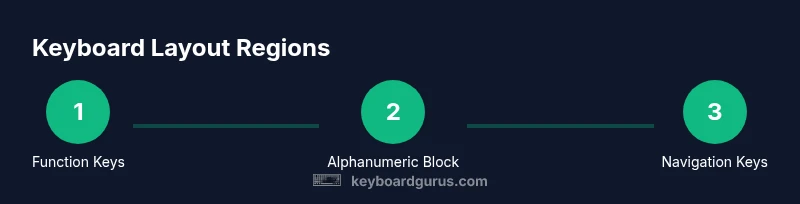
The phrase where to find in keyboard refers to locating the major zones on a keyboard, not individual letters. Start with your layout type (ANSI, ISO, or compact 60%, for example) and identify the core regions: the function row at the top, the alphanumeric block in the center, the navigation cluster on the right, and the numeric keypad on full-size boards. While the concept is universal, real-world layouts vary slightly by region and size. In this section, we’ll map these regions and introduce the terminology you’ll encounter when reading layout diagrams or shopping for a replacement. For steady hands, keep a cheat sheet of a standard ANSI layout handy during setup or troubleshooting. As you learn, you’ll instinctively see patterns across keyboards you encounter—an invaluable skill for students, gamers, and professionals who switch between devices.
The Keyboard Gurus team emphasizes consistency: once you recognize the core regions, you can quickly locate any key by its family rather than memorizing every single key name. This approach saves time in testing new keyboards, customizing keycaps, or walking through quick diagnostics on a workstation. If you’re unsure about your layout type, the quickest check is to look at the Enter key shape and the left Shift width, which often reveal ANSI vs ISO distinctions. In many cases, ISO layouts place the Enter key as a tall, curved shape, whereas ANSI typically has a rectangular Enter. These cues help you anchor your search for other regions on the board. Remember, your ultimate goal is to become proficient at decoding a layout at a glance, so you can find where to locate in keyboard with confidence.
For enthusiasts, this skill also translates to better ergonomic choices, faster keycap swaps, and more precise typing tests across devices. It’s not just about where a key sits—it’s about understanding how layout decisions affect your workflow, especially when you’re tailoring a keyboard to specific games, software, or academic tasks.
The Core Regions: Function Keys, Alphanumeric Block, and Modifiers
Every keyboard is built around a few core regions. The function keys row (F1–F12) sits at the very top on most full-size boards. Beneath it lies the alphanumeric block, which is the heart of daily typing, containing the letter keys, numbers, and punctuation. The modifier keys (Ctrl, Shift, Alt or Option, and the Windows/Command key) live on the left and, on many boards, a set of additional modifiers lives on the right or bottom row. On compact layouts, some regions fuse or disappear; for example, the numeric keypad can be omitted in 60% keyboards, and the right-hand modifiers can migrate to a shared cluster with the Enter or Backspace keys. Understanding where these regions sit on your board helps you locate any key quickly, whether you’re testing layouts or performing a quick repair.
As you move across keyboards, you’ll notice that the relative positions of these regions stay consistent even when the physical footprint changes. For instance, the function keys remain along the top edge, the main letters form a central block, and the navigation cluster with arrows and Home/End keys sits toward the right. When you read reviews or schematics, use this mental map to orient yourself immediately. This consistency is what makes the phrase where to find in keyboard a practical question rather than an overwhelming one for users of all levels.
To reinforce this mindset, practice pointing to each region on an actual keyboard while verbalizing its role. This deliberate practice anchors your memory and improves your ability to troubleshoot or customize keyboards across different setups, from gaming rigs to student desks.
Where to Find the Function Keys and Numerics: Practical Locating Tips
Function keys (F1–F12) sit in a single row at the keyboard’s top edge. On laptops or compact boards, the F-keys may be secondary functions activated with an Fn key. If you’re ever unsure, check the top row for small secondary icons on the keys; these indicate alternate functions when Fn is held. The numbers row sits directly below the function keys, forming the forehead of the alphanumeric area. The number row is often used for quick shortcuts and is a frequent point of confusion when comparing ISO and ANSI layouts because the placement of certain symbols differs. When in doubt, take a moment to trace from the Esc key down to the number row to confirm your navigation path. This careful tracing prevents misinterpretation during setup or keycap swapping.
If you own a laptop, you’ll probably see compact versions of these rows with some keys combined or replaced by digital layers. In those cases, consult the manufacturer’s keyboard shortcuts guide or a reputable layout diagram to see how the function row is mapped. In professional environments, a printable cheat sheet is invaluable for quick reference when you’re switching between devices. The practice of verifying F-key behavior against documented functions helps you avoid mistaken keystrokes during long sessions or critical tasks.
Locating Modifier Keys (Ctrl, Alt, Win/Meta)
Modifier keys are essential for shortcuts and system commands. On standard PC keyboards, Ctrl is located at the bottom-left, with the Windows/Meta key next to it. The Alt key sits to the far left or right of the spacebar, depending on the layout. Mac keyboards replace Ctrl with Command (Cmd) and Option (Alt), but their placement mirrors the Windows layout for ease of use. Be mindful that some keyboards use different labels (e.g., Cmd vs Windows key) and that some compact boards place modifiers on the same row as the spacebar or near the right-hand edge to save space. Mastery of these positions makes it easier to execute shortcuts like copy/paste, window management, and application-specific commands with speed and precision.
When you’re comparing layouts or customizing a hotkey setup, a quick tip is to count the baseline horizontal lines that align with the spacebar and the leftmost edge of the key cluster. This alignment often reveals the precise location of a modifier key, even on unusual boards. If you’re using a nonstandard layout (for example, a gaming keyboard with extra macro keys), map those macros to typical modifier combinations to maintain consistency across devices. This approach keeps your workflow efficient, whether you’re coding, gaming, or performing data entry.
Arrow Keys and Navigation Cluster: Where They Live on Different Boards
The arrow keys form a cluster adjacent to the right of the alphanumeric area or above the numeric keypad, depending on the board’s size. On 60% keyboards, arrow keys are often embedded as function-layer shortcuts activated with Fn, while full-size boards place dedicated arrow keys in a familiar inverted-T layout. Additional navigation keys like Home, End, Page Up, and Page Down usually group near the right edge, above or near the numeric keypad. On compact layouts, you’ll often see these functions mapped to function keys or keys within the main area via layers.
Understanding these locations matters for both everyday typing and gaming where rapid navigation is critical. To test a board quickly, switch into a document and use the arrow keys to move the cursor, then try Home/End/Page Up/Page Down. If you’re on a laptop or a 60% layout, press the Fn key alongside a secondary key to access these functions. A consistent mental map reduces mis-presses during high-pressure tasks.
The Numeric Keypad and Its Variants: Size, Location, and Behavior
The numeric keypad sits to the right on full-size boards, offering a dedicated grid for numbers, arithmetic, and quick data entry. On tenkeyless (TKL) layouts, the keypad may be omitted entirely, while 60% boards remove it completely. Some keyboards place a virtual keypad on the right side via function layers, which you access with Fn or a dedicated toggle. When locating the keypad, also note the Num Lock indicator, which controls whether the top row numbers double as cursor keys. This small bit of feedback can prevent accidental data entry in spreadsheets or accounting software.
If you rely on the numeric keypad for frequent numeric entry, a separate numeric keypad accessory can be a wise investment. Conversely, if you rarely type numbers, a compact keyboard may be more ergonomic and space-efficient. Knowledge of whether your board has a real keypad or a layer-based keypad helps you plan your desk setup and keycap configuration with confidence. In professional contexts, consider labeling both modes to avoid mistakes during critical tasks.
Special Cases: ISO Layouts, Tenkeyless, and 60% Keyboards
Layout diversity matters. ISO layouts are common in parts of Europe and feature a larger Enter key and a different left Shift shape. The Enter key’s distinctive shape is a telltale sign of ISO; ANSI Enter is a simple rectangular shape. Tenkeyless keyboards omit the numeric keypad, reducing width but preserving the main typing area. 60% keyboards trim even further, removing the function row and navigation cluster in favor of layers accessed with Fn. When you’re trying to locate keys on a non-standard board, start with the most universal anchors: the Esc key (top-left), the letter block, and the spacebar line. Then map the additional zones (function keys, arrows, and navigational keys) based on the layout type. This approach helps you quickly adapt to new hardware during travel, shared workspaces, or gaming sessions.
For gamers or programmers who demand speed, the smallest boards require memorizing layered shortcuts. In contrast, professional typists may prefer a full-size board for muscle memory and clarity. Keep a reference diagram handy, and practice identifying ISO-specific elements like the wider Left Shift or the ISO Enter key. With time, you’ll seamlessly recognize layouts at a glance.
How to Verify on Your Device: Quick Checks and Tests
Verification is the practical stop on the journey from keyword to mastery. Start by identifying your layout type (ANSI/ISO) using the Enter key and the left Shift shape. Next, check the function key row to confirm its alignment with your operating system. Then, test the navigation cluster by pressing Home, End, Page Up, and Page Down in a text document. If your keyboard relies on a FN layer, confirm that you can access non-primary functions by pressing Fn in combination with the relevant keys.
Finally, open a simple spreadsheet or calculator to ensure the numeric keypad (if present) and math keys respond correctly. If something feels off, cross-reference the actual board against a layout cheat sheet or the manufacturer’s documentation. Practicing these checks on a few devices helps you develop a quick sense for where to find in keyboard across different environments. Keyboard Gurus recommends maintaining a small, annotated diagram of your most-used boards for rapid onboarding in shared workspaces.
Common Troubleshooting: Misplaced Keys or Unresponsive Areas
Misplaced keys or unresponsive areas are typically caused by layout mismatches, keyboard layer misreads, or driver software conflicts. If a key seems to live in the wrong spot, confirm you’re using the correct layout diagram and consider resetting to default key mappings. On laptops with Fn-layer toggles, ensure you’re not inadvertently in a secondary layer. For functional keyboards with programmable macros, verify that a macro didn’t override a standard key’s behavior. If you swap keycaps, re-seat them firmly and double-check that the cap is the correct size and profile for that position. Finally, test the keyboard on a different device to determine whether the issue is hardware or software related. By methodically ruling out causes, you’ll pinpoint where to find in keyboard and fix the problem efficiently.
Tools & Materials
- Keyboard (ANSI/ISO layout)(Any full-size or compact layout to identify zones)
- Layout cheat sheet or diagram(Reference images showing ANSI, ISO, and 60% mappings)
- Printable or digital layout diagram(Optional for quick side-by-side comparison)
- Printed or digital ruler/grid(Useful to verify key sizes on custom boards)
Steps
Estimated time: 15-20 minutes
- 1
Identify keyboard family
Examine the physical layout to determine whether you’re dealing with ANSI, ISO, or a compact form like 60% or 65%. Look for the Enter key shape and the left Shift width as primary indicators. This establishes a baseline for locating regions across keyboards.
Tip: Check back-labels or manufacturer docs if you’re unsure about the layout type. - 2
Locate the function keys row
Find the row at the very top containing F1–F12. On laptops, function keys may serve dual purposes (Fn required for secondary functions). Confirm the mapping by pressing an Fn+F-key to see its secondary function.
Tip: If you can’t see markings clearly, consult the keyboard’s manual or a verified online diagram. - 3
Find the alphanumeric block
Identify the central area with the letter keys and number row directly above it. This is the core typing zone and is present in nearly all layouts. Note that the spacing and alignment may shift slightly between ANSI and ISO boards.
Tip: Use a printed layout as a quick reference while typing on a new board. - 4
Locate the number row and keypad
On full-size boards, the number row sits just above the QWERTY row. If there is a numeric keypad to the right, test Num Lock to see if the top row doubles as arrows on compact boards. On 60% keyboards, these sections are often layered.
Tip: If you rely on numeric entry, consider whether your board has a physical keypad or a function-layer keypad. - 5
Identify modifier keys
Find Ctrl, Shift, Alt/Option, and the Windows/Meta key. Their positions anchor shortcut habits and cross-platform workflows. Mac layouts replace some keys with Command and Option in roughly the same locations.
Tip: Label changes are common; remember the equivalence across OSes. - 6
Find arrow keys and navigation cluster
Arrow keys typically appear as a small inverted-T cluster on larger boards, or are layered via Fn on compact models. Navigation keys (Home, End, Page Up, Page Down) usually cluster near the right edge.
Tip: On a 60% board, test navigation shortcuts within a text editor to confirm layer access. - 7
Check for 60% or 65% variants
60% and 65% boards remove or compact the function row and/or navigation module. Identify which keys are layered and practice accessing them with Fn. This explains why some keys seem missing.
Tip: Keep a cheat sheet handy to map layered keys during setup. - 8
Verify with official diagrams
Cross-check your findings against manufacturer diagrams or trusted layout references. This final check ensures your mental map aligns with the actual hardware.
Tip: When in doubt, print or save a verified diagram for quick reference.
Got Questions?
What is the difference between ANSI and ISO keyboard layouts?
ANSI and ISO refer to regional standards for keyboard design. The most noticeable differences are the Enter key shape and the left Shift width. ISO often has a larger Enter key and a differently shaped left cluster, while ANSI typically has a rectangular Enter key. Understanding these differences helps you locate keys more quickly when comparing keyboards.
ANSI and ISO are regional keyboard standards; ISO usually features a larger Enter key and a different left Shift shape, while ANSI has a rectangular Enter. Knowing this helps you map key locations faster.
Where are the function keys located on a compact keyboard?
On compact keyboards like 60% layouts, function keys are typically accessed via a Fn layer. This means you hold Fn and press the corresponding key to access F1 through F12 functions. Always test a few common shortcuts to confirm behavior on your device.
Compact boards use a Fn layer for function keys; hold Fn and press the key to use F1–F12. Test a couple of shortcuts to confirm.
Do laptop keyboards differ in key locations from desktop keyboards?
Yes. Laptop keyboards often use Fn layers for extra functions and may have slightly different spacing due to palm-rest geometry. Use the laptop’s manual or a trustworthy diagram to confirm key positions, especially for multi-language or compact layouts.
Laptops often map functions on Fn layers and may have different spacing; check the manual or a layout diagram for accuracy.
How can I verify that my keycaps aren’t misaligned after a swap?
Ensure each keycap is seated fully and aligned with neighboring caps. Some keycaps come in different profiles; mismatched profiles can feel off. Check that the stem matches the switch type and test each key for consistent travel.
Make sure caps are fully seated, aligned, and compatible with your switches; test each key’s travel after a swap.
What should I do if a key feels like it’s in the wrong place?
First, verify your layout type and consult a reliable diagram. If the key truly sits in a different location, re-map or re-label the key using a software solution or physical keycap swap. If the issue persists, test on another device to identify hardware vs software causes.
Check the layout, compare with diagrams, and consider remapping or relabeling if needed; test on another device to determine the cause.
Why do some keyboards remove the navigation cluster on 60% layouts?
60% keyboards omit the dedicated navigation cluster to save space. Practical navigation keys are accessed through function layer shortcuts. This design supports portability but requires familiarizing yourself with layered commands.
60% boards save space by using function layers for navigation; learn those shortcuts to navigate efficiently.
Watch Video
What to Remember
- Identify your keyboard family first.
- Know the core regions and their typical positions.
- Differentiate ANSI vs ISO variations with layout cues.
- Use diagrams to verify key locations.
- Apply a mental map to setup, testing, and troubleshooting.