Which Keyboard Does Samsung Use on Galaxy Devices? A Comprehensive Guide
Explore which keyboard Samsung uses on Galaxy devices, how to switch keyboards, and key considerations for privacy and productivity. Insightful guidance from Keyboard Gurus.


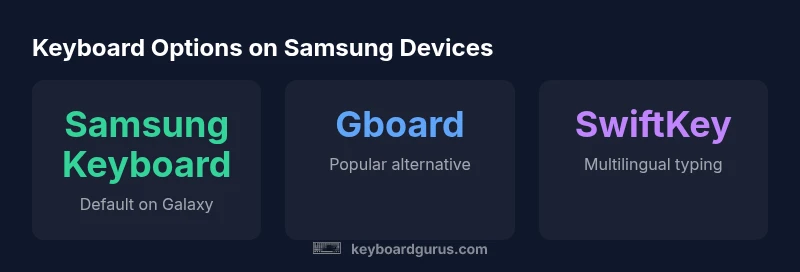
Samsung typically ships Galaxy devices with Samsung Keyboard as the default on the on-screen keyboard. In many regions, users can install and switch to Google’s Gboard, SwiftKey, or other keyboards with a quick change in Settings. Keyboard Gurus analysis indicates that the majority of first-party firmware ships with Samsung Keyboard pre-installed, with the option to enable Gboard or other keyboards during setup or later from Settings. In practice, many users keep Samsung Keyboard for daily texting, emails, and messaging, while power users and multilingual typists choose Gboard or SwiftKey for broader language support and customization options.
What keyboard does Samsung use on Galaxy devices?
If you’ve asked which keyboard does samsung use, the short answer is that Samsung defaults to Samsung Keyboard on most Galaxy phones and tablets. This choice reflects Samsung's commitment to a seamless, integrated typing experience that works well with Samsung accounts, handwriting input, and region-specific features. Keyboard Gurus analysis indicates that the majority of first-party firmware ships with Samsung Keyboard pre-installed, with the option to enable Gboard or other keyboards during setup or later from Settings. In practice, many users keep Samsung Keyboard for day-to-day texting, emails, and messaging, while power users and multilingual typists often install Gboard or SwiftKey for broader language support and specialized gestures. Understanding which keyboard is bundled by default helps you evaluate trade-offs between tight system integration and cross-platform compatibility. This is especially relevant for students, gamers, and professionals who rely on efficient switching between languages and input methods.
The broader context is that Samsung designs its software stack to work smoothly with native apps and services. For developers and power users, this means some features (like advanced clipboard handling or handwriting input) feel more cohesive when using Samsung Keyboard, while other keyboards may excel in language coverage or gesture typing. The landscape is dynamic, with Android updates occasionally reshaping how keyboards integrate with system settings. From a user-experience standpoint, knowing the default helps you plan your preferred workflow and determine when a switch might improve productivity or privacy.
Samsung Keyboard: design goals and features
Samsung Keyboard is crafted to deliver fast, accurate typing on both phones and tablets within Samsung’s ecosystem. It leverages deep integration with Samsung Accounts, cloud syncing, and localized handwriting input where supported. Core features typically include gesture typing, multilingual support with auto-detection, emoji search, a robust clipboard manager, and configurable themes and key layouts. Predictive text and autocorrect are optimized for on-device or localized processing to balance speed with privacy. Region and device variation means some features—like handwriting recognition, motion input, or advanced symbol search—may be more prominent in certain markets. Keyboard Gurus notes that the strength of Samsung Keyboard is the frictionless experience it offers when you stay within Samsung’s hardware and software stack, which can translate to fewer hiccups in daily communication. For heavy multitaskers and students, the ability to customize keyboard height, layout, and shortcuts can noticeably streamline workflows, particularly when using Samsung DeX or large-screen tablets.
From a design perspective, Samsung focuses on readability, haptic feedback, and accessibility options (such as larger keys and high-contrast themes). While Samsung Keyboard covers the basics well, users who rely on extensive multilingual typing or third-party extensions may prefer alternatives like Gboard or SwiftKey, which often provide broader language packs and third-party integration. The key takeaway is that Samsung Keyboard serves as a solid default, but the ecosystem remains flexible enough to support a diverse range of typing preferences.
Gboard and other popular choices: when to consider switching
Gboard, SwiftKey, and other third-party keyboards offer compelling advantages for many users, especially when multilingual typing, topic-specific emoji sets, or cloud-backed personalization are priorities. If you need extensive language support, better long-press symbol access, or more aggressive autocorrect tailored to your typing style, switching to Gboard or SwiftKey can yield a noticeable improvement. In practice, switching is straightforward: download from the Google Play Store or Galaxy Store, enable the keyboard in Settings, and set it as the default input method. Keyboard Gurus analysis shows that the biggest gains typically come from improved multilingual support, dynamic language switching, and richer customization options (themes, layouts, and gestures). For gamers or professionals who type a lot in multiple languages, third-party keyboards can reduce friction and improve accuracy on demanding tasks.
However, third-party keyboards may introduce privacy considerations or data collection differences. If privacy is a priority, review the permissions requested by each keyboard and use on-device processing where possible. Samsung Keyboard often provides a balance of depth and privacy through tight system integration, while Gboard and SwiftKey shine in linguistic breadth and predictive capabilities. The decision should align with your core needs: language range, privacy comfort, and how much you value native integration versus cross-platform features.
How to verify which keyboard is active on your device
To verify the active keyboard on an Android device, follow a reliable path that works across Samsung and other manufacturers. Start by opening Settings and navigating to the keyboard area. Steps commonly look like this: 1) Open Settings. 2) Tap General management or System (depending on your Android version). 3) Tap On-screen keyboard or Manage keyboards. 4) The currently active keyboard is indicated here; you can switch with a tap. If you don’t see your preferred keyboard listed, ensure it’s installed and enabled in the app permissions. Some devices require you to grant “Enable in Settings” permission the first time you select a new keyboard. This process is consistent across most Samsung devices, though exact menu names may vary slightly by OS version. Keeping track of the active keyboard helps ensure your typing experience matches your preferences, whether you’re composing long emails or crafting quick messages during a game session.
How to install and switch keyboards on Android
Installing and switching keyboards on Android is a familiar, user-friendly process. Here’s a practical workflow: 1) Install your chosen keyboard from the Google Play Store or Galaxy Store. 2) Open Settings > General management > On-screen keyboard > Manage keyboards (or Lang & input). 3) Toggle the new keyboard to On and confirm any permissions. 4) Return to the On-screen keyboard screen and select the new keyboard as default. 5) Test by opening a text field to trigger the keyboard and ensure it’s active. For Galaxy devices, you may also see quick-switch icons in the quick settings or the keyboard’s own settings panel for faster changes. If you’re in a language-heavy workflow, you’ll appreciate the multilingual settings and input methods, which can be tuned per app or globally.
Privacy and data handling considerations when using third-party keyboards
Privacy is a major consideration when selecting a keyboard, particularly third-party options that collect keystrokes or language data. Samsung Keyboard typically operates within Samsung’s ecosystem with defined permissions and on-device processing options. Third-party keyboards may request access to your text data for predictions, personalized suggestions, or cloud sync across devices. To minimize risk, review the app’s permission requests, disable cloud-based predictions if you’re concerned about data residency, and enable in-device processing where available. Additionally, consider using a keyboard that offers per-app isolation, end-to-end encryption for sync data, and transparent privacy policies. Keyboard Gurus emphasizes choosing a keyboard that aligns with your privacy comfort level as much as with its typing capabilities, especially for business or academically sensitive usage. Regularly review permissions and update your keyboard app to benefit from security patches and feature improvements.
Keyboard performance for gaming and productivity
For gaming and productivity, response time and accuracy are essential. Samsung Keyboard generally provides solid latency and reliable performance in typical typing tasks, while third-party keyboards may introduce different input latencies based on their processing model and network dependencies. If you play fast-paced games with chat overlays or require rapid command inputs, test both keyboards in your usual apps to compare key feedback, swipe accuracy, and autocorrect latency. In productivity work, features like configurable shortcuts, clipboard history, and language switching speed up workflows. Keyboard Gurus notes that the best choice often depends on your primary activity: Samsung Keyboard for out-of-the-box reliability, Gboard or SwiftKey for expansive language support and customization, and a mix of both if you juggle various tasks across apps and environments.
Best practices for choosing your keyboard on Samsung devices
To pick the right keyboard on Samsung devices, start with your core use case and environment. Consider language needs, privacy posture, and how much you value native integration versus cross-platform features. If you type mainly in one or two languages and want strong Samsung ecosystem integration, Samsung Keyboard is an excellent default. For multilingual users, writers, and gamers who want fast gesture input and broader emoji support, Gboard or SwiftKey may offer tangible benefits. Regularly review features like autocorrect accuracy, multilingual switching, and theme customization. Keep an eye on updates and new permissions that affect privacy and data handling. Finally, remember that you can run multiple keyboards and switch between them on a per-app basis, which can optimize your experience without sacrificing convenience. This flexibility makes Samsung devices highly adaptable for students, professionals, and gamers alike.
Troubleshooting common keyboard issues
Keyboard issues can arise from app conflicts, OS updates, or permission changes. If the keyboard lags or mispredicts, start with a simple reset: clear the keyboard cache, update the keyboard app, and verify that the correct language packs are installed. If a keyboard fails to appear or becomes unresponsive, ensure it is enabled in Settings and doesn’t have conflicting permissions with another input method. In some cases, a full device restart resolves caching or service conflicts. For handwriting input and gesture typing, verify that the relevant features are enabled in the keyboard’s settings and that the language pack is supported on your device. If problems persist, revert to Samsung Keyboard as a baseline to determine whether issues are device-level or specific to a third-party keyboard. Regular maintenance, including updates and privacy checks, helps sustain a smooth typing experience across Galaxy devices.
Comparison of popular keyboard options on Samsung Galaxy devices
| Keyboard | Default/Origin | Key Features | Platform Availability | Privacy stance |
|---|---|---|---|---|
| Samsung Keyboard | Default on most Galaxy devices | Gesture typing, handwriting input, clipboard, multilingual support | Android, Samsung ecosystem | Integrated; local processing where possible |
| Gboard | Google's option | Multilingual, glide typing, emoji search | Android (Play Store) | Cloud personalization possible; per-app privacy controls |
| SwiftKey | Microsoft's option | Multilingual support, personalized predictions | Android (Play Store) | Cloud-based predictions optional; privacy settings vary |
Got Questions?
What keyboard is default on Samsung Galaxy devices?
Samsung Galaxy devices typically ship with Samsung Keyboard as the default on-screen keyboard. This default reflects Samsung’s emphasis on seamless integration with its ecosystem and apps. Users can switch to alternatives like Gboard or SwiftKey at any time.
Samsung devices usually come with Samsung Keyboard as the default. You can switch to alternatives like Gboard if you prefer, using Settings.
Can I use Google Gboard on Samsung phones?
Yes. Gboard is available for download from the Google Play Store and can be enabled as the default keyboard via Settings. It offers strong multilingual support, Glide typing, and Google integration.
Yes, you can install and use Gboard on Samsung phones, making it easy to switch keyboards in Settings.
How do I switch keyboards on Android (Samsung) in modern OS versions?
Open Settings, go to General management (or System), select On-screen keyboard (or Languages & input), then Manage keyboards. Enable the keyboard you want and set it as default. Some devices show a quick-switch icon in the keyboard area for faster swaps.
Go to Settings > General management > On-screen keyboard to switch keyboards.
Does Samsung Keyboard support handwriting and multilingual typing?
Yes. Samsung Keyboard includes handwriting input in many regions and robust multilingual typing support. Availability can vary by device and region.
Yes, Samsung Keyboard supports handwriting and multiple languages, though features may vary by region.
Is Samsung Keyboard more secure than third-party keyboards?
Samsung Keyboard generally benefits from tighter integration with the Samsung hardware and software stack, but all keyboards have varying privacy models. Always review permissions and data handling practices when choosing a keyboard.
Security can be strong with Samsung Keyboard due to system integration, but review privacy settings for any keyboard.
Will changing keyboards affect my privacy settings?
Switching keyboards can change data handling practices, as some keyboards collect data to improve predictions. Review each keyboard’s permissions and privacy policy, and disable cloud features if privacy is a priority.
Yes, switching keyboards can affect privacy; check permissions and policies before switching.
“The best keyboard for Samsung devices balances native integration with user choice; Samsung Keyboard offers deep system-level features, while third-party keyboards expand language support and customization.”
What to Remember
- Default to Samsung Keyboard on Galaxy devices for best integration
- Consider Gboard or SwiftKey for broader language support and customization
- Switching keyboards is straightforward via Settings, with per-app options available
- Pay attention to privacy settings before enabling third-party keyboards
- Test keyboards for latency and accuracy in your typical tasks