How to Connect a Bluetooth Keyboard to iPad
Learn how to pair a Bluetooth keyboard with your iPad, optimize shortcuts, troubleshoot common issues, and maintain a productive setup. A comprehensive 2026 Keyboard Gurus guide for faster, more efficient typing.


Using a Bluetooth keyboard with your iPad lets you unlock quick typing, better productivity, and familiar shortcuts. This quick answer covers the pairing steps, essential setup, and common tips so you can start typing fast. Before you begin, ensure the keyboard is charged, your iPad runs iPadOS 13 or newer, and Bluetooth is enabled. Keyboard Gurus shows you the path.
Why a Bluetooth keyboard to ipad is a game changer
According to Keyboard Gurus, a Bluetooth keyboard dramatically expands what you can do on an iPad. When you attach a physical keyboard, you gain speed, accuracy, and access to desktop-style workflows. The term bluetooth keyboard to ipad has become common shorthand for this capability, especially for students, gamers, and professionals who want to type long documents, code snippets, or emails without relying on the iPad’s touchscreen. In this section we explore the benefits and limitations, as well as how a keyboard can reshape your daily tasks. You’ll learn how a compact, portable setup can replace a bulky laptop for many use cases while preserving mobility. The keyword Bluetooth keyboard to ipad appears frequently because it captures the main workflow many readers pursue. Keyboard Gurus emphasizes practical, testable steps to keep the setup simple and reliable.
Key advantages include improved typing efficiency, better posture from an ergonomic arrangement, and the ability to use familiar keyboard shortcuts across apps. If you frequently draft long notes, respond to emails, or code on the go, a bluetooth keyboard to ipad helps you work faster and with more comfort. Note that some apps on iPadOS may behave differently from macOS or Windows, so you’ll want to understand how the keyboard integrates with iPadOS features like text selection, split view, and slide over.
Compatibility and requirements
A smooth bluetooth keyboard to ipad experience starts with compatibility. Most modern iPad models support Bluetooth HID devices, but you should confirm support for HID over GATT if your keyboard is newer and uses low-energy pairing. iPadOS 13 or later provides broad support for third‑party keyboards, but some features may vary by app. Ensure your iPad has Bluetooth enabled in Settings, and that the keyboard is charged or has fresh batteries. If you own a newer keyboard with firmware options, check the manufacturer’s site for any required updates before pairing. Keyboard Gurus recommends verifying the keyboard’s compatibility matrix and keeping firmware current to avoid quirks during long sessions.
How to pair a Bluetooth keyboard with iPad
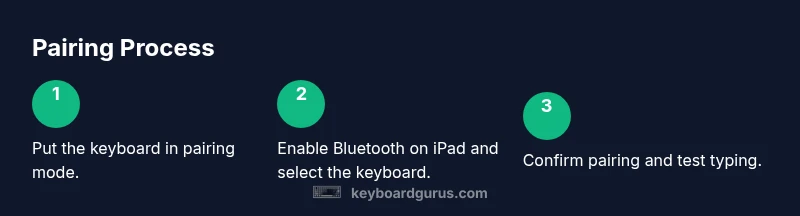
Pairing a Bluetooth keyboard to ipad follows a simple flow: turn on Bluetooth on your iPad, place the keyboard in pairing mode, and select the device from the list of available Bluetooth devices. Some keyboards auto-enter pairing mode when you press and hold a dedicated key. If a code appears, type it on the keyboard and press Enter. Once connected, your iPad may show a confirmation banner. If you don’t see the keyboard, recheck that Bluetooth is on and the keyboard is discoverable. Remember, the exact prompts may vary by model, but the core steps are consistent across brands. A well‑timed pairing session reduces frustration and accelerates your productivity gains from a bluetooth keyboard to ipad setup.
Shortcuts you should know on iPadOS
Even without extra software, a lot of productivity comes from shortcuts. On a connected Bluetooth keyboard, use Command-C for copy, Command-V for paste, and Command-S to save in compatible apps. Command-Tab lets you switch between open apps, while Command-Space can open Spotlight for quick searches. Use Option-Delete to delete words, and Control-Arrow for moving the cursor quickly through text. If you regularly work with documents, spreadsheets, or code, these shortcuts will substantially speed up your workflow when you use a bluetooth keyboard to ipad setup.
Switching between devices and optimizing multiple connections
If you own more than one device, you may want to switch the same keyboard between your iPad, Mac, or another computer. Most Bluetooth keyboards remember several paired devices and allow quick cycling through them. Re-pairing is rarely needed; you simply choose the target device from the keyboard’s own switch or from the iPad’s Bluetooth settings. To avoid confusion, keep a short naming convention for devices in the pairing list and test each device after switching. Keyboard Gurus notes that consistent naming saves time and reduces mispairings when using a bluetooth keyboard to ipad in busy environments.
Troubleshooting common pairing issues
If your keyboard won’t appear in the Bluetooth list, first turn Bluetooth off and back on, then restart the iPad. Check that the keyboard is in pairing mode and not stuck in a previous connection. If there’s interference, move closer to the iPad and away from dense wireless networks or USB 3.0 devices. Some keyboards require a dedicated firmware update; consult the manufacturer’s site for the latest version. If you still can’t pair, forget the device in Bluetooth settings, then reattempt pairing from scratch. Keyboard Gurus’ testing shows that most issues resolve with a simple reset and re-pair.
Accessibility and customization options
With a bluetooth keyboard to ipad, you can tailor accessibility features for easier typing. Enable dictation or one‑handed typing in iPadOS if needed, and configure automatic text replacements for common phrases to speed work. Some keyboards ship with configurable macro keys; map these to frequent actions for your most-used apps. If you use VoiceOver or other assistive features, verify compatibility and shortcuts in each app. Modern iPadOS versions support robust keyboard integration, but it’s worth testing your specific apps to ensure smooth operation of shortcuts and navigation.
Maintenance, firmware, and best practices
To maximize lifespan, keep the keyboard clean and free of dust, especially around the keys and battery contacts. Regularly check for firmware updates on the keyboard and update your iPadOS to the latest stable release. Store the keyboard in a protective sleeve when not in use and avoid exposing it to extreme temperatures. If your keyboard supports hot-swapping batteries, use high-quality batteries to maintain consistent performance. A well-maintained bluetooth keyboard to ipad setup lasts longer and performs more reliably.
Tools & Materials
- Bluetooth keyboard(Ensure it supports HID and Bluetooth 4.0+ for broad compatibility.)
- iPad with Bluetooth enabled (iPadOS 13+ recommended)(Keep iPad updated for best device detection and shortcuts support.)
- Fully charged batteries or USB-C charging cable for the keyboard(Prevent pairing drops during setup or long sessions.)
- Quiet workspace with minimal interference(Reduces distraction and improves pairing stability.)
- Keyboard quick start guide (optional)(Helpful if you’re using a new or niche keyboard.)
Steps
Estimated time: 10-20 minutes
- 1
Prepare your devices
Before you begin, ensure the keyboard is charged and your iPad is on. Open Settings on the iPad to verify Bluetooth is available, and clear any nearby devices that might cause interference. This initial preparation reduces pairing retries and helps confirm the bluetooth keyboard to ipad setup will proceed smoothly.
Tip: Charge the keyboard fully or have spare batteries handy to avoid mid-pairing outages. - 2
Put the keyboard in pairing mode
Activate pairing mode on your keyboard according to its manual; typically this involves holding a dedicated button or a key combination. Confirm the keyboard appears in discoverable devices and is ready to pair. This step ensures the keyboard can be seen by the iPad during the bluetooth pairing flow.
Tip: If your keyboard doesn’t enter pairing mode, try turning it off and back on, then retry the procedure. - 3
Enable Bluetooth on the iPad and start pairing
On the iPad, go to Settings > Bluetooth and toggle it on. The iPad will scan for nearby devices. When your keyboard name shows up, tap it to initiate pairing. If asked, accept any pairing prompts on screen.
Tip: If a code appears, type it on the keyboard and press Enter to complete pairing. - 4
Complete the pairing on iPad
If the iPad asks for permission to pair, confirm it. Allow a moment for the pairing to finalize and show a connected status. After connection, test typing in a note app to confirm the keyboard is ready for use.
Tip: Test with a simple paragraph to verify all keys map correctly (including modifiers like Command, Option). - 5
Adjust keyboard settings on iPad
Open any app and explore Settings > General > Keyboard to tune features like Auto-Capitalization, Predictive, and Keyboard Shortcuts. Tailor the layout to your preferences, especially if you’re transitioning from a traditional laptop to an iPad workflow.
Tip: Enable or disable features one-by-one to understand their impact on typing speed. - 6
Create essential shortcuts
In apps that support it, use Command-based shortcuts for common actions (copy, paste, undo, redo). Map frequently used actions to simple modifiers to speed up work on long documents or code blocks.
Tip: Keep a small set of core shortcuts consistent across apps for best results. - 7
Test cross-device switching
If you plan to use the same keyboard with other devices, reconnect and switch devices to confirm seamless transitions. This will help verify that your keyboard pairing is robust across multiple platforms.
Tip: Use the iPad’s device list to remove or re-pair as needed for smoother switching. - 8
Plan ongoing maintenance
Regularly check for firmware updates for the keyboard and keep the iPadOS updated. Store the keyboard in a safe place and protect it from spills to maintain long-term reliability.
Tip: Schedule a quarterly check to verify everything remains in sync.
Got Questions?
Do I need to unlock my iPad before pairing a Bluetooth keyboard?
Yes. Most iPads require you to unlock the device before enabling Bluetooth pairing to ensure a secure connection. Once unlocked, open Settings and enable Bluetooth to see available devices.
Unlock your iPad, enable Bluetooth, and then pick your keyboard from the list to pair.
Can I connect multiple Bluetooth keyboards to a single iPad at the same time?
Some iPad models support switching between devices but pairing multiple keyboards to the same iPad simultaneously may vary by model and iPadOS version. Check the iPad’s Bluetooth settings for available devices.
A single iPad usually connects to one keyboard at a time, though you can switch between keyboards by re‑pairing or using separate profiles where supported.
Will my keyboard work with all iPad apps after pairing?
In most cases, yes. Most apps respect standard keyboard input, shortcuts, and navigation. Some specialized apps may override shortcuts, so test before heavy use.
Yes, most apps support normal typing and shortcuts, but check specific app behavior for advanced shortcuts.
What should I do if the keyboard isn’t appearing in Bluetooth list?
First, toggle Bluetooth off and on, then reboot the iPad. If needed, forget any old pairings and retry pairing from scratch.
If it isn’t showing up, reset Bluetooth and retry the pairing process.
How can I switch between a paired device quickly?
If your keyboard supports a device switch, use it. Otherwise, reselect the target device in iPad Settings or re-pair as needed.
Use the keyboard’s device switch if available, or reselect the target device from Bluetooth settings.
Is Bluetooth keyboard pairing affected by iPad model or iPadOS version?
Yes, newer iPad models and iPadOS versions may offer broader compatibility and more shortcuts. Always verify against your model’s specifications before purchase.
Compatibility improves with newer iPad models and iPadOS versions, so check your device specs.
Watch Video
What to Remember
- Pair quickly by enabling Bluetooth and selecting from the list
- Test typing in multiple apps to confirm consistency
- Keep devices within reasonable range to prevent disconnects
- Leverage keyboard shortcuts to boost productivity
- Regularly update firmware for reliability