Debugging Keyboard Shortcuts: A Practical Guide
Learn a clear, repeatable workflow to debug keyboard shortcuts across OS and apps. This guide covers diagnosis, tools, step-by-step actions, and best practices to reduce conflicts and improve workflow.


You can debug keyboard shortcuts by isolating scope, reproducing the issue, testing across apps, and checking both software shortcuts and hardware issues. Begin with a reproducible shortcut, verify with a clean profile, inspect conflicting keybindings, and use a systematic checklist. Log changes, create a rollback plan, and validate improvements with repeatable tests.
Understanding the Problem Space
Keyboard shortcuts are a powerful way to speed up work, but they can fail for a variety of reasons—from OS-level bindings to app-specific configurations. According to Keyboard Gurus, most shortcut issues fall into two broad categories: global system shortcuts that apply everywhere, and application-specific bindings that live only within a single program. Recognizing this distinction helps you triage problems efficiently and allocate your debugging time where it matters most. It also sets expectations for stakeholders who rely on shortcuts for productivity or competitive gaming. By framing the problem in these terms, you can avoid chasing phantom bugs and focus on actionable hypotheses. The goal is to move from vague discomfort to a concrete, reproducible report that can be validated through controlled experiments and careful observation.
Reproducing and Isolating Shortcuts
A successful debugging effort starts with a precise, reproducible test. Pick a single shortcut that’s reported as broken and reproduce it in a controlled environment: same app version, same OS, same keyboard layout, and same locale. Document the exact keys pressed, the sequence, and what should have happened versus what did happen. If the shortcut works in one app but not another, you’ve already narrowed the problem space to an app-specific binding. If it fails across all apps, the issue is more likely system-wide. Create at least two reproduction scenarios to demonstrate consistency and to help you verify fixes later. This disciplined approach reduces ambiguity and speeds up resolution.
Checking System vs App-Specific Bindings
To distinguish system-wide from app-specific bindings, check the global shortcuts in the operating system’s settings first. Then inspect the affected application’s preferences for shortcuts that reuse or override the same key combinations. Look for keyboard remappings, accessibility features, or input method editors (IMEs) that might capture keys before your target app does. If a conflict is found, testing a temporary remap or disabling the conflicting binding can confirm the root cause. Remember to test after every change to avoid drifting conclusions.
Evaluating Keyboard Hardware and Environment
Shortcuts can fail due to hardware issues or environmental factors. Verify the keyboard is functioning correctly by testing each key in a simple text editor and confirming consistent keycodes. Check for stuck keys, ghosting, or debounce problems that might make a shortcut appear to fail. Firmware updates or driver issues can also influence behavior. If you’re using wireless keyboards, ensure a stable connection, adequate battery, and minimal interference. This hardware check should be part of every debugging run so you don’t chase software-only explanations when a hardware fix is needed.
Building a Debugging Toolkit
A reliable toolkit speeds up iterations and reduces cognitive load during debugging. Start with a reproducible test case document, a centralized note-taking app to capture steps and outcomes, and a bug-report template to standardize data collection. Include a quick test keyboard (or two) to compare baseline performance. A few OS-level screenshots or screen recordings can help stakeholders visualize the issue. Finally, maintain a simple versioned changelog so you can rollback when necessary and confirm which change actually resolved the problem.
Step-by-Step Debugging Workflow
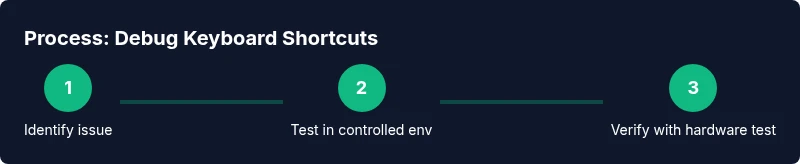
The workflow below describes an effective, repeatable process you can adapt to most scenarios. Each step is designed to be actionable and time-bound so you can measure progress and outcomes. Start small, verify each intervention, and preserve a clear trail of decisions and results. This approach reduces rework and makes it easier to scale the process to multiple machines or teams. As you implement these steps, maintain open notes and update the bug report with verifiable evidence.
Common Pitfalls and How to Avoid Them
Common pitfalls include assuming a problem is universal without testing across apps, making changes in isolation without documenting them, and blaming hardware without verifying driver or firmware status. Avoid these by following a strict reproducible test, using a clean user profile when possible, and validating fixes with repeated trials. Don’t forget to test under real-world conditions—workflows, shortcuts, and hotkeys can behave differently under load or multitasking. A disciplined approach minimizes false positives and accelerates resolution.
Best Practices for Long-Term Reliability
To prevent a recurrence, establish a standard operating procedure for keyboard shortcut maintenance. Regularly audit global and app-specific bindings, maintain a changelog, and implement a quarterly review of critical shortcuts. Encourage cross-team sharing of best practices and quick-win remediations. Finally, build a simple dashboard to monitor emerging conflicts across common apps and OS updates, so you can act before issues impact productivity.
Case Studies: Real-World Scenarios
In one case, a developer team found that a universal paste shortcut conflicted with an in-app command after a software update. By isolating the scope to the affected app, they implemented a one-time remapping, documented the change, and deployed a user-facing note. In another instance, a gamer discovered that a macro-based shortcut stopped working due to a firmware update on the keyboard. After updating the keyboard’s firmware and validating on a fresh profile, the shortcut resumed functioning as intended.
Non-Technical Considerations: Accessibility and Security
Accessibility considerations include ensuring that shortcuts remain discoverable and do not rely solely on complex key sequences. Provide alternatives for users who may have motor impairments. Security considerations involve avoiding shortcuts that could reveal sensitive information or trigger destructive actions inadvertently. When debugging shared machines, consider user profiles and permissions to prevent cross-contamination of configurations. Maintaining inclusive and secure shortcut practices benefits all users.
Tools & Materials
- Computer with admin access(You may need to modify system/global bindings during testing.)
- Test keyboard(Prefer a wired keyboard for reliable input during tests.)
- External keyboard tester app or OS tool(Useful to log scancodes or key events for precise diagnosis.)
- Note-taking app or document(To capture reproduction steps, results, and decisions.)
- Bug report template(Standardized form to capture context, steps, and outcomes.)
- Access to system preferences / keybindings(Enable/disable global bindings and inspect existing shortcuts.)
Steps
Estimated time: 60-120 minutes
- 1
Define problem and reproduce
Identify the exact shortcut reported as broken. Reproduce it in a controlled environment with consistent OS, app version, and locale. Document the expected vs. actual behavior and gather at least two reproduction scenarios.
Tip: Ask the user for precise steps, OS version, app version, and any extensions that might affect shortcuts. - 2
Check global vs app-specific bindings
Open system/global keyboard preferences and review all bindings. Inspect the affected app’s preferences for conflicting shortcuts. Note any bindings that share the same keys and test remapping if possible.
Tip: Create a quick conflict checklist and verify after each change. - 3
Test with a clean profile
Switch to a clean user profile or disable extensions to rule out interference from third-party software. Reproduce the issue again to see if it persists in a minimal environment.
Tip: If the issue disappears, reintroduce components one by one to identify the offender. - 4
Validate hardware and firmware
Test key functions on a known-good keyboard. Check for debouncing issues, firmware updates, or driver problems that could affect shortcuts. Confirm Bluetooth/Wi‑Fi interference if using wireless devices.
Tip: Record the exact keys pressed and corresponding electrical signals when possible. - 5
Apply a fix and verify
Implement the remediation (remap, disable conflict, or update firmware) and re-run all reproduction scenarios. Ensure consistent results across apps and environments.
Tip: Maintain a changelog entry and capture before/after evidence. - 6
Document and monitor
Summarize the issue, the steps taken, and the final outcome. Share findings with stakeholders and set up a lightweight monitoring plan to catch regressions.
Tip: Create a repeatable template for future debugging sessions.
Got Questions?
What is the first step to debug a broken keyboard shortcut?
Begin by reproducing the shortcut with a controlled test case to confirm the problem is real. Capture OS, app, keyboard layout, and exact steps. This creates a solid foundation for further investigation.
Start by reproducing the shortcut with a controlled test case to confirm the problem, and note the exact environment and steps.
How can I tell if a shortcut is system-wide or app-specific?
Check global keyboard settings for bindings that use the same keys. Then inspect the affected app’s preferences for conflicts. If only one app exhibits the issue, it’s likely app-specific; if many apps are affected, it’s more likely system-wide.
Look at system bindings first, then check the app’s own shortcuts to see where the conflict lies.
Can a software update cause shortcut conflicts?
Yes. Updates can reassign or introduce new bindings, or change how input is processed. After an update, re-check both global and app-specific shortcuts and test critical flows again.
Updates can change shortcuts, so rechecking bindings after updates is important.
What should I do if two apps claim the same shortcut?
Prioritize the primary app for the shortcut by reassigning one of them. If possible, disable the conflicting binding in the less-used app and document the change for users.
If two apps clash, disable one binding or remap it to avoid conflicts and note it for users.
Are hardware issues a likely cause for missing key presses?
Sometimes. Check for debounce problems, worn keys, or firmware issues. Run a hardware test with a simple editor and, if needed, swap keyboards to confirm.
Hardware can cause misses; test with another keyboard to confirm.
Watch Video
What to Remember
- Identify global vs app-specific issues and prioritize fixes accordingly.
- Check for binding conflicts and remap with care.
- Test in a clean profile to isolate interference from extensions.
- Document findings and implement a repeatable debugging workflow.