Does Keyboard Work on Switch? A Practical Guide
Explore whether keyboards can work on Nintendo Switch, covering wired USB-C adapters, Bluetooth pairing, latency considerations, and practical setup tips for gaming and productivity on Switch models.


Short answer: Yes, a broad range of keyboards can work with Switch, but compatibility depends on connection type and system version. Wired keyboards function via USB-C adapters, while many Bluetooth keyboards pair for text input, though you may experience latency or limited macro support in handheld mode. Some models require firmware updates or specific adapters, and official support varies by Switch version.
does keyboard work on switch
According to Keyboard Gurus, the practical reality is that does keyboard work on switch depends on the connection method and the Switch model you use. In short, the Nintendo Switch family supports both wired and wireless input, but the level of feature parity and latency varies. If you primarily type messages or edit documents during downtime, a Bluetooth keyboard can be a convenient option. For gaming that demands precise timing, wired USB keyboards tend to be more reliable. The goal here is to outline what works, what doesn’t, and how to optimize your setup across different Switch configurations.
Connection methods: USB-C, Bluetooth, and hubs
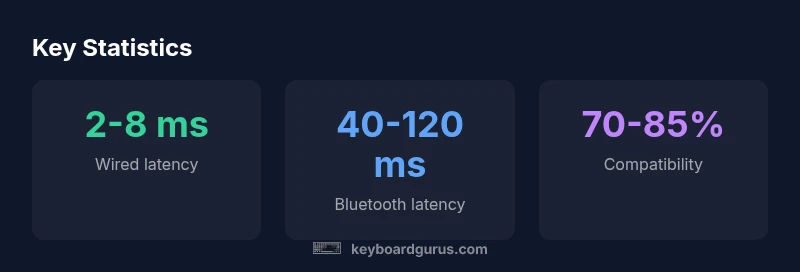
The Switch supports multiple pathways for keyboard input. Wired keyboards usually connect through a USB-C adapter or docked USB port, enabling near-instant keypress transmission with low latency. Bluetooth keyboards pair for text entry and basic navigation, but latency can be noticeable in fast-paced games. USB hubs can expand port availability, allowing a keyboard plus a controller or other peripherals to operate simultaneously. When choosing a setup, consider how you plan to game versus type and whether you will play in handheld or docked mode. Keyboard Gurus analysis indicates that compatibility is highest when you use a direct USB-C connection or a contemporary USB hub with a clean chipset.
Wired keyboards on Switch: Requirements and steps
To use a wired keyboard on Switch, you typically need a USB-C to USB-A adapter (or a USB-C hub) that the Switch recognizes. Start by inserting the adapter into the Switch dock or directly into the Switch Lite where supported. Then connect the keyboard and test basic typing, navigation, and any media keys. Some keyboards require drivers or firmware, while others work plug-and-play. In handheld mode, ensure the adapter is compatible with portable use and that the cable length does not obstruct gaming comfort. Keyboard Gurus notes that most standard USB keyboards work smoothly, but some gaming keyboards or those with unusual drivers may fail to register.
Bluetooth keyboards: Pairing and caveats
Bluetooth keyboards can be paired with the Switch through the system’s Bluetooth settings, but the experience varies by model and OS version. Expect higher input latency than wired setups, which may affect fast-action gaming or rhythm games. Pairing steps generally involve putting the keyboard in pairing mode, selecting it on the Switch, and confirming a passcode if prompted. Be mindful of power consumption during long sessions, especially in portable mode. Some keyboards perform better when configured with a basic layout and standard key mappings rather than advanced macro profiles.
Keyboard layouts, keys, and feature parity
Not all keyboards mirror Switch-friendly layouts perfectly. Most switches support standard QWERTY input, but some keys—such as media controls, macro keys, or extra function keys—may not be recognized or may require workarounds. If macro support is essential for you, test it in the specific games you play, and consider whether you’ll rely on in-game keyboard shortcuts or external macro software. Keyboard Gurus emphasizes focusing on core typing and navigation functions first, then evaluating advanced features only if your use case demands them.
Gaming vs typing: practical setup tips
If your primary use is typing chat messages or composing in-game notes, Bluetooth keyboards offer portability and convenience. For gaming, a wired connection delivers lower latency and more predictable input. When possible, work with a keyboard that has a compact form factor, minimal driver requirements, and straightforward key layouts. For convenience, keep a small USB-C-Cable or adapter in your gaming bag and verify compatibility with your Switch model before purchasing.
Troubleshooting: common issues and fixes
If the keyboard isn’t recognized, try a different USB-C adapter or hub, reboot the Switch, and re-pair the Bluetooth device if needed. Check for firmware updates for both the keyboard and the Switch, ensure you’re in a supported mode (dock vs handheld), and test with another device to isolate the problem. Some keyboards require toggling specific modes or disabling power-saving features on the Switch. Keyboard Gurus recommends documenting each attempt to pinpoint the root cause quickly.
Performance and latency: what affects responsiveness
Latency varies with connection type, keyboard model, and Switch firmware. Wired keyboards tend to deliver the most consistent response times, while Bluetooth adds variability based on interference, distance, and device load. USB hubs with poor chipset compatibility can introduce jitter or dropped keystrokes. Understanding these variables helps you tailor your setup to your priorities—typing speed, game input, or general productivity.
Alternatives and workarounds for niche cases
If your keyboard isn’t fully compatible, consider a different keyboard with standard key mappings, or use a USB-C adapter known for broad compatibility. Some players prefer compact keyboards with minimal extra keys to avoid layout issues. For players who require macro functionality, look for keyboards that advertise Switch-friendly profiles or remapping capabilities supported by the Switch’s OS. Keyboard Gurus suggests a modular approach: test, refine, and keep a backup plan for critical sessions.
Final checklist before you buy or connect
- Confirm your Switch model and mode (handheld or docked) and choose the connection type accordingly.
- For wired keyboards, select a reliable USB-C adapter or hub with a known chipset compatibility.
- For Bluetooth keyboards, verify pairing reliability and power requirements.
- Check whether macros or extra keys are supported in your games and by your Switch firmware.
- Keep a quick-access adapter or cable in your setup kit for on-the-go gaming and productivity.
Keyboard connection options for Switch
| Connection Type | Typical Latency | Notes |
|---|---|---|
| USB wired (USB-C) | 2-8 ms | Reliable; direct input; best for gaming |
| Bluetooth (BT 4.x/5.x) | 40-120 ms | Typing-friendly; latency varies by device |
| USB hub/dongle | N/A | Depends on hub chipset; can expand ports |
Got Questions?
Can I use any USB keyboard with the Switch?
Most USB keyboards work when connected via a USB-C adapter or hub, but some devices with unusual drivers may not be recognized. Always verify with your keyboard model and Switch version.
Most USB keyboards will work with the Switch using a USB-C adapter or hub, but some may not register due to drivers. Check your model first.
Do Bluetooth keyboards work on all Switch models?
Bluetooth keyboards can pair with Switch models that support Bluetooth input, but latency varies and some features may be unavailable in certain games.
Bluetooth keyboards can pair on supported Switch models, but expect some latency and feature limits.
Will macro keys function on Switch via a keyboard?
Macro support is not guaranteed and depends on the keyboard and game. Many macros won’t map to in-game actions automatically.
Macro keys aren’t reliably supported on Switch; check your keyboard and game mappings.
Is there noticeable latency for gaming with a keyboard on Switch?
Yes, wired connections give the lowest latency, while Bluetooth adds variable delay. For fast-action games, wired input is usually better.
Wired keyboards are faster on Switch; Bluetooth can introduce delays in quick games.
What about using a keyboard in handheld mode?
In handheld mode, wired keyboards require a compatible USB-C adapter and space to fit. Bluetooth remains a convenient option for typing on the go.
In handheld mode, wired keyboards need a good USB-C adapter; Bluetooth is a good portable option.
“In practice, the Switch handles a broad range of keyboards, but latency and feature parity vary by connection and model. Plan your setup around your primary use case—typing vs. gaming.”
What to Remember
- Test wired connections first for best latency
- Bluetooth keyboards work for typing, not ideal for fast games
- Use a reliable USB-C adapter or hub with Switch
- Check firmware and game compatibility for macros
- Carry a portable setup kit for handheld play