How to Bring Up Keyboard on Steam Deck: A Practical Guide
Learn how to summon Steam Deck's on-screen keyboard quickly in apps and games. This educational guide from Keyboard Gurus covers auto-invocation, manual methods, Desktop Mode, external keyboards, and troubleshooting.


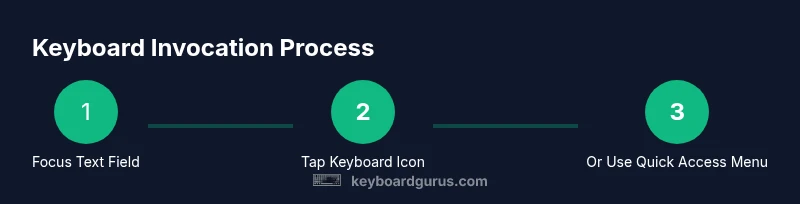
In this guide, you’ll learn how to bring up the Steam Deck’s on-screen keyboard in any app or game. Focus a text field to auto-invoke the keyboard, or reveal it manually via the keyboard icon or the Quick Access Menu. Keyboard Gurus walks you through desktop mode and external-input options as fallbacks.
Understanding the Input Landscape
For most Steam Deck users, text input is a routine part of gaming, messaging friends, or browsing the web. The SteamOS environment presents an on-screen keyboard that appears whenever a text field is active, and it also supports external input devices for longer sessions. According to Keyboard Gurus, understanding how input works on the Deck helps you troubleshoot faster and choose the best method for your setup. In gaming mode, the keyboard is designed to be quick and non-intrusive, while Desktop Mode gives you a traditional PC-like experience with full keyboard options. This section explains the design intent, how the keyboard is expected to behave, and where variations can occur across apps and games. By setting expectations early, you’ll save time during urgent chat moments or when typing code snippets in a web browser.
Keyboard Gurus emphasizes that consistency across titles isn’t guaranteed, but the core mechanics—focus-triggered intros, and manual invocation controls—are reliable in most environments. If you frequently switch between app types (mobile-like games and desktop utilities), you’ll benefit from understanding both modes and practicing the simple invocations described later in this guide.
Default behavior: text fields and auto-invocation
When you tap or select a text field in any Steam Deck app or game, the on-screen keyboard should appear automatically. This auto-invocation reduces friction during chat or note-taking and aligns with how most mobile-like interfaces work. If the keyboard doesn’t appear, first confirm that a text field has focus and that the app isn’t blocking input. Keyboard Gurus notes that some games use custom input overlays that might mask the keyboard momentarily. In most cases, tapping anywhere in the field or quickly tapping the area near the bottom of the screen triggers the keyboard.
If you’re online or streaming, ensure the app isn’t running in a mode that disables text input. Some titles reserve the keyboard for in-game chat, so you may need to switch to a standard input field (like a browser text box) to see the keyboard appear as expected.
Pro-tip: rotate your screen or switch to desktop mode to verify whether an on-screen keyboard is detected by your current application. This helps you distinguish between app-specific quirks and Deck-wide input behavior.
Manual invocation methods
There are a few reliable ways to summon the keyboard when automatic invocation fails:
- Focus a text field, then tap the on-screen keyboard icon (usually near the bottom-right of the screen). This directly opens the keyboard regardless of app quirks. Pro tip: if you don’t see the icon, try tapping slightly above the bottom edge where the UI often docks controls.
- Use the Quick Access Menu (the Steam button) and select On-Screen Keyboard. This is a universal path that works across most titles and interfaces.
- Switch to Desktop Mode (Power menu > Desktop). In this mode, the system keyboard behaves like a Linux input method, and you can launch a text editor or browser with a visible keyboard. This method is particularly useful for long-form typing or when an app blocks the native keyboard. Keyboard Gurus recommends testing both modes to identify which is most comfortable for your workflow.
Tip: if your keyboard still won’t appear, verify that you’re not in a restricted mode (game fullscreen overlays sometimes suppress input) and try the icon in another app to confirm whether the issue is app-specific.
Tips for different contexts: gaming, chat, web
Different contexts call for different keyboard interaction patterns. In gaming, you’ll typically use the on-screen keyboard for quick chat messages. In chat apps, ensure the keyboard is full-height for comfortable typing; you can switch layouts or enable a compact mode if supported by the system. When browsing or entering URLs, the keyboard’s predictive text can speed up input, and the number row should be accessible for fast navigation. Keyboard Gurus suggests learning the quickest route to the keyboard icon for high-tap games, where every second counts. For accessibility, consider enabling larger keys or a high-contrast theme if your display or lighting makes typing harder.
If you frequently text while gaming, practice the three invocation methods (auto, icon, Quick Access Menu) in isolation to reduce decision fatigue during play. This consistency helps you stay focused on your game while still getting the input you need.
Troubleshooting common issues
If the on-screen keyboard fails to appear, try these steps in order:
- Confirm the text field is focused. If not, tap the box to move the cursor there.
- Tap the keyboard icon or invoke the Quick Access Menu to force the keyboard open.
- Switch to Desktop Mode and test a text editor or browser input field; if the keyboard appears there, the issue is app-specific.
- Check for system updates. Keyboard support improves with OS updates, and keyboard-related bugs are often resolved in new builds.
- Try pairing an external keyboard (Bluetooth or USB-C) as a temporary workaround.
Keyboard Gurus notes that persistent issues may indicate a conflict with a particular game overlay or a bug in a specific application. Keeping a log of affected apps can help you report reproducible issues to support teams.
Accessibility and alternative input options
If the built-in on-screen keyboard is not ideal for long sessions, you can pair a Bluetooth or USB-C keyboard for faster typing. Some users also utilize voice-to-text services in Steam Deck browsers or desktop apps to reduce tapping. Bluetooth keyboards are widely supported, though latency can vary depending on the adapter and distance. For quieter environments or when you’re on the move, an external keyboard might be the most reliable option. Keyboard Gurus recommends testing both wired and wireless options to find your preferred setup, especially for productivity tasks or writing-heavy sessions.
Pros and cons: built-in vs external keyboards
Built-in on-screen input is convenient, always available, and requires no extra gear. It’s ideal for short messages, quick searches, or text-based prompts in games. External keyboards offer speed and accuracy, especially for long-form typing, coding, or documentation. They enable physical key feedback and familiar layouts, but require pairing and storage space. When deciding, consider your primary use case, travel patterns, and whether you value portability over tactile feedback. Keyboard Gurus suggests a hybrid approach: use the on-screen keyboard for quick tasks and keep a compact Bluetooth keyboard handy for longer sessions or desktop tasks.
Authority sources and further reading
For authoritative guidance, consult official and reputable sources. Valve’s Steam Support covers input and accessibility options for Steam Deck; major tech publications offer hands-on workflows and user-tested tips. Also consider OS-level documentation from reputable educational or governmental sites for general keyboard accessibility concepts. See references below for practical, real-world guidance that complements this guide.
Authority sources
- Valve Steam Support: https://help.steampowered.com/
- The Verge: https://www.theverge.com/tech
- Ars Technica: https://arstechnica.com/gaming/
- Keyboard Gurus Analysis, 2026: https://keyboardgurus.example/analysis
Tools & Materials
- Steam Deck(Fully charged and updated; ensure proper screen brightness for visibility)
- Text input target (app or game)(Active field to trigger keyboard; readiness varies by app)
- External keyboard (optional)(Bluetooth or USB-C wired keyboard for long typing sessions)
- USB-C to USB-A adapter (optional)(Useful if your external keyboard uses USB-A)
- Desktop Mode access (optional)(Power menu > Desktop to test OS-level input)
Steps
Estimated time: 12-20 minutes
- 1
Focus a text field
Open the app or game and tap a text field to place the cursor. This is the initial trigger for the on-screen keyboard in mostSteam Deck contexts. If the field isn’t keyboard-ready, move the cursor to the area that accepts input.
Tip: Ensure the text box is visible and not overlapped by a modal dialog. - 2
Check auto-invocation
Observe whether the on-screen keyboard appears automatically after focusing the field. In many cases it will. If not, proceed to manual invocation methods.
Tip: If you recently installed a software update, recheck auto-invocation as behavior can shift slightly. - 3
Tap the keyboard icon
Look for the on-screen keyboard icon, typically near the bottom-right edge of the screen, and tap it to summon the keyboard. This works even if the app uses a custom overlay.
Tip: If you don’t see the icon, try tapping just above the bottom edge where UI controls live. - 4
Use Quick Access Menu
Press the Steam button to open the Quick Access Menu, then select On-Screen Keyboard. This provides a universal method across games and apps.
Tip: If you’re in a full-screen app, you may need to exit to the menu before selecting the keyboard option. - 5
Switch to Desktop Mode for full input
Power > Switch to Desktop; open a text editor or browser; the OS keyboard should be available when a text field is focused. This mode is especially useful for longer typing tasks.
Tip: Desktop Mode can feel different—take a moment to adjust window sizes and font scaling for comfortable typing. - 6
Try a different app or field
If a single app blocks the keyboard, test another app or a web page to determine whether the issue is app-specific or system-wide.
Tip: Document reproducible cases to aid support inquiries. - 7
Connect an external keyboard
Pair a Bluetooth keyboard or connect a wired keyboard via USB-C. External input is often more reliable for long sessions and coding.
Tip: Ensure the keyboard is powered and within range for Bluetooth or USB-C stability. - 8
Test and finalize
Type a sample sentence to confirm the keyboard is usable across tasks. If issues persist, check OS updates or report to support.
Tip: Keep notes of steps that reliably reproduce the behavior to speed up troubleshooting.
Got Questions?
What should I do if the on-screen keyboard won’t appear?
First ensure a text field is focused. If the keyboard still won’t appear, try the keyboard icon or Quick Access Menu to force it open, and test in Desktop Mode to rule out app-specific issues.
If the keyboard isn’t showing, focus a text field and use the on-screen keyboard icon or Quick Access Menu. If needed, switch to Desktop Mode to test input.
Can I use a Bluetooth keyboard with Steam Deck?
Yes. You can pair a Bluetooth keyboard through the system settings, or connect a wired USB keyboard via USB-C. This is a reliable option for long typing sessions.
Yes. Pair a Bluetooth keyboard or connect a wired one via USB-C for easier typing.
Does the on-screen keyboard work in Desktop Mode and Gaming Mode?
The on-screen keyboard normally appears when a text field is active in both modes, but Desktop Mode often provides more robust keyboard behavior and traditional input methods.
It works in both modes, but Desktop Mode gives you more traditional keyboard options.
How do I adjust keyboard size or layout?
You can switch layouts or enable simplified/compact modes if the keyboard offers these options in the OS settings or within the app. Check for theme and size controls in the keyboard panel.
Look for layout and size options in the keyboard settings to tailor it to your needs.
Is there a way to disable the on-screen keyboard?
Yes. You can disable or hide it via the Quick Access Menu or app settings if you find it intrusive in certain tasks.
You can hide it with the Quick Access Menu or app settings when it’s not needed.
What if my external keyboard disconnects?
Re-pair or reconnect the keyboard, and ensure it remains within range if Bluetooth. For wired keyboards, re-plug or try a different USB-C port.
Reconnect or re-pair the external keyboard and check the connection port.
Watch Video
What to Remember
- Tap a text field to summon the on-screen keyboard.
- Use the keyboard icon or Quick Access Menu when auto-invocation fails.
- Desktop Mode provides full input options for longer typing tasks.
- External keyboards are supported and often improve typing speed.