How to Fix Keyboard Not Working: A Practical Guide
Learn practical steps to fix a keyboard not working, covering hardware checks, drivers, OS settings, and preventive habits. A thorough guide from Keyboard Gurus for reliable, long-lasting typing.


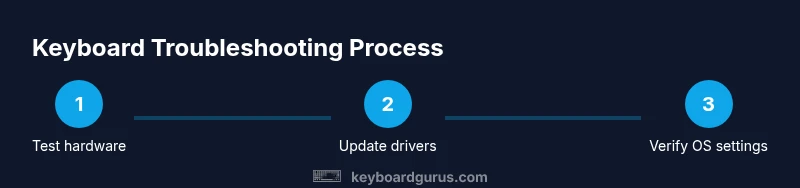
If you’re asking how to fix keyboard not working, this guide shows a reliable approach: test hardware, verify connections, update drivers, and review OS settings. Start with a known-good keyboard to isolate the issue, then methodically work through hardware, software, and configuration steps. You’ll learn practical tests and safe fixes you can apply on Windows, macOS, and Linux.
Diagnosing the problem: how to fix keyboard not working
When a keyboard stops typing, the root cause isn’t always obvious. A systematic approach speeds up the process and reduces guesswork. If you’re wondering how to fix keyboard not working, begin by classifying the fault into hardware, software/driver, or connectivity categories. According to Keyboard Gurus, most keyboard failures fall into these three buckets: a hardware fault inside the keyboard, a software/driver mismatch on the computer, or a loose connection or power issue for wireless devices. With that framework, you can triage quickly and minimize downtime. Document symptoms in a notebook or notes app, tracking whether only certain keys fail, whether the keyboard works in BIOS, and whether behavior changes across devices or operating systems. This early map guides all subsequent steps.
Quick hardware checks you can perform at your desk
Hardware problems remain the most frequent culprits. Start with simple checks you can perform without tools. Unplug the keyboard and reinsert the USB connector firmly into a known-good port. If you’re on a laptop, connect an external keyboard to determine if the laptop keyboard is at fault. For wireless keyboards, replace or recharge the battery and re-pair the device. If multiple keyboards share the same PC and only one fails, the issue likely lies with that keyboard or its connection rather than the PC. For USB keyboards, try a different USB-C or USB-A port and avoid hubs that provide marginal power. These quick checks often reveal the root cause in minutes. Keyboard Gurus notes that loose connections or insufficient power are common, easily corrected problems.
Software and driver basics that cause keyboards to fail
Software issues are a frequent reason keyboards stop registering keystrokes. Check whether the OS recognizes the device in the appropriate system utility: Device Manager on Windows, System Information on macOS, or equivalent tools on Linux. Update or reinstall drivers if needed, and ensure the input language and layout match your physical keyboard. Disable accessibility features such as Sticky Keys or Filter Keys if they interfere with normal typing. Some keyboards require a specific driver version to work with certain OS updates; if a recent OS update caused trouble, consider reverting to a stable driver. Third‑party keyboard utilities can conflict with standard input; disabling them often resolves the issue. See how your OS handles keyboards in its settings and keep drivers current. As you proceed, remember that clear notes help reproduce and fix issues later.
Testing with a known-good keyboard to isolate the problem
To confirm whether the issue is the keyboard or the computer, test with a different, working keyboard. If the second keyboard types normally on the same computer, you can conclude the original keyboard is defective or needs cleaning; if the second keyboard fails as well, the problem is likely software or configuration related. Run tests across multiple apps: a text editor, a browser text field, and a login prompt, to see if failures are consistent. If you have access to another computer, test there as well; a failure on all devices points toward software/configuration rather than hardware. This step aligns with best practices for isolating hardware from software issues and maintains confidence as you troubleshoot.
USB and wireless keyboards: handling connections and power
USB keyboards require clean connectors and solid cable integrity. For wireless models, verify the battery level, re-pair the device, and minimize interference from other devices. If you’re using a dongle, plug it directly into the computer rather than through a hub. Some keyboards enter a low‑power mode and only wake when you press a key; if it seems unresponsive, tap a key or press the power button on the keyboard. Test different USB ports and try both USB 2.0 and 3.0 where available. These steps reveal connection or power problems that often mislead users into blaming the OS. Keyboard Gurus emphasizes testing across ports to rule out power issues first.
Cleaning and physical issues that disrupt keystrokes
Dust, crumbs, and moisture can cause sticky or non‑responsive keys. Power down the computer and unplug the keyboard before cleaning. Use compressed air to blow out debris from under keys, then wipe the keycaps with a microfiber cloth lightly dampened with isopropyl alcohol. Do not spray liquids directly onto the keyboard. If a key sticks, remove the keycap safely and reseat it after cleaning. Liquid damage can cause corrosion that is hard to fix; in many cases replacement is the safer option. Clean, dry maintenance often yields the best results; avoid aggressive scrubbing that could damage the stem or stabilizers.
Operating system settings that disable keyboard input
OS settings or driver conflicts can disable input mid‑session. Ensure the keyboard device is enabled in the OS settings and that no disabled or hidden devices are restricting input. On Windows, use Device Manager to scan for devices with warnings, then update or reinstall drivers. On macOS, resetting the NVRAM/PRAM can fix peripheral input issues. In Linux, verify the correct keyboard layout and ensure accessibility features aren’t altering input behavior. If you recently installed software or drivers, consider a clean boot to identify software conflicts. Always back up work before changing system settings and note which steps you take.
Boot-time and BIOS checks: when OS settings aren't the issue
If a keyboard works in BIOS/UEFI but not in the OS, the fault is typically software or a driver conflict rather than a hardware defect. Enter the BIOS during boot and confirm that the keyboard is recognized at that stage. If not recognized, there could be a hardware fault with the keyboard or the USB controller. Some laptops offer options like Legacy USB Support or USB configuration settings; toggling these can help. After BIOS checks, boot with minimal drivers to see if the problem reappears. Separating pre‑boot behavior from OS behavior helps you pinpoint whether a software issue or a hardware/firmware problem is at fault.
When you must replace or repair hardware: cost vs. risk
If testing indicates a hardware fault that cannot be reliably repaired, weigh replacement against repair costs and downtime. Compare the price of a new keyboard with the time and risk of professional repair, especially for premium or compact models. Check whether the device is under warranty or if manufacturer repair options exist; many brands offer partial coverage for key issues. If repair costs approach or exceed replacement, a new keyboard often provides better long‑term value and reliability. Keyboard Gurus suggests balancing upfront cost, downtime, and user needs when deciding between repair and replacement.
How to update drivers and check for conflicts: step-by-step
A structured driver update can resolve many typing issues. Start by identifying the keyboard model and OS version. Visit the manufacturer’s site or use the OS’s built‑in update tools to install the latest driver or firmware, then reboot. If issues persist, perform a clean boot to test for software conflicts by suspending nonessential startup services and applications. Test keyboard behavior again; if conflicts remain, disable any conflicting keyboard utilities and third‑party remapping tools. Keep a changelog of updates and changes so you can revert if needed. Keyboard Gurus emphasizes documenting each change to maintain a clear path to a fix.
How to document and verify fixes: testing scenarios and notes
Maintain a troubleshooting log with date, symptoms, actions taken, results, and any notable changes in behavior. Create a short test script that covers several apps: a text editor, a web browser form, a password field, and a system login prompt. Reproduce the issue to verify the fix; if it recurs, use the log to identify patterns and potential triggers. Share findings with teammates or support if the keyboard is used in shared environments. This disciplined documentation supports durable, repeatable fixes and aligns with Keyboard Gurus’ recommended workflow.
Preventive habits to keep keyboards working longer
Adopt a simple maintenance routine to minimize future failures. Regularly update drivers and firmware, clean the keyboard every few weeks, replace batteries in wireless models promptly, and keep keyboards away from liquids and heat. Use a cover or stand to reduce dust intake and keep cables organized. Avoid eating over the keyboard and store it safely when not in use. By treating your keyboard as a durable, modular component of your setup, you can extend its life and performance. Keyboard Gurus recommends proactive care to sustain typing reliability.
Tools & Materials
- Operational computer(A PC or laptop to test the keyboard across environments)
- The keyboard to troubleshoot(The device that is not typing or behaving as expected)
- Alternative keyboard(Useful to verify issue isolation if available)
- USB-C/USB-A cables(Only if you suspect a faulty cable or dry port))
- Screwdrivers (PH0/PH1)(Optional for internal inspection on some keyboards; proceed with caution)
- Compressed air and microfiber cloth(For cleaning under keys and surfaces)
Steps
Estimated time: 60-90 minutes
- 1
Prepare your testing setup
Gather a known-good keyboard, a spare computer if possible, and a quiet workspace. Power off devices before switching connections and note the symptoms you observe. Have a notebook ready to log each test and result so you can track what works and what doesn’t.
Tip: Create a quick checklist to ensure you don’t miss any tests. - 2
Test the keyboard on another device
Connect the problematic keyboard to a different computer or operating system. If it types normally there, the issue is likely with the original device’s software or settings rather than the keyboard hardware. If it still fails, the keyboard hardware is the likely culprit.
Tip: Use the same USB port type (USB-A, USB-C) on the testing device for consistency. - 3
Inspect connections and ports
Unplug and reinsert the keyboard connection firmly. Try multiple ports if available, avoiding USB hubs that may not supply enough power. For wireless keyboards, re-pair and replace batteries if needed. A loose or underpowered connection is a common, easily fixed cause.
Tip: Test both front and rear USB ports if you’re on a desktop for power differences. - 4
Update or reinstall drivers
On Windows, open Device Manager, locate Keyboards, and update or reinstall drivers. On macOS, check for system updates and review keyboard settings. On Linux, verify the keyboard input module and related packages. Reboot after updates to ensure changes take effect.
Tip: Prefer manufacturer drivers over generic ones when available. - 5
Check OS input settings and layout
Verify the keyboard layout matches the physical keyboard and that the input language isn’t misconfigured. Ensure the keyboard device is enabled in OS settings. Misaligned layouts can feel like keys aren’t working when they actually map to different characters.
Tip: Switch to a standard layout (e.g., US) temporarily to test behavior. - 6
Disable conflicting accessibility features
Turn off features such as Sticky Keys or Filter Keys, which can alter keystroke behavior in certain apps. If the keyboard starts behaving normally after disabling these features, re-enable them selectively to find a safe configuration.
Tip: Test typing in a plain text editor to isolate feature effects. - 7
Check BIOS/UEFI recognition
Restart the computer and enter BIOS/UEFI setup to see if the keyboard is recognized outside the OS. If not recognized, the issue may be hardware or USB controller related rather than a software problem.
Tip: If BIOS recognizes the keyboard, the OS may be at fault; otherwise hardware remains suspect. - 8
Perform a minimal boot or safe mode test
Boot into safe mode (Windows) or a minimal startup (macOS/Linux) to rule out software conflicts. If the keyboard works in safe mode, a third-party program or driver is likely causing the issue. If it still fails, focus on hardware or BIOS as the root cause.
Tip: Document which drivers were loaded in normal mode vs safe mode. - 9
Clean and reseat hardware components
Power down, unplug, and clean the keyboard with compressed air. If you’re comfortable, remove and reseat keycaps to ensure debris isn’t causing binding. Wipe surfaces with a dry microfiber cloth; avoid liquids near internal components. If moisture or corrosion is suspected, consider replacement.
Tip: Be gentle with keycap removal; consult vendor guides to avoid damage. - 10
Evaluate repair versus replacement
If testing shows a hardware fault, compare repair costs against the price of a new keyboard. Check warranty status; many keyboards include limited coverage. When in doubt, replacement often yields quicker reliability and lower risk than a costly repair.
Tip: Factor downtime into the cost when deciding between repair and replacement. - 11
Re-test after fixes
After performing fixes, re-test across multiple apps and scenarios to ensure consistency. Confirm that typing is reliable and that there are no residual issues such as delayed keystrokes or missed keys.
Tip: Run a simple typing test to quantify improvement. - 12
Document outcomes and create a maintenance plan
Record the final working state, steps taken, and any ongoing cautionary notes. Create a short maintenance plan, including regular driver checks and periodic cleaning, to prevent future failures. This habit helps sustain reliability and reduces downtime.
Tip: Keep a reference checklist for future troubleshooting.
Got Questions?
Why isn’t my keyboard typing at all?
There can be hardware faults, driver issues, or OS configuration problems. Start with hardware checks and then test drivers and settings. If the keyboard works on another device, the issue is likely with the original machine.
Common causes include hardware faults, driver problems, or OS settings. Start with hardware checks, then test drivers and configurations. If it types on another computer, the problem is with the original device.
How can I test a USB keyboard quickly?
Connect the keyboard to a different USB port or another computer to see if it types. If it works elsewhere, the issue may be power or port related on the original machine.
Try another USB port or another computer to see if it types. If it works elsewhere, the problem is likely with the original port or power.
Will updating drivers fix the problem?
Driver updates often resolve compatibility or recognition issues. If updates don’t help, try reinstalling or rolling back to a known-good driver version.
Driver updates can fix recognition issues. If they don’t help, reinstall or roll back to a version that previously worked.
What if the keyboard works in BIOS but not in Windows/macOS?
A BIOS-only keyboard usually points to a software or driver conflict within the OS. Focus on OS settings, drivers, and clean boot testing before considering hardware replacement.
If it works in BIOS but not in Windows or macOS, focus on software and drivers in the OS, possibly a clean boot to identify conflicts.
Is it safe to open a keyboard for cleaning?
Only if you have model-specific guidance and the device is out of warranty. Internal components are sensitive; improper disassembly can cause more damage.
Only open a keyboard if you know what you’re doing and it’s out of warranty. Incorrect disassembly can cause more damage.
Watch Video
What to Remember
- Diagnose hardware, software, and connectivity first.
- Test with a known-good keyboard to isolate the problem.
- Update drivers and verify OS settings before hardware replacement.
- Document results and maintain a simple preventive plan.