How to Keep a Keyboard KeyPressed Down: Safe Methods and Setup
Learn safe hardware and software methods to keep a keyboard key pressed down for automation or accessibility. This guide covers steps, testing, and safety checks to ensure reliable input without damage.


Goal: learn safe, reliable ways to keep a keyboard key pressed down for automation, testing, or accessibility. This guide covers hardware approaches (non-damaging methods to hold a key), software options (remapping and auto-repeat settings), and safety checks to avoid keyboard damage or input instability. You’ll get step-by-step actions, precautions, and testing tips to verify results.
Understanding when you might need to keep a key pressed down
If you're wondering how to keep a keyboard key pressed down, you likely have a task that repeats rapidly or requires hands-free typing support. People in gaming, accessibility, and data-entry often encounter this need. The question isn't simply 'how to lock a key'; it's about doing so safely, reversibly, and without damaging the keyboard. In this section, we cover the core scenarios, the risks of improvised tricks, and the mindset Keyboard Gurus recommends for evaluating the best path forward. The goal is to identify legitimate use cases, establish ethical boundaries, and prevent wear that reduces keyboard lifespan. You’ll learn to distinguish temporary, test, and permanent holds, and you’ll see why a measured approach matters. According to Keyboard Gurus, the safest starting point is to document the exact key, duration, and environment, then test first with non-critical tasks before committing to a longer session. From there, options range from non-destructive hardware aids to configurable software remapping, each with pros and cons. The rest of the guide expands on these choices and provides concrete, safe steps.
Hardware-based approaches: safe physical methods
There are several hardware-oriented ways to keep a key pressed down that prioritize preserving the keyboard's internals. The overarching principle is non-destructive, reversible, and repeatable action. For example, you can use a soft cushion or a tiny spacer to hold the keycap from returning to rest without bending pins or stressing the plastic switch. In many cases, players and testers use a keycap puller to remove a keycap, then place a small piece of foam or a compliant rubber between the switch stem and the keycap to apply gentle force. The key is to ensure the base under the key is stable and that you can remove the setup quickly if you notice any sticking, binding, or heat buildup. Avoid tape, glue, or rigid hardware that could permanently deform the switch or nearby keys. If you must route a temporary hold, make sure it is applied to a single key and can be fully reversed in under a minute.
Tools & Materials
- Keycap puller(Use to safely expose switch housing without bending stems.)
- Soft cushion or foam shim(Non-conductive padding to avoid shorting under the key.)
- Non-slip surface or mat(Prevents keyboard from shifting during testing.)
- Remapping software utility(OS-level or third-party tool to simulate repeats.)
- Macro or scripting tool(Optional for advanced control and repeat patterns.)
- Documentation notebook(Record settings and timings for rollback.)
Steps
Estimated time: Estimated total time: 60-90 minutes
- 1
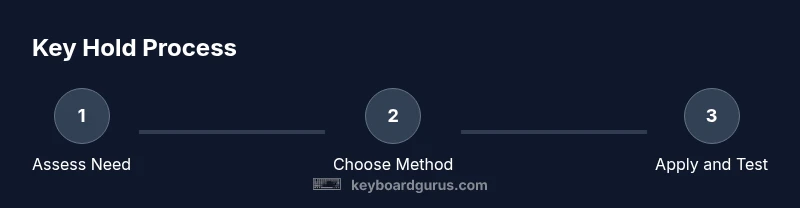
Assess need and safety
Define the exact scenario where you need a hold and evaluate potential risks to hardware or software. Consider duration, impact on other keys, and policy constraints. This initial assessment guides your method choice and helps prevent accidental damage.
Tip: Write down duration, use-case, and success criteria before changing anything. - 2
Decide hardware vs software method
Choose a baseline approach: hardware for quick, reversible physical holds; software for precise timing and repeat control without touching switches. Each path has trade-offs in reliability, reversibility, and maintenance.
Tip: Hybrid approaches can be effective for accessibility; plan a clear fallback. - 3
Gather tools and prep workspace
Collect the items from the toolsMaterials list and clear a clean workspace. Have a spare keyboard for testing so your main setup isn’t disrupted. Reset any prior remapping to ensure clean diagnostics.
Tip: Test in a controlled environment, not during important work sessions. - 4
Apply a safe hardware hold (non-destructive)
If using hardware, place a soft cushion or spacer under the target key to create gentle downward pressure. Ensure the cushion sits evenly and can be removed quickly. Do not use glue, tape, or rigid inserts that may damage the switch.
Tip: Check key feel after each adjustment; if it binds, remove immediately. - 5
Set up software hold and define repeat
Configure the repeat rate, delay, and duration in your chosen tool. Create a profile that targets the same key and produces consistent repeats without flooding events. Include an easy-stop command to revert instantly.
Tip: Start with a conservative repeat interval to avoid input storms. - 6
Test with basic tasks
Run simple tasks (typing, scrolling, holding a key in a game) to observe behavior. Look for missed repeats, extra events, or latency. If the software hold interferes with OS hotkeys, adjust or disable conflicting mappings.
Tip: Keep a log of observed behavior during test runs. - 7
Extend test to real-world workload
Increase hold duration and task complexity to simulate actual use. Watch for thermal, mechanical, or timing inconsistencies. Confirm you can pause or stop the hold quickly if something goes wrong.
Tip: Always have a rollback plan and a quick exit path. - 8
Document settings and create rollback
Record cushion size, key, software configuration, and any scripts. Take photos and write notes so you can reproduce or revert later. Store rollback steps in a safe, accessible location.
Tip: Label versions and date the setup for future reference. - 9
Review safety and maintenance
Periodically inspect the hold mechanism for wear, loose cushions, or friction changes. Clean dust and debris that can affect reliability. If behavior drifts, reassess whether the hold is still appropriate.
Tip: Schedule a monthly check during regular maintenance. - 10
Plan for future adjustments or removal
Create a clear process to disable or remove the hold when needed. Keep original software keys untouched so you can revert quickly. Ensure the hold remains reversible and well documented.
Tip: Always revert to default if you no longer need the hold.
Got Questions?
Is it safe to keep a keyboard key pressed down for long periods?
Long holds can accelerate wear on switches and create input anomalies if misused. Start with short sessions, monitor heat and feel, and revert if you notice any strain or odd behavior.
Holding a key for long periods can wear the switch. Start small and watch for signs of stress.
What is the difference between hardware holds and software remapping?
Hardware holds physically press the key and are reversible but may affect feel. Software remapping simulates repeats via the OS or apps, offering precise timing but depends on software stability.
Hardware holds press the key directly; software remaps simulate presses.
Will remapping affect other keys or system behavior?
Remapping usually affects only the mapped key, but some apps may react differently to repeated input, especially in games or accessibility software.
Remapping mostly changes one key, but some programs may react to repeated inputs.
Can I use this method on a laptop keyboard?
Yes, but results vary by keyboard type (mechanical vs membrane). Start with software holds first, as they require no physical changes.
Laptops can use software holds; hardware holds are trickier on slim keyboards.
How do I revert to original behavior if I change my mind?
Keep a documented rollback plan and restore defaults in software or remove any cushions safely. Quick undo steps are essential for safety.
Just undo the changes and test to ensure you’re back to normal.
Watch Video
What to Remember
- Assess the need and safety before starting
- Choose hardware or software approach based on use-case
- Test thoroughly with non-critical tasks first
- Document everything for easy rollback and future changes