How to Keyboard Sound Off
Learn practical, proven methods to reduce keyboard noise across types. Dampening, lubrication, and maintenance tips to keep your typing quiet without sacrificing feel.


By following this guide, you’ll reduce typing noise across most keyboard types, from chiclet to mechanical. You'll learn practical steps, recommended materials, and safety notes to keep sounds low without sacrificing feel. This quick answer previews the full process created for Keyboard Gurus readers who want quieter setups. It also frames expectations and highlights common trade-offs.
Why Keyboard Sound Off Matters
Quiet keyboards matter in shared spaces, classrooms, and offices where loud typing can disrupt focus. Reducing noise can improve collaboration, reduce fatigue for teammates, and create a more comfortable work or study environment. There is no one-size-fits-all solution; the best approach blends simple adjustments with careful testing. According to Keyboard Gurus, most users can achieve substantial reductions by starting with non-invasive changes before moving to heavier modifications. The core idea is to identify the dominant noise sources—switch travel, stabilizers, keycaps hitting the case, or plate ping—and address them in a logical order. For many setups, you can get noticeable results within an afternoon, leaving room for refinements later. In short, a quieter keyboard can improve your workflow without sacrificing typing feel, feedback, or reliability. This guide is designed for keyboard enthusiasts, students, gamers, and professionals who want practical, proven steps with clear trade-offs and safety considerations.
Assessing Your Keyboard: Types and Sounds
Noise behavior varies by keyboard type. Membrane and scissor-switch boards are typically quieter by nature, but they can still produce clatter when typing quickly or bottoming out. Mechanical keyboards offer tactile and audible feedback that many users love, but they are often the most challenging to quiet. The first step is to categorize your board: Is it a hot-swappable or soldered mechanical, a retro MX-style board, or a chiclet/laptop-style keyboard? Then listen critically to different keys, noting whether the sound comes from the keycap bottoming out, the switch stem hitting the housing, rattling stabilizers, or the plate ping. Documenting where the noise originates helps you tailor the quieting plan. Keyboard Gurus recommends a structured listening test: type a familiar sentence at different speeds, press at various depths, and observe which keys sound the loudest. This baseline guides your modifications and keeps you from overdoing it. Finally, consider your environment: desk materials, chair movement, and nearby walls can amplify or dampen sound. A simple desk mat or isolation pad can significantly affect perceived noise, even before any hardware changes.
Entry-Level Dampening You Can Try Today
Begin with non-invasive dampening strategies that do not require disassembly or permanent modifications. The most accessible method is to install silicone or rubber O-rings on the keycaps to soften the bottoming-out sound. If your keycaps have insufficient clearance, choose thinner dampeners that fit under the keycap without inhibiting travel. A second approach is to place soft foam or silicone dampening sheets inside the keyboard case, under the plate or around the stabilizers. These measures can drastically reduce thock and ping, especially on boards with metal plates. For laptop-style keyboards, attach a thin silicone mat to the underside of the keyboard or use a damping pad beneath the palm rest area to absorb vibrations. As recommended by Keyboard Gurus, start small and test frequently; even minor changes can make a big difference without altering the typing feel. Always reassemble carefully and verify that no dampening material interferes with key registration.
Advanced Tweaks for Mechanical Keyboards
If basic dampening isn’t enough, you can explore more advanced tweaks. Lubricating stabilizers reduces rattle and stab artifacts that cause uneven sounds, especially on larger keys like the spacebar, enter, and backspace. Use a high-quality, light to medium viscosity lubricant and apply carefully to the stabilizer coil housings and wire paths. Some keyboards benefit from stabilizer RGB screws or clips replacements to reduce wobble. For switches, consider a light lube on the spring and stem to smooth the action and dampen high-pitched sounds. You can also modify the switch films to reduce stem wobble and plate ping. For a more thorough approach, replace or upgrade to dampened switches designed for quiet operation. Remember, these tweaks may alter the feel, actuation force, and warranty. Always research compatibility with your exact keyboard model and proceed in small, testable increments. Keyboard Gurus emphasizes documenting each change to compare before-and-after results.
Troubleshooting: Common Noise Sources and Fixes
Noise can originate from multiple sources. If you hear pinging or metallic resonance, it’s usually plate or case resonance amplified by the desk surface. Stabilizer rattling often causes loud, uneven sounds on larger keys; stabilizer mods or clips can be very effective. Bottoming out on a hard desk or plastic case surface is another common culprit; a dampening mat under the keyboard or a silicone pad between the case and desk dramatically reduces impact noise. Switch chatter or scratchiness can come from unlubricated or dried lubricant; re-lubrication with the appropriate formula helps. If you notice inconsistent key registration after modifications, re-check the seating of the switch, keycap height, and alignment of stabilizers. In all cases, revert changes if you notice degraded feel or reliability. The goal is a balance between quieter typing and preserved tactility and accuracy.
Maintenance Plan for Long-Term Quiet Operation
Quieting a keyboard is not a one-off event; it requires ongoing maintenance. Schedule periodic checks every 3–6 months to inspect dampening material for compression, looseness, or detachment. Clean the keycaps, switches, and stabilizers to prevent dust buildup that can amplify sound or alter feel. Replace worn foam, recalibrate stabilizers, and refresh lubricants as needed; expired lubricants can harden and contribute to squeaks. Store your keyboard away from high heat and humidity to preserve damping materials. Keep a small toolkit handy: a keycap puller, a precision brush, a thin pry tool, and a microfiber cloth. If you share your setup with teammates, document your parts, tools, and test results to help others replicate or adjust your quieting process. Finally, consider an annual review of your environment: upgrading desk mats, adding sound-absorbing panels, or adopting a keyboard with a built-in quiet design can yield meaningful results over time.
Quick-Start Checklist to Get Going This Week
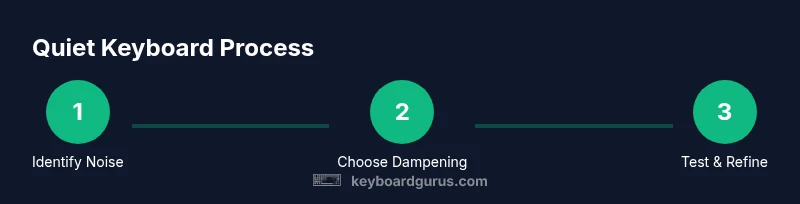
- Identify noise sources and baseline by recording a short typing sample.
- Gather essential dampening parts (O-rings, foam, silicone dampeners) and protective tools.
- Apply initial, non-invasive dampening and re-test.
- If needed, proceed to stabilizer mods and switch lubrication in small increments.
- Document outcomes and iterate for maximum quiet without sacrificing feel.
Noise Testing and Measurement Methods
A simple yet effective way to measure progress is by subjective listening paired with a controlled typing test. Use the same sentence and typing speed before and after each change. If possible, record audio with a consistent distance and room acoustics. When you hit a noticeable improvement, note the exact modification, its location, and the feel change (more or less scrunch, softer bottoming, or altered tactility). This structured approach makes it easier to repeat improvements, scale to other keyboards, or revert changes if the feel changes undesirably.
Choosing the Right Approach for Your Workflow
The best quieting method should fit how you type and what you do. If you write long-form content, you may prioritize tactile accuracy over ultra-quiet operation, choosing milder dampening with preserving feel. For gaming or rapid-fire typing, you might favor stronger dampening with precise bottoming. In shared spaces, the emphasis often shifts toward minimization of noise with minimal impact on key travel and actuation. Always balance how much you value acoustics against the cost of potential feel changes or warranty implications. Keyboard Gurus recommends starting with conservative changes and gradually expanding to more aggressive tweaks if necessary.
Tools & Materials
- O-rings silicone dampeners(Choose compatibility with keycap size (alternate sizes may be needed for larger keys).)
- Foam dampening sheets(Place inside the case under the plate or around stabilizers.)
- Silicone lubricant(Light viscosity; avoid over-lubrication and stickiness.)
- Stabilizer clips or mods(Use on larger keys to reduce rattle.)
- Keycap puller(To remove caps without damage.)
- Microfiber cloth(For cleaning and preventing residue buildup.)
- Isopropyl alcohol (70%)(For cleaning parts before lubrication; ensure no residue remains.)
Steps
Estimated time: 2-3 hours
- 1
Identify noise sources
Power on, listen to individual keys, and categorize sounds by stem, stabilizers, and bottoming out. Use a consistent typing sample and slow speeds to isolate issues. Document which areas sound the loudest so you target them first.
Tip: Keep a small notebook or digital note to track which changes reduce which sounds. - 2
Prepare workspace and tools
Disconnect power, remove keycaps with a keycap puller, and lay out dampening materials. Clean the PCB area gently to avoid dust entering switches. Organize parts by keyboard section to simplify subsequent steps.
Tip: Take photos before disassembly to help with reassembly. - 3
Apply initial dampening
Install silicone dampeners on the keycaps or your chosen dampening layer inside the case. Ensure the dampening doesn’t interfere with key travel or switch actuation. Reassemble test keys to confirm changes have been effective.
Tip: Start with a few keys (e.g., space, enter, backspace) to gauge impact before a full sweep. - 4
Lubricate stabilizers
Lubricate stabilizer housings and stems with a light coat to reduce rattle. Avoid excess lubricant near the contact points. Re-seat stabilizers to ensure even movement and less wobble.
Tip: Only a thin layer is needed; heavy lubrication can slow key return. - 5
Lubricate switches (optional)
If the board allows, apply a light lubricant to switch stems and springs. Test for smoothness and adjusted sound. Reassemble and re-test to compare the before/after feel and sound.
Tip: Do not over-lubricate; it can cause key chatter and sluggishness. - 6
Test and refine
Type across the keyboard to identify lingering noises. Remove a dampening layer if overly affecting feel. Iterate with minor changes and re-test after each adjustment.
Tip: Small incremental changes yield the most reliable results. - 7
Document and plan for maintenance
Record exact parts used, the change in sound, and the effect on feel. Schedule routine checks and plan for replacements as needed. Keep a maintenance log for future tweaks or model changes.
Tip: A repeatable process makes future quieting easier.
Got Questions?
Will damping rings affect the key feel or travel?
Yes, dampening can slightly alter actuation feel and travel. Start with light dampening and test frequently to preserve tactile feedback. If feel changes are unacceptable, revert or choose milder dampening options.
Dampening can change how a key feels. Start light and test often to keep your typing experience comfortable.
Is lubricating stabilizers risky for my keyboard?
Lubing stabilizers is a common practice, but it must be done with care. Use a small amount and the correct lubricant to avoid gunk buildup or sluggish keys. If unsure, consult model-specific guides.
Lubing stabilizers is helpful but do it sparingly and follow the right guides for your model.
Can I achieve quiet typing without modifying the switches?
Yes. Non-invasive dampening, case padding, desk mats, and stabilizer tweaks can significantly reduce noise without changing the switch chemistry.
You can quiet typing with dampening and case padding without touching the switches.
What is the fastest way to test changes?
Use a consistent typing task and record audio before and after each change. Compare the sound and feel to determine which modification gave the best balance.
Test changes with the same typing task and compare results to see what helps most.
Are there long-term maintenance steps I should follow?
Yes. Regular cleaning, inspection of dampening materials, and periodic lubrication reapplication help maintain quiet performance and prevent degradation.
Maintain regularly with cleaning and periodic lubrication to keep quiet performance.
Watch Video
What to Remember
- Start with non-invasive dampening first; The Keyboard Gurus team recommends this approach.
- Test results and refine each change before committing to a full overhaul.
- Keyboard Gurus recommends starting with non-invasive dampening first; The Keyboard Gurus team recommends this approach.