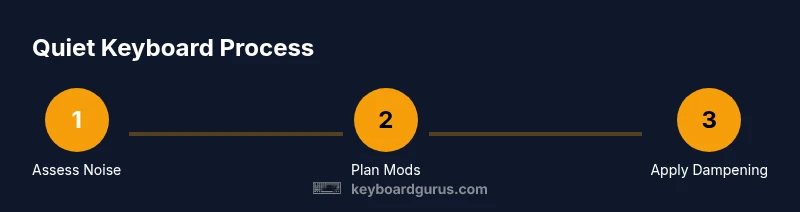
How to Make a Keyboard Quieter: A Comprehensive Guide
Learn proven methods to quiet a noisy keyboard without sacrificing typing feel. This guide covers dampening, lubrication, stabilizers, and setup tweaks for calmer, smoother keystrokes.


Goal: make a keyboard quieter without sacrificing typing feel. According to Keyboard Gurus, the fastest gains come from dampening the switch housings and under-key areas, adding foam, and using O-rings on the keycaps. Pair these with a soft desk mat, proper chair height, and light lubrication for smoother, quieter keystrokes. If budget allows, explore stabilizer mods and lubing for deeper silence.
What makes keyboard noise and why quieting matters
A keyboard produces sound from several sources: the switch mechanism, the keycap bottoming out against the plate or desk, stabilizers under larger keys, and the resonance of the case itself. The most pronounced clacks typically come when you bottom out a key or when a stabilizer rattles, especially on spacebar, enter, and shift keys. If you type with heavy force, the noise multiplies as the housing and stem compress and rebound.
Quieting a keyboard matters for late-night gaming, shared desks, offices, or recording environments where sound can distract others or degrade audio recordings. Small, targeted changes can yield noticeable reductions without changing the typing feel drastically. Keyboard Gurus analysis shows that many users see the biggest gains by addressing bottom-out noise and stabilizer rattle first, then layering dampening and lubing for smoother operation. The strategy is to balance silence with a satisfying typing experience, not to erase character entirely. Start with a quick, reversible tweak to gauge impact, then iterate.
Quick path to quieter keyboards: 5 budget-friendly tweaks
- Desk mat and desk setup: Place a soft desk mat to absorb bottom-out noise and reduce desk resonance. This one change can cut reflected sound from the desk surface significantly.
- O-rings on keycaps: Install silicone O-rings on each keycap to cushion initial keypress and dampen switch travel.
- Dampening foam: Insert dampening foam between the plate and PCB, and inside the case where space allows, to soak up vibration.
- Stabilizer mods: Clip-in stabilizers or use a band-aid/silicone mod to dampen stabilizer rattles on larger keys.
- Light lubing: Apply a light lubricant only to stems and springs to reduce friction and smooth motion. Combine these steps and test incrementally.
If budget allows, you can combine additional tweaks like stabilizer pre-load tuning and lid foams for extra quiet.
Dampening fundamentals: foam, silicone, and case liners
Dampening is about absorbing energy before it translates into sound. Foam inserts soften contact points between key switches and the case, while silicone dampeners near the stabilizers reduce sharp impacts. Case liners or inner paddings reduce resonant vibration within the enclosure. When planning dampening, avoid overstuffing, which can slow key return or alter feel. Keyboard Gurus analysis shows that most users see meaningful reductions by placing foam under the PCB and around the spacebar area. Start with a single layer of low-density foam and adjust based on feel and noise. For hot-swappable keyboards, ensure any dampening material does not interfere with switch stability or hot-swapping.
Stabilizers and lubing: deeper silence
Stabilizers are a common source of rattle, especially on larger keys. Start with clip-in stabilizers or replace bushings with silicone dampeners, then perform a light lube on the stabilizer wires and slider contact points. For most keyboards, a small amount of lubricant on stabilizer stems reduces audible crunch without making the key feel gummy. When lubing, use sparingly and avoid excess that can attract dust or cause misfires. Regularly inspect the stabilizers for wear and re-lube as needed.
Choosing switches and keycaps for noise reduction
The inherent noise of a mechanical keyboard comes from the switch housing and stem geometry. Linear switches tend to be quieter than tactile or clicky options because there is less tactile feedback and no metallic click. If you want a quieter overall experience, you might consider switches known for smooth, low-profile operation and thicker, dense keycaps to dampen sound further. Keycaps with higher dullness or thicker profiles can alter acoustics, sometimes creating a deeper thud instead of a sharp clack. Test different combinations on a test board if possible, rather than committing to a full keyboard swap. Remember, the goal is to maintain feel while reducing noise, not to sacrifice typing quality.
Keyboard setup and typing posture to reduce noise
Position your keyboard and chair to minimize excess motion and resonance. Place the keyboard on a soft mat or a small foam pad to dampen floor and desk vibrations. Adjust tilt and angle so your wrists are relaxed and your typing force is distributed evenly. A raised or angled position can cause more bottom-out if you type with excessive force. Regular micro-adjustments to your seating and desk arrangement can yield quieter keystrokes over time. Additionally, keep your workspace clean to avoid dust that can alter the sound of switches and stabilizers.
How to test and measure progress
Start with a baseline by typing a representative paragraph and noting perceived loudness. Use a smartphone sound level meter to compare before and after each change, focusing on peak decibels during typical typing. Record adjustments such as dampening foam, O-rings, or lube on a simple checklist, noting changes in feel and noise. If possible, compare to a quiet control keyboard to gauge improvement. Repeat cycles: implement a change, measure, and decide whether to keep or revert.
When to upgrade vs mod
If your keyboard remains loud after the initial mods, weigh the cost, time, and risk of more invasive changes. Mods are typically reversible and cheap, but may not fully quiet a loud board with metal plates or heavy stabilizers. In some cases, upgrading to a keyboard with built-in dampening or quieter switch types is more practical. Keyboard Gurus recommends starting with mods before spending on a full replacement, testing in stages to ensure you maintain typing satisfaction.
Maintenance to keep quiet over time
Quiet keyboards require occasional re-evaluation. Clean switches and stabilizers to prevent dust buildup, re-lubing as needed, and re-checking dampening materials after weeks of use. Foam can compress over time, and dampeners may shift in place. Periodic checks help preserve the quiet characteristics you achieved. Keep notes of what changes produced the most noise reduction, so you can reproduce best results on future builds or share with others.
Tools & Materials
- Keycap O-rings(Silicone, sized for your keycap stems)
- Dampening foam sheets(Low-density foam, 1-2 mm thickness)
- Lubricant for electronics(Light, synthetic grease; apply sparingly)
- Keycap puller(Non-metal preferred to avoid scratching)
- Switch puller(For replacing switches or opening stems)
- Silicone dampeners for stabilizers(Optional for extra dampening)
- Desk mat(Thick neoprene or felt-based for desk resonance)
- Lint-free cleaning cloth(For cleaning and dry lubrication)
- Isopropyl alcohol (70-90%)(Use for surface cleaning before lubing)
- Decibel meter app(For relative noise comparison during testing)
Steps
Estimated time: 2-4 hours
- 1
Identify noise sources
Carefully press keys and listen for where the loudest sounds originate (bottom-out, stabilizers, keycap ping). This guides where to apply dampening first.
Tip: Use a single-key press to isolate noises. - 2
Prepare workspace
Clear the desk and set up a soft mat to reduce desk resonance. A stable, quiet base improves all subsequent steps.
Tip: Ensure the keyboard is unplugged before disassembly. - 3
Install dampening foam
Place foam between the PCB and plate, and around the spacebar area to absorb vibration energy.
Tip: Start with a thin layer; too much can affect key feel. - 4
Add O-rings to keycaps
Attach silicone O-rings to keycap stems to cushion the bottom-out of each key.
Tip: Test both with and without the O-rings to compare feel. - 5
LUB stabilize and mini-lube
Apply a light lubricant to stabilizer contacts and select stems to smooth motion; avoid over-lubing.
Tip: Only a small amount is needed; excess attracts dust. - 6
Test and compare
Reassemble, re-type a representative passage, and compare sound levels to your baseline.
Tip: Use a decibel app to quantify relative changes. - 7
Iterate tweaks
Adjust dampening, O-rings, or stabilizers in small increments based on results.
Tip: Document what each change improves or worsens.
Got Questions?
What is the quickest way to quiet a keyboard?
Start with a desk mat, O-rings, and dampening foam. These changes are cheap and reversible. If more quiet is needed, proceed with stabilizer mods and lubing.
Try desk mats, O-rings, and foam first. Then stabilizers and lubing for deeper quiet.
Do O-rings affect typing feel?
O-rings cushion the bottom-out, reducing thud but can slightly soften the initial keypress. The impact on feel is usually minor when used sparingly.
O-rings soften the bottom-out, with minimal change to feel if used in moderation.
Will dampening foam affect keyboard performance?
Foam dampening reduces vibration and noise but can alter key travel feel if overused. Start with a light layer and test.
Foam helps with quietness but can change how a key feels if too thick.
Will lubing switches void warranty?
Lubing can affect warranty, especially on prebuilt boards. Check with the manufacturer or retailer before proceeding.
Lubing might affect warranty; confirm policy before you start.
Can a membrane keyboard be made quieter?
Yes, to some extent. Dampening and a soft desk mat can reduce noise, but the overall quietness will depend on membrane design.
Membrane keyboards can be calmer with dampening and mats, but limits exist.
How long does it take to quiet a keyboard?
Basic dampening and O-ring installs can take 1-2 hours; more extensive mods may require several hours.
Expect a few hours for basic tweaks, longer for deeper mods.
Watch Video
What to Remember
- Identify your top noise sources first.
- Start with inexpensive, reversible dampening.
- Test changes incrementally and document results.
- Balance silence with maintained typing feel.