How to on Wireless Keyboard: A Practical Guide
Learn how to set up and use a wireless keyboard—from Bluetooth pairing to USB receivers—plus troubleshooting, battery care, and practical reliability tips.


Learn how to connect and use a wireless keyboard, whether via Bluetooth or a USB receiver. This guide covers pairing, driver notes, OS compatibility, and basic troubleshooting, plus tips for battery life and reliability. By the end, you’ll know which method fits your setup and how to avoid common pitfalls.
Understanding wireless keyboards: Bluetooth vs 2.4 GHz
A wireless keyboard generally works via either Bluetooth or a dedicated 2.4 GHz USB receiver. According to Keyboard Gurus, a wireless keyboard is not a single technology; it typically uses Bluetooth or a dedicated 2.4 GHz receiver. Bluetooth is convenient for mixed devices and travel, while a USB dongle can offer lower latency and steadier connections on desktops. Bluetooth uses your system's wireless radios, which can share spectrum with mice, headphones, and other devices, sometimes causing interference. A USB receiver creates a direct, point-to-point link between the keyboard and the computer, reducing the chance of stray signals interfering with your typing. This distinction matters for latency, power use, and how many devices you want to pair. This section explains the differences, typical use cases, and how to decide which approach suits your workflow. Consider your devices: laptops, desktops, tablets, or phones; your need for mobility; and whether you prefer to avoid dongles. You’ll also see how to confirm compatibility before you buy, and what to expect in day-to-day use. A quick check is to look for a logo (Bluetooth) or a model that includes a USB receiver in the box, which signals the intended connection method.
Quick-start: choosing the right connection method
Before you buy or pair, map your setup. If you primarily work with a laptop and a tablet, Bluetooth pairing is typically simpler, especially if you switch between devices often. If you’re building a desktop workstation for gaming or content creation, a USB receiver may offer lower latency and a more consistent signal, particularly in busy wireless environments. Keyboard Gurus analysis shows that the best choice depends on OS support, device ecosystem, and how often you need to switch devices. Check your operating system version and Bluetooth version; ensure your keyboard supports the same standards; verify the available USB ports; and consider battery type. Finally, test a quick pairing with your phone or another computer to see if the keyboard recognizes input promptly. This practical decision guide helps you avoid buying the wrong model and saves time later.
Step-by-step Bluetooth pairing (quick-start guide)
A Bluetooth pairing workflow is designed to be simple and non-disruptive. First, put the keyboard into pairing mode. Then, on your host device, open the Bluetooth settings and scan for new devices. When the keyboard appears, select it and confirm the pairing. If a code or PIN is requested, follow the prompts on screen. Once paired, test typing in a text field to ensure the link is active. If the keyboard supports multiple profiles, you can assign different layouts per device. Finally, label the device in your Bluetooth settings so you can distinguish it from other keyboards you own. Pro tip: keep the keyboard within 10 meters of the host and avoid obstacles like metal desks to reduce signal dropouts.
Step-by-step USB receiver setup (2.4 GHz) for desktop reliability
If you plan to use a USB receiver, insert the dongle into a free USB port on your computer and wait for the OS to recognize it. Power on the keyboard and observe the indicator light that confirms the device is active. Some keyboards automatically pair with the receiver; others require you to press a dedicated pairing button. Once connected, test typing and ensure keystrokes are registered promptly. If you experience delays, try a different USB port, avoid hub connections, and keep the dongle within a short range of the keyboard. If your system prompts for drivers, allow installation and restart if required. Pro tip: use a wired USB port for best compatibility with older systems.
Common setup issues and how to troubleshoot
If the keyboard isn’t recognized, verify power, re-insert the USB receiver, or re-run the pairing process. If typing is slow or characters repeat, check for Bluetooth interference and ensure you’re not using a crowded 2.4 GHz channel. For Bluetooth devices, make sure the keyboard isn’t paired to too many devices at once and that the OS keyboard settings aren’t overriding the default input method. If using a USB receiver, try different USB ports and disable power-saving options that might dim the dongle. Always replace batteries or recharge if the device performance drops. Keyboard Gurus analysis shows that simple resets and fresh power sources solve most early issues.
Keyboard layout, drivers, and OS compatibility
Different keyboards ship with various layouts (QWERTY, DVORAK, etc.) and may require driver support for advanced keys or backlighting. Windows, macOS, iPadOS, and Linux distributions handle keyboards differently, so verify compatibility before purchase. Install any recommended drivers or software to unlock features like macro keys and profiles. For macOS users, some function keys rely on system preferences; for Windows users, third-party software can offer deeper customization. Always check the manufacturer site for firmware updates that improve connectivity and stability.
Battery life, power management, and sleep mode
Battery life varies widely across models, from weeks to months, depending on usage and features such as backlighting. Turn off backlighting or reduce brightness during long sessions to extend life. Many keyboards support sleep mode after a period of inactivity; disable this only if you need instant wake, as it can affect responsiveness. Carry spare batteries or a portable charger when traveling, and keep spare keys or a spare USB-C cable handy if your device uses rechargeable cells. Archival habit: keep a log of battery replacement dates to spot pattern shifts in performance over time.
Maintenance and best practices for lasting performance
Regular maintenance reduces failure risk and extends keyboard life. Periodically remove dust from the keys using a soft brush and compressed air, and wipe the surface with a damp microfiber cloth. Check for firmware updates and install them when available to improve stability and support new devices. Store the keyboard in a cool, dry place and avoid exposing it to extreme heat or moisture. When not in use, unplug USB receivers and disconnect Bluetooth pairings from devices you don’t plan to use soon. A small routine can prevent most common operational problems.
Accessibility and advanced features on wireless keyboards
Many wireless keyboards include features for accessibility, such as larger keys, customizable macros, and on-keyboard backlight control. Look for key remapping options in the companion software or system settings. If you require assistive features, verify compatibility with your operating system’s accessibility toolkit. Some keyboards support multiple profiles for different work contexts (gaming, writing, coding), which can greatly improve efficiency once configured. Keyboard Gurus recommends exploring these features as you gain comfort with basic pairing and usage.
Tools & Materials
- Wireless keyboard(Ensure batteries are fresh or it is charged before starting)
- Power source(Batteries (AA/AAA) or USB charging cable as applicable)
- Host device(A computer, tablet, or phone with Bluetooth or USB ports)
- USB receiver dongle (2.4 GHz model)(Included with some keyboards; required if using the dongle method)
- Optional USB hub(Helpful if you have limited USB ports or plan to troubleshoot peripherals)
- Manual or Quick Start Guide(Helpful for model-specific steps)
Steps
Estimated time: 20-40 minutes
- 1
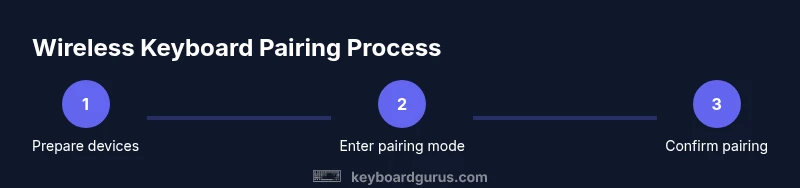
Prepare devices and power
Power on the keyboard and the host device. Ensure the keyboard has fresh batteries or is charged, and verify both devices have Bluetooth enabled or a free USB port available for the dongle. This initial check prevents mid-pair failures.
Tip: Double-check battery indicators if your keyboard shows low power warnings. - 2
Enter pairing mode
Put the keyboard into pairing mode as described in the manual. This often involves holding a dedicated button or the Windows/Function key combination until an LED starts blinking.
Tip: If pairing mode is elusive, consult the manual or model-specific online resources. - 3
Enable Bluetooth on the host and scan
Open Bluetooth settings on the host device and start scanning for new devices. Keep the distance short and remove obstructions to maximize discovery chances.
Tip: Turn off nearby Bluetooth devices temporarily to avoid interference during discovery. - 4
Pair and confirm
Select the keyboard from the discovered devices list and confirm any prompts or PIN codes. Some keyboards auto-pair without a PIN, while others require your confirmation.
Tip: If a PIN appears, enter it precisely as shown and press enter on the keyboard if required. - 5
Test basic typing
Open a text field and type to verify the connection is stable. Check for lag, missed keystrokes, or unusual characters.
Tip: If you notice lag, move closer to the host and eliminate other RF devices from the same area. - 6
Configure settings
Adjust keyboard settings in the OS to suit your workflow (key repeat rate, layout, backlighting, etc.).
Tip: Create device labels in your Bluetooth settings to quickly switch between keyboards. - 7
Test across devices (optional)
If your keyboard supports multi-device pairing, test switching between devices to ensure seamless handoff.
Tip: Keep a short list of preferred devices to simplify switching later. - 8
If using USB receiver, connect and test
Plug the USB receiver into a free port, wait for it to enumerate, and perform a quick typing test.
Tip: Prefer a dedicated USB port away from hubs to minimize connectivity issues. - 9
Finalize and maintain
Update firmware if available and store accessories safely. Document any unique steps for future reference.
Tip: Schedule routine checks for firmware updates to maintain compatibility.
Got Questions?
How do I know if my wireless keyboard uses Bluetooth or a USB receiver?
Check the product box or manual for pairing method. If there is a USB dongle included, it’s a 2.4 GHz USB receiver. If it pairs via Bluetooth without a dongle, it’s Bluetooth-based. You can also look at the device’s settings to see available connection options.
Look for a USB dongle in the package; if there isn’t one, your keyboard likely uses Bluetooth. You can confirm in the device’s Bluetooth settings and the keyboard’s manual.
Why won’t my wireless keyboard pair after charging?
Make sure the keyboard power switch is on, the battery is sufficiently charged, and you’re in pairing mode. If pairing fails, try a full reboot of both devices, re-enter pairing mode, and re-run the pairing process.
If it won’t pair after charging, confirm power is on, re-enter pairing mode on the keyboard, and retry pairing on the host device.
Can I connect a wireless keyboard to multiple devices at once?
Some wireless keyboards support multi-device pairing and easy switching, but not all models do. Check the user manual for multi-device support and how to switch between devices (often via a function key or profile button).
Yes, some keyboards let you switch between devices; check your model’s manual for the exact method.
How can I improve connection stability?
Keep devices within a reasonable range, minimize obstacles, and reduce interference from other RF devices. If instability persists, switch from Bluetooth to a USB receiver or vice versa and test in a clean environment.
Try staying closer to the computer, remove nearby RF devices, and switch connection types if problems continue.
Is a wireless keyboard better for gaming than a wired one?
Wired keyboards typically offer the lowest latency and most consistent polling rates, which matters for competitive gaming. Wireless keyboards can be competitive if they use a reliable 2.4 GHz link, but latency can vary by model and environment.
Wired is usually faster and more stable for gaming, but premium wireless models can be very close in latency.
What should I do if the keyboard disconnects frequently?
Check power, re-pair, test on another device to isolate the issue, and scan for interference. If needed, update firmware or drivers, and try a different USB port or Bluetooth adapter.
If it disconnects often, re-pair, check for interference, and update any available firmware or drivers.
Watch Video
What to Remember
- Choose Bluetooth for simplicity across many devices.
- Choose a USB receiver for desktops and low-latency needs.
- Test in a real environment to catch interference early.
- Keep firmware and OS drivers up to date for best compatibility.