How to Screenshot on Tablet with Keyboard: A Complete Guide
Learn to capture screenshots on tablets using a connected keyboard. This guide covers iPad, Android, and Windows tablets with shortcuts, gestures, and practical tips to save time and improve your workflow.


You will learn how to take a screenshot on a tablet using a connected keyboard. This guide covers iPad, Android, and Windows tablets, plus tips for using keyboard shortcuts, gesture combinations, and external apps. By the end you’ll capture clean screenshots with minimal effort, regardless of model or OS today.
Why Using a Keyboard to Screenshot on Tablet Matters
Using a keyboard to capture screenshots on a tablet isn't just about speed; it's about accuracy and repeatability. When you combine typing shortcuts with hardware buttons, you can document app states, coding screens, or design flows without fumbling with on-screen gestures. According to Keyboard Gurus, enthusiasts who pair a keyboard with a tablet frequently report faster capture cycles and fewer mistaken taps across projects. The Keyboard Gurus team found that most setups benefit from an external keyboard because it frees your hands to navigate menus, select content, and annotate images in real time. In this section, we explore how keyboards transform a common task into a reliable, repeatable process, whether you're testing software, creating tutorials, or sharing quick feedback with teammates. We'll look at OS differences, practical shortcuts, and best practices for organizing your captures.
Keyboard Shortcut Landscape by OS
Tablet screenshot shortcuts differ by platform. On iPadOS, the classic method uses the Side Button (or Top Button on some models) in combination with the Volume Up key. Android devices often rely on a hardware button combo such as Power + Volume Down, with nuances by manufacturer. Windows tablets typically support Windows key shortcuts like Win + PrtScn, which saves a file automatically to the Pictures/Screenshots folder. Keyboard Gurus analysis shows that understanding your device’s native shortcuts dramatically reduces time spent on captures and post-processing. Always verify your OS version, as newer builds may introduce or refine specific shortcuts.
Quick-Access Methods: Built-In Shortcuts, Hardware Keys, and Apps
For rapid captures, you can combine three approaches. First, hardware button captures (the most universally supported method) require little to no setup, and the image saves to a predictable location. Second, keyboard shortcuts available in the OS offer speed-ups like saving or copying to clipboard for quick sharing. Third, apps or built-in editors give you on-device annotation or instant cropping. Some tablets support mapping a dedicated screenshot key on external keyboards, which can streamline your workflow. In practice, you’ll pick the method that best fits your device model and your task (design review, bug reporting, or documentation). Keyboard Gurus’ guidance emphasizes consistency: pick one primary method and stick with it to build muscle memory.
Quick Start: Step-by-Step by OS (Overview)
- iPadOS: Connect keyboard, press Side/Top Button + Volume Up, then access the image in Photos. - Android: Hold Power + Volume Down until you hear a shutter or see a notification; locate the image in Gallery/Photos. - Windows Tablet: Press Win + PrtScn to save automatically to Pictures > Screenshots, then open in Paint or Photos for quick edits. These patterns are common across many devices, though exact button labels can vary slightly by vendor.
Troubleshooting Common Issues
If a screenshot won’t capture, start by confirming the keyboard is properly paired and the tablet recognizes shortcut input. Some devices require you to enable hardware button captures in Settings. If shortcuts conflict with a running app, try a hardware button approach or temporarily disable the app’s keyboard shortcuts. Check for updates to the tablet OS, as vendors occasionally adjust the default shortcut mappings. When in doubt, a quick test by capturing a blank screen will reveal whether the issue is with the button combination or the target app. Keyboard Gurus notes that most failures are configuration-related rather than hardware faults.
Practical Tips for Editing and Sharing Screenshots
After capturing, use the built-in editor to crop, annotate, or blur sensitive information. Saving in a widely supported format (PNG) preserves quality for sharing. For documentation workflows, consider setting up cloud-sync folders so screenshots land in a central workspace automatically. If you frequently share, create a short automation script or macro (where allowed) to apply uniform annotations—this reduces repetitive tasks and keeps your visuals consistent.
Accessibility, Privacy, and Safety Considerations
Screenshots can expose sensitive information. Always review the screen content before sharing publicly, especially on work devices. If your tablet supports screen-reading or high-contrast modes, test that the capture tool doesn’t disable important accessibility features. When working in public or collaborative spaces, be mindful of others’ privacy and secure any credentials or personal data before saving or distributing screenshots. The Keyboard Gurus team advocates deliberate privacy checks as part of any capture workflow.
Keyboard Gurus Workflow for Speed and Consistency
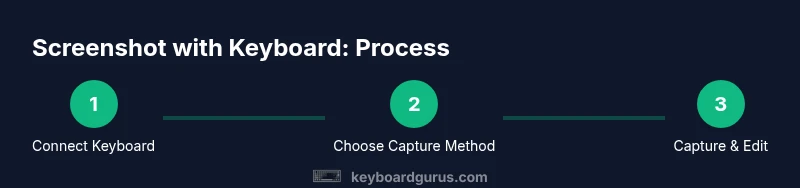
Build a repeatable routine: 1) Connect keyboard, 2) Pick a primary capture method, 3) Use a single preferred save location, 4) Move directly to editing or sharing. By standardizing this rhythm, you minimize decision fatigue and maximize throughput. The Keyboard Gurus team recommends documenting your chosen shortcuts for quick reference and including them in your setup notes for teammates. A consistent workflow reduces errors when you’re capturing multiple screens in a short time.
Next Steps: Practice Drills and Habit Building
Turn this guide into a daily habit. Create a 10-minute drill where you switch between OS shortcuts, hardware button captures, and quick-edit steps. Track which method feels fastest on your tablet and adjust as needed. The more you practice, the faster you’ll become at producing ready-to-share screenshots that meet your project’s standards. Keyboard Gurus believes deliberate practice is the key to turning knowledge into effortless execution.
Tools & Materials
- Bluetooth keyboard(Must be paired with tablet; check OS shortcut list for your device.)
- Tablet with keyboard support(Ensure you have the latest OS version with screenshot shortcuts.)
- USB-C or USB-A to USB-C hub (optional)(Use if you connect a wired keyboard or adapters.)
- Stylus (optional)(Helpful for quick annotations after capture.)
- Stand or tripod (optional)(Keeps the tablet steady during long capture sessions.)
Steps
Estimated time: 25-40 minutes
- 1
Connect and verify keyboard
Pair or connect your keyboard to the tablet and confirm that keystrokes are registered in any text field to ensure the shortcut will work for screenshots.
Tip: Test a simple keystroke like a letter to confirm connectivity before attempting a capture. - 2
Choose your capture method
Decide whether you will use hardware buttons, OS shortcuts, or a dedicated shortcut key on your external keyboard—consistency matters for efficiency.
Tip: If you switch methods, practice both for a week to minimize friction. - 3
Prepare the screen content
Open the app or screen you want to capture and disable any on-screen overlays that could obscure important content.
Tip: Close menus and ensure sensitive information is hidden before capture. - 4
Capture with hardware buttons (OS-dependent)
Use the standard hardware button combo for your OS (e.g., Side Button + Volume Up on iPadOS, Power + Volume Down on many Androids, Win + PrtScn on Windows).
Tip: If the screen momentarily flashes, you’ve captured correctly. - 5
Capture with a keyboard shortcut (if available)
Press the OS shortcut mapped to capture (e.g., dedicated Print Screen key or a configurable key).
Tip: Some keyboards allow you to map a single key to the capture action for speed. - 6
Find and open the saved screenshot
Navigate to the default save location (Photos, Gallery, or Pictures/Screenshots) to review the image.
Tip: Rename or tag the file for easier retrieval later. - 7
Edit or annotate (optional)
Use built-in editors to crop, blur, or annotate the image before sharing.
Tip: Keep edits minimal to preserve readability and avoid clutter. - 8
Share or archive
Share via chat apps, docs, or cloud folders, or archive in a project folder for later reference.
Tip: Use consistent naming conventions to support quick search.
Got Questions?
How do I take a screenshot on a tablet with a connected keyboard?
Connect the keyboard, choose a capture method (hardware button, OS shortcut, or mapped key), perform the capture, then edit or share as needed.
Connect your keyboard, pick your method, capture, then edit or share.
Do all tablets support keyboard shortcuts for capturing?
Most tablets support hardware button captures or OS shortcuts. Some devices may require activation in settings or vendor-specific keys.
Most tablets support hardware or OS shortcuts, but check your device settings.
Where are screenshots saved on iPad, Android, and Windows tablets?
iPad saves to the Photos app, Android usually to Gallery or Photos, and Windows tablets to the Pictures/Screenshots folder.
Saved images usually go to Photos on iPad, Gallery on Android, and Screenshots in Pictures on Windows.
Can I annotate screenshots using only the keyboard?
Annotation typically uses touch or a stylus, but some apps support keyboard shortcuts to open editors. You can use the keyboard to type notes in the caption.
You can type notes with the keyboard and use the editor to annotate when supported.
Is there a way to automate screenshots on a schedule?
Automation is possible with some apps and platform features, but availability varies by OS and device. Check official guides for automation options.
Some automation options exist, but it depends on your OS and apps.
What if a keyboard shortcut conflicts with another app?
Switch to hardware-button capture or re-map the shortcut within the app settings to avoid conflicts.
If conflicts occur, switch methods or remap the shortcut.
Watch Video
What to Remember
- Master keyboard shortcuts for faster captures
- Use a single save location for consistency
- Preview screenshots for sensitive data before sharing
- Create a short, repeatable workflow for speed and reliability