How to Undo Keyboard: A Practical Guide
Learn practical methods to undo keyboard mistakes with OS shortcuts, app histories, and backups. This Keyboard Gurus guide shows how to revert keystrokes, recover lost text, and prevent future mishaps.


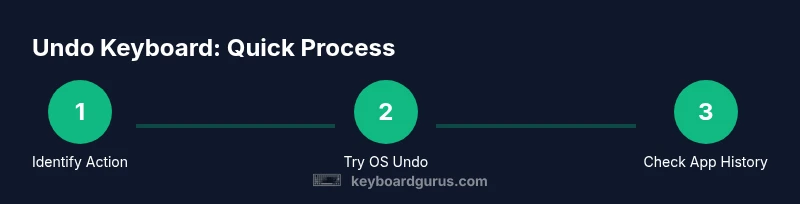
To learn how to undo keyboard mistakes, start by identifying the action you want to revert. For most tasks, use the standard undo shortcuts: Ctrl+Z on Windows or Cmd+Z on Mac. If that fails, check app histories or clipboard managers, and revert to a saved keyboard profile if available. Regular practice makes the process faster over time.
Understanding What 'Undo Keyboard' Really Means
In everyday computing, 'undo' refers to reversing the most recent action. When people ask how to undo keyboard mistakes, they often mean stopping unintended keystrokes, restoring typed text, reversing layout changes, or undoing a macro that ran incorrectly. The key is to identify the exact action you want to reverse: a text deletion, an insert, a replace, or a remapping. Once you know what to undo, you can select the most effective tool. Keyboard Gurus emphasizes that undo is not a magic fix for all problems; it's a tool that works best when used with awareness of where the change occurred (the active window or app) and when recent enough to be reversible. If you frequently encounter tricky edits, consider enabling history features in your apps and keeping a simple versioned backup of important documents. The aim is to create a reliable trail you can retrace, rather than scrambling after the fact. How to undo keyboard mistakes is a practical skill that saves time and reduces frustration for keyboard enthusiasts, students, gamers, and professionals alike.
System-Wide Undo Shortcuts You Should Know
Most operating systems support a universal undo command. On Windows and Linux, the standard is Ctrl+Z; on macOS, Cmd+Z. These shortcuts undo the last action in text editors, chat apps, and many browsers. Some apps support multiple levels of undo (Ctrl+Shift+Z or Cmd+Shift+Z). If you're editing in a complex environment (IDE or design software), you may have a history panel you can reopen to go back to a specific state. Keep in mind that some actions trigger auto-save or auto-undo depending on the program, and not every app respects the OS-level undo equally. When undo doesn't seem to work, look for an Edit menu, a pencil icon, or a history/versions feature within the app itself. For keyboard enthusiasts, mapping an additional undo shortcut in your favorite editor can save time in the long run.
Application-Specific Undo: Using Histories and Versions
Individual programs provide their own undo histories beyond the OS. In word processors like Google Docs or Microsoft Word, you can press Ctrl+Z/Cmd+Z repeatedly to step back through edits, or use the Version History or Undo List to jump to a preserved state. In spreadsheets and IDEs, actions such as deletions, code changes, or formatting can be reversed with multi-level undo or by reverting to a previous snapshot. For content you pasted from other sources, check the clipboard history if your tool supports it; some editors retain multiple clipboard items, allowing you to paste earlier content back in. If you’ve remapped keys or created macros, undoing them may require undoing the macro-run sequence or restoring the macro set to a prior version. Always test undo commands in a safe area before applying them to critical work to avoid accidentally reverting too much.
Reversing Keyboard Layouts, Macros, and Remappings
A common source of confusion is changes to keyboard layout or custom mappings. If you’ve switched to a non-native layout, revert to your preferred layout in System Preferences/Settings. For Windows, use Language and Keyboard settings; on macOS, use Keyboard Preferences. Remapped keys or active macros can also trip you up; disable or delete the macro, then re-test the affected area. If you’ve installed a keyboard remapping tool, disable it temporarily and rebind keys to their original functions. For gaming keyboards, profiles stored on hardware may override software-level mappings; switch to a standard profile and confirm behavior in a text field. Documenting your current layout or macro map helps you undo changes quickly in the future.
When Undo Isn’t Enough: Backup and Recovery Options
Undo has limits, especially for irreversible actions or system-wide changes. Regular backups, version history, and cloud-synced documents act as a safety net. Use application autosave and local versioning to capture states you can restore later. Clipboard managers with history can help recover overwritten selections, but choose one with search features to locate the exact item you need. If your device experiences a crash or you accidentally reset a program to default settings, a restore point or system backup may be necessary. For keyboard workflows, maintain a named backup of your key mappings and a simple recovery script that can reapply your preferred configuration in minutes. The combination of undo and proactive backups minimizes downtime after mistakes.
Best Practices for Reliable Undo and Prevention
Develop a consistent workflow that makes undo predictable. Enable autosave and version histories in all critical apps, and practice using the OS undo shortcuts until they become reflexes. Keep a small set of tested keyboard profiles and regularly export them to a safe location. Use a clipboard history manager with clear retention policies to avoid confusion. Before making large edits, consider duplicating the document or creating a quick snapshot. Finally, review changes before closing a session to ensure you didn’t accidentally undo more than intended. With discipline, you’ll reduce the frequency and impact of keyboard mistakes and recover more quickly when they happen.
Tools & Materials
- Computer with internet access(Necessary to access OS shortcuts and undo features)
- OS shortcut knowledge(Memorize Ctrl+Z / Cmd+Z and variations)
- Applications with Undo/History features(Word processors, editors, browsers, etc.)
- Clipboard manager (optional)(Helpful for multi-item undo across apps)
- Backups or version history enabled(Restore from prior versions if needed)
- Keyboard profile backup (optional)(To revert key mappings or macros quickly)
Steps
Estimated time: 15-25 minutes
- 1
Identify the action to revert
Identify the action you want to revert by recalling the last change you made before the problem appeared. This determines whether to use OS undo, app history, or a manual re-entry.
Tip: Pause to confirm the exact edit you intend to undo. - 2
Try the OS-wide undo shortcut
Press Ctrl+Z or Cmd+Z to undo the last action. If the document has multiple edits, repeat until you reach the desired state. Use Redo (Ctrl+Y or Cmd+Shift+Z) if you overshoot.
Tip: Keep a mental count of undos to avoid overshooting. - 3
Check the application's history or versions
Open the application’s history or versioning feature to jump to a prior state. This is especially useful in docs, spreadsheets, and code editors.
Tip: If available, use a dedicated version history view for precision. - 4
Inspect and recover clipboard content
If the issue involves overwritten text, use a clipboard manager to retrieve previous items and paste the correct content back in.
Tip: Filter clipboard history by date and context to find the right item. - 5
Restore from backups or profiles
When undoing isn’t enough, revert from a saved keyboard profile or a system/app backup to restore wiring, mappings, or settings.
Tip: Always test changes on a duplicate or safe copy first. - 6
Prevent future issues
Establish autosave, versioning, and documented layouts or mappings to minimize impact of mistakes.
Tip: Create a quick setup checklist you can run before major edits.
Got Questions?
What does undo mean on a keyboard?
Undo reverses the most recent action in the active app. It may not affect system-wide changes or non-reversible operations.
Undo reverses your last action in the app and may not affect system changes.
Why doesn’t undo work in some programs?
Some applications limit undo steps or disable undo for certain operations. Others rely on a separate history or versions system.
Undo can be limited or unavailable for certain actions.
How can I recover deleted text if undo isn’t enough?
Check the app’s history or version history, then use a clipboard manager if needed. If content is permanently gone, restore from a backup.
You can recover using history, versions, or backups.
Can I undo keyboard remappings or macros?
Yes. Revert macros and reset key bindings via the remapping tool or by restoring a previous profile.
Undo changes by restoring a previous keyboard profile.
What are best practices to minimize keyboard mistakes?
Enable autosave and version history, test changes in a safe copy, and document your keyboard setup.
Auto-save and version history help prevent big problems.
Watch Video
What to Remember
- Master OS undo shortcuts for speed.
- Leverage per-application histories to recover specific states.
- Combine undo with regular backups and versioning.
- Use clipboard history to reclaim overwritten content.