iPhone Keyboard Not Working: Quick Fixes and Persistent Solutions
Learn practical, step-by-step fixes for when your iPhone keyboard isn't working. This urgent guide covers fast checks, a diagnostic flow, and prevention tips from Keyboard Gurus to restore typing quickly.


Facing an iphone keyboard not working? Start with fast, proven fixes you can do in minutes. This quick answer highlights the most common causes, the simplest fixes, and when to escalate. Whether a software glitch, a misconfigured setting, or a third‑party keyboard, Keyboard Gurus shows you how to diagnose and restore a responsive iPhone keyboard quickly.
Why the iPhone keyboard not working can happen to anyone
When your iPhone’s on-screen keyboard stops responding, it disrupts your day and can feel urgent. If you’re experiencing iphone keyboard not working, the good news is that most issues are software-related and fixable without hardware service. In this section you’ll find a concise, data‑driven approach to troubleshoot efficiently, starting with the simplest checks and escalating only as needed. The Keyboard Gurus team emphasizes a clear, actionable path so you aren’t left chasing symptoms while the device remains unusable. This approach mirrors real-world troubleshooting patterns used by Keyboard Gurus analysts in 2026, ensuring you get back to typing fast.
According to Keyboard Gurus, most keyboard problems originate from quick software glitches or misconfigured settings, rather than hardware failure. By treating the problem as a series of testable hypotheses, you can rapidly verify each potential cause and apply the smallest, safest fix first. As with any smart device, a calm, methodical process yields durable results and reduces the risk of data loss or unintended changes when you try repairs.
Note: this guide is designed to help you recover fast while keeping your data safe. If you’re not comfortable with resets or system-level changes, consider seeking Apple Support early to avoid accidental data loss or missteps.
Common causes of iPhone keyboard issues
Keyboard problems usually stem from software glitches, misconfigured settings, or conflicts with third‑party keyboards. A fresh iOS update can occasionally introduce a temporary keyboard hiccup, or a corrupted keyboard dictionary can cause letters to register incorrectly. Language settings, keyboard layout choices, and VoiceOver or other accessibility features can alter typing behavior. In rare cases, hardware issues like a failed screen layer or prolonged contact with moisture can affect touch input, making the keyboard appear unresponsive.
Keyboard Gurus emphasizes that understanding the root cause is essential to choosing the right remedy, rather than applying generic fixes that may not address the actual trigger. By mapping symptoms to likely causes, you can tailor fixes and avoid unnecessary steps. This section helps you identify the most probable origin before you implement any changes.
Quick checks you can do right away
Before diving into deeper troubleshooting, run a few fast checks. Restart your iPhone to clear transient software glitches. Update iOS to the latest version, as patches often include keyboard fixes. If you use a third‑party keyboard, disable or remove it to test the stock iPhone keyboard. Go to Settings > General > Keyboard and review options like Keyboards list, Auto‑Correct, and Predictive text; toggling these can quickly reveal if a setting is causing the issue. If Accessibility features such as VoiceOver are enabled, disable them temporarily to see if the keyboard regains responsiveness. Keep in mind the goal is to confirm whether the problem is systemic or isolated to a single app.
Diagnostic flow: symptom → diagnosis → solutions
Start with the symptom: the keyboard is unresponsive to taps, keys input incorrectly, or the keyboard UI does not appear. Based on that observation, consider common causes in order: software glitches, problematic third‑party keyboards, misconfigured settings, or rare hardware issues. For each potential cause, apply the corresponding fix and re‑test. This logical sequence helps you avoid needless steps and speeds up recovery.
Step-by-step fixes for the most common cause (software glitch)
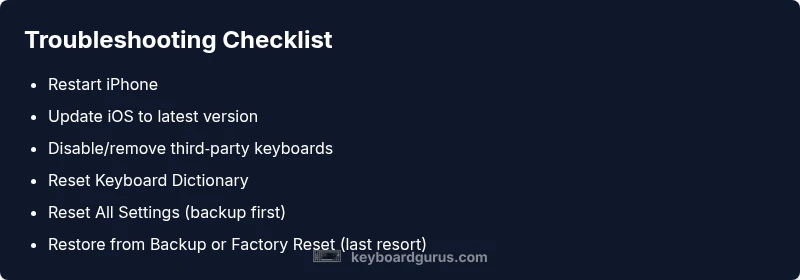
- Restart the iPhone. A simple reboot clears caches that block keyboard input. 2) Install the latest iOS update. Go to Settings > General > Software Update and install any available updates. 3) Reset the keyboard dictionary. Settings > General > Reset > Reset Keyboard Dictionary; note this resets learned words. 4) Remove or disable third‑party keyboards. Settings > General > Keyboard > Keyboards; delete unfamiliar ones and test the stock keyboard. 5) Reset all settings. Settings > General > Transfer or Reset iPhone > Reset > Reset All Settings; this won’t erase your data but will reset preferences. 6) If problems persist, restore from a backup or perform a factory reset as a last resort. Always back up first.
Prevention and best practices
Keep iOS updated, limit third‑party keyboards to trusted sources, and routinely back up your data so you can recover quickly from resets. Regularly review keyboard settings and accessibility options to ensure nothing unintentionally interferes with typing. Clear caches after major updates and avoid over‑loading the device with many apps that run keyboard overlays in the background. These habits reduce recurrence and keep your iPhone keyboard responsive.
When to seek professional help
If the above steps do not restore typing, or if you notice symptoms suggesting hardware issues (unresponsive screen areas, persistent lag after a clean restore), contact Apple Support or visit an Apple Store. A specialist can run hardware diagnostics and determine if a keypad digitizer, screen, or other component requires service. Early professional input can prevent further damage and protect data.
Quick reference checklist
- Restart device and test keyboard
- Update iOS to the latest version
- Disable/remove third‑party keyboards
- Reset keyboard dictionary
- Reset all settings (backup first)
- Consider restore or factory reset if needed
Steps
Estimated time: 25-45 minutes
- 1
Restart the iPhone
Press and hold the side button and volume button until the power-off slider appears. Slide to power off, wait 20 seconds, then turn the device back on and test the keyboard.
Tip: A soft reset clears temporary glitches without affecting data. - 2
Check for iOS updates
Open Settings > General > Software Update to install any available updates. If space is tight, free storage and retry.
Tip: Updates often include keyboard performance fixes. - 3
Reset the keyboard dictionary
Go to Settings > General > Reset > Reset Keyboard Dictionary. Confirm, then test typing to see if learned words were causing issues.
Tip: This resets custom corrections and learned words. - 4
Disable third‑party keyboards
Navigate to Settings > General > Keyboard > Keyboards and remove unfamiliar keyboards. Re‑test with the stock iPhone keyboard.
Tip: Third‑party keyboards can conflict with the built‑in one. - 5
Reset all settings
Settings > General > Transfer or Reset iPhone > Reset > Reset All Settings. This resets preferences but preserves data.
Tip: Back up before performing this reset. - 6
Restore from backup or factory reset
If the issue persists, restore from a recent backup. As a last resort, perform a factory reset and restore from backup.
Tip: This is a last resort; ensure you have a current backup.
Diagnosis: iPhone keyboard not working
Possible Causes
- highSoftware glitch after iOS update
- mediumConflicts from third-party keyboards
- mediumMisconfigured keyboard/settings (language, layout, accessibility)
- lowRare hardware issue affecting touch input
Fixes
- easyUpdate iOS to the latest version
- easyReset the keyboard dictionary
- easyRemove or disable third-party keyboards
- mediumReset all settings (no data loss)
- hardRestore from backup or factory reset (last resort)
Got Questions?
Why is my iPhone keyboard not typing at all?
There are several common causes, including a software glitch after an update, third‑party keyboard conflicts, or misconfigured settings. Start with the simplest fixes like restarting and updating iOS, then test the stock keyboard before trying deeper resets.
Common causes include software glitches and keyboard conflicts. Start with a restart and an update to fix typing issues.
What should I do if the keyboard options disappear from my iPhone?
Check Settings > General > Keyboard to ensure the keyboards list is intact, and disable any problematic third‑party keyboards. If needed, reset the keyboard dictionary to refresh the internal cache.
If keyboard options disappear, check keyboard settings and remove any unfamiliar keyboards, then reset the keyboard dictionary.
Can a broken screen cause the keyboard to stop working?
Yes, severe screen damage or touch panel issues can affect keyboard input. If taps aren’t registering reliably, have the display hardware checked by a technician.
Yes, screen problems can affect touch input, including the keyboard. A hardware check may be needed.
Does resetting all settings erase my data?
Resetting all settings does not erase content like photos or apps, but it resets network, display, and system preferences. Back up before performing this action.
Resetting all settings won’t delete your data, but it resets preferences. Make a backup first.
When should I contact Apple Support for keyboard issues?
If the issue persists after following the troubleshooting steps, or you suspect hardware faults, contact Apple Support or visit an Apple Store for diagnostics.
If problems continue after fixes, get professional help from Apple Support.
Watch Video
What to Remember
- Restart device to clear glitches
- Update iOS and test baseline keyboard
- Remove third‑party keyboards to diagnose baseline
- Reset settings or dictionary as needed
- Contact Apple Support for hardware concerns