Connecting a Keyboard to Your Phone: A Practical Guide
Explore how to connect a keyboard to your phone via Bluetooth or USB-C OTG. This guide covers setup, compatibility, and tips for iPhone, Android, and tablets.


keyboard can connect to phone in several reliable ways, with Bluetooth as the universal option and USB-C OTG for wired setups on supported devices. This article outlines the main connection methods, setup steps, and practical tips so you can type comfortably on iPhone, Android, or tablets. We cover pairing, power considerations, and compatibility caveats to keep your workflow smooth.
Why phones benefit from keyboards
For many people, a mobile keyboard dramatically increases typing speed and accuracy when on the go. Whether you’re drafting notes between classes, replying to messages during a commute, or coding a quick script on a tablet, a well-chosen keyboard can change how you work. In this guide, the Keyboard Gurus team explains why phones and tablets paired with a keyboard unlock more productive, ergonomic workflows. The main advantage is portability: you can convert a pocketable device into a capable workstation in seconds. According to Keyboard Gurus, wireless and wired options alike have matured to minimize lag and improve reliability, so you can rely on a keyboard for long sessions without excessive battery drain or pairing hiccups. The content below uses plain terms, practical steps, and real-world scenarios to help you decide which connection method fits your setup best.
How Bluetooth keyboards work with phones
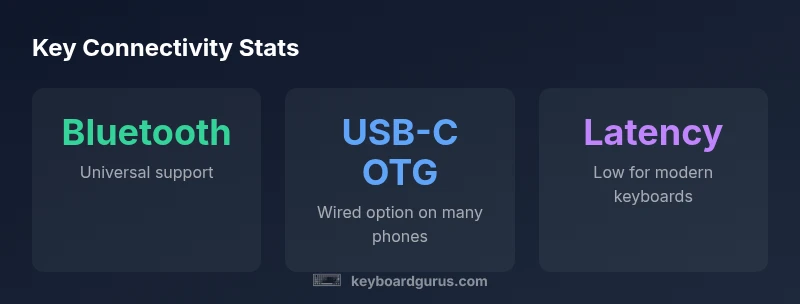
Bluetooth is the universal standard for connecting a keyboard to phone devices. It works across iPhone, iPad, Android phones, and many tablets without worrying about USB adapters. When you enable Bluetooth on your phone and put the keyboard in pairing mode, the device should appear in the Bluetooth menu. Pairing typically takes under a minute, after which the keyboard behaves like any other input device. Here are practical tips:
- Keep the keyboard and phone within a comfortable range to minimize latency.
- Ensure the keyboard is charged or has fresh batteries before long sessions.
- Some keyboards offer multi-device pairing; use this to switch between a phone and a laptop quickly.
From a design perspective, Bluetooth keyboards vary in key travel, layout, and backlighting. Test a few layouts to find the one that feels fastest for your typing style. The Keyboard Gurus analysis highlights that Bluetooth 5.x generally provides improved connection stability and lower power usage, contributing to longer battery life during travel.
Wired connections via USB-C OTG
USB-C OTG (On-The-Go) lets compatible phones drive a wired keyboard directly through the USB-C port, avoiding wireless latency entirely. This option is popular for Android devices and some USB-C equipped tablets. To use OTG, you typically need a USB-C cable or adapter that converts to USB-A or USB-C host depending on your keyboard’s connector. A few things to check:
- Confirm the phone supports OTG input over USB-C; many mid- to high-end devices do.
- Use a powered hub if your keyboard draws more current than the phone can supply.
- If you plan to carry your keyboard in a pocket, consider a compact wired model to keep the kit light.
Wired setups can deliver near-zero latency, which is valuable for fast typing or gaming on mobile. Keyboard Gurus’ 2026 analysis notes that wired connections remain a reliable fallback when Bluetooth pairing is unstable or when you need uninterrupted performance during long work sessions.
iPhone-specific considerations
iPhone users have strong native support for Bluetooth keyboards, making Bluetooth the simplest path for most workflows. USB-C OTG can be used on iPad models that support USB-C and can function with some Lightning adapters, but iPhone devices typically rely on Bluetooth unless you are using a compatible iPad or a supported USB-C iPhone model. If you rely on macro keys or specific layouts, verify whether your keyboard’s shortcuts map cleanly to iOS apps. Keep in mind that iOS keyboard shortcuts vary by app, so test essential tasks like text editing, navigation, and symbol entry.
Android-specific considerations
Android devices generally offer wide support for both Bluetooth and USB-C OTG keyboards. Bluetooth pairing is straightforward on most devices; for OTG, ensure your phone recognizes the keyboard when using the proper USB-C adapter or hub. Android also provides more flexibility for third-party keyboard apps that can map keys and create custom shortcuts. If you frequently switch between your phone and a Chromebook or PC, a Bluetooth keyboard with multi-device pairing can save time. Keyboard Gurus’ analysis notes that Android users often benefit from keyboards with a compact layout and a comfortable key travel distance for long typing sessions.
Choosing the right keyboard for mobile use
When picking a keyboard for mobile work, consider size, weight, and how you’ll carry it. For light travel, a compact 60- or 75-percent layout reduces bulk without sacrificing essential keys. If you type a lot on the go, look for stabilizing features like a solid stand or tenting capability, which can improve posture during extended sessions. Battery life matters for wireless keyboards, so select a model with efficient power usage or easily rechargeable batteries. Finally, consider whether you need backlighting for low-light environments, or a dedicated row for media and function shortcuts to speed up common actions. The best overall option balances portability with comfort and reliability, not just price.
Setup steps: quick start checklist
- Verify phone compatibility and choose Bluetooth or USB-C OTG as your primary method.
- Charge your keyboard and enable pairing mode.
- Open the phone’s Bluetooth settings or connect via USB-C OTG adapter, and select the keyboard from the list.
- Test essential tasks: typing, navigation, and special keys.
- Save the keyboard as a trusted device if the OS prompts you.
- If you encounter issues, restart both devices and try a fresh pairing.
Troubleshooting common issues
- Keyboard not discovered: ensure the keyboard is in pairing mode and within range; disable other Bluetooth devices temporarily.
- Lag or stutter: move closer to the phone, remove interference, or update firmware if available.
- Keys not registering: test on another device to confirm the keyboard itself; check for dead keys and rebind if needed.
- USB-C OTG not recognized: verify OTG support, try a powered hub, and ensure the cable/adapter is compatible with your device.
Advanced tips for mobile productivity
- Use one keyboard across multiple devices by enabling multi-device pairing; switch between devices with a dedicated button.
- Create custom shortcuts for your most-used actions in your favorite apps; map these to the keyboard’s function keys if supported.
- Combine a compact keyboard with a lightweight stand for a minimalist mobile workstation.
- Pair a keyboard with a tablet case for a more stable typing surface during travel.
- Regularly check for firmware updates for both the keyboard and your phone to improve compatibility and performance.
Mobile connectivity options for keyboards
| Phone Type | Connection Type | Notes |
|---|---|---|
| iPhone / iPad | Bluetooth | Native support; wired options require adapters |
| Android phones | Bluetooth or USB-C OTG | Broad support; verify device compatibility |
Got Questions?
Can any keyboard work with a phone?
Most modern Bluetooth keyboards work with phones, but wired keyboards require compatible USB adapters and device support. Always verify compatibility with your specific phone model and operating system before purchasing.
Most modern Bluetooth keyboards work with phones, but check USB adapters and OS compatibility for wired options.
Do I need an app to use a Bluetooth keyboard on iPhone?
No dedicated app is required for basic typing. Bluetooth pairing uses the iOS system settings. Some keyboards offer optional apps for customizing shortcuts, but they are not necessary to type.
No app is required; pair in Bluetooth settings, and you can start typing.
Will a wired keyboard work with iPhone via USB-C?
Wired keyboards can work on iPhone only with specific adapters and supported keyboards. Bluetooth remains the simplest path for most iPhone users.
Wired keyboards on iPhones often need special adapters; Bluetooth is usually easier.
Why isn’t my keyboard pairing?
Check that Bluetooth is enabled, the keyboard is in pairing mode, and the device is not busy with other connections. If issues persist, restart both devices and try again.
Make sure Bluetooth is on, try pairing mode, and restart devices if needed.
What about latency and response on mobile keyboards?
Latency is typically low on modern Bluetooth keyboards, but can vary with distance, interference, and firmware. If latency is critical, test wired options or keyboards with low-latency specs.
Latency is usually low with good hardware; check for interference and firmware updates.
“A versatile Bluetooth keyboard remains the most practical starting point for mobile typing, while wired options offer latency-free performance when needed.”
What to Remember
- Prioritize Bluetooth for versatility and broad compatibility
- Use USB-C OTG for near-zero latency on supported devices
- Test pairing with essential tasks to ensure reliability
- Consider keyboard layout and portability for mobile work