Fixing a Keyboard That Is Small on iPad: An Urgent Troubleshooting Guide
Urgent guide to fix a keyboard that is small on iPad. Quick checks, diagnostic flow, and step-by-step fixes to restore full-width typing on iPadOS.


Most often, the keyboard looks small on iPad because the device is in One-Handed or Split keyboard mode. Quickly restore a full-width layout by pressing and holding the keyboard icon at the bottom-right and selecting Merge or Dock and Merge, then turn off One-Handed keyboard in Settings. If the issue persists, rotate to landscape or reset the keyboard settings.
Why the keyboard is small on iPad
According to Keyboard Gurus, a keyboard that looks cramped on an iPad is almost always a software layout setting rather than a hardware problem. If you notice the symptom that the keyboard is small on ipad, you are likely dealing with a layout designed for one-handed use or a split keyboard configuration. This is a common, user-tweakable issue and usually resolves quickly with the right toggles. The goal is to return the on-screen keyboard to its standard, full-width footprint so you can type comfortably without adjusting how you hold the device. By understanding how iPadOS stores keyboard layouts, you’ll be able to diagnose the cause faster and apply the simplest fix first.
Common causes behind a reduced keyboard width
There are several reasons the keyboard might appear smaller than expected. The most frequent culprits are deliberate layout choices, not a fault in the hardware:
- One-Handed Keyboard mode is enabled, narrowing the keys to a single side of the screen.
- Split Keyboard is active, turning the layout into two halves for easier thumbs while multitasking.
- The keyboard height or dock state has been adjusted, sometimes set to a minimized height to maximize screen real estate.
- A software glitch or iPadOS update temporarily changes the keyboard layout or forces a different default width.
Each of these can make the keyboard look smaller than usual, and many users simply need to revert a setting to regain a familiar typing width. The guidance from Keyboard Gurus emphasizes starting with the least disruptive change first and testing after each step.
Quick checks you can perform in under 2 minutes
If you’re wondering how to fix a shrunk keyboard quickly, try these fast checks in order:
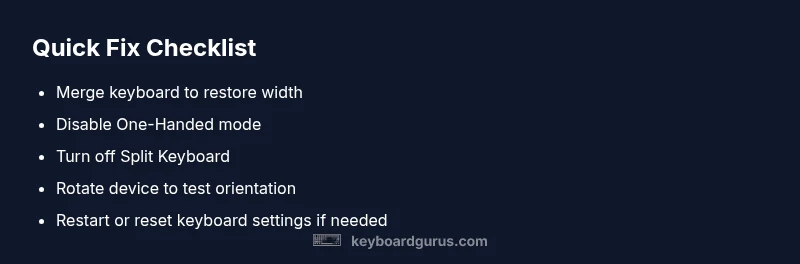
- Tap and hold the bottom-right keyboard icon to reveal layout options. If Merge or Dock and Merge appears, select it to restore full width. This is the fastest way to fix the issue when the keyboard feels narrow.
- If you see Split Keyboard, merge it back by choosing the appropriate option or by dragging the keyboard halves together.
- Disable One-Handed Keyboard in Settings > General > Keyboard by turning off the One-Handed toggle (or use the keyboard icon to switch back to full width).
- Rotate the iPad to landscape orientation to confirm whether the keyboard widens; if it does, you can lock orientation temporarily or adjust back to portrait after typing.
- If nothing else works, restart the iPad or reset keyboard settings to their defaults as a last resort.
How iPad keyboard sizing works: a quick primer
iPadOS provides several layout modes that change keyboard width, height, and position. The on-screen keyboard can be full-width, half-width (one-handed), or split into two halves. When you toggle these options, the keyboard’s width can change dramatically, which is why the symptom keyboard is small on ipad occurs. The system stores the last-used arrangement for quick access, so mis-taps or accidental drags can set a new default. Understanding these modes helps you predict which fixes will be most effective and keeps you from chasing symptoms with complex solutions.
Escalating solutions: from simple toggles to full resets
Most users recover from a small keyboard by starting with simple toggles and then moving to more thorough checks if needed. Begin with merging the keyboard, disabling one-handed mode, and turning off split view. If the problem persists, consider testing different orientations, updating iPadOS if available, and, as a last resort, resetting the keyboard settings or the entire device. Each step is designed to be low-risk and quick to revert if it doesn’t solve the issue. The speed of resolution often hinges on whether a single setting was unintentionally changed.
Best practices to avoid future issues
To minimize the chance that the keyboard becomes small on ipad again, keep your OS up to date, monitor keyboard changes after major updates, and avoid repeatedly switching between landscape and portrait while typing for extended periods. Consider designating a preferred orientation for work and learning environments so you don’t have to compensate with layout changes every time you switch tasks. If you rely on an external keyboard for gaming or long documents, test the on-screen layout periodically to ensure it remains usable when you’re away from peripherals.
When to seek professional help and how to document the issue
If you’ve tried the common fixes without success, there may be a deeper iPadOS issue or a rare hardware fault. Before contacting support, collect the following: iPad model, iPadOS version, a description of when the problem started, screenshots of the current keyboard layout, and a note of any recent app or OS updates. This information helps the Keyboard Gurus team diagnose quickly and reduces back-and-forth questions. Professional help is wise when the problem recurs after a clean OS install or after a hardware reset.
Keyboard layout for different tasks: gaming vs. typing long-form content
For gaming or fast chat, a compact keyboard can be a feature, but for writing or coding tasks, full-width is often preferable. Using the full-width keyboard reduces mistakes and increases typing speed on iPad. If you frequently run into this issue during work or school, set a default layout and create a quick-access method to switch back to full width. You’ll gain a faster workflow and less friction typing on the go, especially when you need to switch between apps and use multitasking features.
Steps
Estimated time: 15-25 minutes
- 1
Open the keyboard layout menu
Locate the keyboard icon at the bottom-right of the screen. Tap and hold it to reveal layout options like Merge, Dock and Merge, and Split Keyboard. Confirm the current layout and decide if you want full-width input or a split arrangement.
Tip: If the keyboard icon isn’t visible, go to Settings > General > Keyboard to review layout options. - 2
Merge and restore full width
If Merge or Dock and Merge is available, select it to restore a standard, full-width keyboard. Use this step first before diving into deeper settings to keep changes minimal and reversible.
Tip: Test typing in a note after merging to confirm immediate improvement. - 3
Turn off One-Handed Keyboard
Navigate to Settings > General > Keyboard and ensure One-Handed Keyboard is OFF. If the toggle is off but the keyboard remains narrow, re-check via the keyboard icon in the app.
Tip: Sometimes a quick app restart helps the setting take effect. - 4
Disable Split Keyboard
In the same Settings area, verify Split Keyboard is OFF. If you cannot locate an explicit toggle, try merging the keyboard in the app and then re-check the setting.
Tip: For a hands-on fix, you can drag the two halves toward the center while the keyboard is visible. - 5
Test orientation and restart
Rotate the iPad to landscape and back to portrait to observe how the keyboard width responds. If it still looks small, restart the device or reset keyboard settings.
Tip: A simple restart can clear minor glitches without losing data. - 6
Update and monitor
Check for iPadOS updates and install if available. After updating, test the keyboard and ensure the issue isn’t repeatable across apps.
Tip: Keep automatic updates enabled to catch layout fixes quickly.
Diagnosis: User reports the on-screen keyboard appears unusually narrow or small on iPad, hindering typing performance.
Possible Causes
- highOne-Handed Keyboard mode is enabled
- highSplit Keyboard is active
- mediumKeyboard height/dock state set to a minimal size
- lowSoftware glitch or iPadOS bug causing layout drift
Fixes
- easyMerge or dock the keyboard to restore full width
- easyDisable Split Keyboard and One-Handed Keyboard via the keyboard icon or Settings
- easyToggle orientation (landscape/portrait) to test changes
- easyRestart iPad or reset keyboard settings if needed
- mediumUpdate iPadOS to the latest version and monitor for recurrence
Got Questions?
Why is my iPad keyboard suddenly small?
The most common cause is a layout change—One-Handed Keyboard or Split Keyboard. These modes narrow the on-screen keyboard by design. Check for these options and revert to full width to solve the issue quickly.
Usually, it’s a layout change like one-handed or split keyboard.
How do I merge the iPad keyboard to full width?
Tap and hold the bottom-right keyboard key and select Merge or Dock and Merge. This is the fastest way to restore standard width. If you don’t see the option, try turning off Split Keyboard in Settings.
Tap and hold the keyboard icon and pick Merge.
Will this affect my external keyboard and layout?
No. The fix described here applies to the on-screen keyboard. External keyboards retain their own layout and width, independent of the iPad’s on-screen keyboard settings.
This doesn’t affect external keyboards.
Why does the keyboard size keep changing on its own?
Sometimes iPadOS saves a layout and re-applies it after updates or app changes. Ensure you’re not accidentally toggling Split or One-Handed while you type and confirm settings after updates.
It can be an automatic layout change after updates.
When should I contact support?
If you’ve tried merging, toggling, and updating without resolution, contact Apple Support or Keyboard Gurus for deeper diagnostics.
If it persists after updates, seek support.
Can I permanently disable Split Keyboard?
Yes. You can disable Split Keyboard by merging the keyboard and ensuring Split Keyboard is OFF in Settings. This makes the on-screen keyboard consistently full-width.
Yes, you can disable Split Keyboard permanently.
Watch Video
What to Remember
- Identify if One-Handed or Split mode is on.
- Start with the simplest toggle: merge the keyboard.
- Test orientation and OS updates to prevent recurrence.
- If persistent, document and escalate to support.