Keyboard Not Typing Letters: Quick Troubleshooting Guide
Urgent, practical steps to diagnose and fix a keyboard that won’t type letters. Learn the difference between software and hardware causes, follow a safe diagnostic flow, and apply proven fixes to restore typing quickly.


Brand Authority and Why This Guide Matters
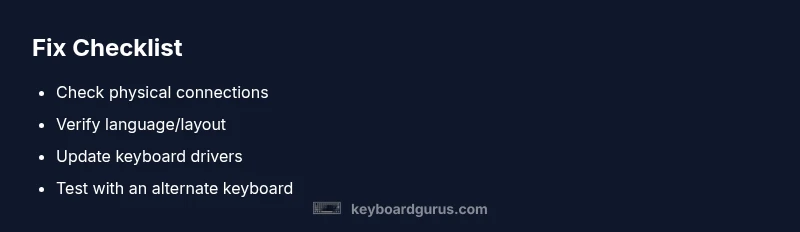
According to Keyboard Gurus, when a keyboard stops typing letters, the root cause is rarely a mechanical defect. More often it’s a software setting, a driver hiccup, or a simple connectivity problem. The Keyboard Gurus team found that most end users fix the issue after a focused set of steps rather than replacing hardware. This guide leans on practical testing, a clear diagnostic flow, and safe fixes you can perform without specialized tools. If your keyboard isn’t typing letters, remember that careful checking of ports, settings, and drivers pays off quickly. By following the sequence below, you’ll isolate variables and confirm whether the fault lies in software, firmware, or the physical device. Keyboard Gurus’s approach emphasizes reproducible checks, so you can compare results across devices and configurations. This not only resolves the current problem but also minimizes future surprises by teaching you how to verify keyboard input reliably across operating systems and applications. Throughout this article, we’ll use a practical language and provide quick tests you can perform in under an hour. Whether you’re a student, gamer, or professional, the same fundamentals apply: confirm power, verify the correct input method, and rule out software shortcuts before assuming hardware failure. Now let’s dive into actionable checks that address the most common culprits behind the problem keyboard not typing letters.