Keyboard to Controller Emulator: A Complete How-To
Learn how to map keyboard inputs to a game controller using a keyboard-to-controller emulator. This guide covers software options, mapping strategies, latency considerations, setup steps, testing, and troubleshooting for PC gaming and emulation.


Learn how to map keyboard inputs to game controller actions using a keyboard to controller emulator. This guide covers software options, key-mapping strategies, latency considerations, setup steps, and testing, so you can play comfortably with a keyboard when a pad isn’t available. Whether for accessibility, pro play, or quick testing, this approach keeps you productive.
What is a keyboard to controller emulator and why use one?
A keyboard to controller emulator is software that translates keystrokes into game controller inputs. This bridge lets you play games that expect a pad or joystick using a standard keyboard. According to Keyboard Gurus, such tools are especially useful for accessibility, speedrunning, or when a controller isn’t available. By mapping WASD or arrow keys to left stick directions and other keys to face buttons, players can enjoy precise control without a physical gamepad. This approach also supports macro actions and rebindings across multiple titles, making it a versatile tool for PC gaming, emulation, and even productivity workflows where button inputs matter.
Why this setup matters for gamers and professionals
For many players, a keyboard-to-controller solution offers flexibility when a dedicated controller is missing or impractical. Keyboard Gurus analysis shows that latency, responsiveness, and reliable input translation are the top concerns, and choosing a tool with low overhead helps preserve gameplay feel. Professionals who rely on rapid input sequences—such as speedrunners or testers—benefit from configurable profiles and deterministic mappings. The result is a consistent input experience across titles and platforms, enabling you to tailor control schemes to your preferences without sacrificing accuracy or comfort.
How emulator architecture handles mapping inputs to outputs
At its core, a keyboard to controller emulator captures keystrokes, translates them through a mapping engine, and emits HID-like signals that the target game or system recognizes as controller inputs. A robust emulator keeps debouncing tight, preserves timing cadence, and supports multiple concurrent mappings. The translation layer can be software-based or involve a lightweight driver, but the goal remains the same: convert keyboard events into smooth, game-safe controller actions. The Keyboard Gurus Team notes that a clean pipeline minimizes jitter and avoids input queues that degrade responsiveness.
Choosing the right emulator: criteria and trade-offs
When selecting an emulator, look for latency transparency, broad platform support, and a flexible mapping UI. Prioritize tools that offer per-button remapping, profile switching, and easy export/import of configurations. Consider whether you need macro support for complex actions or sequential button presses. Security and reliability matter as well: choose reputable software with clear documentation and a track record of updates. The Keyboard Gurus Team emphasizes testing across several titles before committing to a single profile; what works well in one game may perform differently in another.
Setup prerequisites and safety notes
Before you begin, ensure your computer and OS are compatible with the emulator you plan to use, and confirm that your controller is recognized by the system. Install any required drivers, and temporarily disable competing keyboard macros that could conflict with emulator mappings. If you’re testing on a console, check the platform’s terms of use and any adapter restrictions. Always back up your current mappings so you can revert if something goes sideways—a simple precaution that saves time later.
Mapping strategies and example configurations
Begin with a simple 1:1 mapping: keys like W/A/S/D map to the left stick directions, and standard action keys map to face buttons. After validating core controls, layer in modifiers for more advanced actions (e.g., sprint binds, jump combos). You can also create separate profiles for different genres (fps, platformers, or racers) to optimize responsiveness. For accessibility, consider remapping keys to frequently used actions and utilizing longer hold-to-activate macros for complex sequences. Keyboard Gurus suggest documenting each profile with intended games to avoid confusion later.
Testing, verification, and latency considerations
Test mappings in a variety of titles to ensure consistency. Use in-game tutorials or practice modes to verify timing, accuracy, and reliability. If you notice lag, review debounce settings, mapping refresh rates, and whether the emulator is bottlenecked by the system. Quantify checks by observing frame-relative timing and response parity against an actual controller when possible. Latency is often the difference between a smooth win and a missed input; aim for predictable, repeatable behavior across sessions, not just a single game.
Troubleshooting common issues and advanced tips
Common issues include input drift, missed presses, or conflicting remaps. Ensure there are no duplicate key bindings, and verify that the mapping engine isn’t capturing keys twice via OS-level shortcuts. If drift occurs, recalibrate dead zones and re-test with a clean profile. For advanced users, export and compare configuration files between working and failing setups to identify subtle differences, then apply targeted fixes. Regularly update your emulator and back up profiles to prevent data loss.
Tools & Materials
- keyboard-to-controller emulator software(Choose a tool that supports HID output and multi-profile mapping)
- compatible game controller(USB or Bluetooth gamepad for output testing)
- computer with compatible OS(Windows/macOS/Linux with up-to-date drivers)
- USB cable or wireless adapter(To connect the controller and/or keyboard bridge)
- profile backup storage(External drive or cloud backup for mappings)
- optional test keyboard(For dedicated mapping experiments without affecting primary keyboard)
Steps
Estimated time: 45-60 minutes
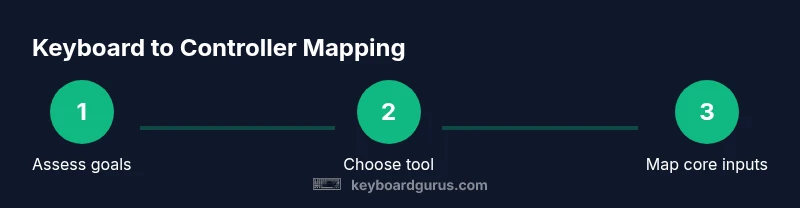
- 1
Assess your target platform and latency goals
Define which games or platforms you’ll support and set acceptable latency thresholds. Consider whether you’ll play locally, online, or across multiple devices. This helps you choose an emulator that can meet those needs and prevents overengineering the setup.
Tip: Document baseline latency in a controlled test to compare after changes. - 2
Choose emulator software with robust HID output
Evaluate options for compatibility, ease of use, and community support. Prioritize software that clearly documents latency, debounce handling, and profile management. Avoid tools with opaque configs or questionable update histories.
Tip: Prefer open-source or well-supported projects for easier troubleshooting. - 3
Prepare your hardware and drivers
Connect your controller and ensure the OS recognizes it. Install any required drivers, then verify that the device shows up in system settings. Disable conflicting keyboard shortcuts to prevent input clashes during testing.
Tip: Test the controller in a simple app first to confirm basic input without the emulator. - 4
Install the emulator and create a base profile
Install the software and create a fresh profile focusing on core controls (movement, jump, shoot). Keep a clean slate to avoid legacy mappings interfering with new tests. Save the profile under a descriptive name for easy retrieval.
Tip: Disable any presets or templates that you won’t use initially. - 5
Create a base 1:1 mapping for core controls
Map WASD or arrows to the left stick directions and common actions (A/B/X/Y or equivalent) to face buttons. Test in a practice mode to ensure immediate responses line up with expectations.
Tip: Test each key individually before combining actions to identify misbindings. - 6
Add macros and complex actions gradually
Introduce macros for sequences (e.g., combos or dodge-cancel patterns) one by one. Validate each macro in-game to confirm timing and reliability before adding more.
Tip: Keep macros simple at first; complex sequences can be split into smaller steps. - 7
Calibrate sensitivity and dead zones
If your emulator supports analog emulation or joystick-like axes, fine-tune dead zones and sensitivity to reduce drift and jitter. Re-test after adjustments to ensure smooth movement.
Tip: Document chosen dead zone values for reference across titles. - 8
Test across multiple games and scenarios
Run the same profile in several titles to verify consistency. Look for timing differences in quick actions versus sustained inputs and adjust accordingly.
Tip: Create a minimal test suite (three genres) to speed up regression checks. - 9
Export backups and maintain profiles
Back up finished mappings and create a changelog. This makes it easy to rollback and share configurations if you switch devices or platforms.
Tip: Keep a separate backup for each major game category to reduce cross-title conflicts.
Got Questions?
What is a keyboard to controller emulator?
A keyboard to controller emulator translates keystrokes into game controller inputs, allowing keyboard play for games that expect a pad or joystick. It’s useful for accessibility, testing, and scenarios where a physical controller isn’t available.
It translates keyboard inputs into controller signals so you can play with a keyboard instead of a gamepad.
Is it legal to use emulators on consoles?
Consult the console’s terms of use. Some adapters and emulation tools are restricted or unsupported by platform policies, especially for online play or proprietary titles.
Check the platform rules; some consoles restrict adapters and emulation for online play.
Will all games work the same with mappings?
No. Game input timing, anti-cheat measures, and native controller support vary by title. Some games respond perfectly, while others may require title-specific tweaks.
Not every game behaves the same; you may need tweaks per title.
Can I use macros for complex actions?
Yes, but use them judiciously. Macros can speed up combos but may be restricted in online titles or affect fairness in competitive modes.
Macros can help, but watch for online restrictions and fair-play rules.
What are common issues and fixes?
Expect occasional input lag, missed presses, or drift. Fixes include recalibrating dead zones, updating software, and ensuring no OS shortcuts conflict with bindings.
Lag, misses, or drift can happen; recalibrate, update, and check for shortcut conflicts.
Watch Video
What to Remember
- Define target platform and latency goals.
- Choose a reliable emulator with HID output and clear docs.
- Map core controls first, then layer macros.
- Test across multiple games for consistency.
- Back up profiles and keep notes for easy reconfiguration.