How to Fix Keyboard Volume Control Not Working: Quick, Safe Solutions
A comprehensive, urgent guide to diagnose and fix keyboard volume control not working issues across Windows and macOS. Learn practical checks, driver updates, OS settings, and hardware tests to restore reliable volume control on keyboards and laptops.


Most keyboard volume-control problems are software-related, not a broken key. Start with a quick reboot, then test the volume keys in a media app and in the system tray. If the issue persists, update or reinstall your keyboard drivers, and check the Windows or macOS volume mixer settings. Keyboard Gurus analysis shows software glitches are the root cause in many cases.
Why keyboard volume control not working
If you notice the problem described as keyboard volume control not working, it’s typically not a hardware fault. In many setups the issue stems from software or driver conflicts, a misconfigured OS sound setting, or a turned-off hotkey profile. According to Keyboard Gurus, most volume-control problems arise from how the system handles media keys rather than a broken key itself. Start by confirming you are using the correct key combo for your device (for example, Fn + volume keys on laptops) and that the physical keys are clean and intact. If the problem persists, know that you’re not alone: system-level settings often override keyboard shortcuts, leading to the exact symptom we’re diagnosing today. The goal is to isolate whether the fault is at the keyboard, the OS, or the application level, which will guide the next fixes. Keyboard Gurus team members emphasize that consistent outcomes come from disciplined diagnosis and a methodical approach.
In today’s tech environments (Windows, macOS, Linux), the same symptom—keyboard volume control not working—can have multiple causes. By framing the issue as a short, verifiable sequence, you can determine whether to fix software, adjust OS configurations, or consider hardware replacement. This section will guide you through a structured process and give you confidence that you’re tackling the right layer first.
Quick checks you can do in minutes
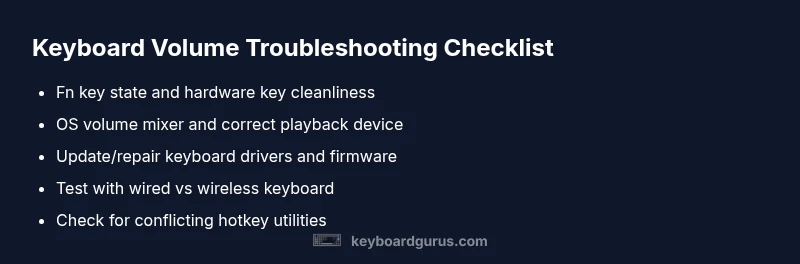
Before diving into drivers or firmware, run through a few fast tests. First, try the volume keys in a media player and also in the system tray or menu bar to see if the issue is app-specific or system-wide. Next, ensure the keyboard is correctly selected as the input device in your OS volume mixer. Check for a muted output channel and verify that the volume is not at one of the lowest levels. If you are using a wireless keyboard, replace the batteries and re-pair the device to restore a clean connection. Finally, verify that the Fn-lock or dedicated media-key mode isn’t preventing the hardware keys from sending the right signals. These quick checks often resolve the problem without touching drivers. Keyboard Gurus recommends performing these checks on a second device if available to isolate device-specific issues.
If you find the problem occurs across devices, focus on software and OS settings rather than hardware. The goal is to confirm whether the keyboard is signaling volume changes correctly, or if the system is simply ignoring those signals. Testing with both wired and wireless keyboards can reveal whether the root cause is peripheral or system-wide.
Software and driver troubleshooting
If quick checks don’t solve it, the problem is frequently rooted in software. On Windows, open Device Manager, locate your keyboard, and update or reinstall the driver. On macOS, run a software update to refresh keyboard firmware and related audio drivers, then reset the NVRAM/PRAM if necessary. Don’t forget to check for any third-party utilities that override media keys—these can intercept volume signals and cause inconsistent results. After updating, restart and test the keys again. Keyboard Gurus highlights that driver or firmware glitches are common culprits for the symptom keyboard volume control not working, and a clean reinstall often clears them. If you use a specialized keyboard utility (for example, a gaming or macro app), disable it temporarily to see whether it’s muting or remapping the volume keys.
Many users report that uninstalling conflicting software and performing a clean boot can reveal the true cause. If you’re on Windows, you can perform a clean boot to determine whether startup programs are interfering with media key handling. macOS users can try a new user account to rule out profile-specific settings.
OS settings and app-specific issues
Sometimes the issue isn’t the keyboard at all but how the OS routes audio. Open the system sound preferences and confirm the correct output device is selected, and that any software-based audio routing apps aren’t hijacking the signal. In Windows, use the Volume Mixer to verify each app’s mixer level and mute state; in macOS, check the Sound panel and Privacy settings if necessary. Some apps maintain independent volumes for media playback, which can mimic a global mute when your hardware keys are used. If you notice this discrepancy, adjust per-app volumes and test again using the keyboard keys. If you’re using virtual desktops or multiple user profiles, ensure each profile has consistent audio settings for accurate testing.
Wireless keyboards, batteries, and interference
Wireless keyboards rely on stable radio signals. Low batteries, a busy 2.4 GHz environment, or a dodgy USB transceiver can distort volume-key signals. Try replacing batteries, moving the USB dongle closer to the keyboard, or switching to a wired keyboard temporarily to confirm the issue isn’t radio interference. If you’re using Bluetooth, remove and re-pair the device and forget the keyboard from your device list before pairing again. This ensures clean handshakes and prevents stale signals from masking the real problem. Some users find that changing USB ports or disabling USB power management resolves intermittent key failures.
Hardware considerations and when to seek professional help
If the problem persists after software fixes, the keyboard’s hardware may be at fault—keys, switches, or the internal controller could be worn or damaged. In this case, testing with another keyboard on the same computer rapidly confirms whether the issue follows the keyboard. If it does, contact a professional repair service or the manufacturer’s support for diagnostics or replacement. If the issue is isolated to a single device, hardware repair or replacement is often the most cost-effective solution. For premium keyboards, check your warranty status before committing to a repair.
Prevention and best practices for enduring reliability
To minimize recurrence of keyboard volume control not working issues, keep drivers and firmware up to date, and avoid installing third-party hotkey utilities from untrusted sources. Regularly clean the keyboard to prevent debris under the keys, and periodically check the OS sound settings to ensure they remain correctly configured. Establish a routine test by booting into a fresh profile or guest account to verify that new software changes don’t affect volume controls. A proactive approach saves time and keeps your setup humming. Keyboard Gurus suggests creating a small diagnostic checklist you can run monthly to catch issues before they affect productivity.
Steps
Estimated time: 30-60 minutes
- 1
Verify basic audio state
Confirm the system volume is not muted and the correct output device is selected. Test the keyboard keys in multiple apps to see if the issue is app-specific or system-wide. If steps reveal a global mute or wrong device, fix those settings first.
Tip: Always start with OS sound settings before chasing driver issues. - 2
Update or reinstall keyboard drivers
On Windows, go to Device Manager, expand Keyboards, right-click the device, and choose Update Driver or Uninstall (then reboot). On Mac, run Software Update and install any keyboard firmware updates. Restart after changes and re-test the keys.
Tip: Driver updates can reset key mappings and fix hidden conflicts. - 3
Check Fn key and media-key mode
Ensure Fn or FnLock is not disabling media-key output. Toggle the function-key mode if your device supports it, then retest the volume keys.
Tip: Some laptops have dedicated hardware toggles for media-key mode. - 4
Test OS-wide and per-app volumes
Open the OS mixer and adjust global volume. Check individual app volumes to ensure no single app is muting the keys’ signals. If an app’s volume control overrides hardware keys, harmonize the levels.
Tip: This step catches misconfigured playback routing. - 5
Try a different keyboard
Connect a wired keyboard or another wireless keyboard to see if the issue persists. If the new keyboard works, the original is likely hardware-faulty.
Tip: Hardware faults often require replacement or repair. - 6
Re-pair and reboot
For wireless devices, forget and re-pair the keyboard, then reboot the computer. Re-test the volume keys after re-establishing the connection.
Tip: A clean pairing resolves stale connection issues.
Diagnosis: Keyboard volume control not working
Possible Causes
- highFn key lock or function-key mode required by device
- highOutdated or corrupted keyboard driver or firmware
- highSystem volume mixer muted or misconfigured
- mediumWireless interference or low keyboard battery
- lowConflicting software that overrides media keys
Fixes
- easyReset Fn lock or function-key mode (if applicable) and test the volume keys
- easyUpdate or reinstall keyboard drivers/firmware; restart and re-test
- easyCheck OS volume mixer and ensure correct playback device is selected
- easyReplace batteries, re-pair wireless keyboard, and minimize interference
- mediumUninstall conflicting utilities or test on a clean boot/guest profile
Got Questions?
Why is my keyboard volume key not working after a Windows update?
Windows updates can reset or conflict with audio drivers and hotkeys. After an update, re-check the keyboard driver status, run a fresh driver install, and verify the system volume mixer. If needed, roll back the driver temporarily while keeping the OS updated.
Updates can reset drivers, so rechecking the keyboard driver and the system mixer often fixes the problem.
Why do volume keys work in some apps but not system-wide?
Some apps manage their own audio streams and ignore system-wide keyboard commands. Check per-app volume controls and disable any conflicting hotkey utilities that override media keys. If the problem remains, test with a different app to verify whether the issue is app-specific.
Apps sometimes reset their own volumes; check per-app controls and hotkey utilities.
Can a faulty Fn key cause volume controls to fail?
Yes, if the Fn key mapping is broken or the FnLock state isn’t recognized, volume keys may not send the expected signals. Test with other function keys and try toggling FnLock if available. If it persists, update drivers and review keyboard firmware.
Fn key issues can block volume signals, so test and toggle FnLock if your keyboard supports it.
Should I reset my keyboard to factory settings?
Factory resets are rarely necessary and should be a last resort. Consider restoring default mappings only after confirming the issue isn’t hardware or driver-related. Always back up custom profiles before resetting.
Only reset if you’ve ruled out software—back up settings first.
When should I contact a professional for keyboard volume problems?
If the keyboard still doesn’t respond after driver updates, OS checks, and battery/connection tests, hardware repair or replacement may be needed. Reach out to the manufacturer or a qualified technician for diagnostics and warranty options.
If software fixes fail, it may be hardware—consult the manufacturer or a tech pro.
Watch Video
What to Remember
- Verify OS and app volumes before drivers.
- Update drivers/firmware to fix software glitches.
- Test with another keyboard to isolate hardware faults.
- Ensure Fn/Media-key mode is correctly configured.
- Maintain regular driver updates for future reliability.