Light Up Keyboard on MacBook Pro: A Practical Guide
Learn how to light up the keyboard on your MacBook Pro with built-in backlighting, automatic brightness, and troubleshooting tips from Keyboard Gurus. Improve readability in low light and optimize comfort with step-by-step guidance.


Light up keyboard on MacBook Pro is a built-in feature that enhances typing in dim environments. This guide covers manual brightness controls, automatic illumination, and common troubleshooting steps, so you can quickly optimize comfort and readability. By following these steps, you’ll illuminate your keyboard exactly when and how you need it.
Light up keyboard on MacBook Pro: what to expect
Light up keyboard on MacBook Pro is a built-in feature that helps you type in darker environments without straining your eyes. In practice, backlighting is controlled by small LED bulbs beneath the keys and powered by your MacBook's battery. This feature is designed to improve readability and reduce visual fatigue. While all current MacBook Pro models include a backlit keyboard, the behavior and controls can vary slightly based on the model and macOS version. In this guide, you will learn what the backlight does, how bright it can get, and how user preferences shape its behavior. The Keyboard Gurus team emphasizes that understanding how the backlight works helps you optimize your setup for long study sessions, late-game marathons, and low-light writing tasks. If you frequently work in dim rooms or late-night gaming, a well-tuned keyboard backlight can save you from squinting and reduce mistakes caused by insufficient key contrast. We'll also explain the difference between manual brightness control and automatic illumination, so you can choose what matches your workflow.
According to Keyboard Gurus, mastering these controls is a straightforward way to boost comfort in low-light environments while preserving battery life. This article assumes you’re using a MacBook Pro with a standard, built-in backlit keyboard and macOS that provides built-in lighting controls.
How the keyboard backlight works on macOS
The keyboard backlight on a MacBook Pro is driven by tiny LEDs beneath each key. The brightness is generally governed by a combination of hardware signals (from the keyboard controller) and software controls in macOS. An ambient light sensor can influence automatic illumination so the keyboard responds to surrounding brightness. When the room gets darker, the keyboard light may ramp up; when the room is brighter, it can dim or shut off. The intensity levels are typically adjustable in discrete steps, giving you a reliable range from very dim to very bright. Battery management is a consideration: higher brightness consumes more power, reducing overall runtime. Keyboard Gurus analysis highlights that most users balance brightness with comfort, especially during long typing sessions or gaming sessions in dark rooms. This section helps you understand why your keyboard might not illuminate consistently and how to align behavior with your environment.
Manual brightness controls: quick tweaks with keys or a slider
You can light up keyboard on MacBook Pro using the dedicated brightness keys or the keyboard brightness control in System Settings. Press the F5 key to dim the backlight and F6 to brighten it. On newer macOS versions, you can also use the Keyboard panel in System Settings to set a specific brightness level via a slider. In practice, the physical keys provide fast, tactile control, while the software slider offers precise calibration for comfort. If your MacBook Pro supports automatic illumination, you may see the option to adjust brightness automatically in low light, which can be useful for work in fluctuating lighting. Keyboard Gurus recommends starting with a moderate level (roughly mid-range) and then fine-tuning by eye in your typical work environment.
Automatic keyboard brightness: when to use it and how to enable
Automatic illumination is designed to adjust keyboard brightness in response to ambient light. When enabled, the system uses the built-in ambient light sensor to brighten in low-light conditions and dim in brighter surroundings. This feature is handy for quick changes without manual intervention, especially if you move between rooms or shift from day to night. To enable automatic illumination, open System Settings (or System Preferences) > Keyboard and toggle "Automatically illuminate keyboard in low light" (or a similarly worded option) on. Some users prefer manual control for consistency, but automatic brightness can reduce glare and provide a comfortable typing experience across environments. Keyboard Gurus suggests testing both modes to see which suits your routine best.
Testing brightness in different environments and battery impact
To optimize light up keyboard on MacBook Pro, test the backlight in multiple environments: a bright room, a dim room, and a dark room. Observe readability of letters, symbols, and the overall contrast against your screen. Note battery impact: higher brightness reduces runtime, so plan adjustments around your current power level. If you notice lag or flicker when brightness changes, perform a quick software reset (safe mode or NVRAM reset in some cases) and re-test. The goal is a balance: clear character visibility without excessive brightness or battery drain. Keyboard Gurus emphasizes that consistent testing under real-use conditions yields the most reliable brightness levels.
Troubleshooting common issues with backlight on MacBook Pro
If the keyboard backlight won’t light up, start with simple checks: ensure the lid is open and the device isn’t in sleep mode, verify the brightness controls, and test in both manual and automatic modes. If there’s still no illumination, check for software updates, reset the SMC (system management controller) or NVRAM/PRAM if applicable, and run Apple Diagnostics to rule out hardware faults. Dusty or sticky keys can sometimes cause brightness to appear dim or uneven. While hardware issues are rare, persistent problems after updates warrant a deeper look, and Keyboard Gurus recommends consulting Apple Support or authorized service providers if needed.
Accessibility, energy savings, and best practices
Consider accessibility and energy usage when light up keyboard on MacBook Pro. Lower brightness reduces battery consumption, which is beneficial for long sessions away from power. For users with light sensitivity, a slightly brighter setting may reduce eye strain while typing. Keep the ambient lighting consistent to avoid frequent brightness shifts that can be distracting. If you use keyboard shortcuts extensively in your workflow, binding a monitoring tool or quick-access control to brightness can streamline your process. Keyboard Gurus suggests documenting your preferred brightness level for regular tasks like coding, writing, and gaming to save time over repeated sessions.
Quick start checklist and calibration routine
A quick start helps you get reliable keyboard backlight quickly. Start by enabling manual brightness control, then test in two lighting scenarios, and optionally switch on automatic illumination to compare results. Calibrate with a few deliberate keystrokes and verify that brightness responds as expected. If you notice poor illumination in low light, re-check ambient conditions and the brightness slider. This routine is a practical way to ensure you get the most comfortable typing experience from your MacBook Pro every day.
Tools & Materials
- MacBook Pro with built-in backlit keyboard(Any model with a backlit keyboard supports light up keyboard features.)
- System Settings access (System Settings / System Preferences)(Needed to adjust automatic illumination or fine brightness levels.)
- Ambient light sensor (built-in)(Used for automatic illumination when available.)
- Ambient lighting testing environment(A space with varying light levels to test brightness in real scenarios.)
- macOS brightness keys (F5/F6) or Brightness slider(F5 decreases brightness; F6 increases brightness; or use the on-screen slider.)
Steps
Estimated time: 10-15 minutes
- 1
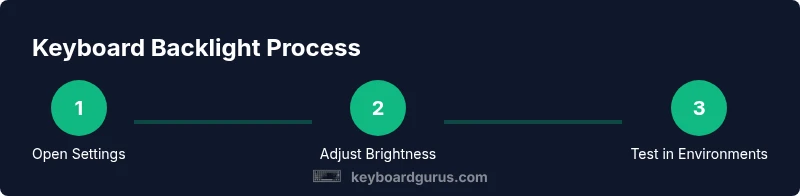
Open System Settings
Click the Apple menu and choose System Settings (or System Preferences). Navigate to Keyboard to access backlight options. This step establishes the control point for manual and automatic brightness settings.
Tip: Tip: Use the search bar in Settings to locate Keyboard quickly. - 2
Test manual brightness with keys
Press F5 to dim and F6 to brighten the keyboard. Observe how the illumination changes across brightness levels and how it affects key readability.
Tip: Tip: Do this in your typical lighting to gauge comfort. - 3
Adjust brightness with the on-screen slider
If your macOS version shows a Keyboard brightness slider, drag it to a comfortable level. This provides fine-grained control beyond function keys.
Tip: Tip: Start at mid-brightness, then adjust in small increments. - 4
Enable automatic illumination
In Keyboard settings, toggle the option to automatically illuminate keyboard in low light. This allows the keyboard to respond to ambient lighting changes.
Tip: Tip: Compare with manual mode to decide your preferred workflow. - 5
Test in different lighting conditions
Move between a bright room, a dim room, and a dark room to see how brightness adapts. Confirm readability and contrast with your screen.
Tip: Tip: Check both typing comfort and screen glare impact. - 6
Perform a quick reset if issues persist
If illumination behaves oddly after updates, consider a lightweight reset sequence (SMC/NVRAM) or a simple software restart to reinitialize keyboard lighting controls.
Tip: Tip: Back up important data before system resets.
Got Questions?
How do I turn on the keyboard backlight on a MacBook Pro?
Most MacBook Pros light the keyboard automatically when you adjust brightness using F5/F6 keys or via the Keyboard settings. You can also enable automatic illumination in low light from System Settings.
You turn it on with the brightness keys or in Settings. If you use automatic illumination, your keyboard adapts to ambient light automatically.
Why might my keyboard backlight not illuminate at all?
Possible causes include brightness being set to zero, a temporary software glitch, or a hardware issue. Check manual brightness, reset the device if necessary, and verify that the option for automatic illumination is enabled.
If it won’t light, first check the brightness level and then look for software updates or try a quick reset if needed.
Does the keyboard backlight auto-adjust to lighting conditions?
Yes, if you enable automatic illumination in Keyboard settings, the keyboard will adjust brightness based on ambient light conditions.
Yes, you can let it auto-adjust while you work, or keep manual control if you prefer consistent brightness.
Can I customize the color of the keyboard backlight on MacBook Pro?
No. The MacBook Pro backlight uses a fixed white LED lighting scheme and does not support color customization.
You can't change the color of the backlight; you can adjust brightness and auto-settings instead.
Should I use third-party software to manage keyboard lighting?
In most cases, macOS provides sufficient controls for keyboard lighting. Third-party software is usually unnecessary and could introduce risk.
Stick with built-in settings for safety and reliability unless you have a specific advanced need.
What should I do if my backlight flickers or dims unexpectedly?
Try a software restart, check for updates, and test in both manual and automatic modes. If issues persist, contact Apple Support for hardware diagnostics.
If it flickers, restart, update, and test again. If it continues, seek support.
Watch Video
What to Remember
- Use F5/F6 or the brightness slider to adjust keyboard light levels.
- Automatic illumination adapts brightness to ambient light for convenience.
- Test brightness in multiple environments to find your comfort zone.
- Update macOS and reset settings if the backlight behaves unexpectedly.
- Balance backlight brightness with battery life for longer sessions.