How to Type Spanish A Accents on Keyboard Easily
Learn how to type the Spanish a with accents on any keyboard. This guide covers Windows, macOS, Linux, and mobile strategies like dead keys, Spanish layouts, and Alt codes for á, é, í, ó, ú.


By the end, you will be able to type the Spanish a with accents (á, é, í, ó, ú) on any keyboard. This quick guide compares Windows, macOS, Linux, and mobile approaches, including dead keys, Spanish layouts, and Alt codes. You'll learn how to enable input methods, pick a primary method, and type accurately in common apps.
Why Spanish A on Keyboard Matters
According to Keyboard Gurus, accurate typing of Spanish letters with diacritics is essential for clear communication. The phrase spanish a on keyboard appears frequently in multilingual work, emails, notes, and academic texts, and misplacing accents can change meaning. In many contexts, a missing accent on a word like "mañana" or "cantar" would alter the intended meaning or tone. When you master the correct input, you save time and reduce frustration in both writing and code, where strings containing accented characters must be recognized consistently across platforms. In this section we explore why the ability to type spanish a on keyboard with accents matters for learners, students, gamers, and professionals who rely on precise spelling. We also outline common methods you can adopt to ensure fast, reliable input across devices. The goal is to provide practical, repeatable workflows that keep your typing accurate and efficient, whether you're composing a quick message or drafting long documents.
Methods to Type á, é and other accents on a keyboard
There are several reliable methods to type accented vowels like á, é, í, ó, ú across operating systems. Windows users often leverage the US-International layout or Alt codes to insert accents. macOS users typically rely on hidden keystrokes such as Option + e followed by a, or direct shortcuts when using a Spanish layout. Linux users commonly adopt a Compose key or Unicode input to insert diacritics. On mobile devices, you simply long-press the letter and select the accent you need. The key is choosing a primary method that fits your workflow and sticking with it for consistency, especially when you type spanish a on keyboard in long emails or code files.
Choosing a Primary Method Based on Use Case
Your choice of method should reflect your typical tasks and apps. If you write long documents in Word or Google Docs, a dedicated Spanish keyboard layout reduces friction. If you primarily input short notes or code, dead keys or Alt codes may be faster once you memorize the sequences. For developers, supporting Unicode input can ensure compatibility across platforms. For learners and students, a straightforward switch to a Spanish layout in your OS may provide the clearest path. The Keyboard Gurus team recommends picking one reliable method and practicing it until it becomes second nature.
Practical Workflows and Shortcuts
In practice, you can type accented vowels like á, é, í quickly by combining a base vowel with a diacritic marker or by selecting from an on-screen or keyboard layout. Example workflows include enabling the US-International layout in Windows, using Option + e on macOS, or activating a Compose key on Linux. In common applications such as email, word processors, or code editors, consistent input methods prevent garbled text and ensure your content renders correctly on every platform. This section provides concrete examples you can try immediately with your current device.
Troubleshooting Common Issues
If accents do not appear, verify that your input method is active and not overridden by a conflicting keyboard layout. Check that you are using the correct keystroke for your chosen method and that your software supports the specific diacritic. Some apps may override input methods; in those cases, adjust the app or OS settings to allow the diacritic to pass through. If all else fails, test with a simple text editor to isolate the problem before moving back to your main productivity tools.
Best Practices for Consistency Across Apps
To maintain consistency when typing spanish a on keyboard across platforms, keep a single primary method and document its key sequences for your team or study group. Regular practice with sample phrases helps commit the patterns to memory. When collaborating, share your chosen method with teammates to avoid confusion and ensure uniform accents in shared documents and code comments.
Tools & Materials
- Computer or mobile device with a keyboard(Any OS suffices (Windows, macOS, Linux, iOS, Android))
- Spanish keyboard layout or input method(Set up one primary input method on your device)
- On-screen keyboard (optional)(Useful for discovery and testing)
- Software to switch input methods quickly (optional)(Keyboard shortcuts or menu access)
- Reference text with accented vowels(For practice and verification)
Steps
Estimated time: 15-25 minutes
- 1
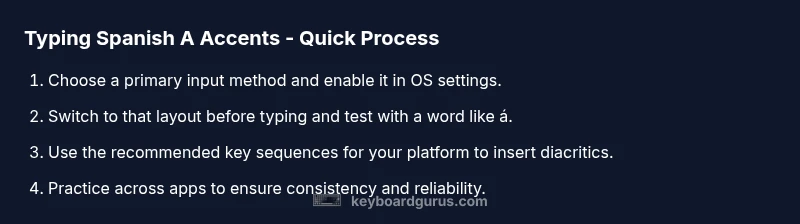
Choose a primary input method
Decide between a Spanish layout, dead keys, or Alt/Unicode methods based on your typical tasks. This ensures a consistent approach across documents and projects.
Tip: Consistency beats speed in the long run. - 2
Enable the input method in your OS
Open your system settings and add the chosen keyboard layout or input method. Ensure it can be quickly switched with a single shortcut or menu item.
Tip: Assign a convenient hotkey for fast switching. - 3
Switch to the selected layout for typing
Change the active input method before you begin typing. Verify by typing a test sentence containing vowels with accents.
Tip: A quick test prevents accidental misprints. - 4
Type á using Windows Alt codes or Unicode
If using Alt codes, hold Alt and type 0225 on the numeric keypad, then release. If using Unicode, input the code point corresponding to the accent you need when described by your OS.
Tip: Make sure NumLock is on if you use the numeric keypad. - 5
Type á on macOS with Option shortcuts
Press Option + e to create the acute accent, then press a to produce á. For other vowels, repeat with the base vowel.
Tip: This sequence can be faster than swapping layouts. - 6
Use a Linux Compose key or Unicode input
Configure a Compose key and press the sequence for an accented vowel, or use Ctrl+Shift+U and type the hex code (00E1 for á) and press Enter.
Tip: Choose a mnemonic for your compose sequences. - 7
Type on mobile by long-pressing
Long-press the a key to reveal options for á, à, á, and other diacritics. Slide or tap to choose the correct accent.
Tip: Practice on a few words to speed up input. - 8
Practice with real text
Practice with samples like mañana, cálculo, and pájaro to build muscle memory and ensure accuracy across apps.
Tip: Repetition builds reliable input.
Got Questions?
How can I type á on Windows without changing the keyboard layout?
You can type á using the US-International layout or Alt codes. The Alt method often uses Alt+0225 with the numeric keypad, while the US-International layout uses a combination of a dead key for accents.
Use Alt codes or switch to the US-International layout to type á quickly.
What is a dead key and how does it work?
A dead key marks the next key press as an accented character without inserting a separate symbol. For example, pressing the dead key for an acute accent and then a will produce á.
Dead keys let you combine accents with base letters.
Can I type Spanish accents on macOS without switching layouts?
Yes. Use the Option+e shortcut to create the acute accent and then type the base letter, or enable a Spanish layout for more direct accents.
Mac makes it easy with a few keystrokes.
How do I type ñe and other special characters besides á?
Many methods support several diacritics: use long-press on mobile, dead keys on desktop, or a dedicated layout. Ñ is available in Spanish layouts via a direct key or via Alt codes on Windows.
Ñ is supported similarly to accented vowels.
Is there a quick Compose key method for Linux?
Yes. Enable a Compose key and use sequences like 'a' then '~' then 'n' for ã, or other sequences for vowels with accents.
Compose key sequences are handy once learned.
What should I do if accents render incorrectly in documents?
Ensure the document uses a font that supports accented characters and that the chosen input method is active in both the OS and application.
Check font support and input method settings.
Watch Video
What to Remember
- Choose one reliable method and practice regularly
- Use OS shortcuts for fastest input
- Test accents in common apps to ensure compatibility
- Keep your workflows consistent across platforms