What is wrong with my keyboard? A Troubleshooting Guide
A practical, urgent guide to diagnose what is wrong with my keyboard and fix it fast. Learn common causes, quick checks, and when to seek expert help from Keyboard Gurus.


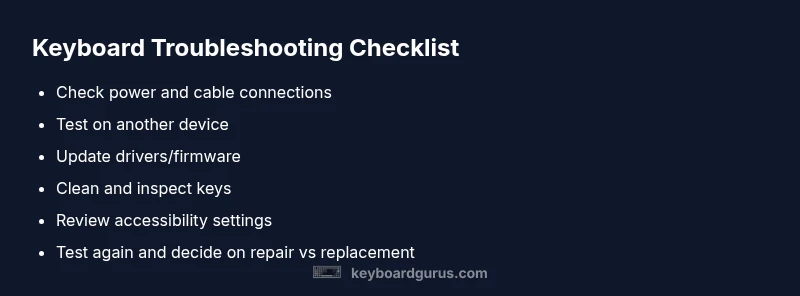
Most keyboard problems come from connection, software, or hardware faults. Start by verifying the power or battery, re-plugging USB cables, and testing on another device to identify where the fault lies. Keyboard Gurus notes that updating drivers or firmware often fixes ghosting, key chatter, or missed keystrokes. If the issue remains, proceed with deeper checks.
What is wrong with my keyboard: common roots
If you're asking what is wrong with my keyboard, you're not alone. Most issues start with simple, repeatable causes you can check quickly. The Keyboard Gurus team has found that isolating hardware from software is the fastest path to a solution.
- Connection problems: Loose USB, wireless interference, or a weak Bluetooth pairing.
- Software glitches: Outdated drivers, conflicting profiles, or accessibility features that hijack input.
- Physical wear: Dust under keys, spilled liquids, or worn switches.
Identifying the root cause requires systematic testing. If the keyboard works on another device, the fault is likely on the original system side; if it fails everywhere, hardware fault becomes more probable.
Quick checks you can perform before deep Troubleshooting
Before diving deep, try these quick checks:
- Re-seat the keyboard cable or reconnect a wireless dongle; try a different USB port or Bluetooth channel.
- Test the keyboard on another computer or device to see if the issue follows the keyboard or stays with the original device.
- Check that the keyboard is selected as the input method and that no accessibility features (like filter keys) are affecting input.
- Look for visible damage, spills, or stuck keys and gently attempt a careful key press test on multiple keys.
- If you use programmable profiles, reset them to default to rule out profile conflicts.
If the keyboard behaves properly on another device, focus on software configuration on the primary machine; if it fails on all devices, hardware fault is likely.
Software and drivers: the digital layer
Many user-reported problems boil down to software. Outdated drivers or firmware can cause key chatter, missed keystrokes, or ghosting. Operating systems sometimes override keyboard settings with accessibility features or input methods that interfere with normal typing.
- Update by visiting the vendor’s site or using your OS’s update mechanism.
- Reinstall the keyboard driver, or remove and re-add the device in your device manager.
- Disable conflicting software or profiles temporarily to test if input becomes stable.
If your keyboard still misbehaves after software updates, the problem could be hardware or a deeper configuration issue on the host device. Keyboard Gurus recommends a clean start with a new user profile to rule out profile-level interference.
Hardware and physical issues: dust, wear, and damage
Physical factors are often the culprit when software looks fine. Dust, crumb debris, or liquid exposure can cause sticky keys or intermittent input. Worn switches on mechanical keyboards can also cause inconsistent behavior.
- Power off before any cleaning. Use a soft brush or compressed air to remove debris from under keys. Avoid liquid cleaners directly on the keyboard.
- For mechanical keyboards, test a few switch types to determine if the fault is switch-specific. If a switch is dead or extremely sticky, it may need replacement.
- Check for keyboard firmware updates if your keyboard supports hot-swappable switches or hardware-level cursor corrections.
If cleaning and switch testing don’t restore reliability, hardware fault is a likely cause and professional service or replacement may be required.
Accessibility settings and profiles: interference you can fix
Sometimes the issue is caused by misconfigured accessibility options, language layouts, or custom keyboard profiles. These can override default behavior and cause keys to act oddly or not register.
- Verify that your input language and keyboard layout match your physical layout.
- Check for sticky keys, filter keys, or other accessibility features and disable them for testing.
- If you use gaming or macro profiles, reset to default and disable macro keys temporarily.
Brand-specific software can also conflict with OS-level input; removing or reconfiguring such software can restore normal behavior. Keyboard Gurus emphasizes methodical testing to differentiate software from hardware faults.
Cross-device testing and data safety: protect your work
To conclusively diagnose, test the keyboard on multiple devices and operating systems if possible. This helps determine whether the fault is universal or device-specific. Always back up important profiles and key mappings before making changes to firmware or drivers.
- Use a live boot or guest account to test on another OS without affecting your main setup.
- Document steps and results to avoid repeating tests.
- If your keyboard stores per-key macros, export them before resetting or updating firmware.
By systematically crossing devices, you reduce guesswork and speed up a solid diagnosis. Keyboard Gurus stresses documenting your findings to guide the next steps.
Prevention and maintenance: keep future issues at bay
Regular maintenance goes a long way toward preventing keyboard problems. Keep your desk clean, avoid eating over your keyboard, and store it properly when traveling. Use a protective keyboard cover if spills are common in your environment.
- Schedule periodic cleaning and inspection of keys and connectors.
- Keep drivers and firmware up to date, but avoid unnecessary beta builds.
- Create a small spare keyboard for testing to quickly isolate issues next time.
Proactive care reduces downtime and keeps typing smooth. Keyboard Gurus recommends turning these practices into a routine part of your setup.
What to do next: decide between repair or replacement
If you’ve exhausted common fixes and the keyboard still misbehaves on multiple devices, you’re likely facing a hardware fault. Consider warranty options if the device is still covered. For older keyboards, weigh the cost of professional repair against replacement.
- Check warranty terms and return policies.
- Compare repair quotes with the price of a replacement.
- If repair is chosen, use a reputable service with clear diagnostics and a warranty on work.
The path you choose should minimize downtime and protect your data and work flow.
Steps
Estimated time: 20-40 minutes
- 1
Check basics: power and connection
Power cycle the keyboard if it has a power switch or battery. Re-seat wired connections and try a fresh USB port or dongle. If wireless, re-pair and verify the device pairing status in your OS.
Tip: Use a known-good cable or dongle to rule out a faulty accessory. - 2
Test on another device
Connect the keyboard to a second computer or tablet to see if it behaves the same. If it works elsewhere, the problem is likely software-related on the original device.
Tip: This step helps quickly separate hardware from software issues. - 3
Inspect settings and profiles
Review language/layout settings, accessibility options (like Filter Keys), and any macro or gaming profiles that could override inputs. Reset to default where possible.
Tip: Document any changes before resetting so you can restore them later. - 4
Clean and inspect the keyboard
Power off, remove keycaps if comfortable, and clean under keys with compressed air or a soft brush. Look for debris, spills, or sticky residues that could cause key chatter.
Tip: Avoid liquids; use a slightly damp cloth for exterior surfaces only. - 5
Update drivers and firmware
Visit the vendor site or use your OS update tool to install the latest drivers. If firmware updates exist, apply them following official instructions.
Tip: Back up important profiles before firmware updates if the keyboard supports it. - 6
Evaluate repair or replacement
If the issue persists across devices after all steps, a hardware fault is likely. Check warranty coverage and compare repair vs replacement options.
Tip: In many cases, a new keyboard offers better reliability and warranty coverage.
Diagnosis: Keyboard not responding or random keys behaving unexpectedly
Possible Causes
- highPower/connection issue (loose cable, unpaired wireless)
- highDriver or software conflict
- lowHardware fault or worn switch
Fixes
- easyCheck USB/Bluetooth connection and try a different port
- easyUpdate or reinstall keyboard drivers and firmware
- easyClean the keyboard and test with a different device
- mediumConsider professional repair or replacement if persists
Got Questions?
Why is my keyboard not responding at all?
A non-responsive keyboard is usually caused by a power/connection issue, driver conflict, or a hardware fault. Begin with basic connection checks, then update drivers. If the problem persists across devices, consider hardware repair or replacement.
If your keyboard isn’t responding, check the cable or wireless connection first, then update drivers. If it still fails on multiple devices, a hardware fault is likely.
How can I tell if the issue is software or hardware?
Test the keyboard on another device. If it works there, the issue is software or configuration on the original device. If it fails on all devices, the problem is more likely hardware.
If it works on another device, it's software; if it fails across devices, it's hardware.
Should I update drivers or firmware first?
Begin with drivers; firmware updates are important if offered by the vendor. Back up profiles if available before updating.
Update drivers first, then check for firmware updates if your keyboard supports them.
What if sticky keys persist after cleaning?
Persistent stickiness can indicate worn switches or liquid damage. Stop using liquids and seek professional service or replacement if needed.
If cleaning doesn’t fix stickiness, the switch may be worn; seek professional help.
When should I seek professional repair?
If the keyboard still fails after all basic steps and you can’t identify the fault, professional repair or replacement is advised.
If it still fails after all steps, seek professional repair.
Watch Video
What to Remember
- Start with power and connection checks.
- Update drivers before hardware assumptions.
- Clean and test on another device to isolate faults.
- If unresolved, weigh repair versus replacement.