What to Do If Your Keyboard Isn't Typing: Urgent Troubleshooting Guide
Urgent, step-by-step troubleshooting for a keyboard that won’t type. Diagnose hardware vs software, fix common issues, and prevent future problems with expert guidance from Keyboard Gurus.


Two minutes into troubleshooting, the most likely cause is a loose connection or a software hiccup. Start by confirming the keyboard is powered and connected (USB cable secure or Bluetooth paired), then test in another app or device to rule out a stuck key. If typing still fails, proceed with driver checks, layout settings, and a clean reset before seeking help.
Quick assessment: is the issue hardware or software?
When the keyboard won’t type, the root cause is usually either hardware (a loose cable, a dead key, dust-covered switches) or software (driver conflicts, wrong keyboard layout, or accessibility features). According to Keyboard Gurus, most typing problems originate from simple hardware connections or software settings rather than catastrophic failures. Start with a quick mental map: can you type in a different app or on another device? If yes, focus on software/configuration; if no, focus on the keyboard hardware. This distinction guides every following step and saves time during urgent troubleshooting.
Check physical connections and power
For a wired USB keyboard, unplug and replug both ends, try a different USB port, and inspect the cable for any visible damage or kinks. If you’re using a wireless keyboard, check the batteries and re-pair the device with its receiver or reconnect via Bluetooth. If you’re on a laptop, test with an external keyboard to determine whether the issue is local to the built-in keys. Dust, crumbs, or a loose connector are common culprits and are usually fixable without professional help.
Test with another device and apps to isolate the problem
Connect the keyboard to a different computer, tablet, or phone (via USB-C/OTG if needed) and try typing in a few apps. If it works on another device, the problem is likely OS-specific or a device setting on the original machine. If it fails on multiple devices, the issue may be hardware-related. Also try the on-screen keyboard to verify touch input isn’t the sole typing method affected by a broader accessibility setting.
Inspect software settings: language, shortcuts, and accessibility
Misconfigured language layouts (e.g., switching from US to UK, or using an alternate input method) can mirror a non-typing issue. Check the keyboard layout in your OS settings and verify that Sticky Keys, Filter Keys, or other accessibility features aren’t intercepting keystrokes. Ensure that language packs are installed correctly and that any macro or remapping software isn’t capturing all keystrokes. A quick test with a standard layout helps confirm if the problem is layout-based rather than hardware.
Resolve driver, firmware, and Bluetooth issues
Outdated or corrupt drivers can stop a keyboard from typing. Update or reinstall the keyboard driver from the device manager (Windows) or System Preferences (Mac). If using a Bluetooth keyboard, re-pair the device and reinitialize the Bluetooth adapter if available. For USB keyboards, try removing any power-saving settings that might put the USB port into a low-power state. If a firmware update is available from the manufacturer, apply it after backing up settings.
Cleaning and maintenance to prevent future typing failures
Dust, grime, and spilled liquids are frequent enemies of keyboard switches. Power off the computer, disconnect power, and use compressed air to blow out debris from between the keys. Wipe the keycaps and surface with a lint-free cloth; never spray liquids directly. After cleaning, reassemble and retest to confirm that the issue was mechanical rather than software.
When to seek professional help and prevention
If the keyboard still won’t type after all the above steps, you may have a hardware fault or a deeply embedded firmware issue. Check your warranty and contact the manufacturer or a qualified technician. Keyboard Gurus recommends documenting your steps and outcomes to speed up any support process, and setting up preventive routines (cleaning schedules, avoiding spills, and periodic driver checks) to reduce recurrence.
Steps
Estimated time: 60-90 minutes
- 1
Verify power and connections
Unplug and replug the USB cable, or re-pair the Bluetooth device. Check for loose ports and try a different USB port. If you have a keyboard with a detachable cable, reseat the connector firmly. Then test typing in a basic text field to confirm basic functionality.
Tip: Use a known-good USB port on the computer, not a USB hub, to rule out power issues. - 2
Test with an external keyboard
Connect a secondary keyboard to determine if the issue is isolated to the original keyboard. If the external keyboard works, the problem likely lies with the built-in keyboard or its connection to the motherboard.
Tip: If you’re on a laptop, try a USB keyboard first before disassembling hardware. - 3
Check OS language and layout
Open keyboard settings and confirm the layout matches your physical keyboard. Temporarily switch to a standard layout (e.g., US QWERTY) to see if typing resumes. Disable any unusual macros or remapping tools that could capture keystrokes.
Tip: Test both the top-row function keys and a standard letter row to identify selective failures. - 4
Update or reinstall drivers
In Windows, use Device Manager to update or reinstall the keyboard driver. On macOS, ensure that system updates are fully installed. Restart after installation and test typing again.
Tip: Back up important keys or macros before reinstallation if you rely on custom mappings. - 5
Re-pair Bluetooth or re-attach USB receiver
For Bluetooth keyboards, remove the device from paired list and re-pair. For USB receivers, unplug and reinsert the receiver, or try a different USB port. Ensure the keyboard isn’t blocked by interference.
Tip: Remove interference sources like microwaves or wireless speakers during pairing. - 6
Clean and inspect the hardware
Power off and disconnect power. Use compressed air to clear dust from between keys; wipe surfaces with a dry microfiber cloth. If a key is physically stuck, gently pry it and reseat the switch if you’re comfortable doing so.
Tip: Never spray liquid cleaners directly onto the keyboard. - 7
Final test and escalation
Re-test typing across multiple apps. If issues persist after 60 minutes of troubleshooting, escalate to a professional or contact the manufacturer for repair or replacement options under warranty.
Tip: Document steps taken and outcomes to speed up future support.
Diagnosis: Keyboard not typing on computer
Possible Causes
- highPower or connection issue
- mediumDriver or firmware problem
- mediumLayout, language, or accessibility settings misconfigured
- lowHardware failure or dead keys
Fixes
- easyRe-seat/replace USB cable or reconnect Bluetooth pairing; try a different USB port
- easyUpdate or reinstall keyboard drivers; run OS keyboard troubleshooter
- easyCheck language/layout settings and disable conflicting accessibility features
- mediumTest with another keyboard to confirm hardware failure; contact support or replace keyboard
Got Questions?
What is the first thing I should check when my keyboard stops typing?
Begin with power and connection checks. Verify USB/Bluetooth status, test with an external keyboard, and rule out a software issue by trying a basic text field in another program.
First, check power and connection, then test with another keyboard to isolate hardware from software.
Why do some keys stop typing while others still work?
Partial typing often points to a single stuck key, debris under keys, or a localized hardware fault. It can also be caused by a misconfigured layout that maps certain keys differently.
If only some keys work, check for debris, one stuck key, or a misconfigured layout.
Can a software update fix keyboard typing issues?
Yes, updates can fix driver bugs or compatibility issues. Run the OS updater and check for keyboard-specific drivers from the manufacturer.
Updating the OS and keyboard drivers can fix typing issues caused by software bugs.
How can I tell if the keyboard hardware is at fault?
If a different keyboard works on the same device, the original keyboard is likely faulty. If no keyboard types anywhere, the issue is OS or hardware at the device level.
If another keyboard works, yours is probably faulty; if none work, the device side may be the problem.
Is it safe to open my keyboard to clean it?
Only if you’re comfortable with electronics. Power off completely, discharge static, and avoid liquid cleaners. Consider professional cleaning for complex keyboards.
Cleaning is okay if you power off and avoid liquids; for complex keyboards, seek help.
What should I do if the keyboard works on another device but not mine?
This suggests a device-specific setting or software conflict. Reinstall drivers, reset keyboard settings, and check for conflicts with other peripherals.
If it works on another device but not yours, focus on your device settings and drivers.
When should I replace the keyboard instead of repairing it?
If repeated issues persist after thorough troubleshooting, or the keyboard is physically damaged, replacement is usually cost-effective.
If issues persist after troubleshooting or there’s visible damage, replacement is often best.
Watch Video
What to Remember
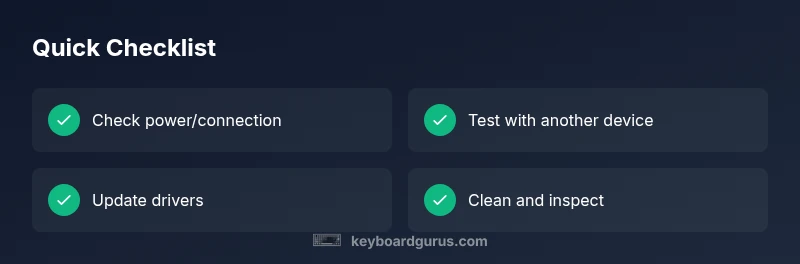
- Start with power and connection checks
- Test across devices to isolate hardware vs software
- Update drivers and verify layout settings
- Clean and maintain to prevent future issues
- Escalate to professional help if needed